A booking is a job that is already yours. It is the same record as the enquiry it came from, with the same id, the same portal link and the same history: only the type changes, and it never changes back. Bookings get their own board under Bookings.
Open bookings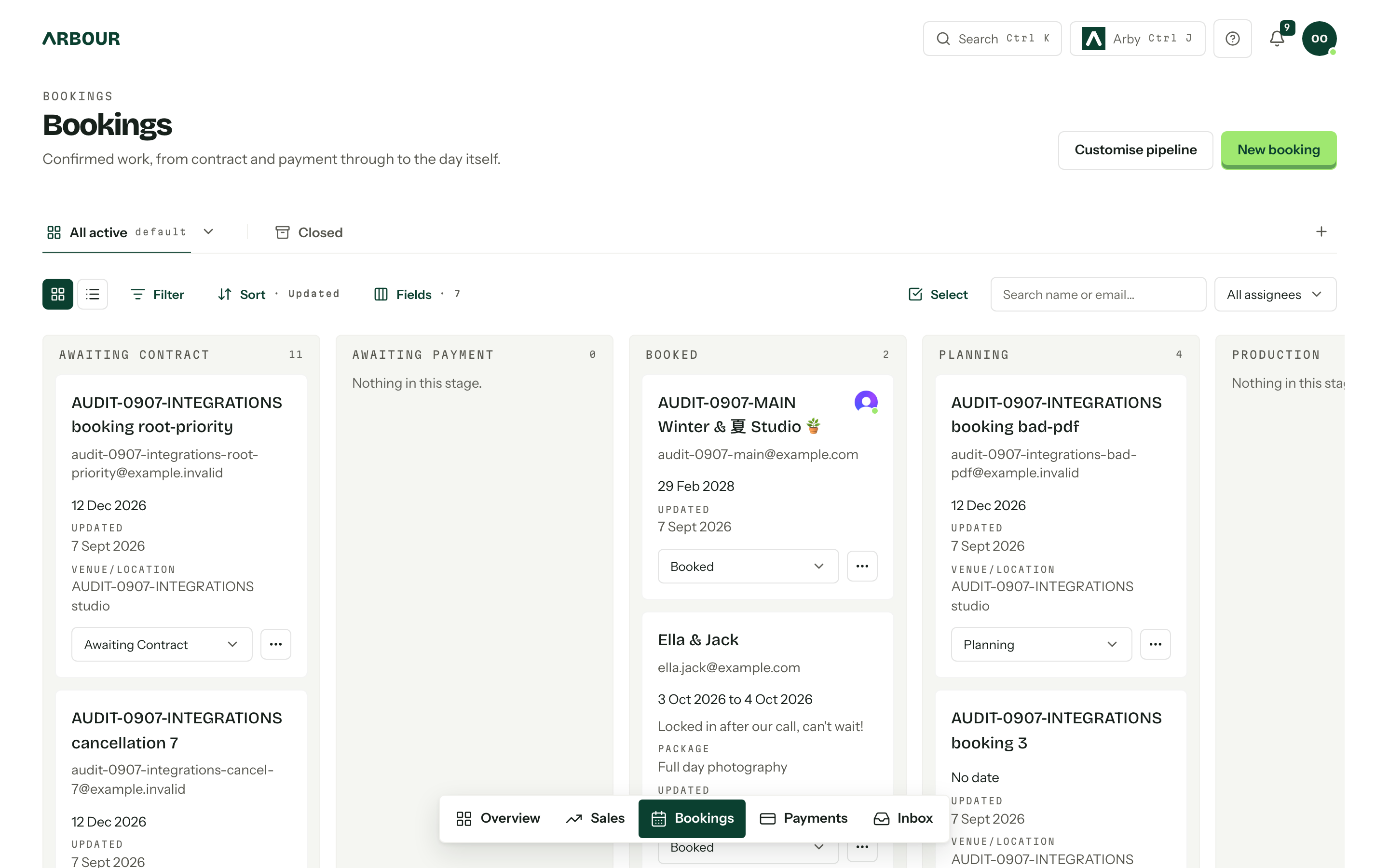
How a booking starts
Three ways in, all landing on the same board.
- 01
A client accepts a quote in their portal. The enquiry converts on the spot, into the first booking stage of its own workflow.
- 02
You convert it yourself. Convert to booking on an enquiry asks which Booking stage it lands in and does the rest.
- 03
You skip the pipeline entirely. New booking takes a workflow, an Event date, a stage, a primary contact and any custom fields, for work that arrived by phone or at a fair.
The board splits into All active and Closed, with the same views, filters, sort, fields and layout controls the enquiry board has. Enquiries covers those.
Workflows
The workflow menu beside the board's title picks the workflow. Each workflow is one enquiries board and one bookings board for a service line, and bookings never cross between them: a booking sits in the workflow its enquiry was raised in, with that workflow's stages, outcome labels, custom fields and questionnaire templates. The board opens on the workflow you used last. Every organisation starts with one, called Default, and can run up to five.
Stages and outcomes
Stages are yours to arrange in Settings, under Workflows: open a workflow and edit its Booking stages and its outcome labels. A new organisation starts with Awaiting Contract, Awaiting Payment and Booked, then the fulfilment stages for your trade: a photographer gets Planning, Production, Editing and Delivery. Drag a card between columns, or use the stage select on the card itself.
A booking closes one of two ways: Mark Completed or Mark Cancelled. Cancelling offers an optional reason, kept in the console and never shown to the client. Either way the card keeps its stage and moves to the Closed tab, so Reopen puts it back exactly where it was. Closing also cancels the job's future appointments and emails the client about each. Reopening does not book them again: the page lists what was cancelled so you can rebook what still stands. Lost belongs to enquiries; a booking never gets it.
Closing is reversible; deleting is not. Delete booking sits at the bottom of a card's actions menu (and a row's menu in the list layout) for roles that hold the delete permission, and takes the whole record with it. Several at once go through Select and the selection bar's Delete button.
Won means booked, not finished
Reporting counts a booking as won the moment it exists. Completing or cancelling it later does not take it back out of that number. Reports can attribute the win to the day the sale landed or to the event date itself.
The booking page
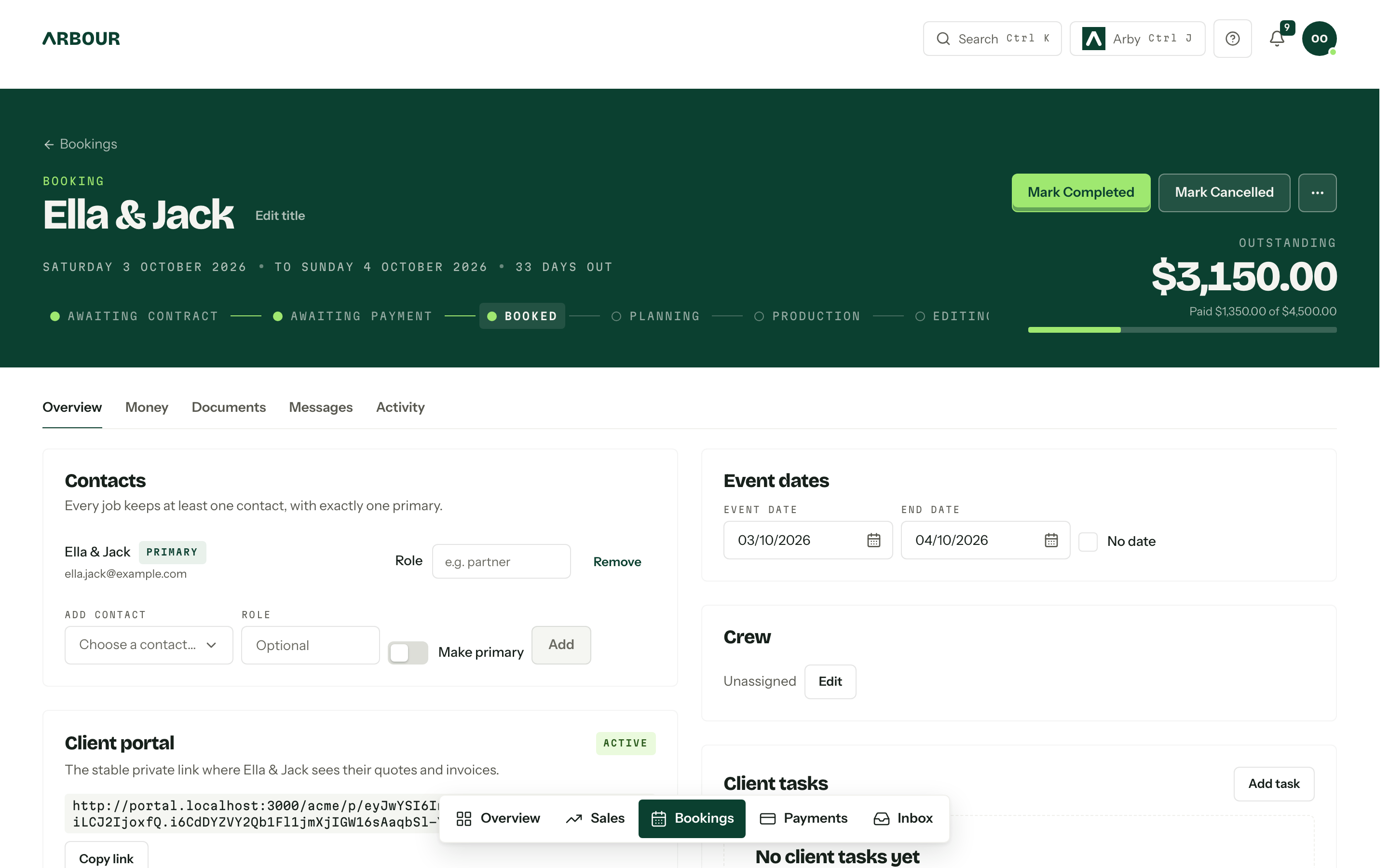
The dark band at the top carries the client photo, the title, the date line with a countdown, the stage stepper and the outstanding balance. Click the date line to jump to the Event dates card. Edit title replaces the name taken from the contacts; leave it blank to hand the name back.
The photo is there so the team remembers who they are working with. With none, an empty circle appears beside the name while you edit the title: press it to add a PNG or JPEG up to 5 MB. Press an existing photo for Replace photo or Remove photo. Both need the permission to edit enquiries and bookings.
The action row holds Brief me (Arby's written summary of the job, when the AI assistant is on and your role can use it), Open client portal or Create portal link, Mark Completed and Mark Cancelled, then More actions, an ellipsis holding Delete booking. Below it, tabs keep one thing on screen at a time.
- Overview: Contacts, Event dates, Crew, Appointments, Client portal, the team's Tasks, Client tasks while client tasks are enabled for the portal, any stage automations running on it, your custom fields and any unsent drafts. Inventory appears when inventory and hire tracking are enabled and you have permission to view it.
- Money: accepted, invoiced, paid and outstanding, with the quotes and invoices behind them.
- Documents: the contract, Questionnaires and Job documents, the files kept against the job.
- Messages: the client's portal conversation, once a portal link has been created and while Messages is enabled for the organisation.
- Day of: the run sheet. It appears only once run sheets are switched on and the booking has a date.
- Activity: everything that has happened, plus the notes and calls you log.
Event dates are one inclusive range: an Event date, an optional End date, or No date. Equal dates mean a single day. That range drives the calendar, payment deadlines and whether a run sheet is possible at all.
Crew is the assignee list. Edit opens the member picker. Assigning someone who already has work on those dates raises a warning rather than blocking you. Assigning a person to a booking does not allocate equipment to them. Track that separately under Crew gear.
Appointments holds the calls, walkthroughs and shoots booked on the job. New appointment books one. A scheduled row has Reschedule, Edit and Cancel; a request a client sent has Accept and Decline instead. Past ones fold under Show past, where a completed meeting has Mark no-show. See Appointments.
Inventory on the booking
When a client accepts a quote, Arbour reserves the accepted packages' current inventory requirements if inventory and hire tracking are enabled. Convert to booking and New booking do not reserve anything automatically. Use the Inventory card's Add item or Add from package to add what the job needs. Stock warnings are advisory, so check them before committing to the job. See Stock for bookings for picking units, marking items out and recording returns.
Hire allocations follow the booking's inclusive event dates. Moving those dates moves the stock commitment and can reveal a clash. An undated booking can hold allocations, but they do not count against dated availability until the booking has dates.
Cancelling a booking also cancels its open tasks, and reopening it brings those back.
Cancelling a booking changes its Reserved and Out allocations to Released, including when an automation cancels it. Reopening the booking does not reserve those items again; review the Inventory card and use Reinstate on Released rows, or add new allocations. Released is a stock-planning status, not confirmation that equipment has physically come back.
Completing a booking leaves its allocation statuses unchanged, but the closed booking no longer counts against availability. If you reopen it, any allocations still Reserved or Out count again on its event dates. Record returns before completing the booking when you need the inventory record to show what came back.
Who can do what
Viewing needs View enquiries and bookings. Without View all enquiries and bookings a member sees only the jobs they are assigned to, and the board says so above the columns. Creating needs Create enquiries and bookings. Moving, converting and closing need Edit, move and close enquiries and bookings, changing the crew needs Assign members to enquiries and bookings, and rearranging stages needs Manage workflows, stages and automations. Deleting needs Delete enquiries and bookings, which a role cannot hold without the edit permission. A delete is permanent and takes everything on the booking with it, including quotes, invoices, questionnaires, appointments, the client's portal messages and client tasks, the team's tasks, the run sheet, files and activity, and the portal link itself. Contacts and email conversations stay. Financial history stops a delete: an issued invoice, a payment that is not failed or expired (pending and processing count), or a contract that anyone has signed each hold the booking in place until they are dealt with. An unsigned contract goes with the booking. See Team and roles.