A run sheet is the schedule for one job: entries with a time, a title and whatever else the crew needs to read at a glance. It lives on the booking's Day of tab, and your client sees it in their portal. It ships switched off, so the first stop is Settings.
Open run sheet settings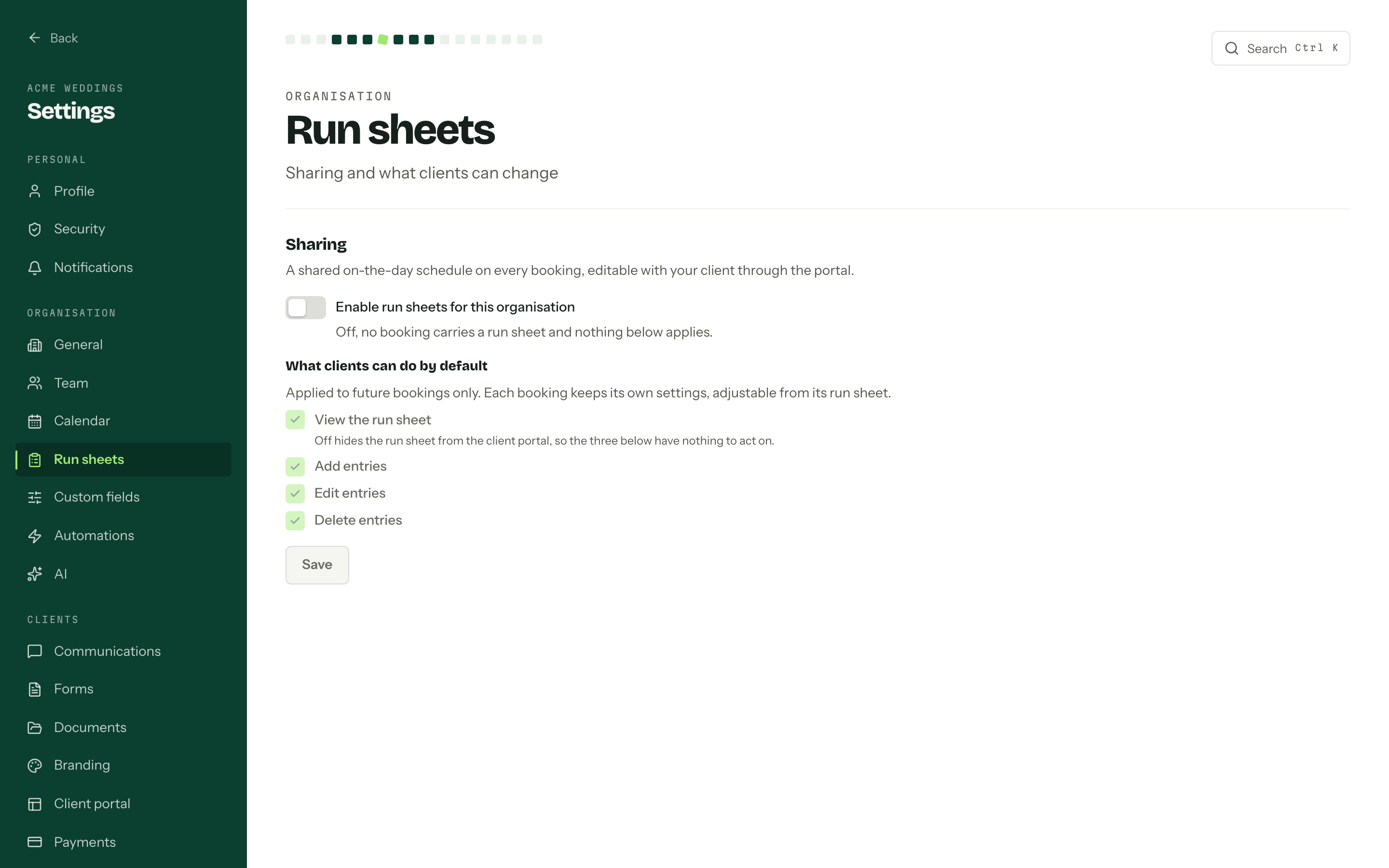
Switch them on
- 01
Turn on Enable run sheets for this organisation. Until it is on, the Day of tab does not exist anywhere.
- 02
Under What clients can do by default, tick what a client may do: View the run sheet, Add entries, Edit entries, Delete entries. All four start ticked, and they stay greyed out while the switch above is off.
- 03
Press Save. Those defaults apply to future bookings only. A booking that already has a run sheet keeps whatever it was given.
There are no run sheet templates. Every booking builds its own, created the first time somebody opens it.
Build one for a job
Open the booking and pick Day of. Build a run sheet gets there in one step by asking which booking you mean, and on the overview R opens the same dialog while the rail has focus.
Build a run sheet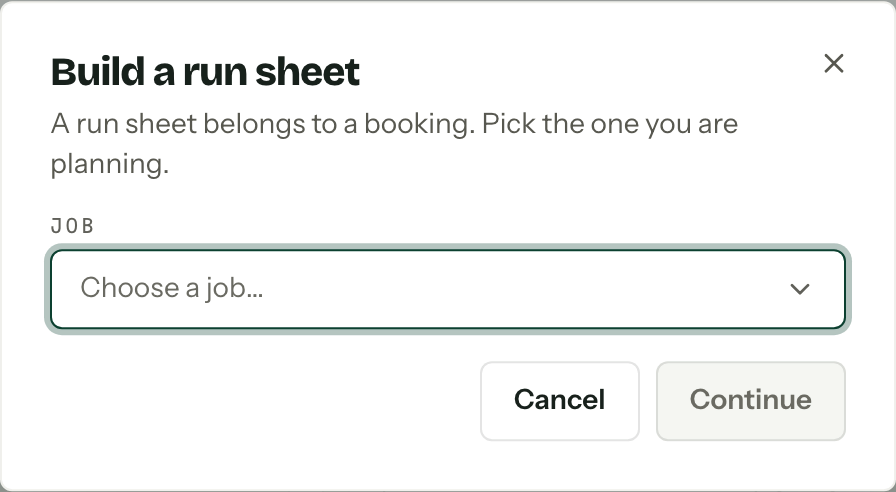
The schedule draws a time ruler for each day of the booking. Add entry takes a Title, Date, Start time, an optional Duration (minutes), a Colour, a Category, a Location and Notes. Times are read in the organisation's timezone. Drag a block up or down to move it, snapped to 5 or 15 minutes depending on Drag snapping; on a phone or tablet, open the entry and change its time instead. Click a block to edit it. Entries that overlap sit side by side and carry a marker saying so.
An entry has to fall inside the booking's dates, so the booking needs an Event date before any of this works. Lock, in the entry's dialog, freezes its date, time and duration: locked entries cannot be dragged, and cannot be deleted until they are unlocked.
On the calendar, each day of a run sheet that has entries shows as a chip with the count, and the Day view lists the entries by time.
Sharing it with your client
Client access, under the schedule on the run sheet card, is the sharing control: See the run sheet, Add entries, Edit entries, Delete entries, then Save client access. Turning viewing off hides the run sheet from the portal without losing a thing. Save as organisation default pushes the same set onto future bookings and leaves existing ones alone.
In the portal it shows as a Run sheet tab. Everyone on that link acts as one shared client, so anything they change comes back to you as "Last edited by your client". Both sides refresh about every fifteen seconds, and a clash is caught and explained rather than quietly overwriting someone. See Client portal.
A closed booking is read-only
Complete or cancel a booking and the schedule freezes. Sharing and snapping can still be changed; the entries cannot.
PDF and permissions
Download PDF on the card downloads the sheet as it stands: one heading per date, then times, categories, locations and notes. Clients get the same document as Download PDF in the portal. Nothing is stored, it is rendered from the current entries each time, so the copy in someone's hand is only as fresh as the moment they took it.
Reading a run sheet needs View run sheets. Changing one, including Client access and Drag snapping, needs Edit run sheets. The settings page above needs Manage organisation settings, and so does Save as organisation default. See Bookings for where the tab sits.