A questionnaire is a set of questions you send to a client from a booking. They answer it in their portal at their own pace, and the answers land back on the job. Templates live in Settings under Forms, on the Questionnaires tab. They belong to a workflow: the switcher on the tab says which set you are looking at, and each workflow has its own default template.
Open questionnaire templates
Build a template
- 01Press New questionnaire and give it a Name.
- 02
Choose Client editing after submission: Editable indefinitely, Read-only after submission, or Editable until a cutoff with Days before the booking.
- 03
Under Questions, use Add a question and pick a type for each block, then Save questionnaire.
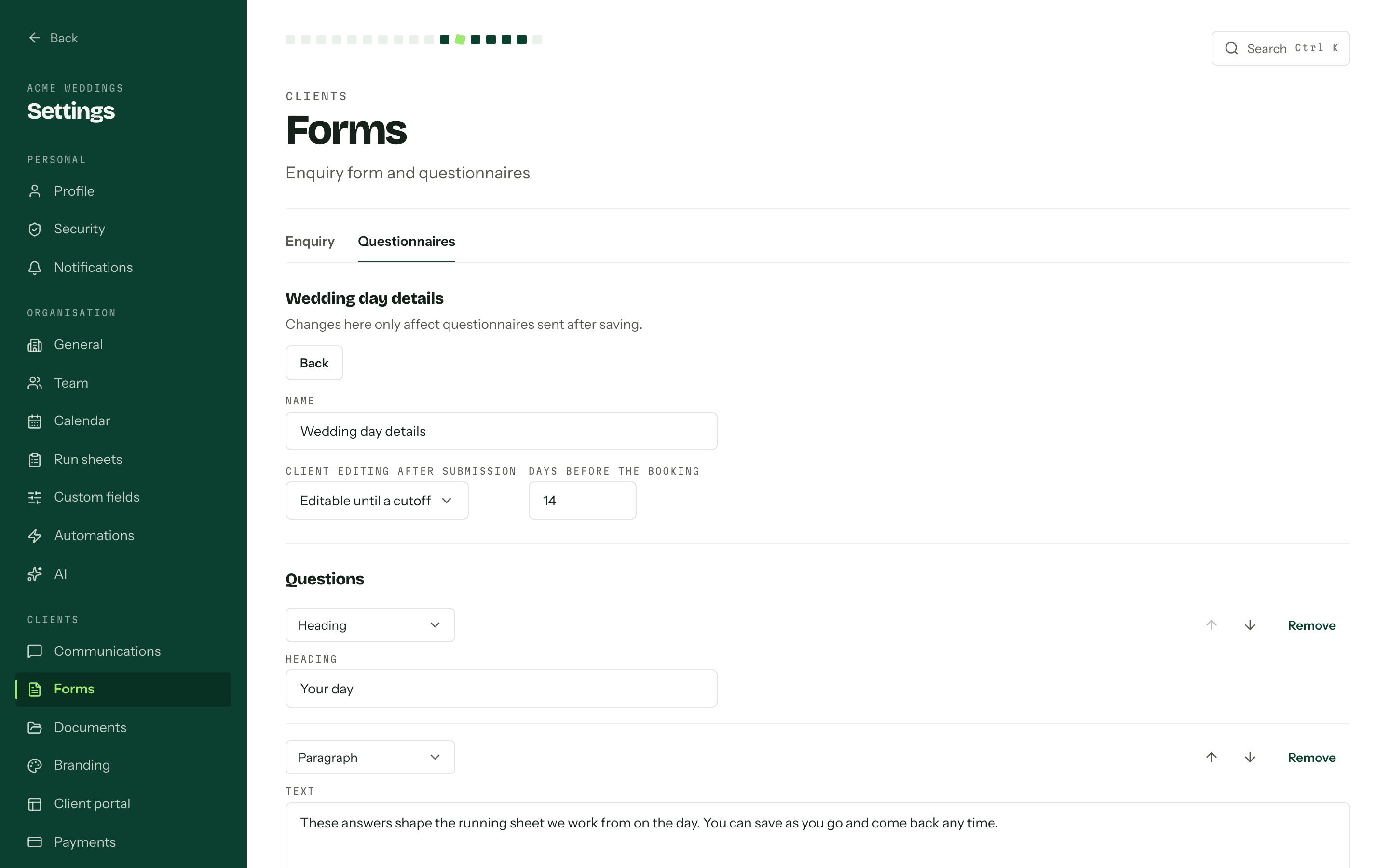
Fourteen block types: Short text, Long text, Number, Date, Time, Email, Phone, Dropdown, Radio buttons, Multi-select, Checkbox and File upload, plus Heading and Paragraph for structure. Any question can be Required, and the arrows move blocks around. Changing a block's type starts it over, so answers already given to that question go with it. A file upload takes one PDF, JPEG, PNG or HEIC file of up to 10 MB.
Saving only affects questionnaires sent afterwards. If someone else saves the same template while you are editing it, your changes are kept and Arbour asks you to Load latest version before you can save, which discards them.
Default, archive and delete
Each workflow has one default template, marked Default in the list and preselected when you send. Make default moves the badge to another template. Archive takes a template out of the send list for good: an archived template cannot be edited or restored, and questionnaires already sent from it keep working. Delete only appears on a template that has never been sent, and the list shows how many times each one has been used.
Landing answers in a field
A question can write its answer straight onto the booking. Pick a field under Map to custom field, then a Write mode: Fill empty only writes when the field is blank, Override writes on every submission. Only pipeline custom fields from the template's workflow are mappable, only where the two types agree, and only one question per field. See Custom fields.
A mapped choice question takes its options from the field, so those are edited in field settings rather than here.
Sending one
On a booking, the Documents tab holds the Questionnaires card. Template lists the templates of the booking's own workflow, with the default first. Pick one and press Send questionnaire, or Review first to open it as a private draft on its own page, where you can adjust the questions for this client before pressing Send to client. Email client, under the arrow beside the send button, decides whether a link goes out by email as well as appearing in the portal. With email review on, the email opens for you to read before it goes. If the primary contact has no email address, the questionnaire still lands in their portal and no email is sent.
Delete on a row removes that questionnaire with every answer, submission and file on it.
Status runs Draft, Not started, In progress and Submitted, plus Needs review when you publish a revision after they have started. Their page saves as they type and only checks the required answers when they press submit, so a half-finished questionnaire is never lost.
Revisions and responses
The template is copied into the questionnaire the moment it is created. Editing a template later never touches questionnaires already sent. Sending publishes revision one. Change the questions on the questionnaire's own page and Save changes, and it shows Unpublished edits until you Publish revision, which carries existing answers across by question and puts the questionnaire back in front of the client. Once a client has submitted, a questionnaire under Read-only after submission, or past its cutoff, shows Locked for client and cannot be republished until you change its edit policy.
The questionnaire page keeps four tabs: Questions, Responses (the live answers, with Save answers and Submit on client's behalf), History (a frozen copy of every submission, in order) and Files (anything they uploaded).
Mapped fields write on submit
Answers reach your custom fields when the questionnaire is submitted, not while it is being filled in. A mapping never clears a field, and one that no longer fits is skipped rather than failing the whole submission.
Permissions
Sending, editing and answering need Send, edit and answer questionnaires. Reading needs View questionnaires. The templates need Manage questionnaire templates, and without it the editor opens read-only. Questionnaires are a booking-only surface: an enquiry never shows the card. See Bookings.