Tasks are the team's own to-dos. A task can sit on an enquiry or a booking, or on nothing at all, like renewing your insurance. Clients never see them: the tasks a client ticks off in their portal are a separate list. Tasks in the main navigation opens the page, and its badge counts your own tasks that are due today or overdue.
Open tasks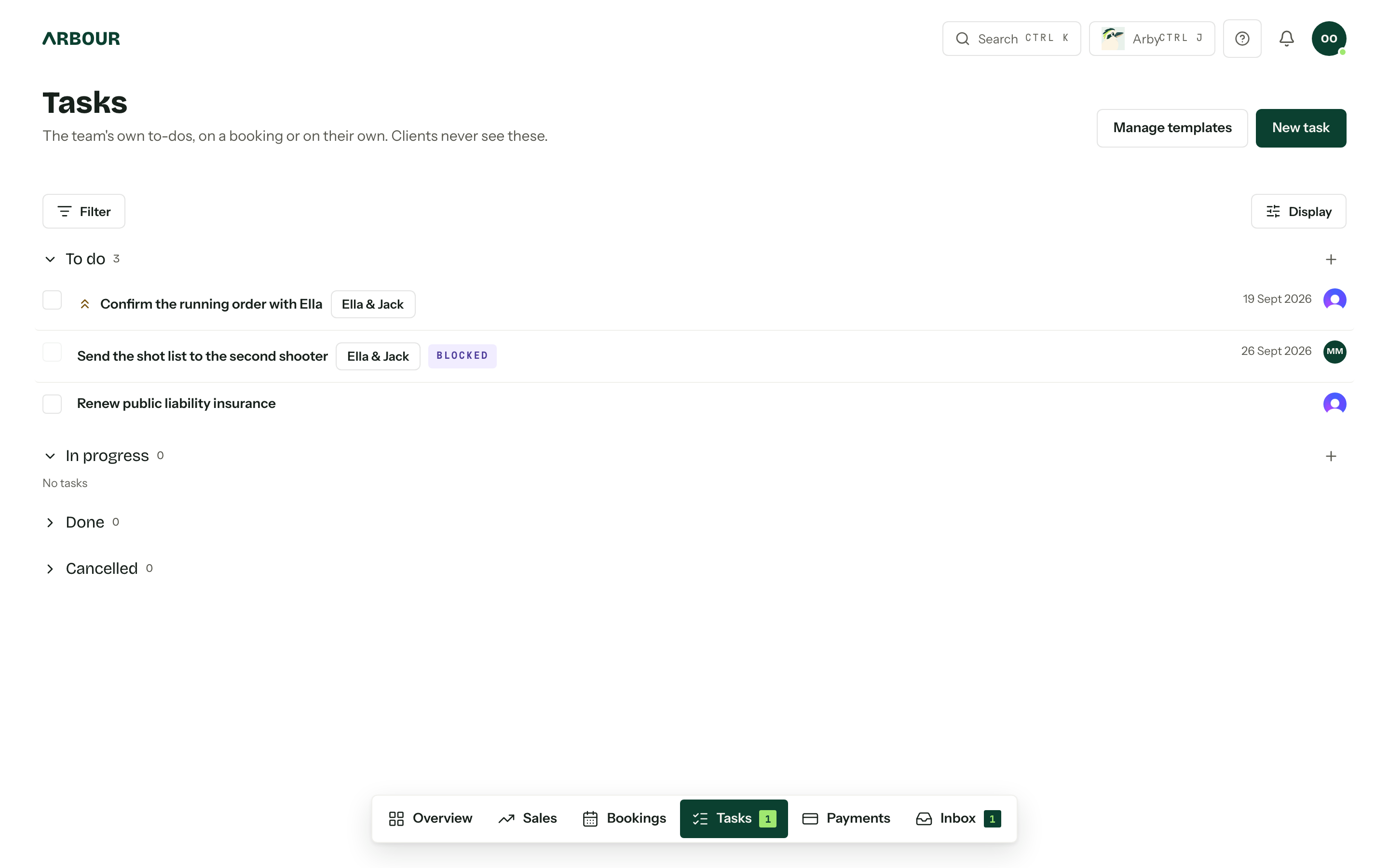
Reading the list
Each row reads left to right: the checkbox, a double chevron for high priority, the title, the booking it belongs to, then any In progress, Cancelled or Blocked badge. The due date and the assignee's avatar sit on the right. An overdue date turns red. Press the title or anywhere on the row to open the task; the booking tag opens the booking instead.
Tick the checkbox to mark a task done. Untick it to put it back to To do. A blocked task cannot be ticked until the tasks it waits on are done.
Filters
Filter narrows the list by Status, Priority, Assignee, Workflow and Due. Each category you use becomes a chip beside the button: press the chip to change its values, or its cross to drop it. Clear removes every filter.
- Assignee offers Me, Unassigned and each member.
- Workflow only appears once you have more than one workflow.
- Due sorts tasks into Overdue, Today, This week (the next seven days), Later and No date.
Filters live in the page address, so a reload, a bookmark or a link you send a colleague opens the same view.
Groups and display
Display chooses how the list is grouped and ordered. Group by Status, Due date, Priority or Assignee; order each group by Due date, Priority or Created. Arbour remembers your choice in this browser only.
Every group heading shows its exact count. Press the heading to fold or unfold the group. Grouped by status, Done and Cancelled start folded. In any other grouping, done and cancelled tasks stay out of the list unless the Status filter asks for them. A group shows 50 tasks at a time, with View more underneath for the rest.
The + beside a group heading starts a new task. Grouped by status, priority or assignee, it starts with that group's value already set, such as In progress, High or that person. Grouped by due date, it starts blank. Done and Cancelled have no +: a task starts open.
Add a task
- 01Press New task.
- 02Give it a Title. Notes are optional.
- 03Set the Status, Priority and Assignee. A task has one assignee, or none.
- 04
Pick a Booking if the task belongs to a job. It searches enquiries as well as bookings. Or leave it as Not on a booking.
- 05Choose when it is Due, and what it Depends on, then press Create task.
The booking cannot be changed once the task is created. To add a task straight onto a booking, use Add task on the booking's Tasks card instead.
Due dates
- No due date keeps it out of the overdue count.
- On a set date is a fixed date.
- Relative to the event start or Relative to the event end counts days before or after the booking's event date, and follows it when the event moves. Only a task on an enquiry or booking offers these.
- Days after the task is created counts from the day it was made.
- Days after the tasks it waits on are done counts from the day the last one is finished, and appears once the task depends on something.
With a relative date, the dialog shows Currently due and the date it works out to. A relative task has no date until its anchor exists: a booking with no event date, or predecessors still open.
Tasks that wait on others
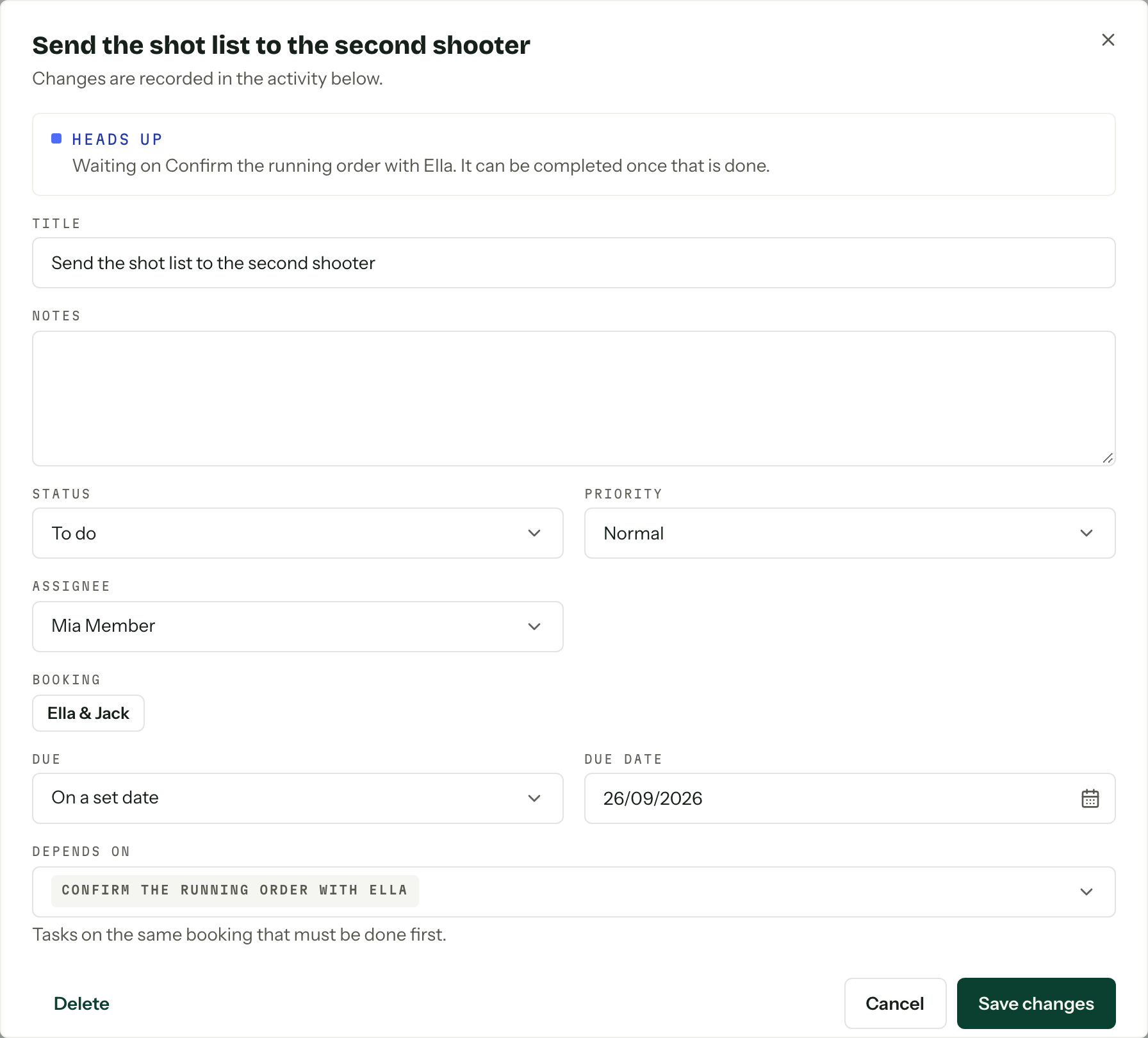
Depends on lists the tasks that must be done first. On a booking, only that booking's tasks are offered. While any of them is still open, the task shows Blocked and cannot be completed; the dialog names what it is waiting on. A cancelled predecessor does not hold anything up. When the last one is finished, the assignee gets a Task ready to start notification.
Opening a task that others wait on shows them under Holding up.
Edit or delete a task
Open a task to change anything about it and press Save changes. The Activity list at the foot of the dialog records who created the task and every change since, including those made by an automation.
Delete removes the task and its history for everyone. Tasks that were waiting on it stop waiting. To keep the record, set the status to Cancelled instead.
Tasks on a booking
Every enquiry and booking has a Tasks card on its Overview tab. It lists the open tasks; Show completed brings back the done and cancelled ones. Add task creates one on that booking, and Apply template adds a whole task template at once. The template menu appears once the booking's workflow has at least one template.
Closing a booking as cancelled, or an enquiry as lost, cancels its open tasks, including when an automation closes it. Reopening it brings back exactly those tasks, with their event dates recalculated. Tasks someone cancelled by hand stay cancelled. Marking a booking completed leaves its tasks as they are. Deleting the booking deletes its tasks.
On the calendar and the overview
A task with a due date shows as a chip on its day on the calendar, under Tasks in the calendar's Filters. Click the chip for a peek with its due date, assignee and job; Mark done there ticks it off without leaving the calendar, for anyone who could tick it here. Overdue tasks also show under Needs you on the overview.
Notifications
Three notifications cover tasks, each switched on or off in your notification settings:
- Task assigned to you when someone gives you a task.
- Task ready to start when a task you own stops waiting on others.
- Daily task summary from 9 am in your organisation's time zone, on days you have open tasks due today or overdue. Its link opens this page filtered to exactly those.
Who can do what
- View your tasks and tasks on your bookings opens the page. A member sees the tasks assigned to them, the tasks they created, and every task on a booking they are crewed on.
- View all tasks shows every task in the organisation.
- Create, edit, assign and delete tasks unlocks everything in the dialog. Without it, the assignee of a task can still change its status and tick it off.
- Manage task templates adds the Manage templates button beside New task.
The starting Member role can view and manage tasks but not view them all. See Permissions reference.