A task template is a checklist your team works through on a booking: confirm the details, call the client, send the final invoice. Clients never see these tasks. Templates live in Settings, under Task templates, and belong to a workflow: the switcher at the top says which set you are looking at.
Open task templates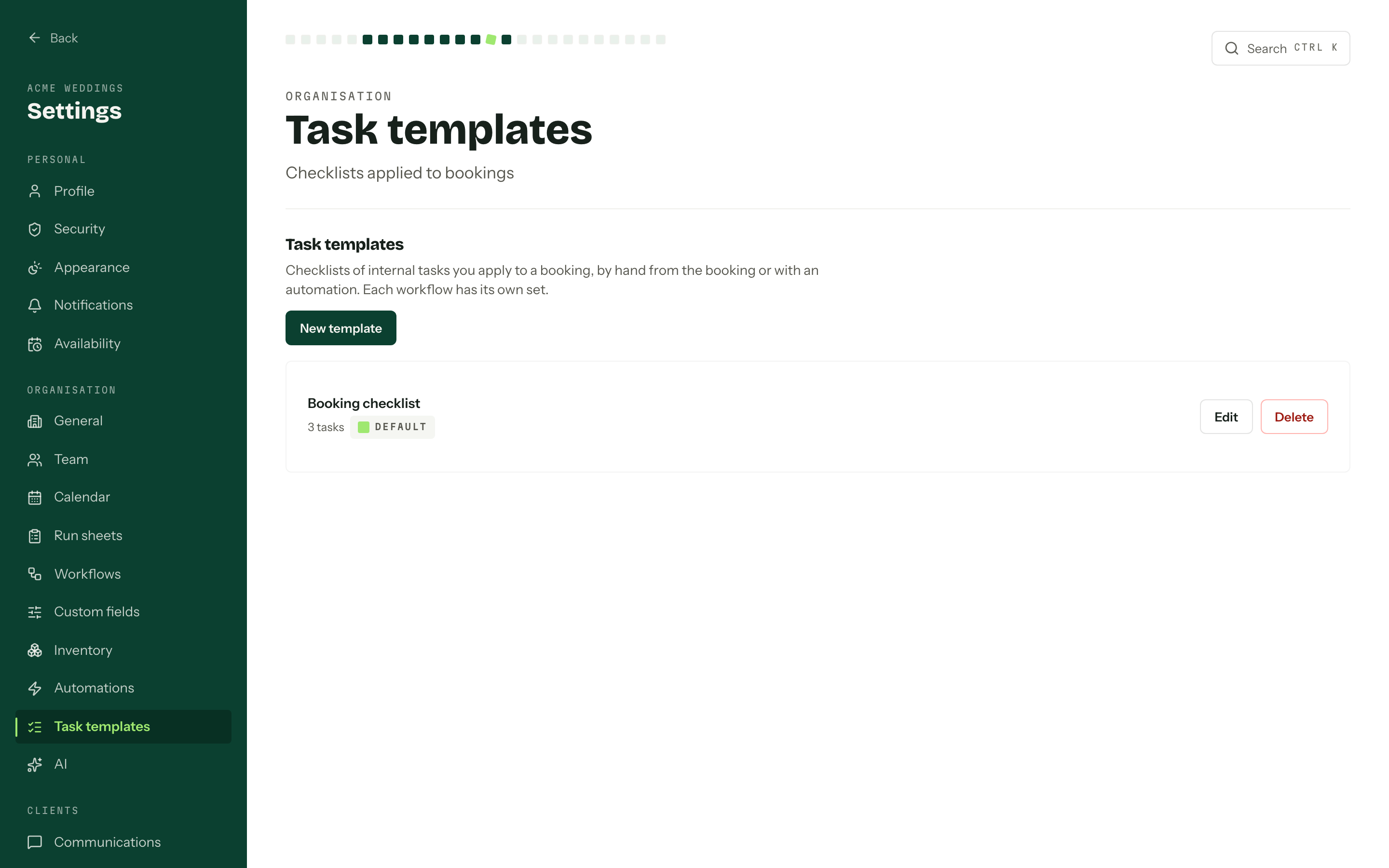
Build a template
- 01Press New template and give it a Name. The description is for the team.
- 02Press Add task for each thing that needs doing, and give it a Task title.
- 03Set Assign to, Due and, if it has to wait, Waits on.
- 04Put the tasks in order with the arrows, then press Create template.
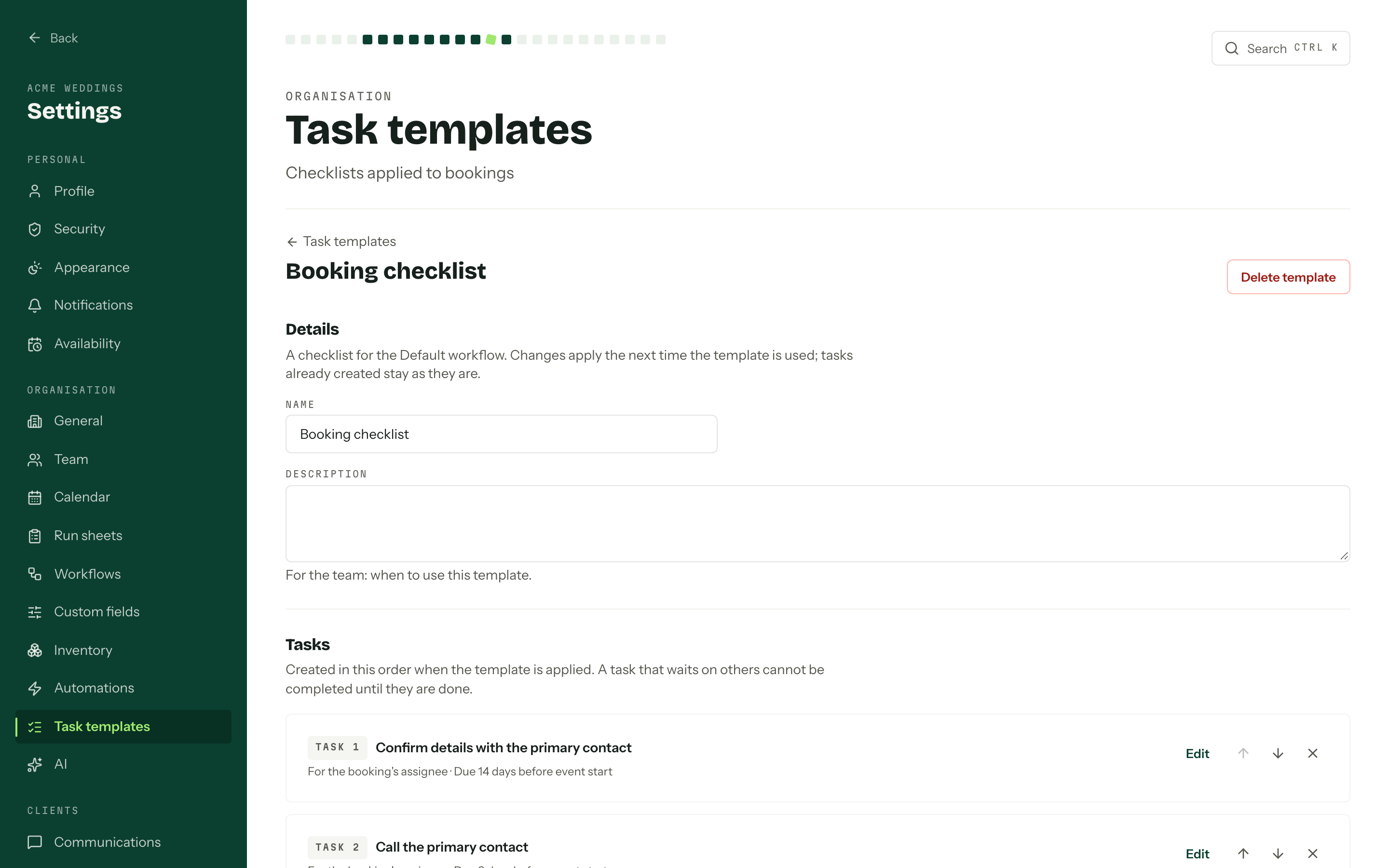
A template holds up to 50 tasks. Each task can have notes and a priority. Assign to is Nobody, The booking's first assignee at the moment the template is applied, or A specific member.
Due dates
- No due date is where every new task starts.
- On a set date is the same date on every booking.
- Relative to the event start or end counts days before or after the booking's event date, and moves when the event date moves. A booking with no event date has no due date on these tasks until one is set.
- Days after the task is created counts from the day the template is applied.
- Days after the tasks it waits on are done counts from the day the last task it waits on is completed.
Tasks that wait on others
A task that waits on others cannot be completed until they are done. Waits on only offers tasks that would not form a loop, so a task that already waits on this one is not in the list.
Applying a template
Apply a template with Apply template on the booking's Tasks card, or add an Apply a task template step to an automation. The default rule Apply the booking checklist applies the Booking checklist template when an enquiry becomes a booking; it ships switched off.
Applied tasks then live on the Tasks page and the booking like any other task. Changing a template only affects the next time it is applied. Tasks already on a booking stay as they are, even if the template is deleted. A template that an automation still applies cannot be deleted: remove it from those automations first.
Who can use them
Everyone can see the templates, with View in place of Edit. Creating, editing and deleting them needs Manage task templates.
If someone else saves a template while you are editing it, the editor says so and keeps your changes. Saving replaces their version; Load latest version throws yours away and loads theirs. See Team and roles.