Team is one job across two tabs. Members is who belongs to this organisation, Roles is what each role lets them do. Both live under Team in Settings.
Open members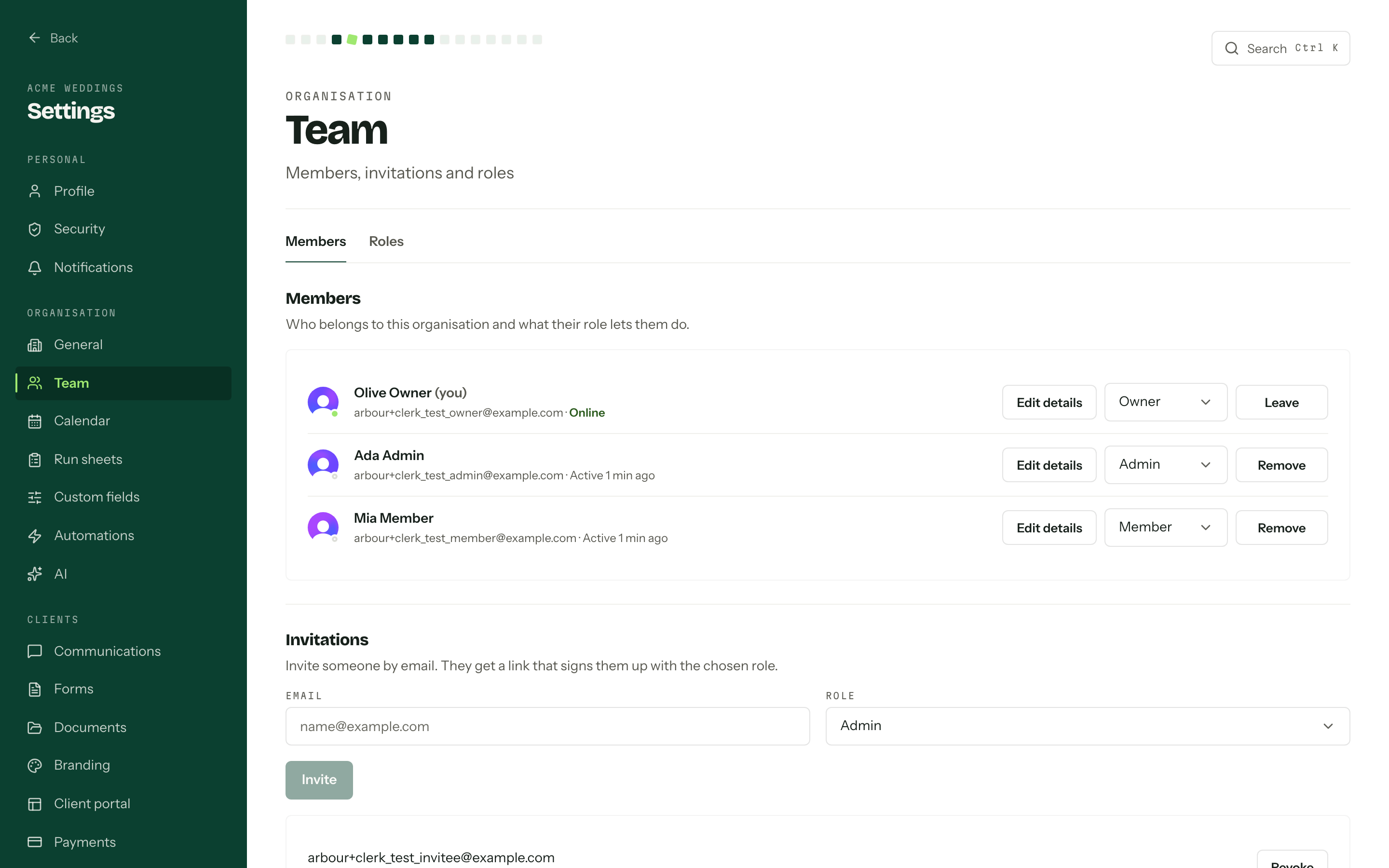
Invite someone
- 01Under Invitations, type an address into Email and pick a Role.
- 02Press Invite. They get a link that signs them up with that role.
Pending invitations sit in a list underneath with the role and the expiry date. An invitation lasts seven days, then the row says expired and carries an Expired badge. There is no resend: Revoke the old one and invite the address again, which issues a fresh link and a fresh week.
The whole section only appears for a role holding Invite members. Only an owner can invite someone straight into the Owner role.
The members list
Each row shows the member's name, email, and whether they are Online or when they were last active (Active 5 min ago, No recent activity). The dot on the avatar says the same at a glance. Job title and phone sit on a second line when set.
A role holding Manage anyone's unavailability also gets an Availability button on every row, which opens that member's weekly booking hours. See Appointments.
Change a role, or remove someone
Every member row has a role selector. Pick a different role and Save role appears beside it. Press it to save; nothing changes until you do.
Remove asks first, then takes someone out of the organisation straight away. On your own row the button reads Leave instead, because you lose access until somebody invites you back. Both take the Manage members permission, except leaving, which is always yours. Only an owner can change an owner's role or remove an owner.
Someone with reserved or checked-out crew gear cannot leave or be removed. A person with Manage inventory and allocations must remove unused reservations and record their returns first. See Crew gear.
Member details
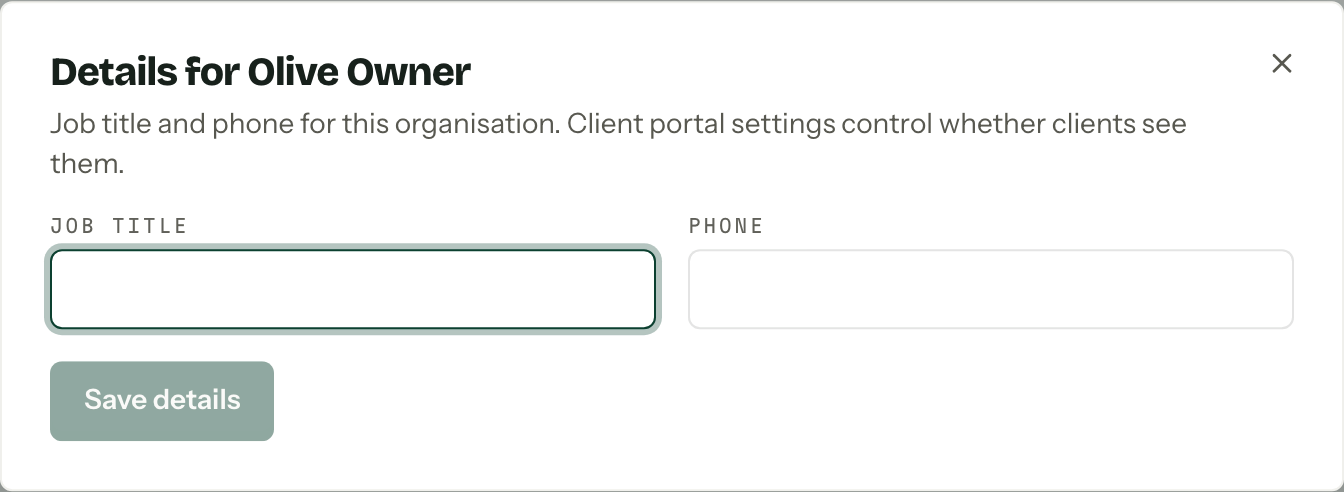
Members can have a Job title and Phone for this organisation. An admin with Manage members can open Edit details in the member row, change either field and press Save details. Each member can also edit their own in Profile, under Your details in this organisation.
When assigned staff are shown in the client portal, the card includes the member's name, picture and job title. Email and phone are only shown when their separate switches are on in Client portal settings.
Roles
Open roles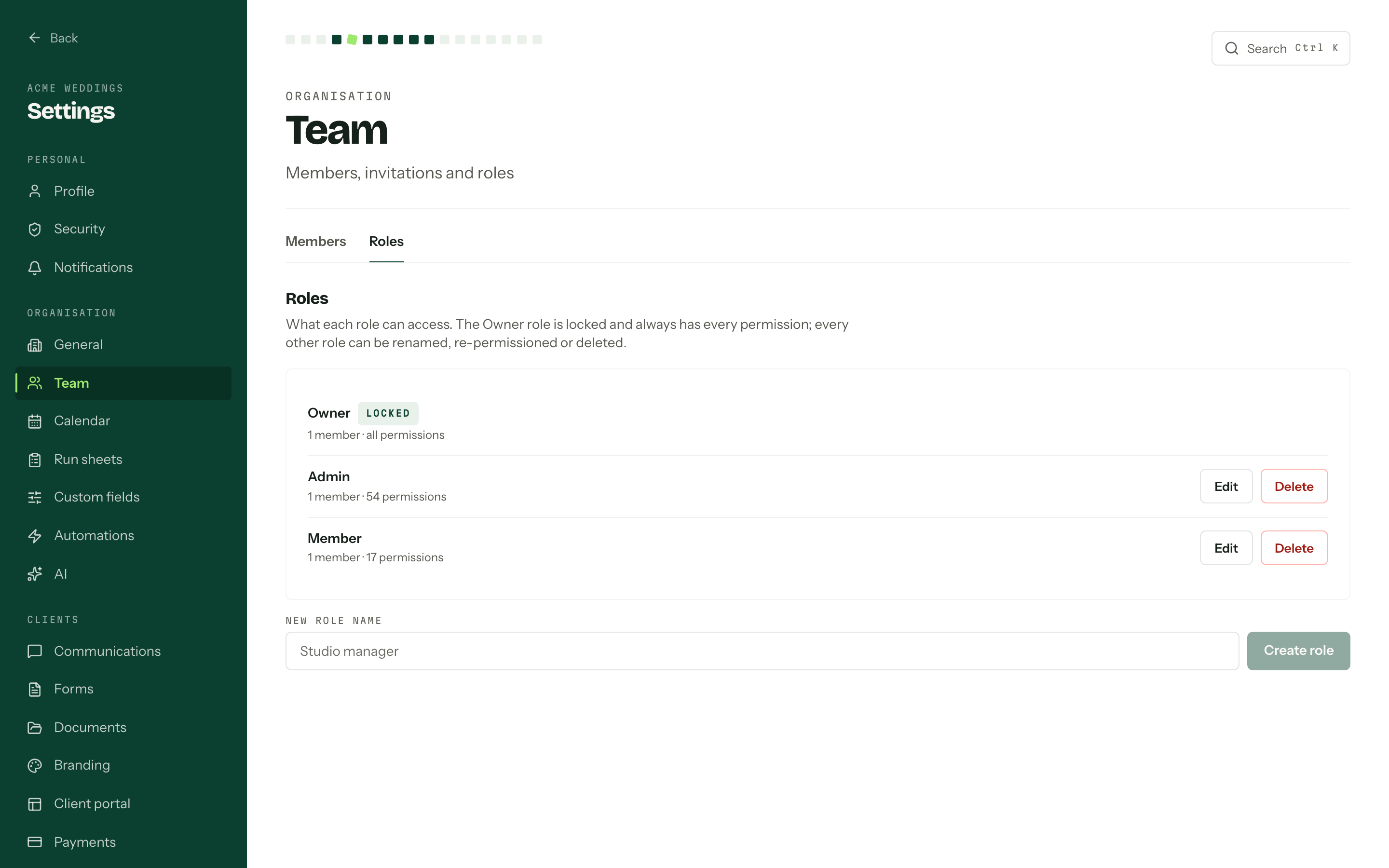
Every organisation starts with three:
| Role | What it holds |
|---|---|
| Owner | Everything, including permissions that do not exist yet. Locked. |
| Admin | Every permission in the registry, as a normal editable role. |
| Member | Day-to-day work: their own email, contacts, enquiries and bookings, portal messages, run sheets, tasks, quotes, viewing packages, payments and contracts, questionnaires, the AI assistant (Arby and Brief me) and viewing branding. |
Admin and Member are ordinary rows. Rename them, re-permission them, delete them, or type a name into the box at the foot of the list and press Create role to add your own. A new role starts with nothing ticked and opens straight into its editor. Edit opens an existing one. Delete asks first, and it only goes through on a role nobody is using: move the members onto another role and revoke any invitation that names it, or the delete comes back asking you to.
The starting Member role has neither inventory permission. When crew gear is enabled, members can still see their own assignments in Inventory, but cannot change them or record returns. View inventory opens the full stock and allocation lists; Manage inventory and allocations allows changes. See Permissions reference.
Everything on this tab takes the Manage roles permission. Picking the permissions themselves is Permissions reference.
The Owner role is different
It is matched by a flag rather than by its name, so it cannot be renamed, deleted, or edited. In the list it is badged Locked, reads all permissions, and has no Edit or Delete. Owner authority only moves between owners, so promoting someone into the role or demoting them out of it takes an owner doing it in person. And an organisation always keeps at least one owner, whichever way you approach the last one.
Seats
How many people you can have is a question for the plan, not the role.
| Plan | Distinct people |
|---|---|
| Solo | 1, so invitations are switched off |
| Studio | 8, plus any extra seats you buy |
| House | unlimited |
The count is the distinct people across every organisation on the account, plus pending invitations to addresses that are not already one of them. Account owners who hold no membership are not counted. On Solo the Invite button is replaced by a line pointing at the Studio plan, and past the Studio limit the API refuses with the plan's own figure. On Studio an account owner can add extra seats from the account's plan page. See Plans and billing.