Crew assignments record which team member has your stock and for how long. Open Inventory under Sales to assign it, or open an item to see its Held by details. Enable crew gear in inventory settings first.
Open inventoryAssign an item to a member
- 01
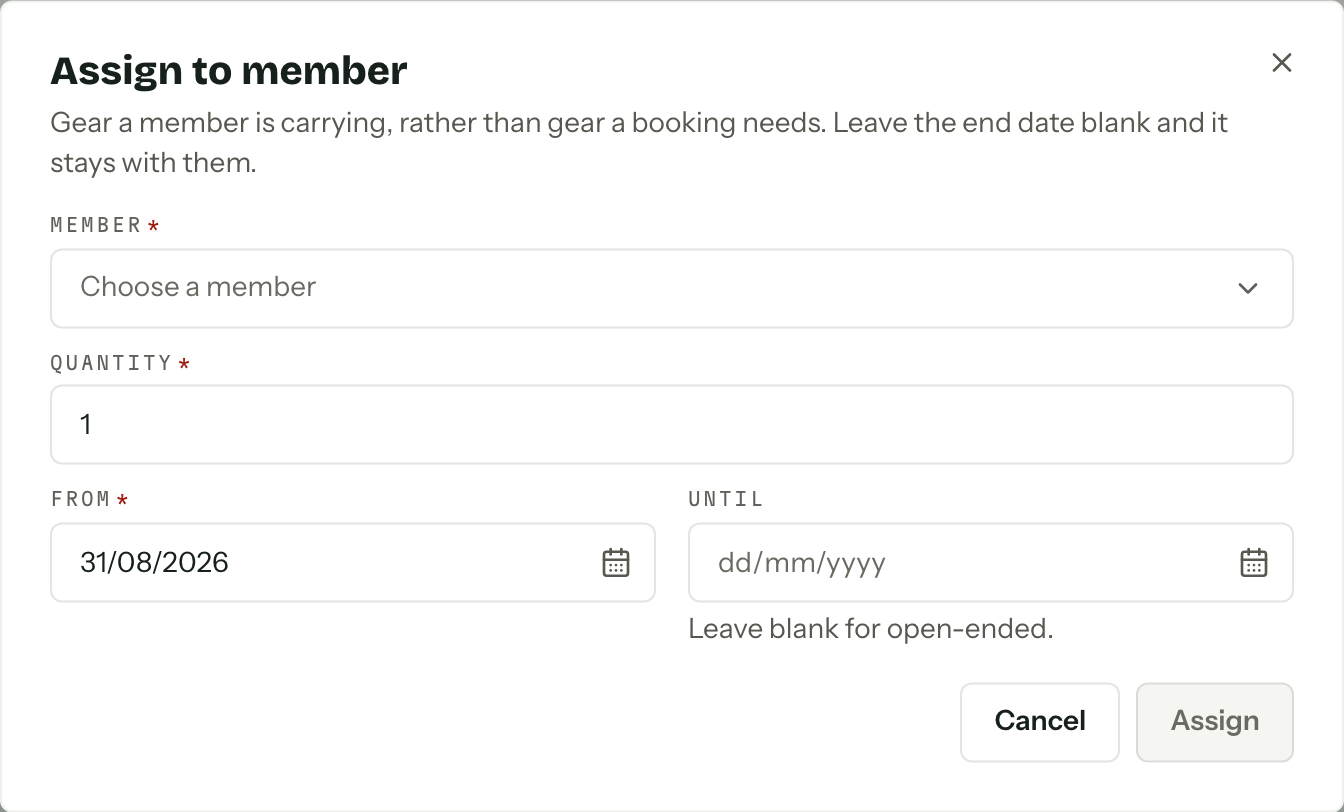
Press Assign to member on Inventory, on an item's page, or in an individual unit's menu. Starting from an item or unit fills in that choice.
- 02
Choose the Member and, if needed, the Item. From Inventory, the Item list offers Counted items by name and Serialised items unit by unit.
- 03
For Counted stock, enter Quantity as a whole number. For Serialised stock, choose the Units. You can assign several units of the same item together.
- 04
Choose From. It starts at today. Set Until for a planned end date, or leave it blank for an open-ended assignment.
- 05Press Assign. Review any warnings, then press Done if the dialog stays open.
An assignment starting today or earlier starts Out. A future assignment starts Reserved. When that gear leaves, press Mark out on its row under the item's Bookings and crew.
Each selected serialised unit gets its own assignment so it can return independently. Retired units cannot be assigned. Archived items do not appear as new choices.
Crew assignments share stock with booking hire. A unit's picker label may show another holder. You can still plan an assignment, but overlapping dates produce an availability warning. The warning does not undo the saved assignment.
Hand over a single unit
For a quick handover today, use Held by in a Serialised item's Units list.
- 01Open the item and find the unit.
- 02Choose the new member in that unit's Held by selector.
- 03Review any warning after the change saves.
Changing the holder closes the previous single-unit crew assignment and creates a new one from today. An Out assignment becomes Returned. A Reserved assignment is removed. Choose Nobody to return the unit to the store without assigning another member.
The selector is available for an unassigned unit or a single-unit crew assignment. A booking reservation or a group assignment shows its holder without this shortcut. Use the allocation's actions under Bookings and crew instead. Retired units and archived items also have no handover selector.
Record a return
- 01Open the item and find the crew row under Bookings and crew.
- 02Press Mark returned on that row when its status is Out.
- 03
If a serialised unit came back damaged or repaired, update its Condition in the Units list. Returning it from the item page keeps its current condition.
A planned Until date ends the assignment's availability window. It does not mark the gear Returned for you. Record the return when it happens, even if the date has passed.
Returned assignments stay in the history, folded under Past. They cannot be reinstated. Create a new assignment for the next handover. For a future reservation you no longer need, choose Remove from its row's menu and confirm Remove allocation.
What members can see
Members without View inventory see Your gear when they open Inventory. It lists only their own crew assignments, with the item, quantity, dates and status. Past assignments remain in that list, so use the status to tell current gear from returned gear. This view is read-only.
View inventory opens the full catalogue. Manage inventory and allocations is required to assign, hand over or return stock. See Team and roles for changing permissions.
Before someone leaves
Arbour blocks removing a member, leaving the organisation or deleting a profile while the member has Reserved or Out crew assignments. Mark gear Returned and remove any unused reservations first. Finished assignment history stays with the inventory records after the membership ends.