An inventory item is something you own, such as folding chairs or a camera model. Open Inventory under Sales, then select an item to see its stock, units, bookings and crew assignments.
Open inventoryRead an item page
The page leads with Free today in large type, with On hand and Booked today beside it. Out now appears when it differs from what is booked today. Next eight weeks shows how many are free on each day from this Monday. Days with some booked, none free or a shortage are shaded, and a key sits underneath. Archived items skip the eight weeks. A Serialised item lists its Units next, then Bookings and crew lists who has the item, or will, and when. Details, the description and the photo sit beside them.
Choose how to track it
Use Counted for interchangeable stock, such as 80 matching chairs. You enter one quantity and one condition for the whole item.
Use Serialised when each unit needs its own condition or assignment, such as three cameras of the same model. Add the item once, then add a unit for each camera. Serial numbers are optional.
Tracking cannot change after you create the item. Choose Serialised if you need to record different conditions for individual pieces.
Add an item
- 01On Inventory, press New item and enter its Name.
- 02
Leave Code blank for an automatic code, such as ITM-0001, or enter your own. Arbour removes spaces and uses uppercase for custom codes. Each code must be unique.
- 03
Choose Tracking. For Counted stock, enter Quantity on hand and choose a Condition. Use a whole number, including zero when you have no stock yet.
- 04
Fill in the optional fields your business uses, then press Create item. For a Serialised item, open it and add its units next.
Category, description, purchase details, replacement value, location, notes and photo depend on your inventory settings. Hiding a field keeps its saved value. Notes are internal.
Condition affects your stock count
Only conditions in the Available category count towards On hand. A Counted item set to No condition contributes zero, even when you entered a quantity. Damaged, Under repair and Retired stock also contributes zero with the default conditions.
Add and edit individual units
- 01Open a Serialised item and press Add unit beside the Units heading.
- 02
Enter Serial number if you have one, and choose Condition. Add the purchase details, replacement value or notes when those fields are shown.
- 03Press Add unit. Repeat for each physical unit.
- 04
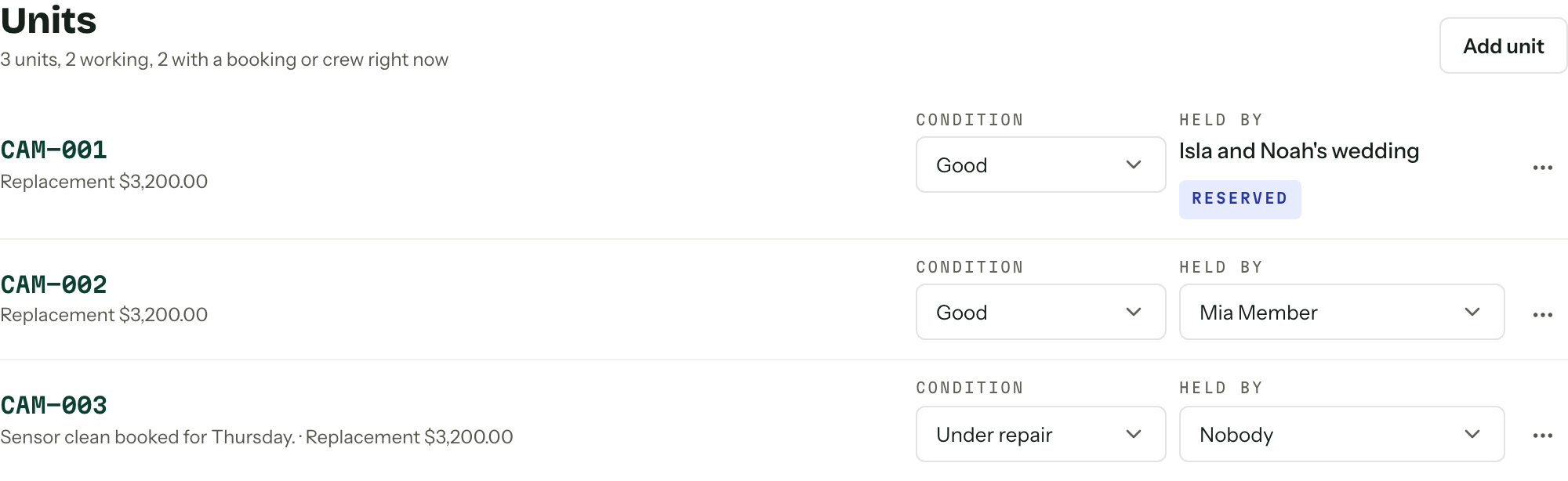
To change a unit later, press its serial number (or No serial) or choose Edit from its menu. You can also change Condition directly in its row.
The line under Units counts the units, how many are working and how many are with a booking or crew right now. The item's on-hand count comes from its units with Available conditions. Changing a unit to an Unavailable or Retired condition reduces that count. Existing reservations remain, so the change may produce an over-commitment warning.
Retired units stay in the list for history. You can edit their condition, but cannot assign them to a member or pick them for a new reservation while they are retired.
Add or replace a photo
- 01
Open the item and find Photo beside its details. Turn on the Photo field in settings if it is hidden.
- 02
Press Choose a photo, or drag a file into the photo area. Use a PNG or JPEG up to 5 MB. The upload saves without opening the item editor.
- 03Use Replace photo to upload a different picture.
- 04
To remove the picture, press Remove beside it and confirm Remove photo. The item and its stock remain.
Edit stock and review assignments
Press Edit on the item to change its name, code or other details. Archived items have no Edit button until you restore them. For Counted stock, update Quantity on hand when the number you own changes, then press Save changes. Assigning stock to a booking or member does not reduce the quantity you own. It changes how much is booked.
Bookings and crew lists booking reservations and crew assignments, soonest first, with their dates, quantities, picked units and statuses. Press Mark out when gear leaves and Mark returned when it comes back. Returned and released rows fold away under Past. Follow a booking link for its full Inventory card. Use booking inventory for dispatch and returns, or crew gear for member assignments.
Archive or restore an item
- 01
Open the item, press its More actions menu and choose Archive. You can also choose Archive from the item's menu on the Inventory list.
- 02
To find it again, press Archived above the Inventory list. Press Active to return to the active list.
- 03Open the item and press Restore to make it available in item pickers again.
Archiving keeps the item, its units and its assignment history. It does not return gear or cancel existing reservations. Record those changes separately.
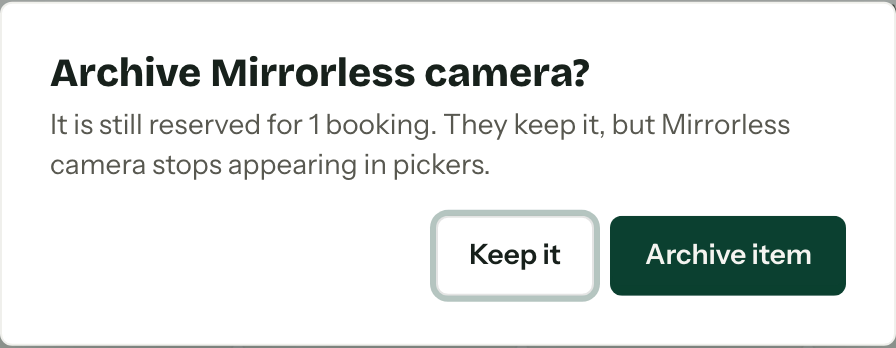
When a booking still reserves the item or has it out, Arbour asks you to confirm and shows how many bookings use it. Archive item hides it from new pickers while those bookings keep it. Keep it leaves the item active.
Delete is in the item's menu, on its page or on the Inventory list, for mistakes with no allocation history or package requirements. A unit's menu also offers Delete, but a unit used by an allocation cannot be deleted. Archive an item or give a unit a Retired condition when you need to keep its history.
Who can make changes
View inventory lets you read the catalogue and item details. Manage inventory and allocations is needed to create or edit items, change conditions, upload photos and manage assignments. If you only see Your gear, your role can read your own crew assignments but does not include the full catalogue. See Team and roles.