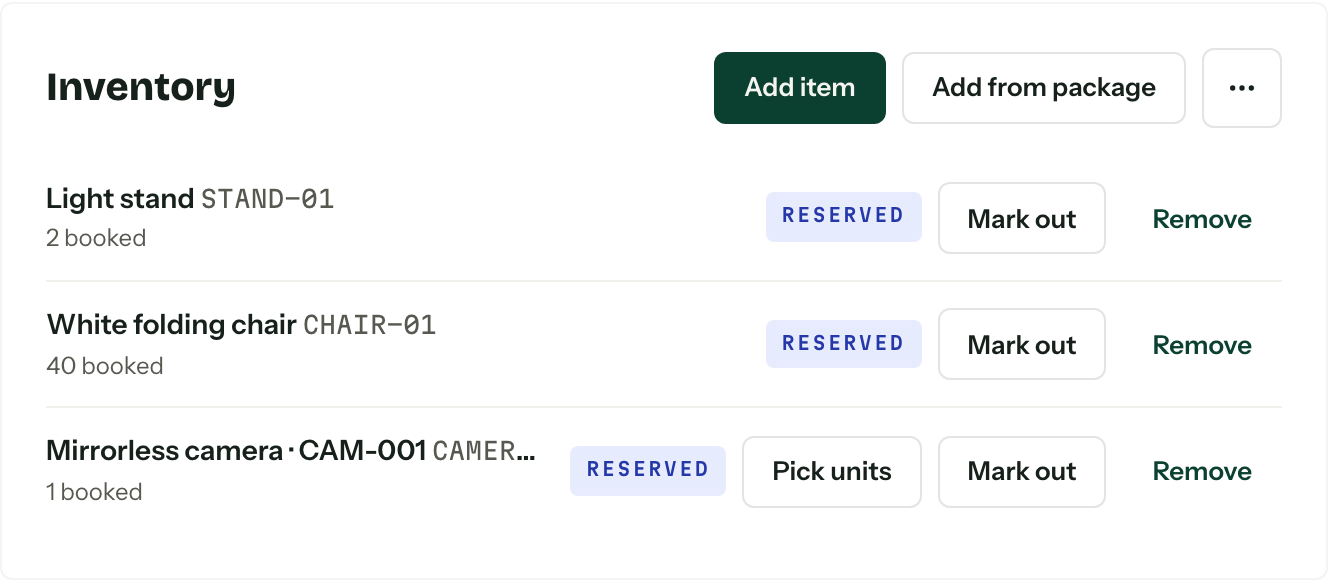
The Inventory card on a booking records the stock promised for that job and whether it is reserved, out or returned. Enquiries do not have the card: stock is only allocated to bookings. Inventory tracking and hire must be enabled in inventory settings. Your role also needs View inventory to see the card and Manage inventory and allocations to change it.
Add an item to a booking
- 01Open the booking and press Add item on its Inventory card.
- 02Choose the Item.
- 03
For Counted stock, enter Quantity as a whole number. For Serialised stock, choose the Units going to the booking. You can select several units of the same item.
- 04Press Add item and review any availability warnings.
New booking allocations start Reserved. Manually selected serialised units get separate rows so each can go out and return independently. An overlapping reservation produces a warning but still saves.
Allocations follow the booking's dates. An Undated row has no dated availability commitment yet. Add the booking dates and check availability before promising the stock.
Set up a package's gear list
- 01Open Packages, then create or edit the package.
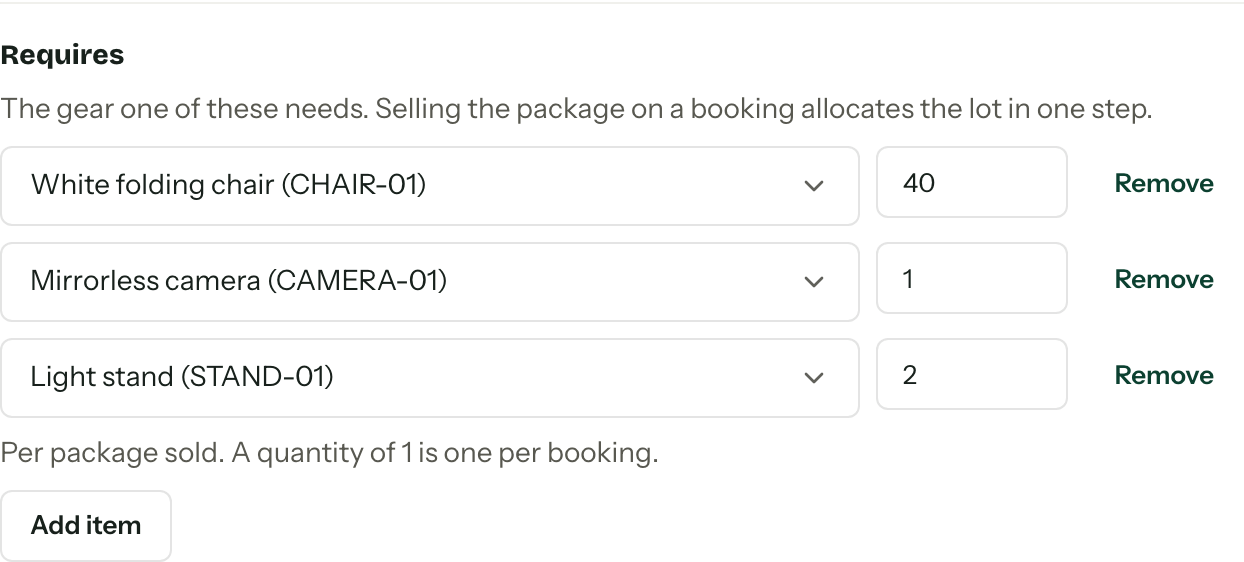
- 02Under Requires, press Add item and choose an inventory item.
- 03
Enter how many of that item one package needs. Add another row for each different item, then save the package.
Requires appears when inventory tracking and hire are enabled and your role has View inventory. You need Manage packages to edit its requirements.
When a client accepts a quote, Arbour uses the accepted package lines and quantities to create reservations on the booking. For example, a package requiring four chairs reserves twelve chairs when the accepted quantity is three. Optional lines the client does not accept add no stock.
While you edit a quote, each package line shows a stock line under it once the enquiry or booking has dates. It says how many of each required item are already committed on those dates, out of how many you hold, and reads (short) when the quote would need more than is free. The hint is advisory and the client never sees it.
Package requirements name the item and quantity. They do not choose individual serialised units. Archived items are skipped. Changing a package's requirements later does not rewrite allocations already on a booking.
See Packages for prices and quantities, and Sending a quote for client selections.
Add a package's requirements by hand
- 01Open the booking's Inventory card and press Add from package.
- 02
If the booking has its own package, Arbour adds one package's requirements immediately. Otherwise, choose Package in the dialog and enter Packages sold.
- 03If the dialog is open, press Add items. Review the new rows and any warnings.
Add from package adds new allocations each time. Check the card first if a quote has already created them. A package with no requirements adds no rows.
Pick units for a reservation
- 01On a Reserved Serialised row, press Pick units.
- 02
Choose the physical units in Units. The dialog shows how many you have picked against the reserved quantity. You cannot pick more than that quantity.
- 03Press Save units and check any overlapping-reservation warning.
You can reserve a quantity from a package before choosing every unit. Pick the actual units before dispatch so the record identifies what left. Once a row is Out, Pick units is no longer available.
Mark stock out and returned
- 01When the gear leaves, press Mark out beside its Reserved row.
- 02When it comes back, press Mark returned on its Out row.
- 03
For a row with picked serialised units, choose each returned unit's condition in the dialog, or leave Leave as is to keep its current condition. Press Mark returned to save.
The card's menu offers Mark all out for Reserved rows and Mark all returned for Out rows. Mark all returned keeps the existing unit conditions. Return rows individually when you need to record damage at the same time.
Returned rows remain as history and no longer commit stock. Every addition, status change and removal is also recorded in the booking's activity. A Returned row cannot be reinstated. Add a new allocation if the item goes out again.
Remove an allocation or cancel a booking
Use Remove beside an unwanted row and confirm Remove. This removes that allocation without changing the booking. For gear that has come back, use Mark returned to keep the return history.
Cancelling a booking releases its Reserved and Out hire allocations. Completing a booking leaves the allocation statuses as they are, but closed bookings no longer count towards dated availability.
Check physical returns before closing the job
Cancelling releases stock even when its row was Out. Check what is still with the client before treating that stock as ready for another job.
Reopening a booking does not reserve released stock again. Press Reinstate on each Released row you need, then check the new availability warnings. The row becomes Reserved and can be marked out again.