A quote belongs to a job. Open the enquiry, go to its Money tab, and the Quotes card holds every quote on that job. Each one is its own document and a job can carry several, because a client may accept more than one.
Start a quoteThe shortcut asks which job the quote is for, then lands on that job's Money tab.
Build it
- 01
Choose a Quote template to start from, or Blank quote. Where more than one payment plan exists, pick a Payment plan as well. Press New quote and it opens straight into the builder.
- 02
Add line takes a Blank line or one of your packages. A package line copies the name, description, price and quantity bounds as they stand today and then belongs to the quote, so editing those package fields later leaves the quote line alone. Inventory requirements are read separately when the client accepts.
- 03
Set the Quote type. Flexible lets the client pick what they want, Fixed is accepted or declined exactly as sent.
- 04
Shape the instalments under Payment, add Notes shown on the quote if there is anything to say, and choose the Contract they sign.
- 05
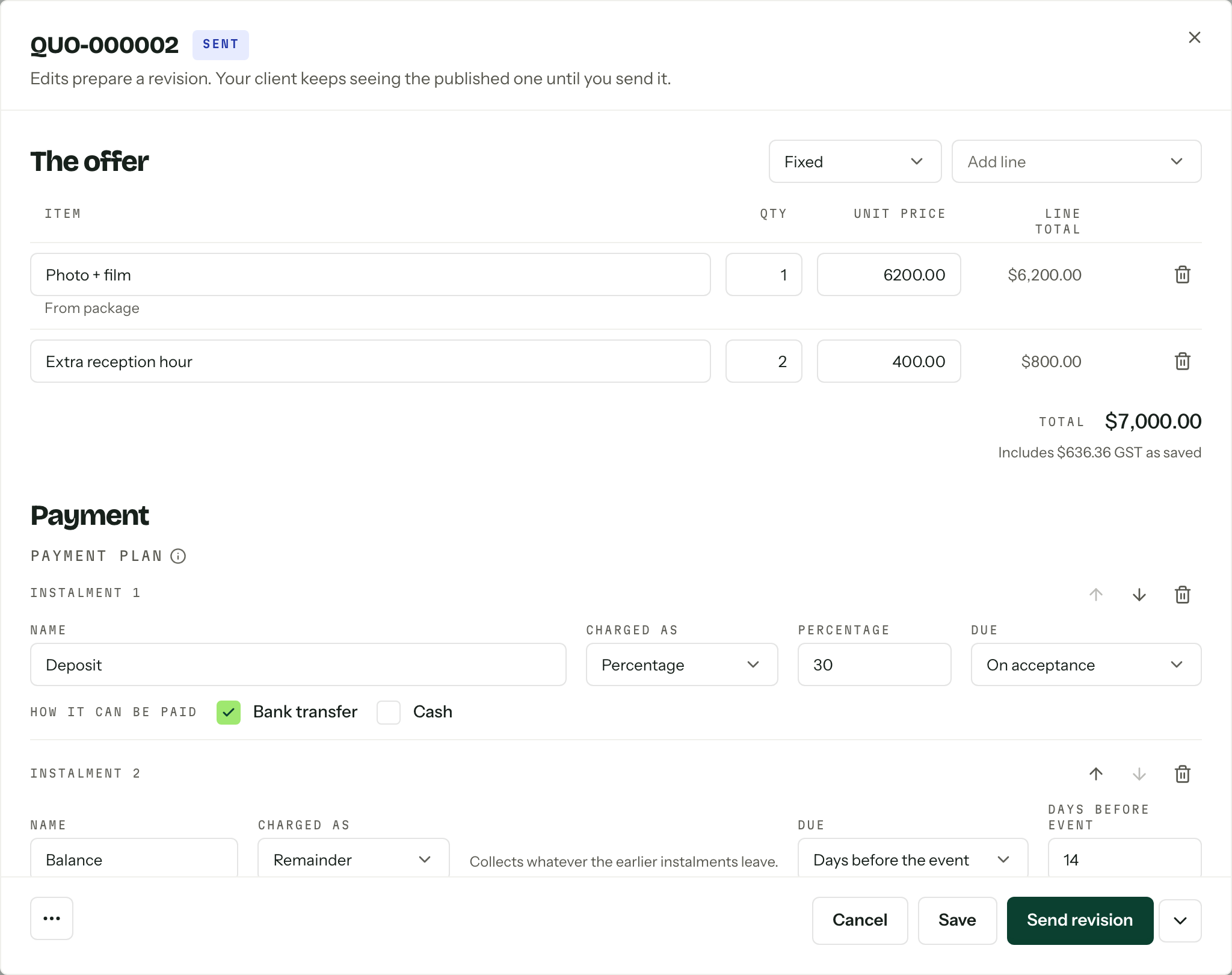
Save keeps it private. Send quote saves what is on screen and publishes it in the one press.
The arrow beside Send quote holds Email client, ticked or not by your organisation's default. Untick it to publish without the email. With Review emails before they go on, the email opens for a read first; see Client messages.
The More quote actions button at the bottom left holds Duplicate, Download PDF once the quote has been sent, Withdraw and, for a draft, Delete. The same actions sit in each row's menu on the Quotes card.
Optional lines
On a flexible quote each line carries one choice under How it's offered: Included, Pre-selected or Optional. Add section groups lines under a heading with a rule of its own, so a client can be asked for Exactly one of two coverage options and any number of the extras. The two figures under the offer follow the ticks: Pre-selected total is what they pay accepting it exactly as it arrives, Everything on offer is the ceiling.
Quantity bounds sit behind each line's options button, so an hourly line can be moved between the numbers you set and no further.
Before the first one goes out
Two things have to exist, and the console will not let you past either.
- Payment settings. Without them the card replaces New quote with a link to save them. A quote copies your GST position and seller details as it goes.
- A contract. Every send stamps one onto the revision, so with none saved the send comes back with "Add a contract before sending. Clients sign it before they pay". Write one first: see Contracts.
Each send also checks the quote itself. It stops if the quote has no lines, if an instalment has no way to be paid, if a card instalment falls outside what Stripe can charge, or if an instalment's due date has already passed. The message names the instalment to fix.
What the client sees
The quote lands in their portal. A flexible one is a list they tick with a live total, ending in Accept selection or Decline; a fixed one is Accept quote or Decline. Accepting does three things in the one movement: the enquiry becomes a booking, an invoice is issued from what they actually chose, and their contract is prepared. Payment opens once they have signed it. See Client portal.
What an accepted flexible quote shows afterwards is set under After acceptance, show in document settings: Only the chosen items, or All items, with the chosen ones marked. Each quote keeps the setting it was created with.
Inventory on a quote
With inventory and hire tracking enabled, package lines can reserve the items listed under the package's Requires section. For a dated job, members with permission to view inventory see availability hints in the quote editor. A fixed quote checks the combined requirements of its lines. A flexible quote checks each line separately, because the client's final selection is still open. See Inventory availability to check the dates and competing bookings.
Acceptance creates reservations from the packages' current requirements, multiplied by each accepted line's quantity. A flexible quote reserves only the lines the client chooses. Blank lines have no package requirements, even if you give them the same name as a package. The copied commercial details stay as quoted; inventory requirements are not frozen when the quote is saved or sent.
Saving or sending a quote does not reserve stock. Neither does Convert to booking on the enquiry. After acceptance, review the reservations on the booking's Inventory card; for a manually converted booking, add what you need there. Stock for bookings covers both.
A shortage does not block acceptance
Availability warnings let you decide how to cover a shortage. They do not stop you saving or sending the quote, or the client accepting it. Inventory details and warnings stay in the console; they are not shown on the client's quote or in their portal.
Revisions
A sent quote stays editable. Edits save privately and the row reads Unsent edits, with the client still reading the published revision until you press Send revision. Withdraw pulls a quote back so nobody can accept it, and only a draft can be deleted: anything sent is a record.
Needs review
Publish a revision after a client has already accepted an earlier one and the quote is flagged, naming both revision numbers. Which version stands is your call, not Arbour's.
Who can send
Reading a quote needs View quotes. Building, sending, revising and withdrawing need Edit and send quotes. See Team and roles.