Separate from the mail you write yourself, Arbour sends a small set of emails to your clients: the quote link, the invoice, the receipt, the contract, the meeting confirmation. This page decides which of them go out, what they say and which address they come from. It lives in Settings, under Communications, on the Client emails tab.
Open client emailsWith more than one workflow, the Workflow switcher at the top picks which one you are editing. Each workflow has its own switches and templates. The sender, the review setting and open tracking are shared by every workflow.
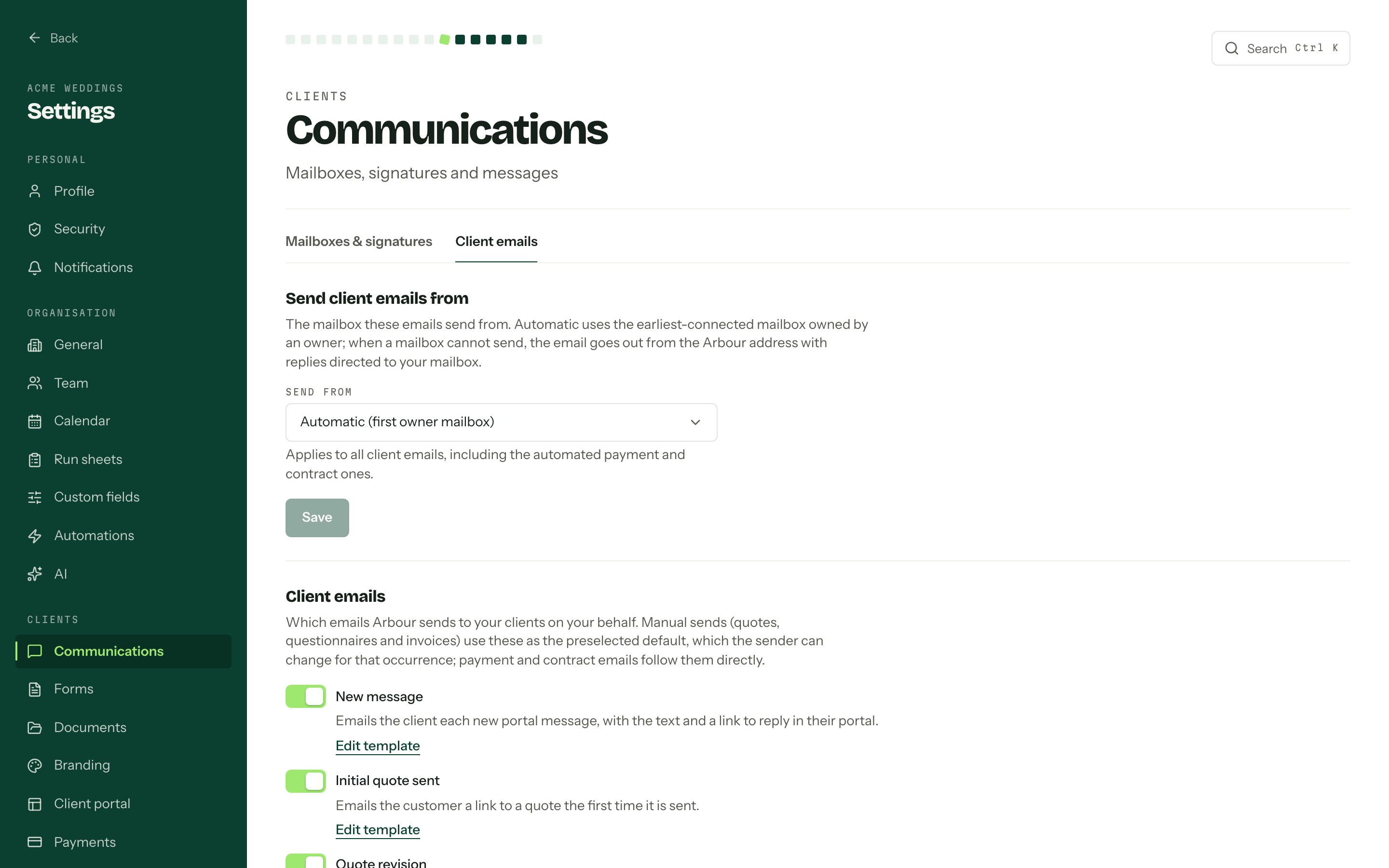
The emails
Sixteen touchpoints, each with a switch and its own template. Change the switches, then press Save.
| Message | Sent when |
|---|---|
| Initial quote sent | A quote goes to the customer for the first time |
| Quote revision | A sent quote is republished with changes |
| Initial questionnaire sent | A questionnaire goes out for the first time |
| Questionnaire revision | A sent questionnaire is republished with changes |
| Invoice issued | An invoice is issued |
| Invoice revised | An issued invoice is edited or adjusted |
| Payment receipt | A payment succeeds |
| Payment failed | A payment attempt terminally fails |
| Contract ready to sign | The contract document is ready to sign |
| Contract completed | The contract is fully executed |
| New message | A team member sends a message through the portal |
| Appointment confirmed | A meeting is booked or accepted |
| Appointment rescheduled | A meeting moves to a new time |
| Appointment requested | A client asks for a meeting you confirm first |
| Appointment cancelled | You cancel or decline a client's meeting |
| Appointment reminder | The day before a meeting |
The switches work differently for the two halves. Quotes, questionnaires and invoices are sent by a person, so the switch is the preselected default and the sender can change it for that one occasion. Payment, contract, new-message and appointment emails follow the switch directly. Cancelling or declining a meeting also asks whether to notify the client, for that one meeting. See Appointments.
New message emails
With New message on, each message a team member sends through the portal triggers one email immediately. The email includes the message text, with a Reply in your portal link. It does not include attachments. There is no email review step and messages are not grouped into a digest.
The template can use {{ message.body }} and {{ message.sender_name }}. Email replies go to your mailbox and do not appear in the portal conversation. Turning this email off does not turn Messages off.
Where they send from
Send client emails from picks the address in Send from. Automatic (first owner mailbox) uses the earliest connected mailbox belonging to an account owner, or you can name a particular mailbox, or choose Arbour default to send from the Arbour address. Press Save to apply it.
Whichever you pick, it applies to all of them, receipts, contract notices and appointment emails included, in every workflow. When a mailbox cannot send, the email still goes out from the Arbour address with replies directed back to your mailbox, so nothing is lost while a mailbox waits to be reconnected.
Changing the wording
Edit template under a message opens its own page, with its subject and body and the merge fields that message can use, including your own custom fields. Appointment emails add the meeting's details, such as its time, length, location and who the client is meeting, and Appointment rescheduled adds the time it moved from. A template you have changed reads Edit template (customised). The Preview beside it renders the saved template with sample values, so what you see is what the client gets. Save template commits it and refreshes the preview; Reset to default brings the built in copy back, and is only available on a template you have customised. Client emails at the top takes you back to the list, in the same workflow.
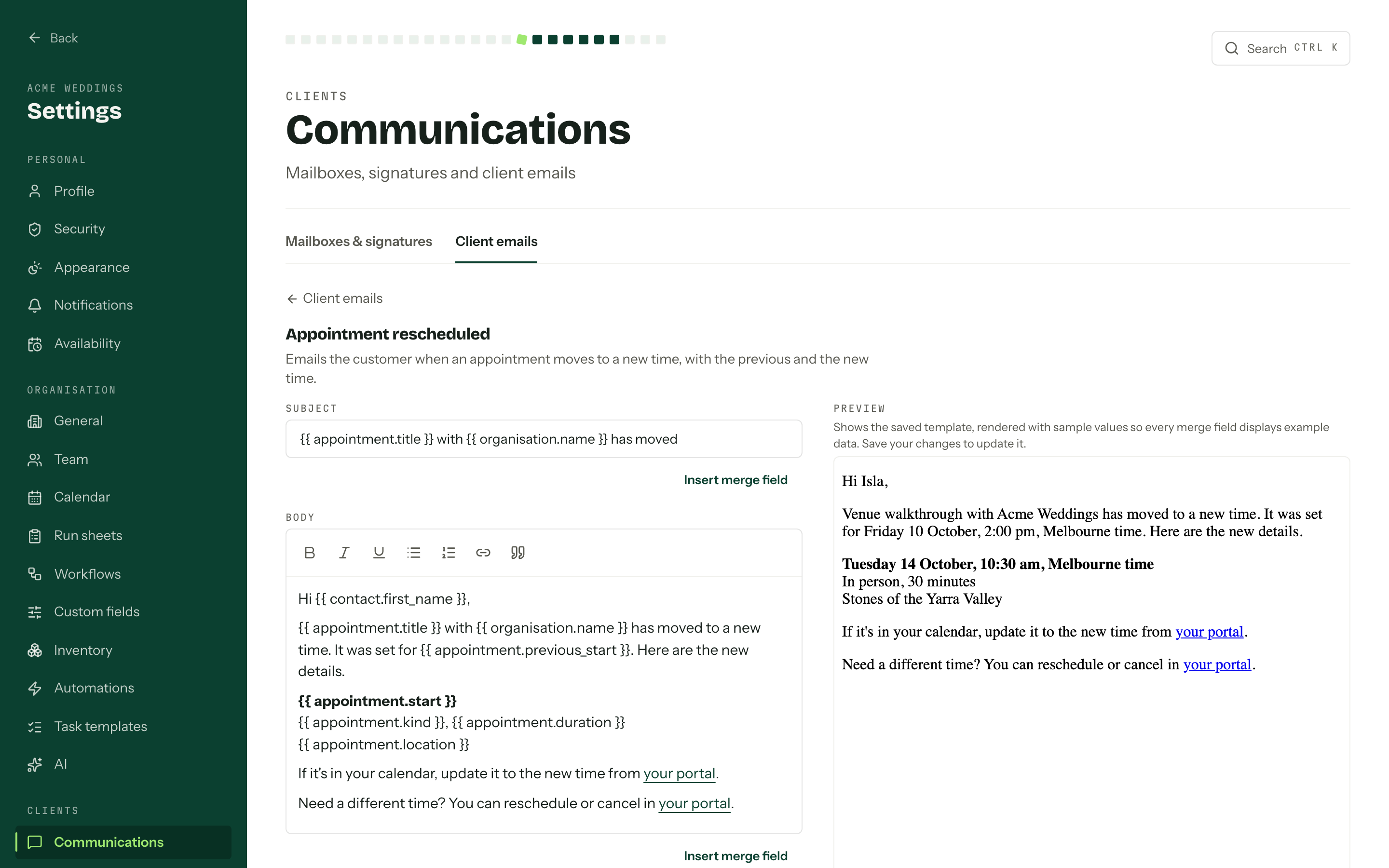
Leave the portal link in
The body has to keep the {{ portal.url }} field, so a client can always reach their portal from the email. A plain portal link is always included below your message. Client emails keep your message formatting without added Arbour branding, headings or footers, whichever address sends them.
Reviewing before it goes
Review emails before they go is on by default. With it on, sending a quote, questionnaire or invoice (or a revision of one) opens the email first, for the sender to read, adjust, add recipients to, or discard while still performing the action itself. With it off, the saved template goes straight out whenever Email client is ticked. Untick that and there is no email either way.
The setting applies to everyone in the organisation. Automatic emails never stop for review.
Email open tracking
Show when a client opens an email is on by default. It covers every email sent from a connected mailbox, not only these, and applies to everyone in the organisation. What it tracks, and what an Opened badge proves, is in Email open tracking.
Who can change this
Everything on this page needs the Manage customer communication defaults permission. Without it the page is readable but not editable, and says so; templates open as View template. See Team and roles.