Messages under Inbox lists your client portal conversations, with the newest activity first and unread conversations marked. Each enquiry or booking has one conversation shared by your team and everyone using its portal link.
Open messages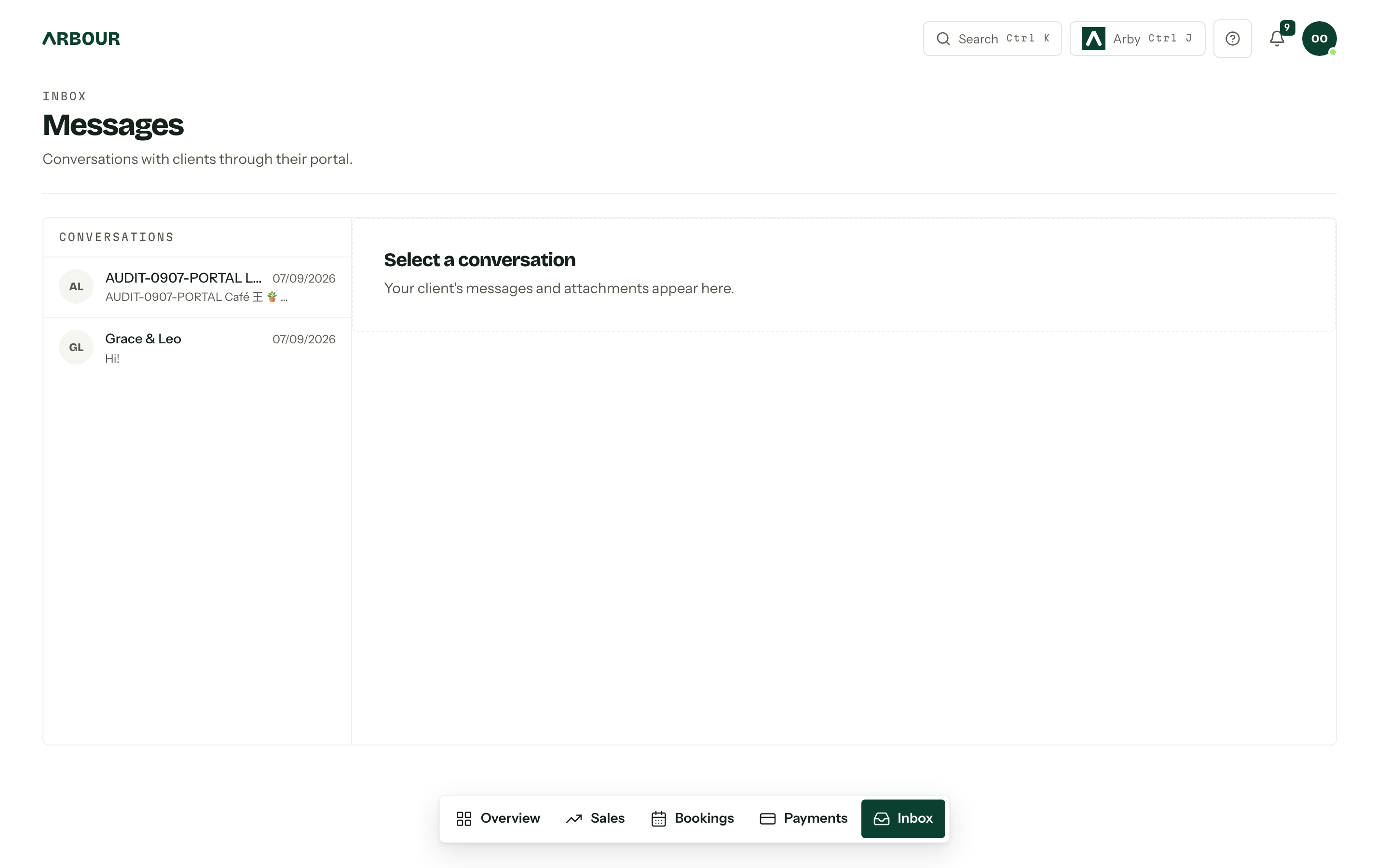
Choose New conversation to start one from Inbox: pick an enquiry or booking with an active portal link and its empty conversation opens, ready for your first message. You can also open Messages on an enquiry or booking with an active portal link. A dot on the tab marks unread client messages. Those unread messages also count towards the Inbox badge.
Send a message
- 01Open the conversation from Inbox, or the job's Messages tab.
- 02Write your message and add any files with Attach files.
- 03Press Send message.
A message can have up to five attachments. Each can be PDF, JPEG, PNG or HEIC, up to 10 MB. Clients download them through their portal and your team downloads them through the conversation.
Sending needs Send messages to clients through the portal, included in the Member preset. Reading follows the jobs a member can see. If the portal link is revoked, the conversation history stays readable and the composer explains why sending is unavailable.
Messages can be switched off for the whole organisation in Client portal settings. The tabs disappear and the history is kept for when you turn Messages back on.
Who sent it, and who has seen it
A team message shows its sender's name and picture, even if assigned staff cards are hidden in the portal. Everyone with the portal link writes as Client; the thread does not identify which contact used the link.
Seen by your client shows when someone using the portal opened the conversation after your message. Clients see Seen by and the name of each team member who has opened it after their message.
The portal checks for new messages every 15 seconds while the conversation is open. There are no mentions.
Notifications and emails
A new client message notifies the assigned team members. Each member can choose in-app and email delivery under Notifications; both start on.
A team message sends one email to the client immediately when New message is enabled in Client emails. It contains the message text and a Reply in your portal link, with no attachments. Each message sends its own email. Turn that email switch off to keep the conversation in the portal without the email notices.
Reply in the portal
Replying to the email sends a normal email to your mailbox. It does not add a message to the portal conversation.