Emails is the pipeline's half of your mailbox. Everything in the Inbox, Sent and Archive folders of every mailbox connected to the organisation is synced here, with the enquiry or booking each conversation belongs to attached. Received shows contact mail in the Primary category by default, so the conversations with the people you work with come first and the rest is a filter away. Nothing gets here until a mailbox is connected, so start with Connecting your mailbox. Email settings at the top of the page goes straight there.
Open emails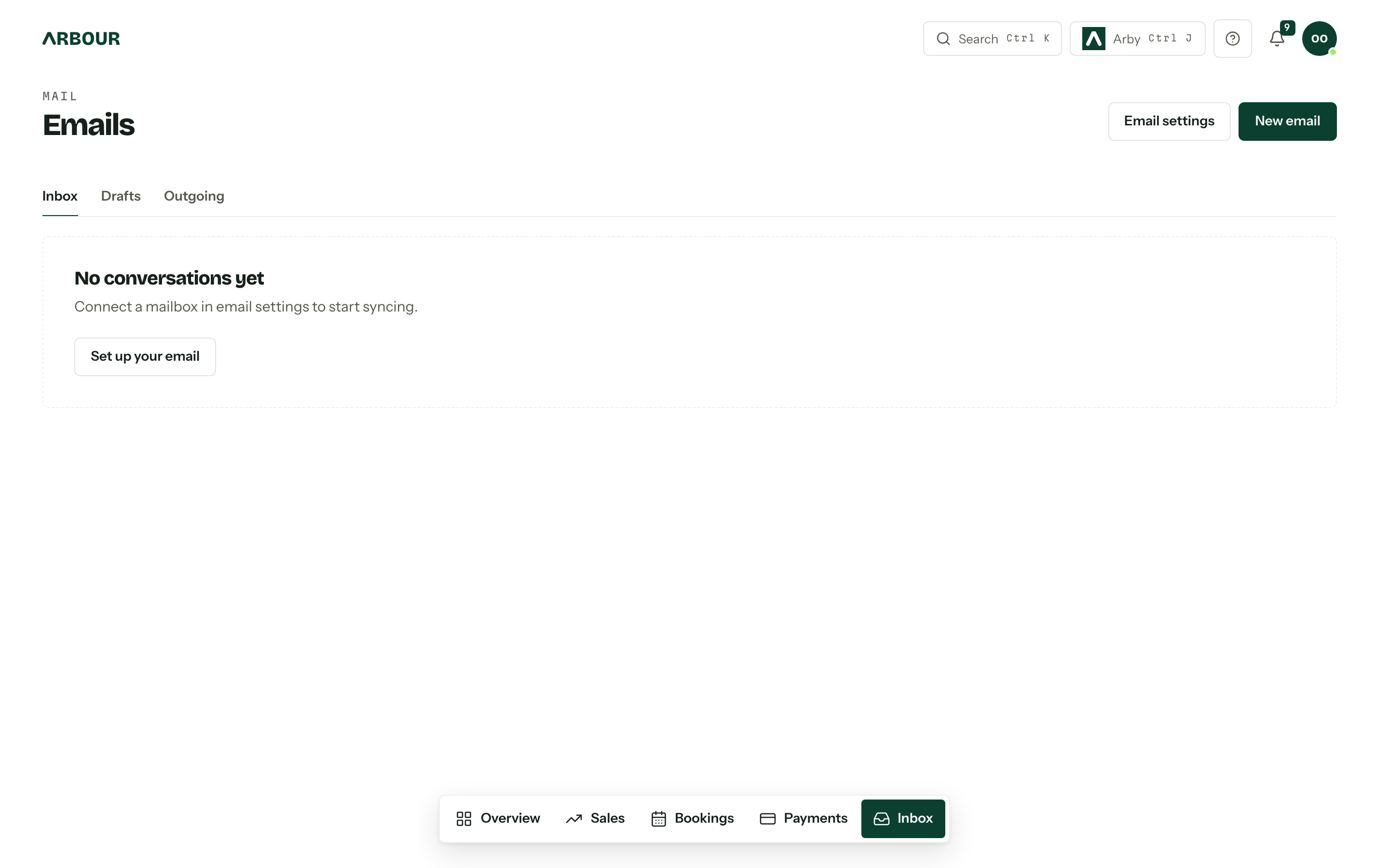
Conversations
A row is a conversation, not a message: every thread about the same exchange, across every mailbox that holds a copy, rolled into one record. Each row reads left to right like a mail client: who it is with (the sender, or To and the recipient when you wrote last) and the message count, then the subject and the latest snippet, then the date. Under that, the contacts and the enquiry or booking it is linked to. Under All mail, a Not linked badge marks a conversation that has neither yet. With two or more mailboxes connected, the row also names the mailbox the copy sits in. Rows are grouped under Today, Yesterday, This week and Earlier.
Select a row and the conversation opens over the list, so you keep your place. The page address keeps it open across a refresh or the back button, and Open full view gives it a page of its own.
Four tabs sit above the list.
| Tab | What it shows |
|---|---|
| Received | Conversations with mail from the client |
| Sent | Conversations with mail you sent |
| Drafts | Your own unscheduled drafts, including group email drafts |
| Outgoing | Scheduled drafts, group email progress, and pending or failed sends |
Received and Sent work like the folders in a mail client: a back-and-forth conversation is in both.
Searching and filtering
The bar above the list searches subjects, senders, contact names and message text. Type your words and press Enter, or select the arrow at the end of the box. Emptying the box shows everything again.
Beside it, All and Unread switch between everything and only conversations with mail you have not read. On Received, the category button comes next (see Categories). Filter holds the rest:
| Filter | Options |
|---|---|
| Linking | Contact mail (the default), Needs linking or All mail |
| Client read status | Opened by client or Not opened by client, from the last email you sent |
| Mailbox | One connected mailbox, when you have two or more |
Contact mail shows conversations on a contact, an enquiry or a booking. Needs linking shows those on a contact but not yet on an enquiry or booking. All mail shows everything synced, including mail from people who are not contacts.
Each filter you set from Filter shows as a chip under the bar, such as Linking: All mail. Select a chip to change it, or its cross to remove it. Clear filters removes them all.
Arbour remembers your filters, your category, how many conversations to show per page, and whether you last had Received or Sent open, in this browser. The filters are also kept in the page address, so a copied link opens the list the same way, whatever the person opening it last chose. Searches are not remembered.
The need linking button on the right of the bar counts the conversations that are on a contact but not yet on an enquiry or booking, such as 3 need linking. Select it to show only those, and again to show everything. It disappears when there is nothing to link. Sent group emails share an expandable row showing their subject and recipient count. When a conversation receives a reply, it leaves the group and appears on its own.
Hover over a row to swap its date for Mark as read or Mark as unread. To change several at once, press Select, then tick rows or select anywhere on them. The bar that appears offers Select all for every row loaded, Mark as read, Mark as unread and Clear; Done leaves select mode.
Categories
Gmail and Outlook already sort mail: Gmail into its inbox tabs, Outlook into Focused and Other. Arbour keeps that sorting, and Received shows only Primary until you choose otherwise. The category button beside Unread offers Primary, Promotions, Social, Updates, Forums, Other (Outlook) and All categories. Other (Outlook) only appears while an Outlook mailbox is connected, and Outlook's Focused mail counts as Primary.
A conversation takes the category of the newest email you received in it. Sending a reply never moves it: a conversation filed under Promotions comes back to Primary only when a newer email arrives there. Moving an email between tabs in Gmail, or between Focused and Other in Outlook, carries across on the next sync. When two mailboxes file the same conversation differently, it appears under both.
Sent has no category button and lists every category, so a reply to mail filed under Updates still shows there. The Inbox badge and the need linking button count Primary only, matching the list they open.
Paging
The foot of the list shows how many conversations appear per page (20, 50 or 100), which ones are in view, such as 21–40, and the arrows to move between pages.
Read and unread
The Inbox badge in the navigation, and on the overview's Jump to row, counts the contact mail in Primary that is unread for you, plus unread client messages. Opening a conversation marks it read for you only: everyone else keeps their own read state, so a teammate reading a thread does not clear it from your count. Conversations waiting to be linked are counted on the need linking button, not the badge.
Linking a conversation
Open a conversation and the Linked records card sits under the header. Add contact and Add enquiry or booking search for the record, with the likeliest matches offered first; the cross beside an existing link removes it. An address that matches exactly one contact is linked as the mail syncs, and so is the enquiry or booking when there is exactly one it could belong to, so the card is usually a matter of confirming rather than typing. Links made that way are marked auto. Remove one and sync leaves it removed.
Linking puts the conversation on the enquiry or booking and gives merge fields something to resolve against when you send. It does not change who can read the email. Mailbox permissions decide that, as described in Connecting your mailbox.
Replying and composing
Reply, Reply all and Forward sit under the last message, on conversations in mailboxes your role lets you use. New email at the top of Emails starts one from nothing. Everything about the composer itself, from Also on and signatures to quoted text, attachments and what stops a send, is in Writing an email.
Sent emails show Opened once the client's mail app displays them, and each row in the list shows Opened or Not opened for the last email you sent through Arbour. See Email open tracking.
Drafts
Drafts wait on the Drafts tab: Continue reopens one where you left it, Discard deletes it and everything attached to it, and there is no second copy. Group drafts show a Group tag and recipient count. Scheduled drafts live on Outgoing. How the composer saves, and what happens when a draft changes in another tab, is in Writing an email.
Drafts are personal
A draft belongs to whoever wrote it. Nobody else sees it, and it is not visible on the enquiry until the email actually sends.
The writing assistant
Arby, along the bottom of the composer, opens a writing assistant beside the email: ask for a draft or a change, then Apply or Discard what it proposes. See Writing an email. For questions about a booking rather than words for an email, that is Arby.