Every email you write in Arbour goes through the same composer, wherever you start it. It sends from a connected mailbox, so the client sees your address and their reply lands back in the conversation. No mailbox, no composer: start with Connecting your mailbox.
Write a new email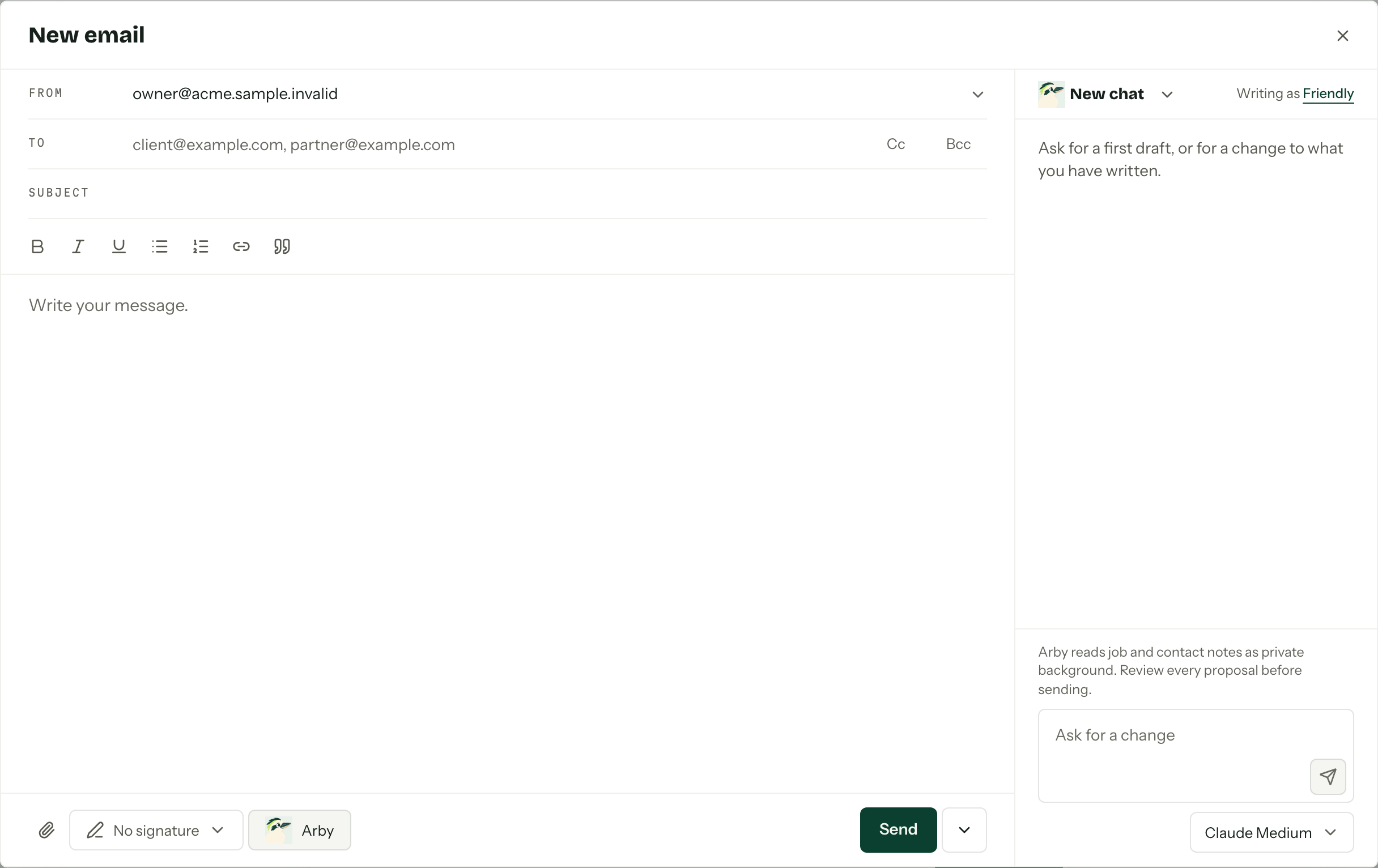
Where it opens
| Start from | What you get |
|---|---|
| New email at the top of Emails | A blank email |
| Draft an email on the overview rail | The same blank email, from anywhere the rail is |
| Send email on an enquiry or booking | The primary contact in To, everyone else on the job under Also on |
| Email beside a contact on the job | That contact in To, the rest of the job under Also on |
| Send email on a contact | The contact in To |
| Reply, Reply all or Forward | The answer to the last message in a conversation, with the original quoted below |
| Continue draft, or Continue on a draft | The draft as you left it |
Reply, Reply all and Forward sit under the last message of a conversation in a mailbox your role lets you use. With a draft already started on that conversation, Continue draft sits above them, and any of the three reopens that draft rather than starting a second one. A reply or forward always goes from the mailbox that holds the conversation.
Addressing it
The composer reads top to bottom as the email that goes out.
- From is the mailbox it sends from. With more than one you can send from, it is a menu; otherwise it just names the address.
- To takes addresses separated by commas. Start typing a name and matching contacts drop down under the line.
- Cc and Bcc sit at the end of the To line. Each opens its own line when you select it, and a line with something in it stays open.
- Also on appears when you write from an enquiry or booking. It lists everyone on the job with an email address who is not already addressed, with their role on the job, such as partner. Select a name to add them to To.
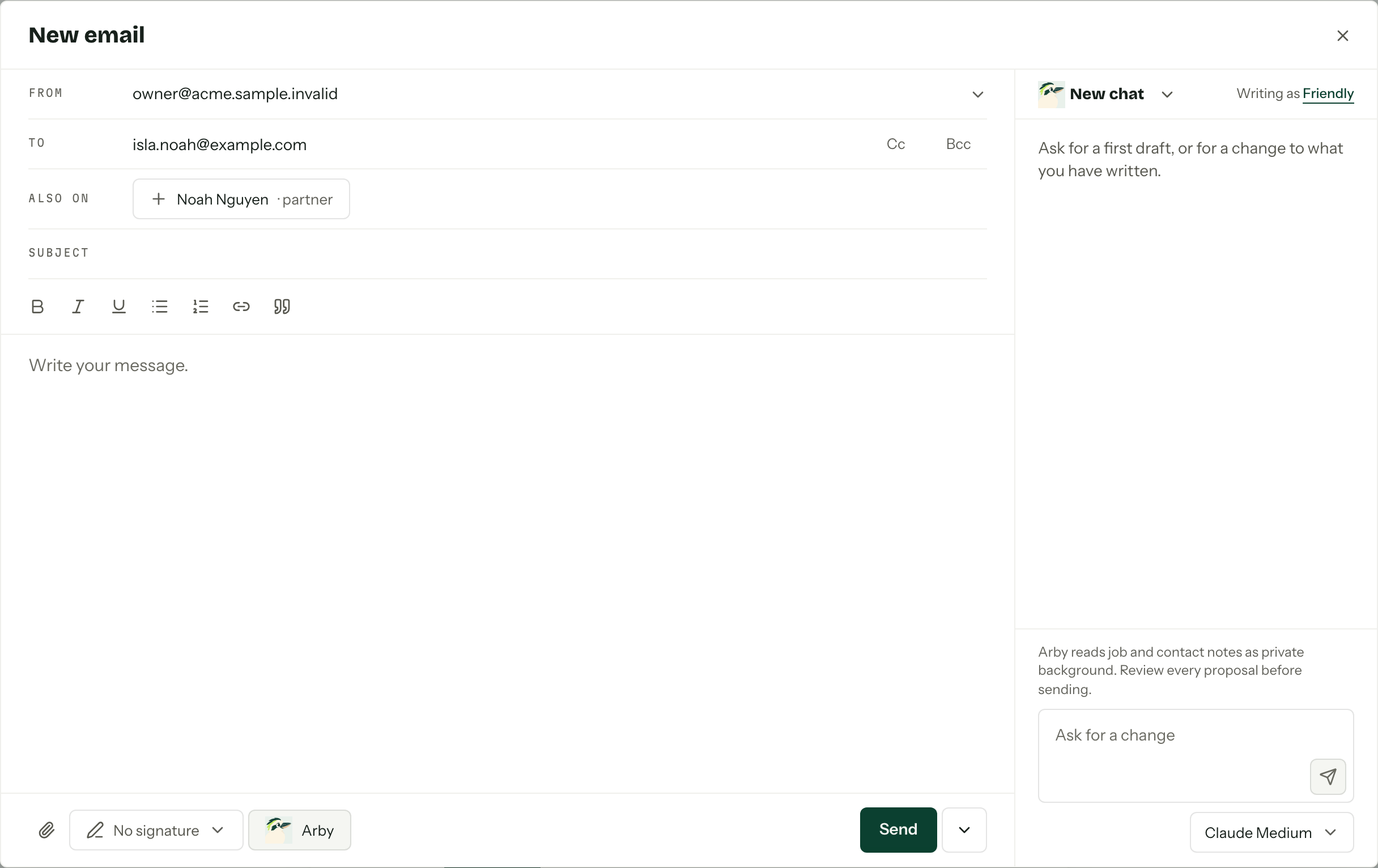
Then the Subject and the message. The toolbar above the message handles bold, italic, underline, lists, links and block quotes.
Signatures
The signature shows under the message, labelled Signature, added after your message, exactly where it will land. It starts as the sending mailbox's default. The signature button along the bottom picks another, or No signature. Changing From goes back to the new mailbox's default. Signatures are set up per mailbox: see Signatures.
Quoted text and forwarded attachments
A reply or forward carries the original underneath, collapsed the way Gmail does it. Show quoted text opens it so you can check what goes out; Hide quoted text folds it away again. It is sent either way.
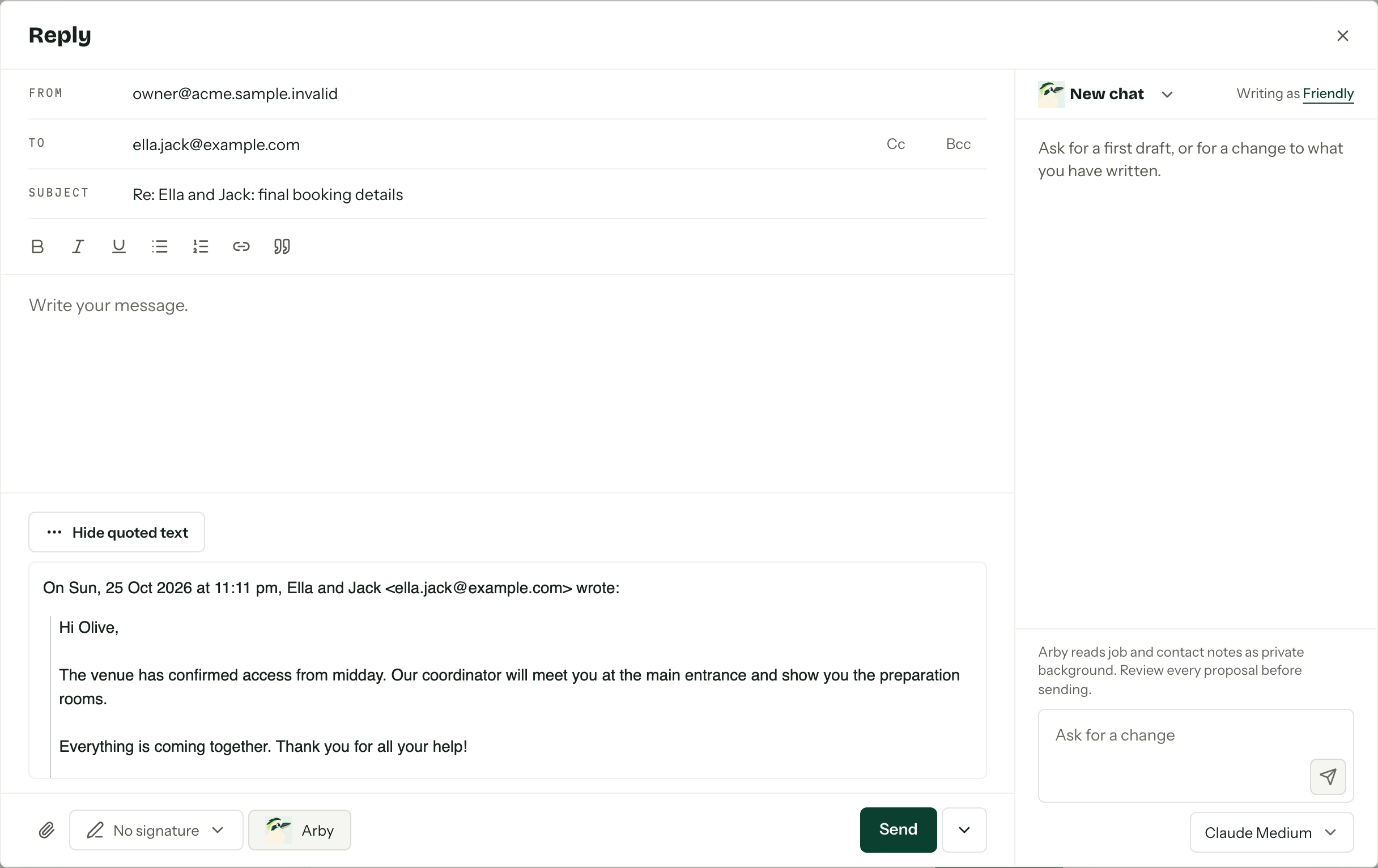
A forward also carries the original's attachments. Each shows above the toolbar with a cross, so you can drop the ones that should not go.
Attachments
The paperclip attaches one file at a time. Attachments are limited to 10 MB in total per email, forwarded ones included; a file that would take it over is refused with that message, and nothing is uploaded. Each attachment shows above the toolbar with a cross to remove it.
Templates
Template appears along the bottom once your organisation has saved an email template. Choosing one replaces the whole message, asking first with Replace when there is something written to lose. A new email also takes the template's subject when it has one; a reply or forward keeps its own, so it stays in the client's thread. Addresses are left alone.
Arby
Arby, along the bottom, opens a column beside the email. On a narrow screen, Email and Arby become tabs instead. Arbour remembers whether you left the column open, in this browser.
- 01
Ask for a first draft, or for a change to what you have written, in Ask for a change.
- 02Read the proposal. It shows in full in the chat, laid out the way the email will be.
- 03Press Apply to put it in the message, or Discard to leave the message alone.
After Apply, Undo puts your own version back, until you type in the message again. Arby reads the job's and the contact's notes as private background, so read every proposal before you send it.
A draft can hold several chats. The arrow beside the chat's name at the top of the column switches between them, starts a New chat, or offers Delete chat, which removes the chat and leaves the email alone. Writing as in the corner shows your tone, linked to your AI assistant settings, and the picker under the message box chooses the model. Once the email has gone, AI chats under it in the conversation shows the chats you had while writing it.
The Arby button only appears when the organisation has the assistant switched on and your role holds the Use the AI assistant permission. For questions about a booking rather than words for an email, use Arby in the top bar.
Saving and drafts
Nothing is saved until you change something: opening a reply and closing it again leaves no draft behind. After that the composer saves as you type, showing Saving… then Saved beside the title, and it saves again when you close it or switch to another browser tab. Closing a draft you have emptied deletes it.
- Continue on the Drafts tab of Emails, or in the Drafts card on the enquiry, booking or contact, reopens a draft where you left it.
- The bin beside Send is Discard draft. It asks first, then deletes the draft and everything attached to it.
- If the same draft is changed in another tab, the composer says so and offers Reload to pick up that version. Anything typed here since is lost.
- If a save fails, the composer shows the error with Retry, and closing asks before throwing the changes away.
Drafts are yours alone. Nobody else sees them.
Sending and scheduling
Send sends it now. The arrow beside it holds Schedule send…, which books it for later; the draft stays editable until it goes. See Scheduled sends. A send that fails shows Failed in the conversation with a Retry button, and waits on Outgoing.
How links are set
A new email is linked from its recipients, the same way synced mail is.
- A contact you address is linked to the conversation. An address shared by two contacts links neither, unless you wrote from one of them.
- An email written from an enquiry or booking stays on it as long as someone on that job is addressed. Take them all out and it falls back to the recipients.
- Otherwise, when the addressed contacts sit on exactly one enquiry or booking, the conversation is linked to it.
A reply or forward keeps whatever the conversation is already linked to. To change links afterwards, see Linking a conversation.
When it cannot send
| What you see | Why |
|---|---|
| Your account is read-only. You can send email again once billing is restored. | The account is read-only. See Plans and billing. |
| Connect a mailbox in place of the composer | There is no connected mailbox you can send from. Connect one in a new tab, then come back to the email. |
| Reconnect this mailbox in email settings to send. | The draft's mailbox needs reconnecting. See Connecting your mailbox. |
| This email uses contact merge fields but is not linked to a contact. | A field such as {{ contact.first_name }} has nothing to fill it. Write from the contact, or take the field out. |
| This email uses enquiry or booking merge fields but is not linked to one. | The same, for an item field. Write from the enquiry or booking, or take the field out. |
Merge fields usually arrive with a template. See Merge fields for the full set.