Two assistants share this page. The writing assistant drafts and rewrites emails using your own words as its brief, and Arby answers questions about your records. Neither sends or changes anything: a draft is a starting point that whoever is writing can change, ignore or throw away. This page is where you choose the model they run on, and where the writing half learns what to sound like.
Open AI settings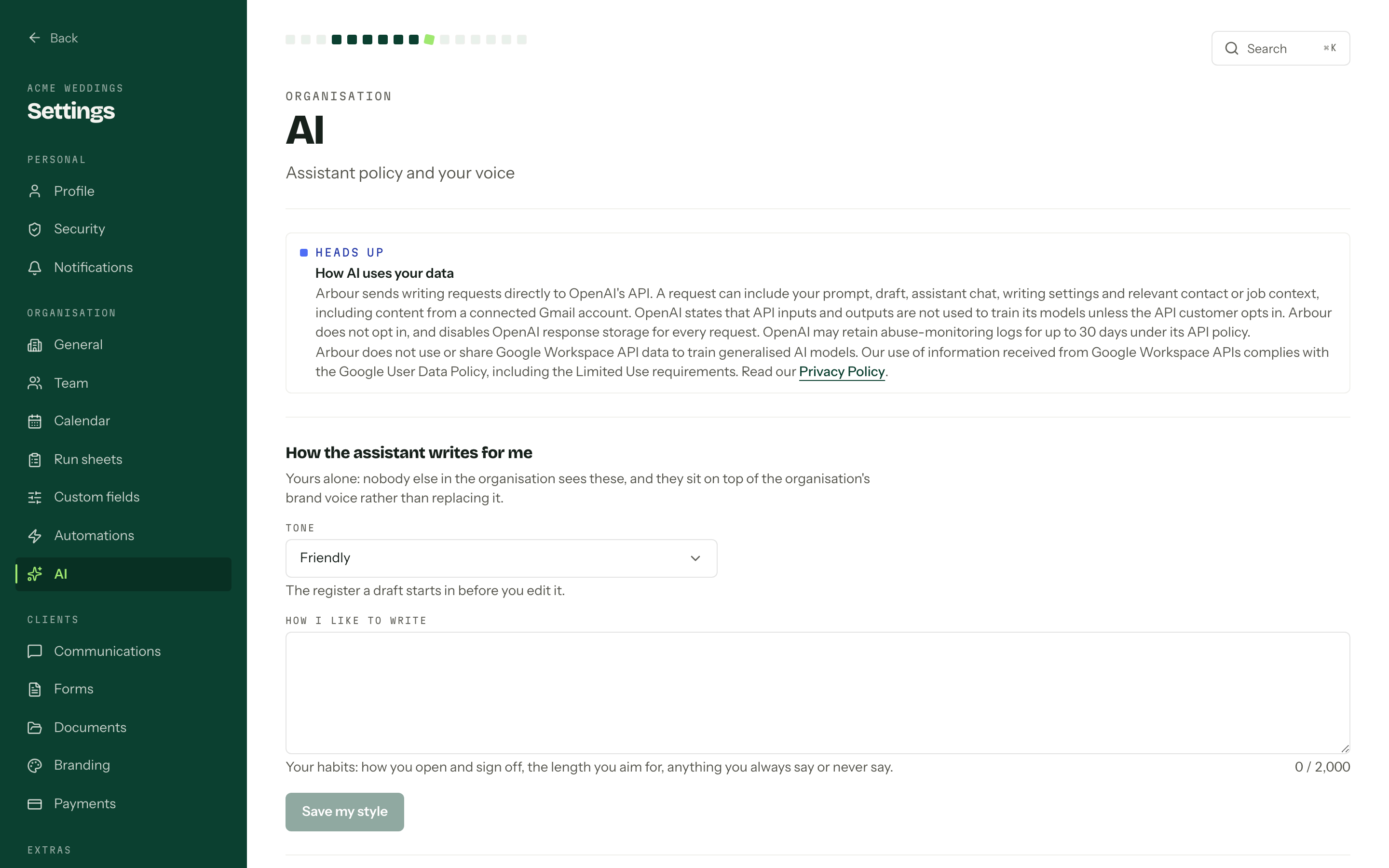
Two halves, two save buttons. The top half is yours alone and nobody else in the organisation sees it. The bottom half is the organisation's, and everyone writing from it gets the same brief.
Choosing a model
Model sits at the top of Your writing voice. It is the model every assistant runs on for you: the writing assistant, Arby's questions, Build with Arby and Brief me. It saves the moment you pick, without Save my style, and it is yours alone, in this organisation.
The options are Medium and High; High runs a larger model. When both providers are available the options name them: GPT Medium, GPT High, Claude Medium and Claude High. GPT models are OpenAI's and Claude models are Anthropic's. Until you choose, you get Claude Medium where Claude is offered, otherwise Medium.
Each assistant also has a small model picker beside its message box, and Brief me has one beside Write the brief and Refresh. Picking one there is the same choice: it saves here too and carries over to the others. If the model you chose stops being offered, you get the default until it comes back.
How the assistant writes for me
Tone sets the register a draft starts in: Formal, Friendly, Casual, Concise or Warm. How I like to write is the free-text half: how you open and sign off, the length you aim for, anything you always say or never say. Save my style writes both, and they sit on top of the organisation's brand voice rather than replacing it.
The assistant across the organisation
AI assistant is the switch, and it covers both. Turn it off and, for everyone in the organisation, the assistant disappears from the composer, Arby disappears from the top bar, and Build with Arby and Brief me go with them.
Three text boxes follow, each capped and counted as you type:
| Field | What belongs in it |
|---|---|
| Brand voice | How you sound: the words you use, the greetings and sign-offs you prefer, how formal you are. |
| About the business | Your history, the services you offer and what makes you different from anyone else your clients are talking to. |
| Things to avoid | Phrases you never use, promises you cannot make and topics that stay off an email. |
Save for the organisation writes all three. Changing them takes the Manage AI settings permission; without it the fields are read-only and the page says so.
Where the assistant turns up
In the email composer. The Arby button along the bottom of the composer opens a column beside the email you are writing, or an Arby tab on a narrow screen. See Writing an email.
Ask for a first draft, or for a change to what you have written. When the assistant proposes a body it shows underneath the reply with Apply and Discard; applying drops it into the editor, and Undo puts your own text back. The chat menu at the top holds New chat and Delete chat, so a long thread can have more than one line of thinking going. The corner reads Writing as, followed by your tone, linked straight back here. It reads job and contact notes as private background, so review every proposal before you send it.
Using either assistant takes the Use the AI assistant permission. A role without it sees "No assistant on this role" on the top half of this page.
Arby
The second assistant is a question, not a draft. Arby sits in the top bar beside Search, or ⌘ J from anywhere, and answers from your bookings, contacts, money, calendar, email and settings. It reads only what your role can already see, and its answers have a voice of their own: the tone and style on this page do not change them. See Arby.
Arby also writes Brief me, a one-page brief on a booking or enquiry, and drafts automations from Build with Arby on the automations page. That one does use this page: customer emails in a drafted automation follow the organisation's brand voice, business details and things to avoid.
What gets sent
How AI uses your data sits below Organisation policy on the settings page, and names the providers your organisation has available. Arbour sends each request directly to the provider of the model it runs on: OpenAI's API for a GPT model, Anthropic's API for a Claude model.
- A writing request can include your prompt, the draft, the assistant chat, the writing settings on this page and relevant contact or job context, including content from a connected Gmail account.
- A question to Arby can include the question, the chat so far and whatever Arby reads to answer it.
- A brief can include what your role can see on the job: its details, contacts, notes, quotes, invoices and payments, contracts, questionnaires, run sheet, tasks, appointments, linked emails and portal messages.
- A build with Arby includes your organisation's setup (workflows, fields, templates, members and existing automations) and the brand voice, business details and things to avoid from this page, never your clients' records.
OpenAI states that API inputs and outputs are not used to train its models unless the API customer opts in. Arbour does not opt in, and disables OpenAI response storage for every request. Anthropic states that API inputs and outputs are not used to train its models under its commercial terms, and Arbour stores nothing with Anthropic. Either provider may keep requests for up to 30 days for abuse or safety monitoring.
Permissions still apply to context
The context is built from what the person writing is allowed to read. A member who cannot see payments does not get invoices in the brief, and there is a size budget, so the least important slices drop out before the request goes anywhere.
If no AI provider is available, the page says why: no provider key is configured yet, or the providers are switched off on this deployment for now. Either way the Model picker is missing, the switch has no effect and neither assistant runs. Everything you write here is still saved, and applies the day a provider is back. With the AI assistant switch off, the page says the assistant is switched off for your organisation.