Settings → Export packs the whole organisation into one ZIP: every record as CSV and JSON, plus the files themselves (uploads, contract PDFs, email attachments). It is a copy for your records or for moving to another tool. It cannot be restored into Arbour.
Open export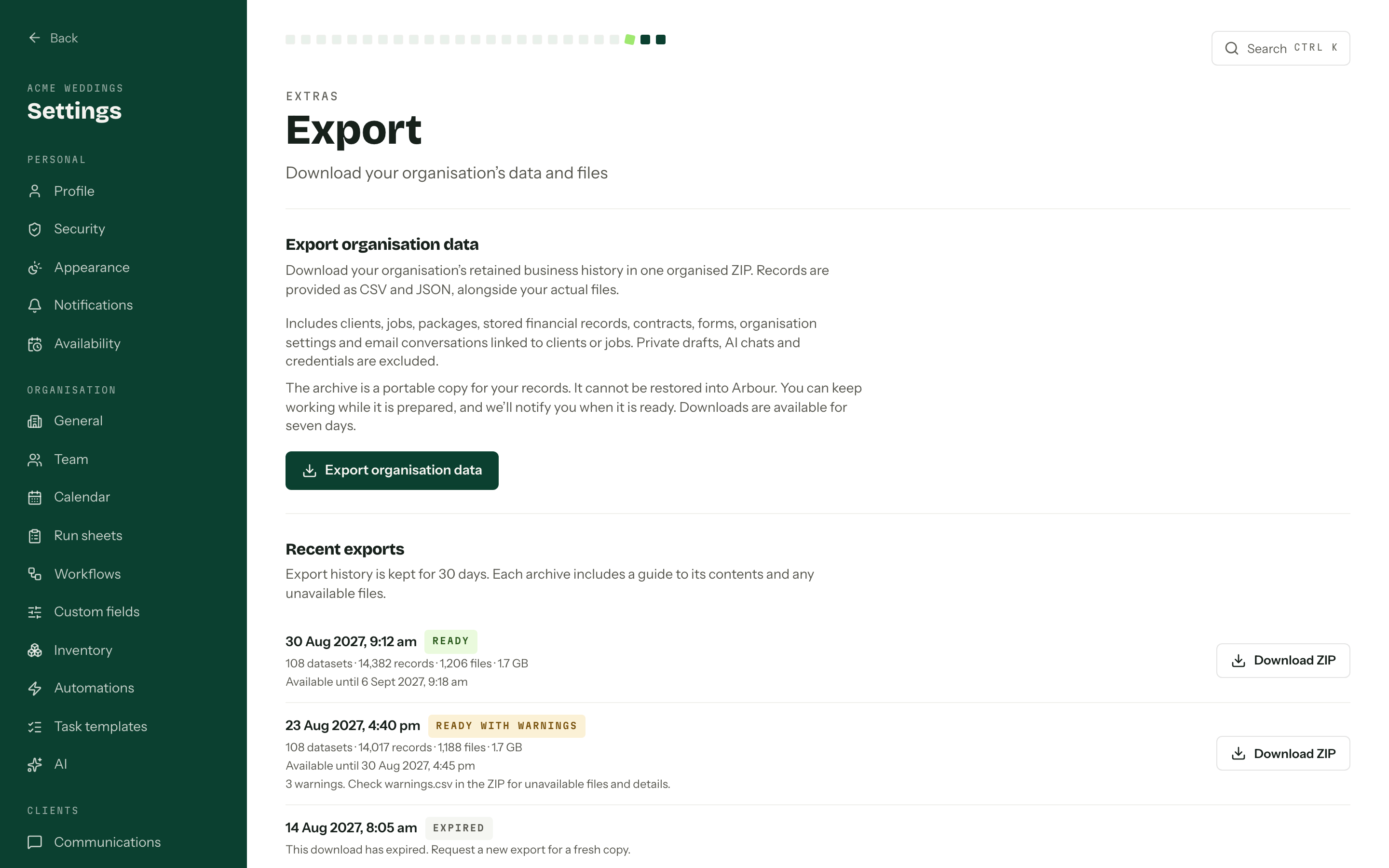
Who can export
You need the Export organisation data permission. Owners always have it, and so does the Admin role a new organisation starts with. Any other role needs it granted on Team.
An export is the whole organisation, so the permission comes with a string of prerequisites: full visibility of contacts, enquiries, bookings and tasks, plus read access to quotes, invoices, contracts, questionnaires, run sheets, packages, inventory, branding and team emails. The role editor adds them for you. The full list is in the permissions reference.
Exports belong to signed-in members only. API keys cannot request or download one, and neither can anyone viewing your account on your behalf. A member without the permission still sees the Export page, with a note to ask an owner.
Request an export
- 01Open Settings → Export.
- 02Press Export organisation data.
- 03
Keep working. The archive is prepared in the background, and the page updates on its own.
- 04When it is done, a notification lands in your bell. Open it to come back here.
One export runs at a time per organisation. While one is being prepared, whoever asked for it, the button is greyed out and the page says "An export is already being prepared". Only the member who requested it is notified, in the bell only: there is no email for exports, and no setting to turn it off.
Progress and status
While an export is running its row shows the current stage and a running count of records and files:
- Waiting for the worker: queued, not started yet.
- Collecting records: reading the organisation's data.
- Collecting files: fetching uploads, attachments and rendering document PDFs.
- Building the ZIP: writing the archive.
Each export carries one status:
| Status | Meaning |
|---|---|
| Queued | Requested, waiting to start. |
| Preparing | Being built. The stage shows how far along it is. |
| Ready | Done, ready to download. |
| Ready with warnings | Done, but some individual files could not be fetched. See below. |
| Failed | Arbour retried and still could not build it. Request a new export to try again. |
| Expired | Past its seven days. Request a new export for a fresh copy. |
Download
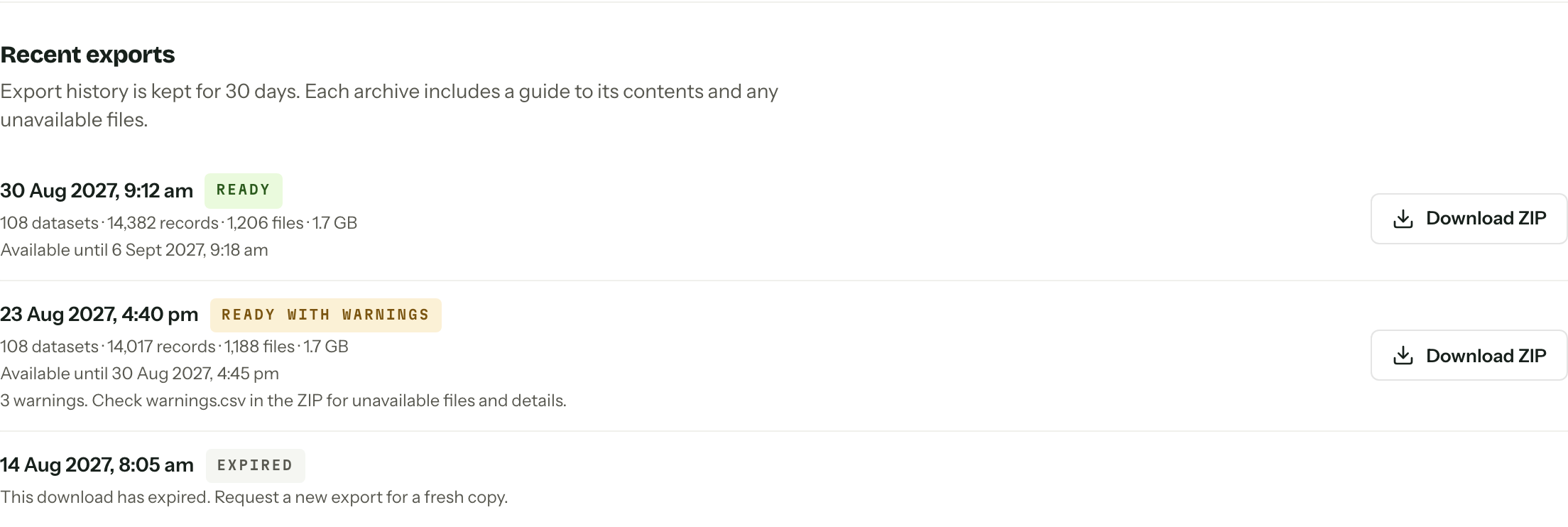
Press Download ZIP on a ready row. The browser downloads it straight from storage as arbour-export-<date>.zip, so a large archive does not tie up the tab. Anyone with the permission can download any export in the list, not just the one they asked for.
Each archive is available for seven days after it finishes. The row says until when. The history itself is kept for 30 days, after which old rows drop off.
What's inside
| Path | What it holds |
|---|---|
README.txt | How the files are laid out and how to read them. |
manifest.json | The snapshot time, and every dataset with its columns, record count and checksum. |
files.csv | Every file: its original name, where it sits in the ZIP, the record it belongs to, and size. |
warnings.csv | Files that could not be included, and why. |
clients/ | Contacts, their custom fields and activity. |
jobs/ | Workflows, stages, enquiries and bookings, with their fields and assignees. |
packages/ | Your packages, archived ones included. |
financial/ | Quotes, invoices, payments, refunds, payment plans and accounting links, with revisions. |
contracts/ | Contract templates, contracts and signatures. |
forms/ | Enquiry forms and submissions, questionnaire templates and responses. |
inventory/ | Items, units, conditions, categories, package requirements and allocations. |
operations/ | Run sheets, tasks, client tasks, appointments, automations, calendar settings and activity. |
communications/ | Email conversations linked to a contact or job, client messages and email templates. |
organisation/ | Settings, branding, members, roles and invitations. |
files/ | The actual files: uploads, item photos, email attachments and document PDFs. |
Records keep their IDs, so a job in jobs/jobs.csv can be matched to its quotes and payments. Money is in integer cents with a currency code. Dates are YYYY-MM-DD and times are ISO 8601. Closed jobs, archived packages and old quote and invoice revisions are all there.
Left out on purpose: private email drafts, AI chats, passwords and other credentials, your personal interface preferences, and email that is not linked to a contact or job. Payment history comes from what Arbour has stored; the export does not go back to Stripe for payouts or balances.
Ready with warnings
Records are captured first and files are fetched after. A file deleted, or a mailbox disconnected, while the export runs can leave a gap. The archive still finishes, with the record in its CSV and the missing file listed in warnings.csv. The row says how many warnings there are.
Read-only accounts
Exporting works on every plan, including an account that has gone read only. Your data stays yours whether or not the bill is paid.
Moving the other way, from another tool into Arbour, is Importing data.