Templates are the emails you have already written a hundred times: the venue directions, the week before check in, the thanks for coming back. They are shared with everyone in the organisation and applied from the composer. They live under Inbox, in Templates.
Open templates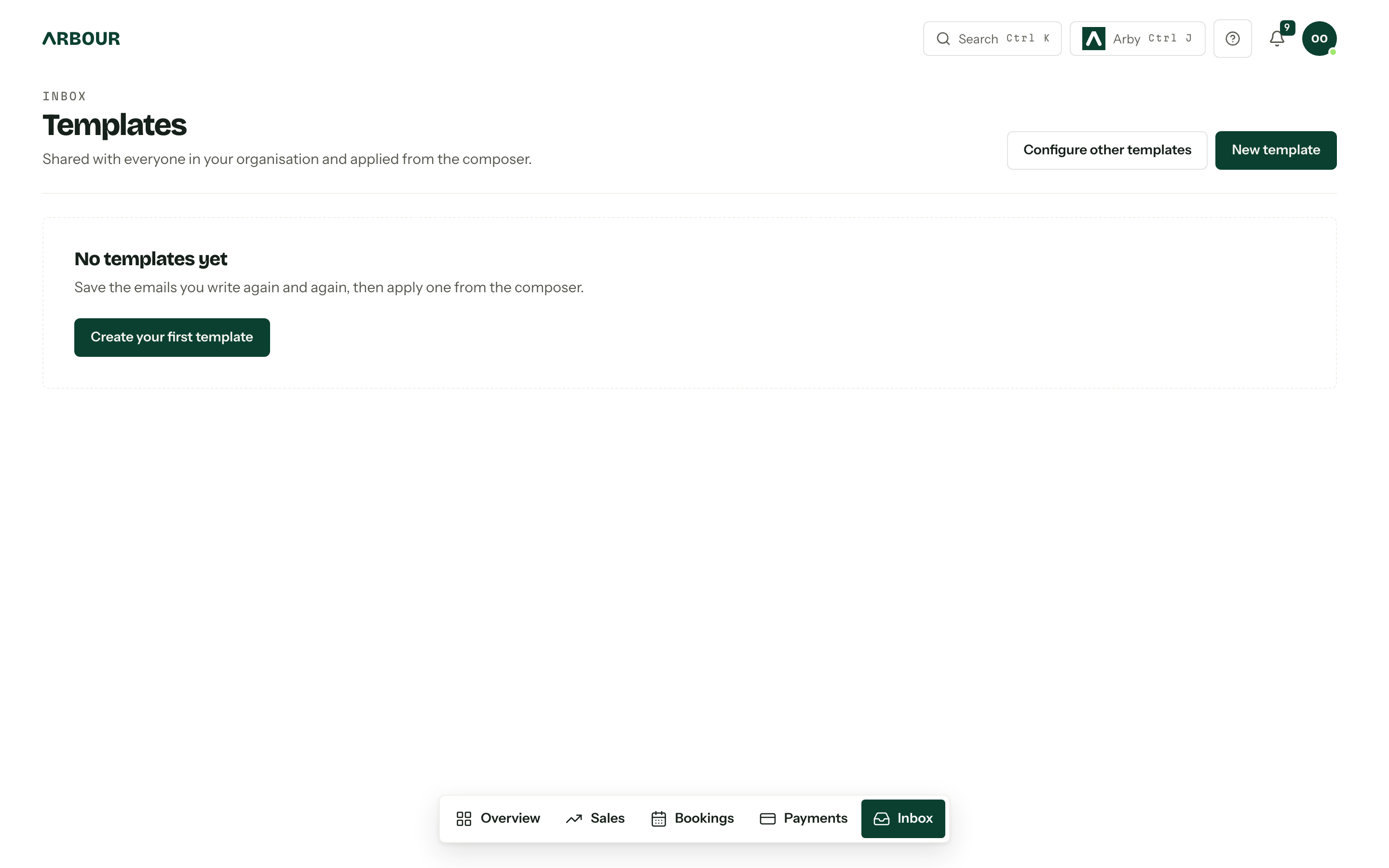
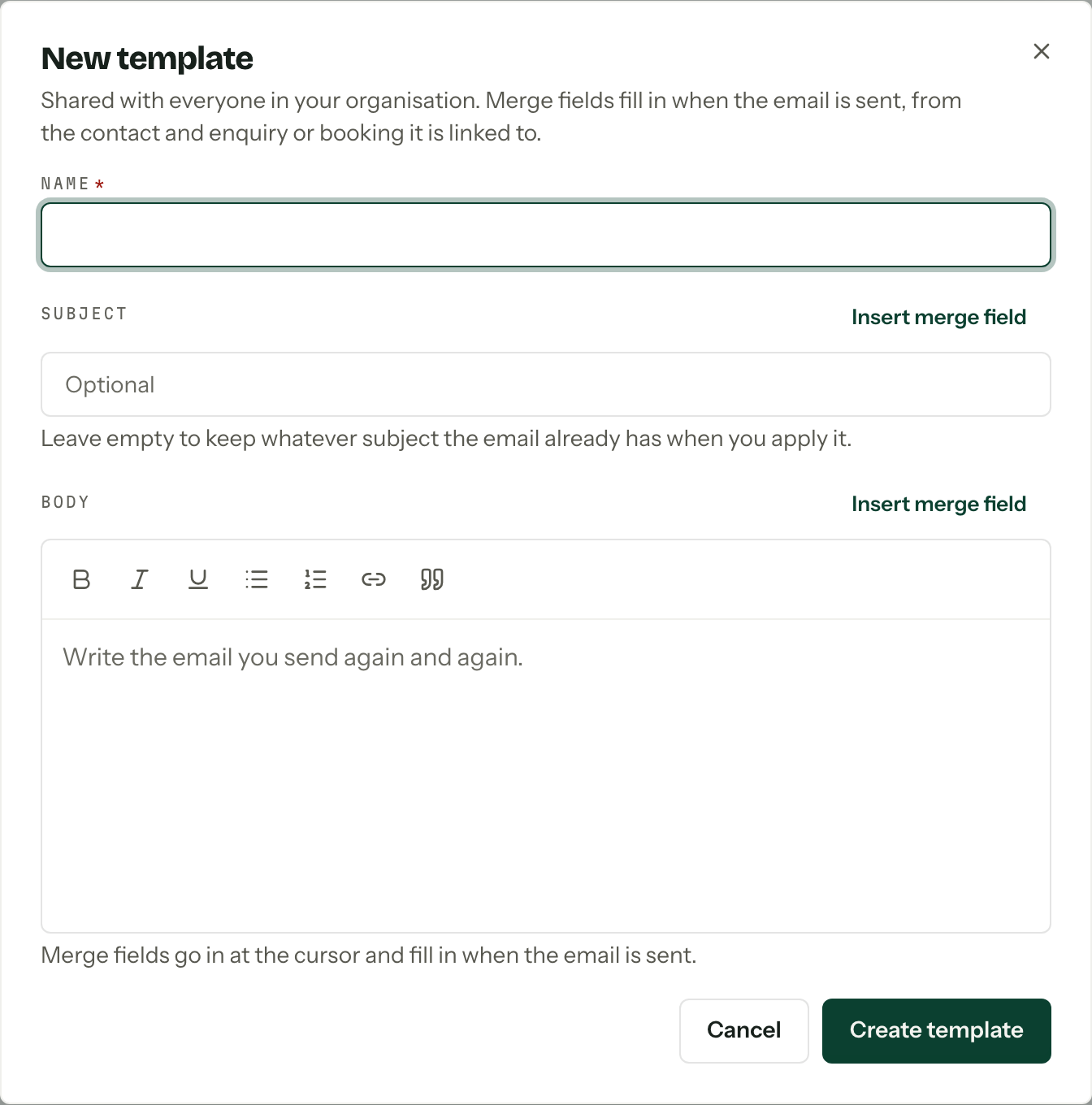
Write one
- 01
Press New template and give it a Name. That is what the composer's picker shows, so name it for the moment it is used.
- 02
Fill in Subject, or leave it empty to keep whatever subject the email already has when the template is applied.
- 03Write the Body. Insert merge field drops a field in at the cursor.
- 04Press Create template.
The list shows each template's subject, a taste of the body and a badge for every merge field it carries, so you can tell at a glance which ones need a linked contact before they can send. Edit and Delete are on the row. Configure other templates at the top goes to Client emails, where the emails Arbour sends for you are worded.
Merge fields
A merge field stays literal in the draft and fills in when the email sends, from the contact and the enquiry or booking the email is linked to.
| Group | Fields |
|---|---|
| Organisation | {{ organisation.name }} |
| Contact | {{ contact.name }}, {{ contact.first_name }}, {{ contact.last_name }}, {{ contact.email }}, {{ contact.phone }} |
| Enquiry or booking | {{ item.title }}, {{ item.type }}, {{ item.stage }}, {{ item.start_date }}, {{ item.end_date }}, {{ item.package }} |
That is the whole set. Quote, invoice, payment, contract, questionnaire and portal fields are deliberately absent: a conversational email has no single document to resolve them against. Typing one in anyway is refused when you save, with the field named back to you. The emails Arbour sends your clients on your behalf do carry those fields, and they are edited elsewhere: see Client emails.
A field with nothing behind it stops the send
An email using {{ contact.first_name }} has to be linked to a contact, and one using an item field has to be linked to an enquiry or booking. Arbour refuses the send rather than posting a blank where a name should be. Link the conversation, or take the field out.
Apply one
In the composer, Template appears in the toolbar along the bottom once your organisation has saved at least one. Choosing a template replaces the whole body, asking first with Replace when there is something written to lose. A new email also takes the template's subject when it carries one, while a reply or forward keeps its own Re: or Fwd: subject so it stays in the client's thread. Anything already in To, Cc and Bcc is left alone. Templates work in replies, forwards, resumed drafts and group emails too.
Who can edit them
Creating, editing and deleting templates needs the Manage customer communication defaults permission. Everyone else sees the list read only, which is still the useful half: it is exactly what the composer offers them. See Team and roles.