The Outgoing tab on Emails holds your scheduled drafts, group emails in progress and messages waiting to send or needing attention. It shows your scheduled drafts and group emails, plus pending and failed messages from mailboxes you can use.
Open emailsChoose Outgoing beside Received, Sent and Drafts.
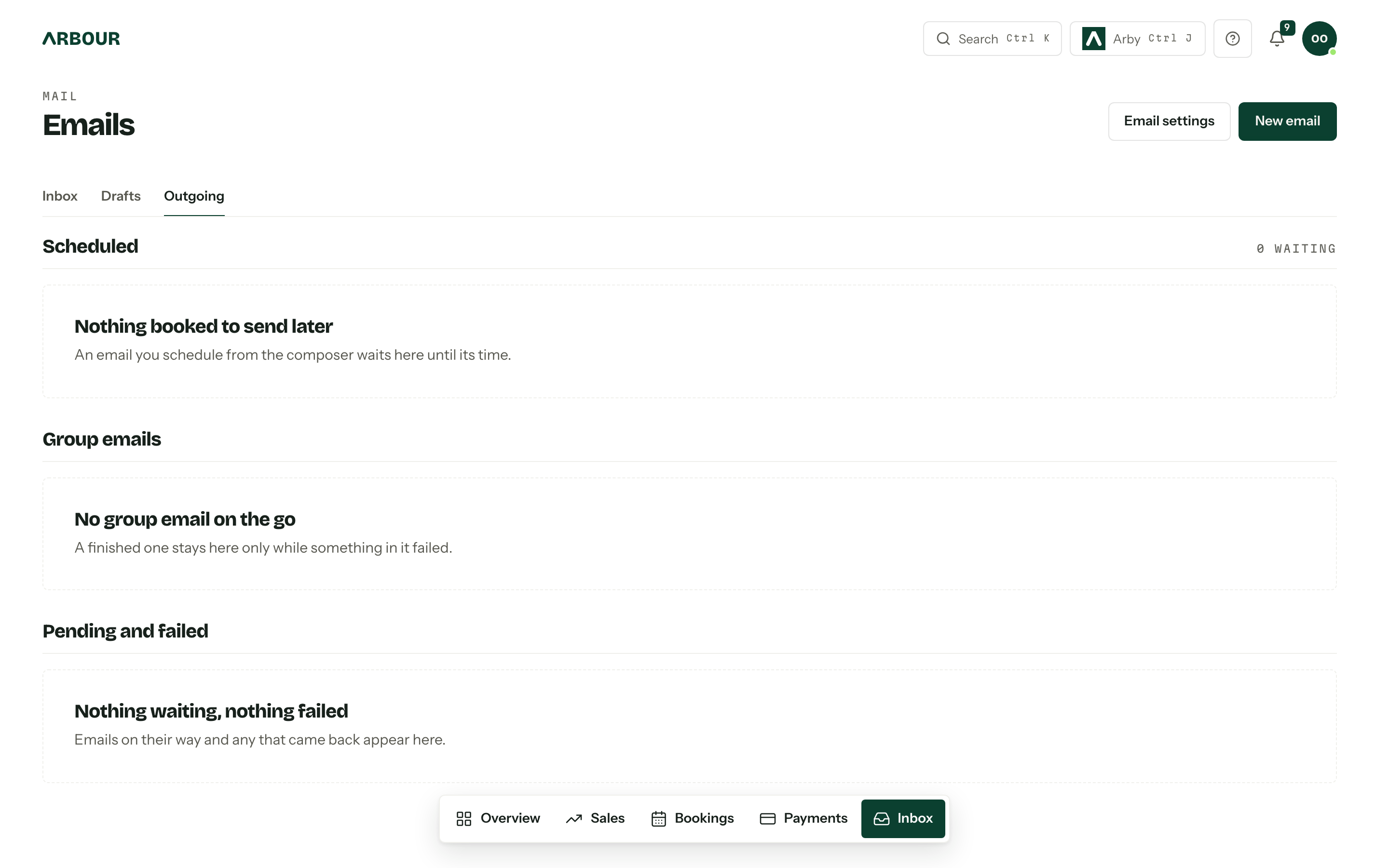
Scheduled
Scheduled drafts stay editable until sending begins. Each row shows when it sends. Edit reopens the draft, Send now starts it early after a confirmation, Unschedule returns it to Drafts, and Discard deletes it. Times use your organisation's timezone.
This section includes ordinary emails and group emails. For the timing rules and what happens when a scheduled email cannot start, see Scheduled sends.
Group emails
Each group email shows its subject, a Sending, Stopped or Completed badge, a progress bar, and how many were sent, failed, skipped or cancelled. View recipients lists each recipient with their status (Queued, Preparing, Sending, Sent, Failed, Skipped or Cancelled) and what to do about any error.
- 01
Choose Stop while sending, then Stop sending, to cancel emails still in the queue. Emails already prepared continue to send.
- 02
If the group finishes with failures, review the errors and fix the cause, such as a mailbox that needs reconnecting.
- 03
Choose Retry failed to try those recipients again, or Dismiss to remove the finished group from Outgoing.
Emails are prepared one at a time, two seconds apart. Only one group runs from a mailbox at a time. If your provider asks Arbour to slow down, the group pauses, says so on the card, and carries on by itself. Provider sending limits can still cause failures.
A finished or stopped group disappears when it has no failures. A group with failures stays until they are retried successfully or you dismiss it. When a group finishes with failures, you receive a notification linking back here. This notification is on by default in app and by email; change it in Notifications.
Pending and failed
Individual emails waiting to send or failing to send appear with their recipient, a Pending or Failed badge and any error. Open shows the conversation. For a failed message, fix the cause and choose Retry.
Messages belonging to a group appear in that group's details instead. Outgoing refreshes every five seconds while work is active.