Select enquiries or bookings, write one email, and send a separate copy to each recipient. Group emails send from a connected mailbox you can use. Each copy is linked to its enquiry or booking.
Open enquiriesSelect enquiries or bookings
- 01
Press Select, then tick the checkbox on each card in the board, or beside each row in the list.
- 02
Use Select all in this view in the selection bar to include every item matching the current filters. In list view, the checkbox at the top of a stage selects that stage's visible rows.
- 03
Choose Group email to open one draft for the selection. With only one item selected, the action is Send email.
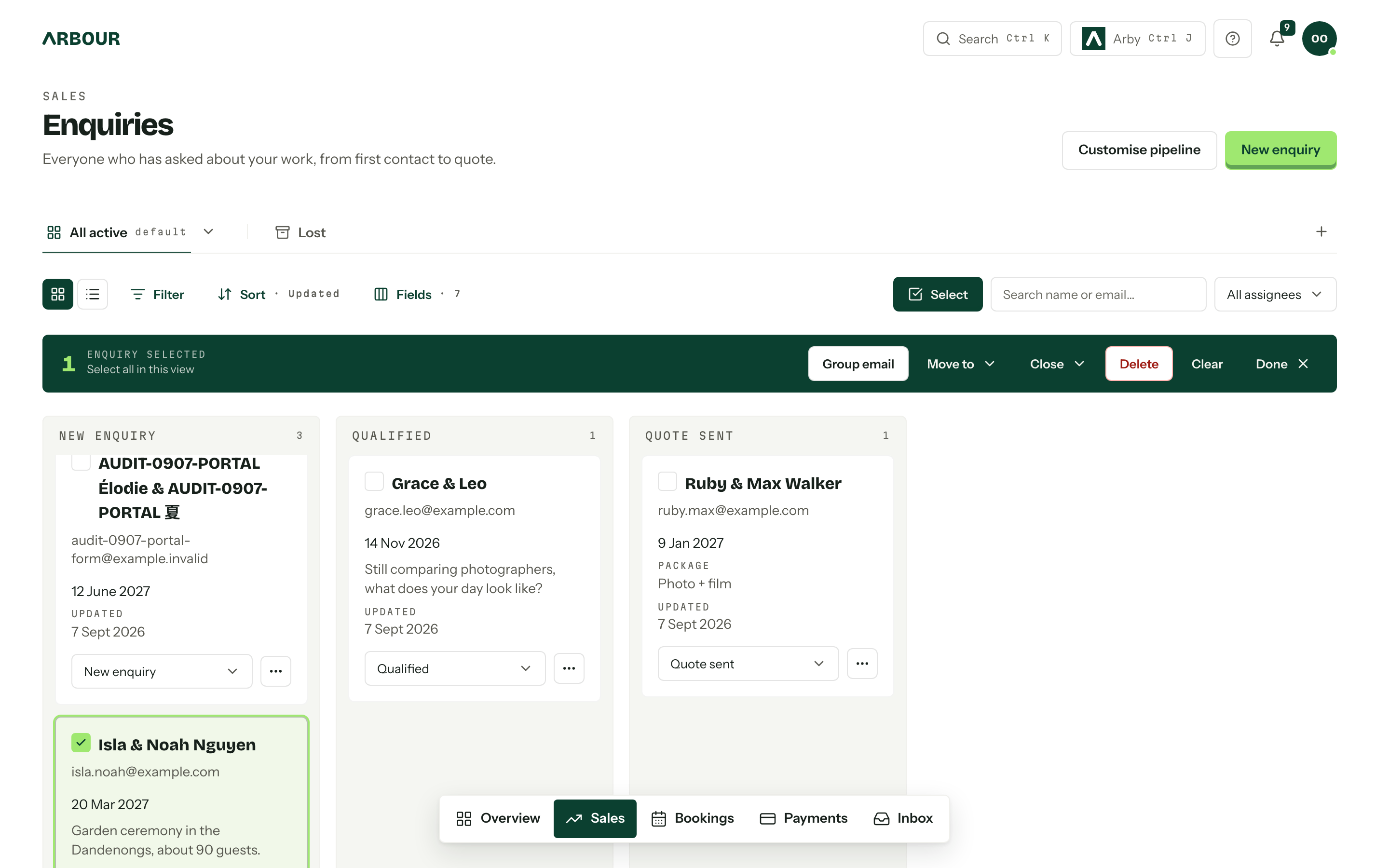
Sorting and filtering keep your selection, including items hidden by a new filter. Clear removes it. Switching between enquiries and bookings, between workflows, or between active and closed items, pressing Done, or creating the draft clears it too. Closed items can be selected.
If you have no connected mailbox to send from, Arbour asks you to connect one before it creates the draft.
Review the recipients
The recipients row shows how many contacts will receive the email, such as 12 of 14 recipients. Recipients chooses who: Primary contact includes the primary contact on each selected item, and All contacts includes every linked contact.
Open Review to see the Ready, Skipped and Removed recipients. Remove anyone who should not receive this email; restore them if you change your mind. A contact without an email address is skipped. When two contacts on the same item share an address, only the first receives a copy. Skipped recipients cannot be restored from this list.
The same contact on two selected items receives two emails, each using that item's details. Changing between Primary contact and All contacts rebuilds the list and clears any removals, so review it again afterwards.
Write and preview
- 01
Choose the mailbox in From if you can send from more than one, add a subject and write the message.
- 02
Choose Insert merge field, beside the subject or in the toolbar, to add organisation, contact or enquiry and booking details at the cursor. You can also apply an email template from Template.
- 03
Choose Preview, then use Previous and Next to check individual recipients. The preview includes the resolved subject, message and signature.
- 04
Choose Back to message to make any changes, then check the recipient count on Send.
Merge fields use the contact and item for each recipient. An empty field renders empty, so check the wording around optional details. Custom fields are not available in group emails.
Signatures, attachments up to 10 MB in total, and the writing assistant work as they do in an ordinary email. Group emails have no Cc or Bcc.
Send now or later
Send to N starts sending the individual emails. To send later, open the arrow beside it and choose Schedule send…. Until sending starts, the work remains one editable draft, private to you. Unscheduled drafts appear on Drafts with a Group tag and recipient count; scheduled drafts appear on Outgoing.
Follow progress, stop remaining emails or retry failures on Outgoing. Emails are prepared two seconds apart, so a large selection takes time. A group of 500 takes about seventeen minutes before any delays from your email provider.
In the inbox, the group's conversations share an expandable row until someone replies. A conversation with a reply then appears on its own.