Arbour can tell you when a client opened an email you sent, so you know whether to chase or wait. It is on by default for every email that leaves through a connected mailbox.
Open emailsWhat is tracked
Every email Arbour sends through a connected mailbox:
- emails you write in the composer, replies and forwards included
- scheduled sends, when they go out
- group emails, each recipient's copy on its own
- client emails such as quotes, invoices and receipts, when they send from a mailbox
- automation emails that send from a mailbox
Not tracked:
- anything sent from the Arbour address, including a client email that falls back to it while a mailbox needs reconnecting
- mail you send straight from Gmail or Outlook. It syncs into the conversation, but it went out without the image or the marker
How Arbour knows
Three things count as an open. Whichever happens first stamps the time.
| Signal | What happens |
|---|---|
| The image | Each email carries an invisible image. A mail app that loads it counts as an open. |
| Portal link | Links into your client portal carry a marker, so following one counts even when the mail app blocks images. |
| A reply | A reply from someone the email went to marks every earlier email to them in that conversation as opened. |
The marks are added to the copy that goes out, never to the email stored in Arbour. A reply also marks mail you sent straight from Gmail or Outlook, since it proves the client saw it.
Where it shows
In a conversation, a sent email the client has opened carries Opened with how long ago, beside Sent. Hover over it for the exact time.
In the Emails list, each row shows Opened or Not opened for the last email sent through Arbour in that conversation. Mail sent straight from your mail app is looked past rather than called unopened, and a conversation with no tracked email shows neither.
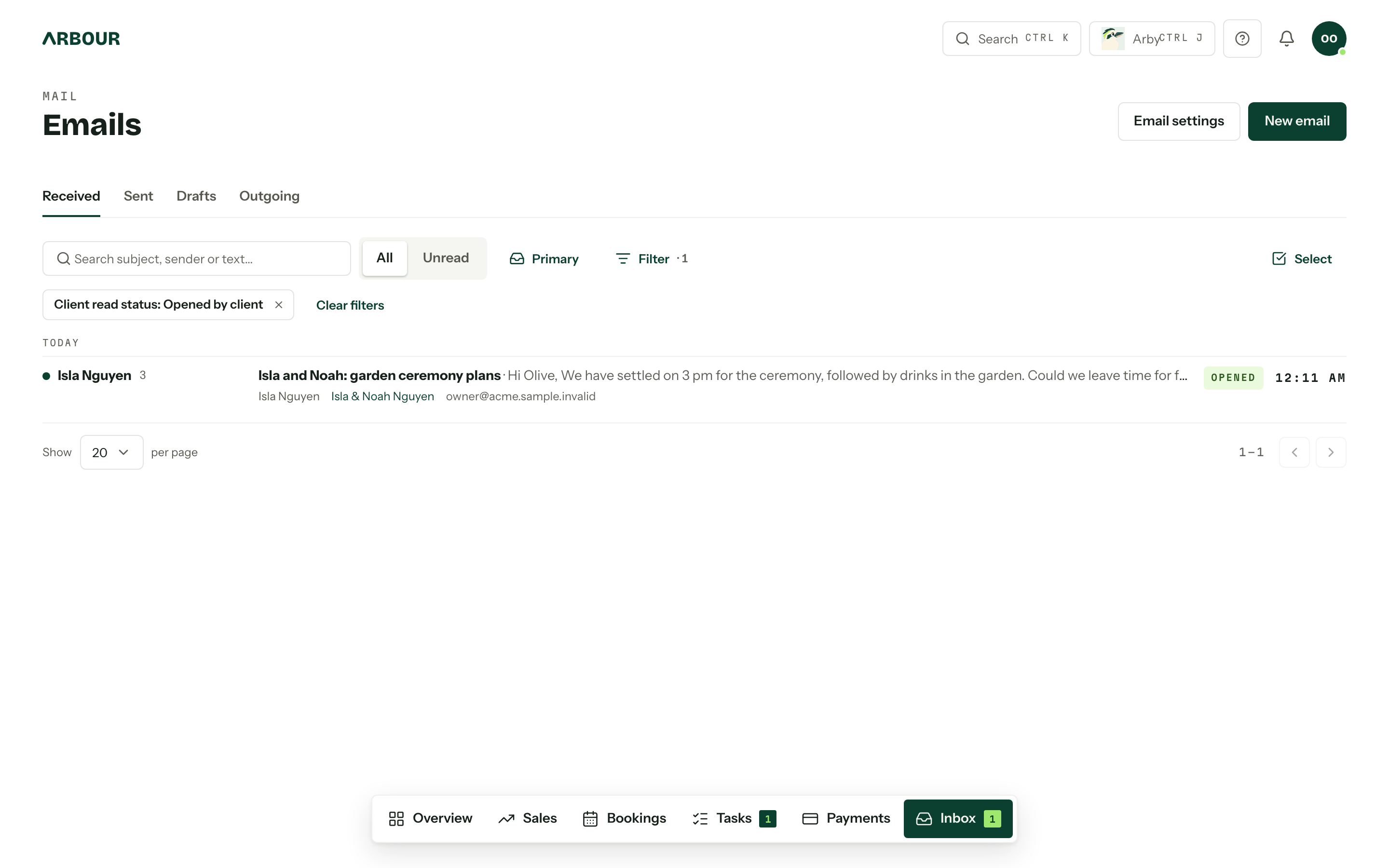
To narrow the list, open Filter and choose Client read status: Opened by client or Not opened by client. It reads the same last tracked email as the badge. See Searching and filtering.
What it cannot tell you
Opened means a mail app displayed the email. It is not proof the client read it.
- Some mail apps load every email as it arrives. Apple Mail's privacy protection does, so an email that lands in Apple Mail can read Opened before anyone has looked.
- Opening your own copy in your Sent folder loads the image too, and counts.
- Opens are recorded per email, not per recipient. An email to a couple reads Opened when either of them opens it, and you cannot tell which.
- Nobody is notified. Check the badge or the filter when you want to know.
Turning it off
The switch is Show when a client opens an email, in the Email open tracking section of Settings, Communications, Client emails. It covers every email sent from a connected mailbox in the organisation, not only client emails. Changing it takes the Manage customer communication defaults permission.

With it off, new emails go out without the image or the marker, and no opens are recorded, not even from a reply. Badges already earned stay. Emails sent while it is off still count as tracked in the list, so they read Not opened there.