A mailbox belongs to the member who connected it. Arbour reads and sends through it and keeps a copy of the mail in its Inbox, Sent and Archive folders. It lives in Settings, under Communications, on the Mailboxes & signatures tab. Email settings on the Emails page goes straight there.
Open mailboxes and signatures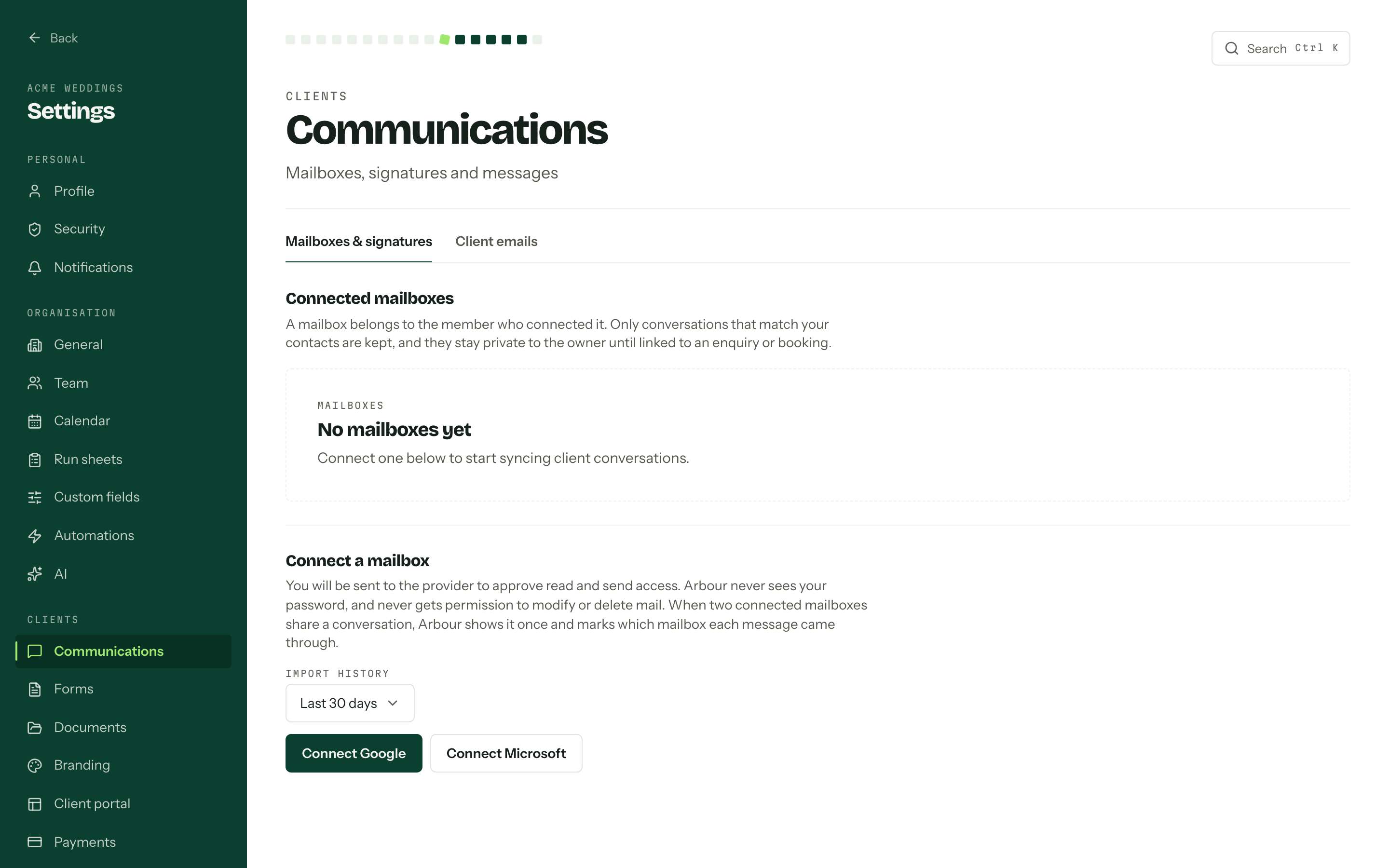
Connect a mailbox
- 01
Choose Import history: Nothing (new mail only), Last 30 days or Last 90 days. It is asked once, when the mailbox is first connected.
- 02
Press Connect Google or Connect Microsoft. You are sent to the provider to approve read and send access.
- 03
Approve, and you land back here with the address listed under Connected mailboxes and a Connected badge beside it. Its mail appears on Emails as it syncs.
Arbour never sees your password. Google is asked for read and send access. Microsoft is asked for read, write and send access, so Arbour can save drafts and send replies; a Microsoft mailbox connected before that change may need reconnecting to approve it. Your role controls which mailboxes you can use. Only the member who connected a mailbox can reconnect it, disconnect it or edit its signatures.
What syncs
Three folders per mailbox: the inbox, sent items and the archive. Every message in them is kept, whether or not anyone on it is a contact in Arbour. Spam, trash, drafts and the outbox are never synced, and nor are folders you have made yourself. Moving a message between these three folders keeps it in Arbour. Deleting it, or moving it anywhere else, removes Arbour's copy.
The Inbox shows contact mail by default, so mail from people who are not contacts waits under All mail rather than crowding the list. Mail that was already read in your mailbox arrives read in Arbour, and imported history arrives read for everyone. A teammate who joins later starts with everything already in Arbour marked read. After that, read and unread are tracked in Arbour for each member, and nothing is marked read or unread back in your mailbox.
After the first pass, sync is incremental and runs on its own. The row names the provider and reads synced with the time of the last run, or not synced yet. On your own mailbox, Sync now queues a run if you would rather not wait. Gmail's inbox tabs and Outlook's Focused and Other come across too, as the categories the inbox filters by.
Two mailboxes, one conversation
When two connected mailboxes are on the same thread, Arbour shows it once and marks which mailbox each message came through.
Who can see whose mail
Connect and use your own email lets you connect a mailbox and work with its correspondence. View and send team emails lets you read all stored organisation emails and send from any connected mailbox, including historical conversations. You do not need to connect your own mailbox to use team mailboxes.
There is no private/shared switch. Linking a conversation does not change access. Team email access includes correspondence about restricted contacts or bookings, but opening those records still needs their own permissions. Drafts and AI writing chats stay with their author. See Team and roles.
Signatures
Each connected mailbox gets its own Signatures section under the list. Give one a Name, paste or write the signature, then press Add signature. Pasting a styled signature straight out of Gmail or Outlook brings the formatting and the images with it. The first one you save becomes the default; Make default, Edit and Delete handle the rest.
The chosen signature is copied into the message when it is sent, so editing one later never rewrites mail that has already gone out. Pick which one goes on a particular email in the composer's Signature field.
Reconnecting and disconnecting
Providers expire access from time to time. A mailbox in that state reads Needs reconnecting and swaps its buttons for Reconnect, which runs the same approval. A mailbox that has already synced imports no extra history. If it has never synced, reconnecting keeps the Import history choice from the first connection.
Gmail needs both read and send permissions. If either was left unticked, Arbour asks you to connect again and approve both. An existing mailbox can show the same explanation under Needs reconnecting. Only the member who connected it can reconnect it; teammates see a message asking them to contact that member.
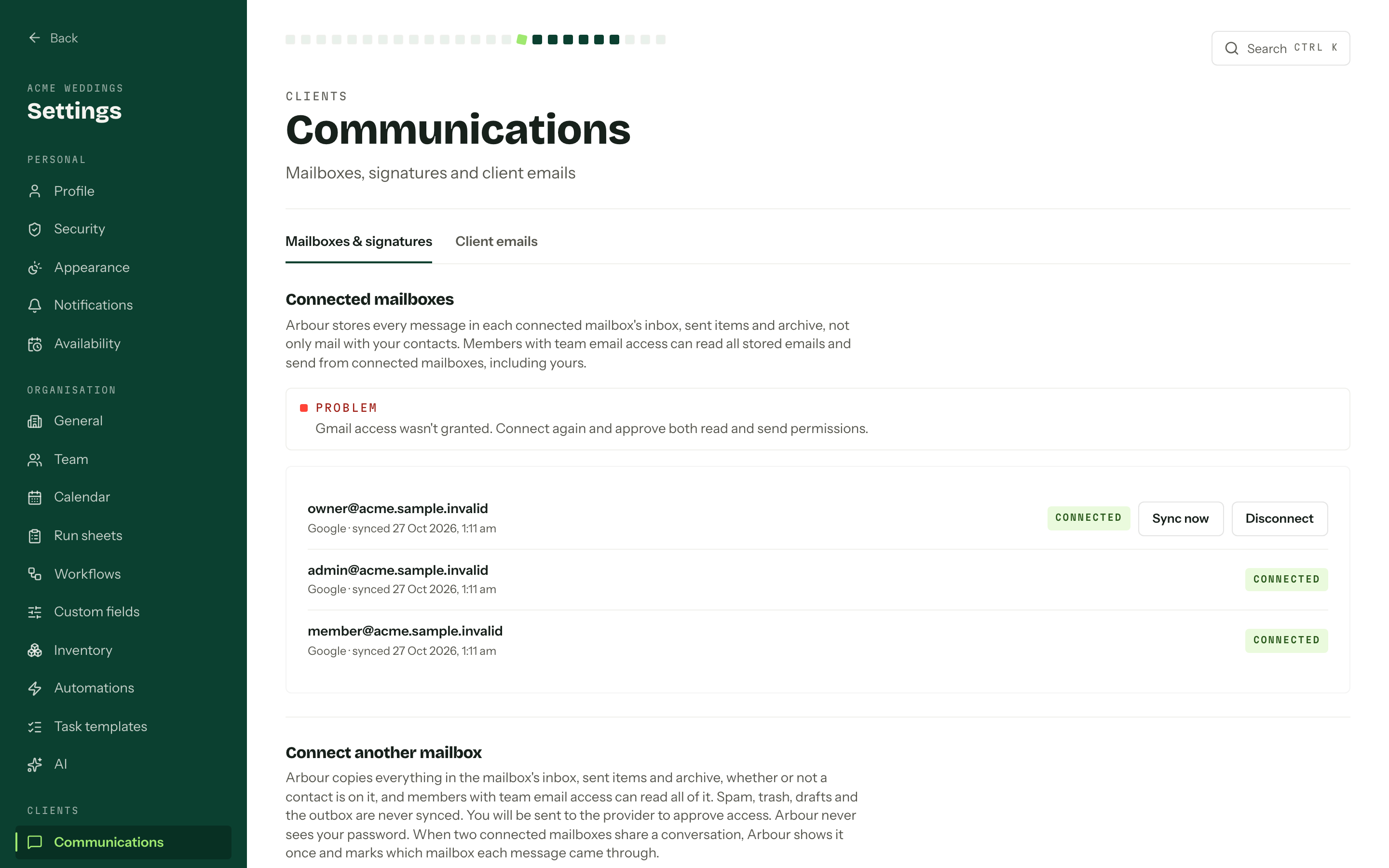
Disconnect asks first, then stops syncing and sending. Conversations already synced stay exactly where they are, and the row drops off this page. Only the member who connected a mailbox can disconnect it. With team email access, teammates' mailboxes are listed too, without these buttons.