Appearance is yours, not the organisation's. It sits under Personal in Settings and follows you into every organisation you belong to and onto every device you sign in on. A choice applies the moment you pick it, so there is no Save button.
Open appearance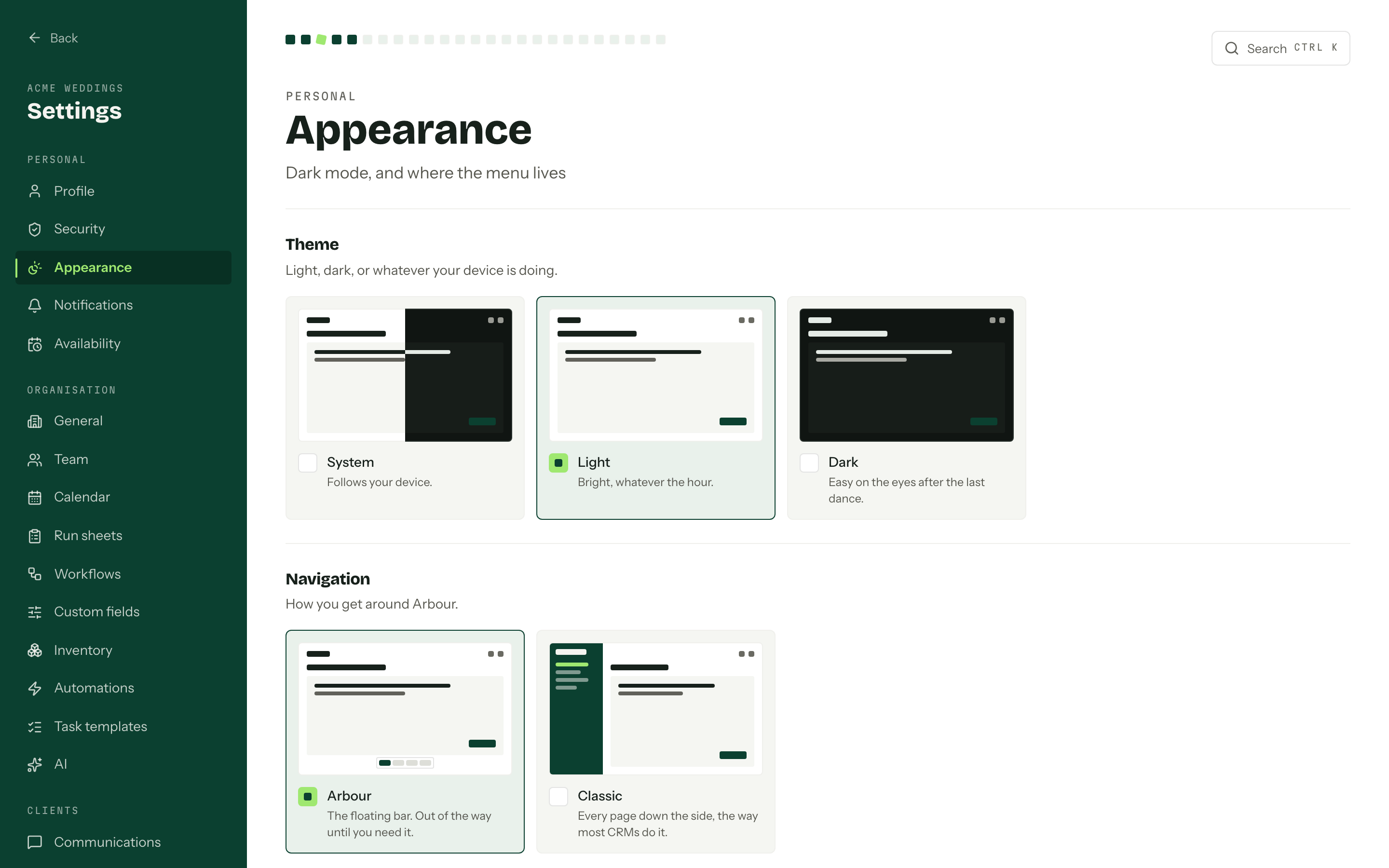
Theme
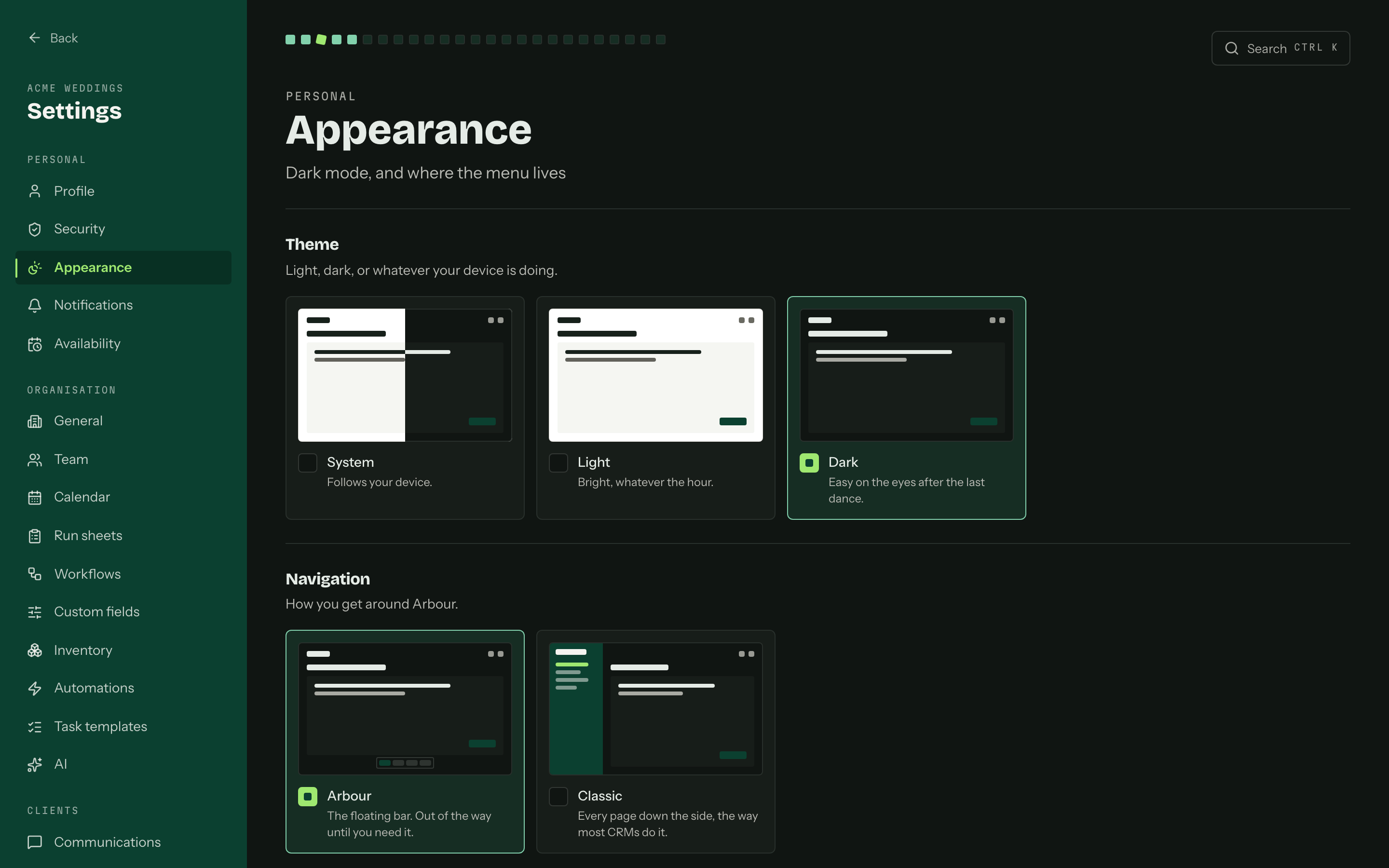
- System follows your device, so the console goes dark when your computer or phone does.
- Light stays light, whatever the device says.
- Dark stays dark, whatever the device says.
Dark covers the console, including onboarding and settings. What you write there goes dark too: the email editor, templates, signatures and contract text, and so do the emails you receive. Anything carrying colours of its own (text pasted from a document, a styled signature, a designed newsletter) keeps a white card, so it stays readable and looks the way it will be sent. Anything a client sees stays light: the client portal, your forms, the emails they receive and PDFs. So do the previews of your branding inside the console, so you see exactly what clients will. The sign-in page and this help centre are always light.
Navigation
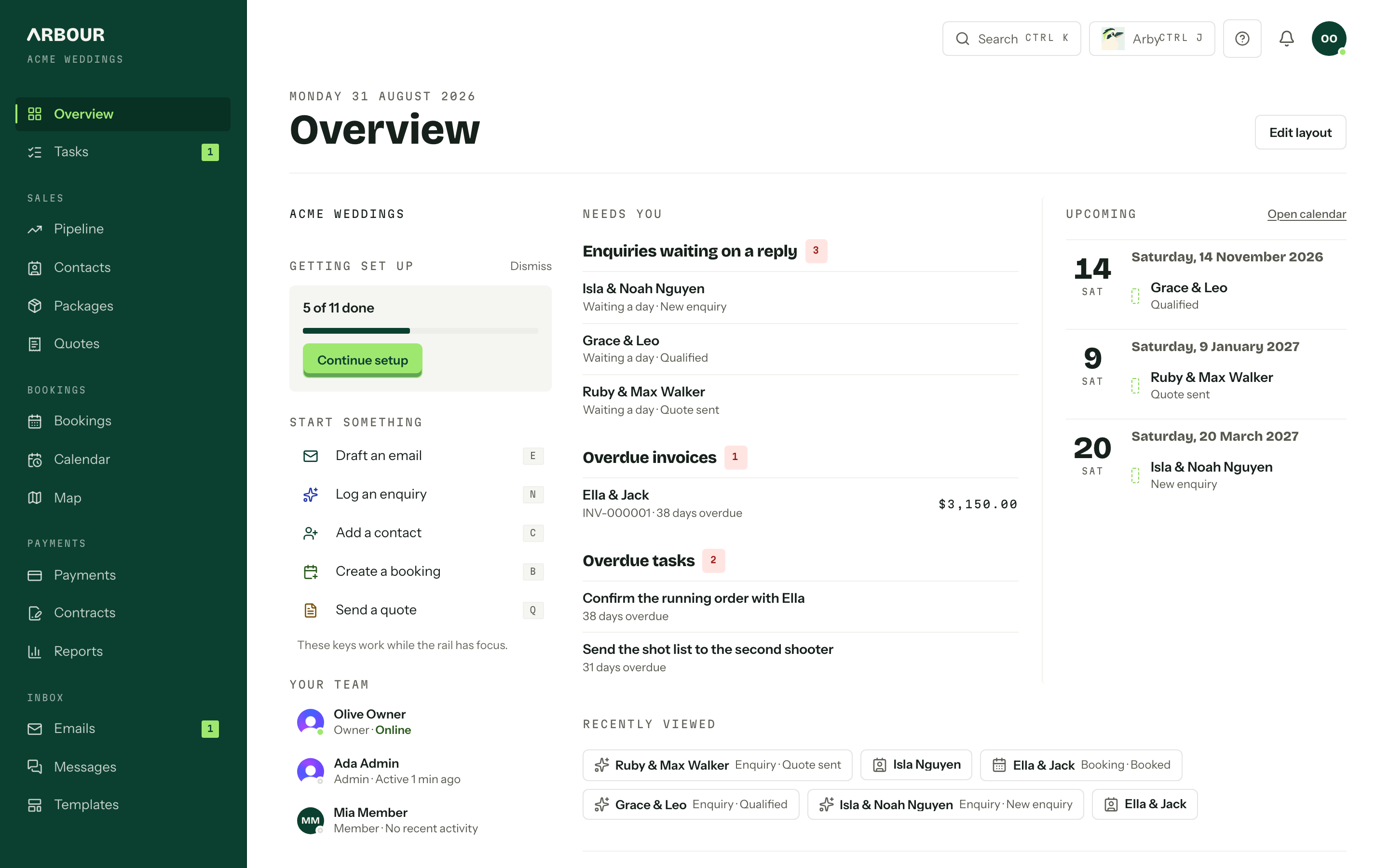
- Arbour is the floating bar along the bottom of the screen. It stays out of the way until you reach for it.
- Classic puts every page down a green sidebar on the left, like Settings. Settings itself stays in your account menu, top right, in both.
Search, Arby, help, notifications and your account menu stay in the top bar either way. On a smaller laptop, tablet or phone, Classic tucks the sidebar behind a Menu button in the top bar, and it closes again once you pick a page. The overview drops its Jump to list in Classic, because the sidebar already lists the same places.
If a change cannot be saved, it goes back to how it was and a message says so. Pick it again to retry.