These two pages are about the person, not the business. One profile follows you into every organisation you belong to, so changing your name here changes it everywhere at once. Both sit under Personal in Settings.
Open your profile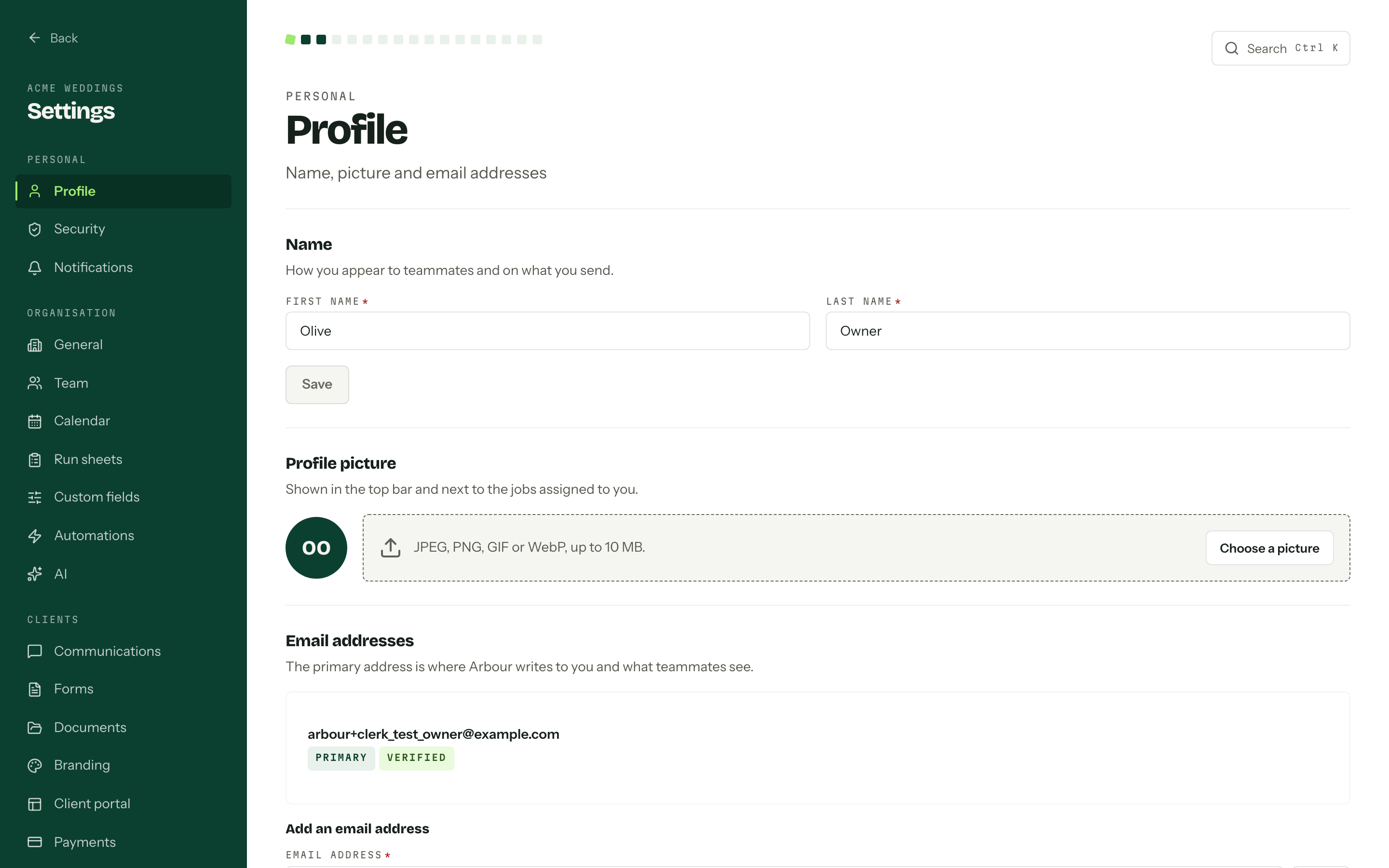
Name and picture
First name and Last name are how you appear to teammates and on what you send. Save writes them.
The picture shows in the top bar and next to the jobs assigned to you. Choose a picture picks a file, Replace picture swaps it, and Remove picture drops back to your initials. Keep the image under 10 MB.
Your details in this organisation
Job title and Phone belong to the organisation you are currently in. Saving them here does not change your details in another organisation, your sign-in profile or your email addresses.
Your job title appears with your name when the client portal shows assigned staff. Your phone only appears if the organisation also enables staff phone numbers in Client portal settings. An admin can update these details from Team too.

Email addresses
The primary address is where Arbour writes to you and what teammates see. It carries a Primary badge in the list.
- 01Under Add an email address, type it into Email address and press Add.
- 02
Press Verify, enter the code in Code we emailed you and press Confirm. An unverified address cannot become primary.
- 03Press Make primary on the one you want Arbour to use.
Remove takes an address off the account and you can no longer sign in with it. The primary address has no Remove button, so make another one primary first.
Security
Open security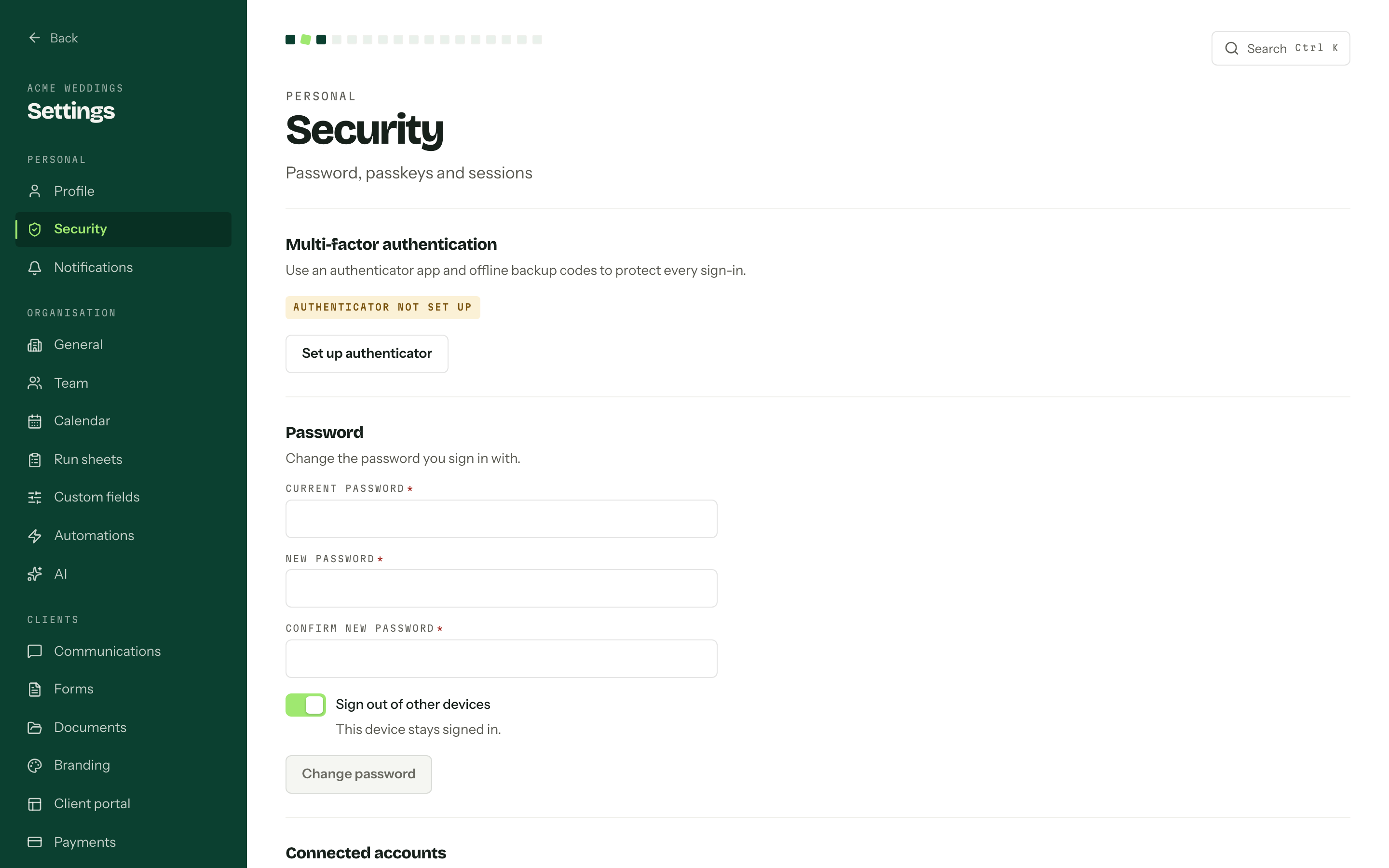
The page runs top to bottom: Multi-factor authentication, Password, Connected accounts, Active devices and the Danger zone.
Multi-factor authentication
Multi-factor authentication is optional for everyone running a business in Arbour, and required only for Arbour's own platform staff. The badge reads Authenticator not set up or Authenticator enabled.
- 01Press Set up authenticator and scan the QR code with your authenticator app.
- 02Enter the current code under Authenticator code.
- 03
Press Copy codes or Download codes, tick I have stored these codes safely, then press Done.
Store the backup codes before you close the screen
Backup codes are shown once, and generating a new set with Regenerate backup codes stops the old set working. So does Replace authenticator, the moment replacement begins.
Password, accounts and devices
Password asks for your current password, then the new one twice, and finishes with Change password. If you have only ever signed in with a connected account, the section reads Set a password instead, there is nothing current to type, and the button is Set password. Sign out of other devices is a switch on the same form, on by default, and this device always stays signed in.
Connected accounts lists the providers you can sign in with in one click. Connect adds one, Disconnect removes one, and a connected provider shows the address it signs you in as.
Active devices is everywhere you are signed in right now, with where and when each was last active. The one you are reading this on is badged This device. Sign out ends a session at once; doing it to the current device sends you back to the sign-in page.
Verify it is you
Sensitive changes ask for a fresh identity check before they run: adding, removing or repointing an email address, changing your password, connecting or disconnecting an account, signing a device out, setting up an authenticator, and creating or revoking an API key. Deleting an organisation or your whole profile does too.
A dialog titled Verify it is you asks for whatever your account supports, usually a code emailed to you or your password. For changes to your sign-in details a check lasts ten minutes, so a run of them only asks once. API keys and deletions ask every time.
Danger zone
The Danger zone at the foot of the security page deletes your profile. What that costs depends on who else is in the organisation:
- With other members, the organisation keeps working without you.
- If you are the only member, Delete organisation sits beside Delete profile. It deletes the organisation and takes you back to onboarding; your profile and billing account stay. Deleting an organisation does not cancel its subscription.
Delete profile is blocked, with the reasons listed under the button, while any of these is true:
- You are the last owner of an organisation. Promote another owner or delete the organisation. See Team and roles.
- You are the only owner of a billing account. Invite another owner or close the account. See Account owners.
- You still hold crew gear in any of your organisations. Ask someone with Manage inventory and allocations to mark your returns first. See Crew gear.