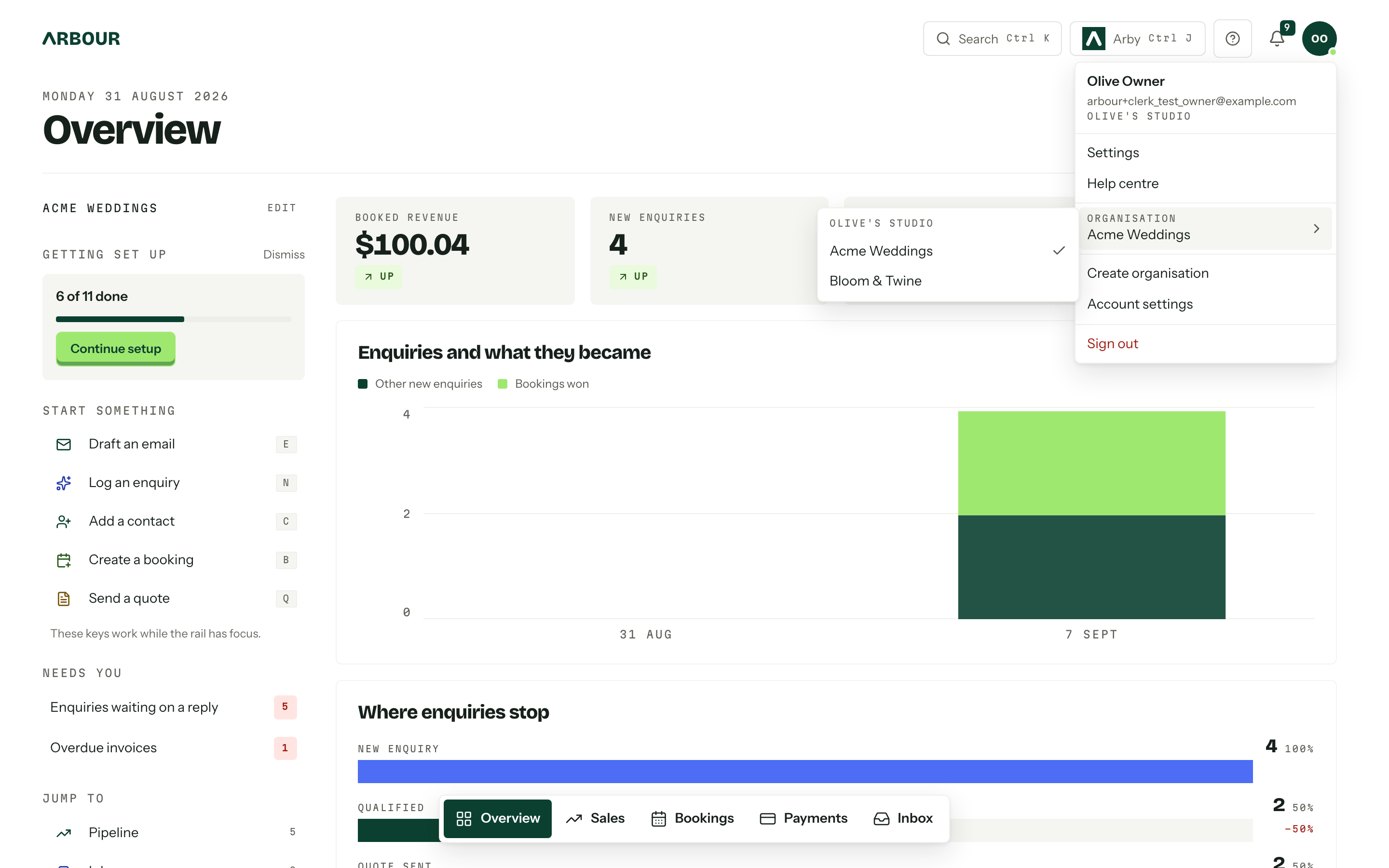
One person, more than one business. The avatar at the top right holds every organisation you belong to, and the organisation you are acting in decides what the whole console shows you: the pipeline, the contacts, the numbers, all of it.
The switcher
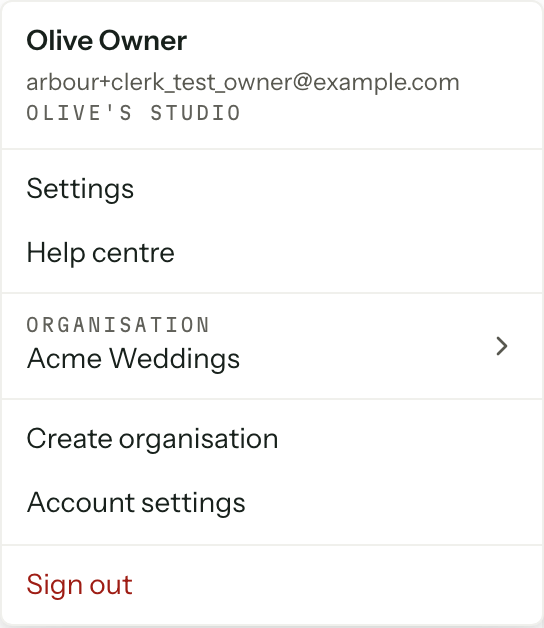
The Organisation row in the account menu opens a panel beside it, with the current organisation ticked. Choose another and you land on the overview inside it, with the previous organisation's data dropped rather than kept warm. On a phone the list opens in place of the menu, with Back at the top.
Organisations are grouped by the billing account that pays for them, because that is the unit you actually own. Past five in one account, a search box appears above the list. Belong to exactly one organisation and the row is not there at all: there is nothing to switch to.
The acting organisation lives in a cookie, never in the address bar, so a link you copy from one organisation opens the same record for anyone who can see it.
Answering an invitation
An invitation to another business shows up as an Invitations row in the account menu with a count, and only while one is waiting. The notification bell announces it; the menu is where it stays put.
Open invitations- 01
Each invitation names the organisation, the role you have been offered and the address it was sent to.
- 02Accept and join adds the membership and switches you straight into that business.
- 03Decline spends the invitation. Getting back in means being invited again.
Someone signed in with no membership anywhere is sent here first rather than to the wizard, so being invited beats being asked to set up a business of your own.
Adding an organisation
Create organisation in the account menu goes to a shorter version of the onboarding wizard: Business name, Portal URL and And what does this one do on a Saturday?, and that is all. There is no plan step and no team step, because both belong to the account, which already exists. The account picker only appears when you own more than one.
Add an organisationOnly an account owner sees the door, with Account settings for that account beside it. Both point at the account you are acting in, so switching organisation re-points them. Someone who owns no account sees Start your own business instead, which runs the full setup wizard and creates an account of their own.
The plan sets the ceiling
Solo covers one organisation, Studio three, House as many as you like. At the limit the Create organisation button stays disabled and the page says which plan you are on and how many it includes, with See plans beside it. Moving up is done on the account's plan page: see Plans and billing.
A new organisation starts empty and gets its own portal, pipeline, clients and setup checklist. Nothing is shared across the line except the plan and the bill. Multiple organisations covers what an account owner can see across all of them.