Two things happen before the console is any use. The wizard at Onboarding creates the account, the first organisation and your Owner membership. The setup checklist then walks an owner through the settings a working business needs: payment details, enquiry forms, packages, branding, templates.
Open setupThe wizard
Three steps, and nothing is written until the last button. Abandon it halfway and there is nothing to clean up.
- 01
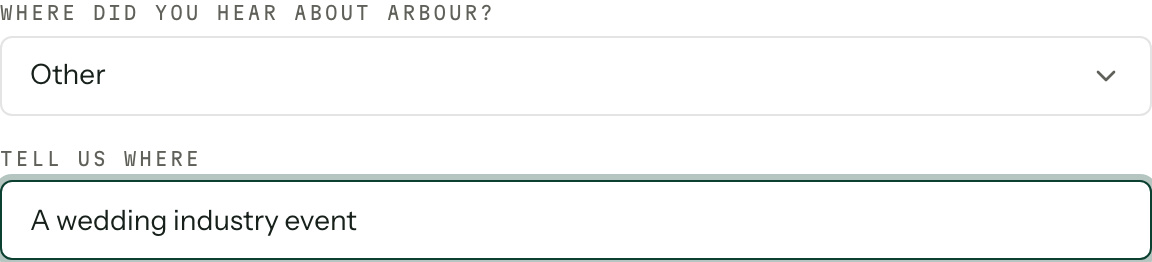
The business. The Business name is what clients see. The Portal URL follows it and is checked as you type, so a name someone else has taken is caught here rather than at the end. Under And what do you do on a Saturday?, pick the main service first: that pick sets the words the console uses for clients and jobs, and the rail beside the form shows what changes. Track inventory adds stock tracking. It starts ticked when you pick Styling and hire, but you can change it for any business. Once you tick or untick it yourself, changing services keeps your choice. You can also change it later in Inventory settings. Choose Where did you hear about Arbour? before continuing. If you choose Other, fill in Tell us where too.
- 02
The team. An email address and a role, Admin or Member, per row. Add another for a row, Skip for now to move on. Studio covers eight people including you; invite more and the extra seats go on the plan, with the count shown beside the form. Invitations can wait; the team settings do the same job later.
- 03
The plan. Monthly or annual (annual saves two months), then Solo or Studio. Solo is one person by definition, so it greys out the moment there is an invitation on the step before. Studio carries an Extra seats field that starts at what your invitations need and can only go up. Under Billed to, the Account name is the name on your tax invoices and follows the business name unless you change it. Billing country and Postcode set the tax; the postcode is required in the US, Canada and India.
Start 14-day free trial takes no card. Subscribe now attaches one and the subscription renews itself when the trial ends. The trial is one per person, ever: if you have used one, the only button is Add payment details to start. See Plans and billing.
If creating the account stops partway, say the payment provider fails, coming back to the wizard shows Let's finish setting up with your business name. Finish setting up completes the same account with the details you already gave. Start over throws them away and sets up a separate account, without the free trial the unfinished one had already reserved.
The setup checklist
Once you are in, the overview carries a Getting set up card at the top of the rail with a progress bar and a button into the checklist. It stays there until every step is done or an owner dismisses it. Eleven steps, in this order:
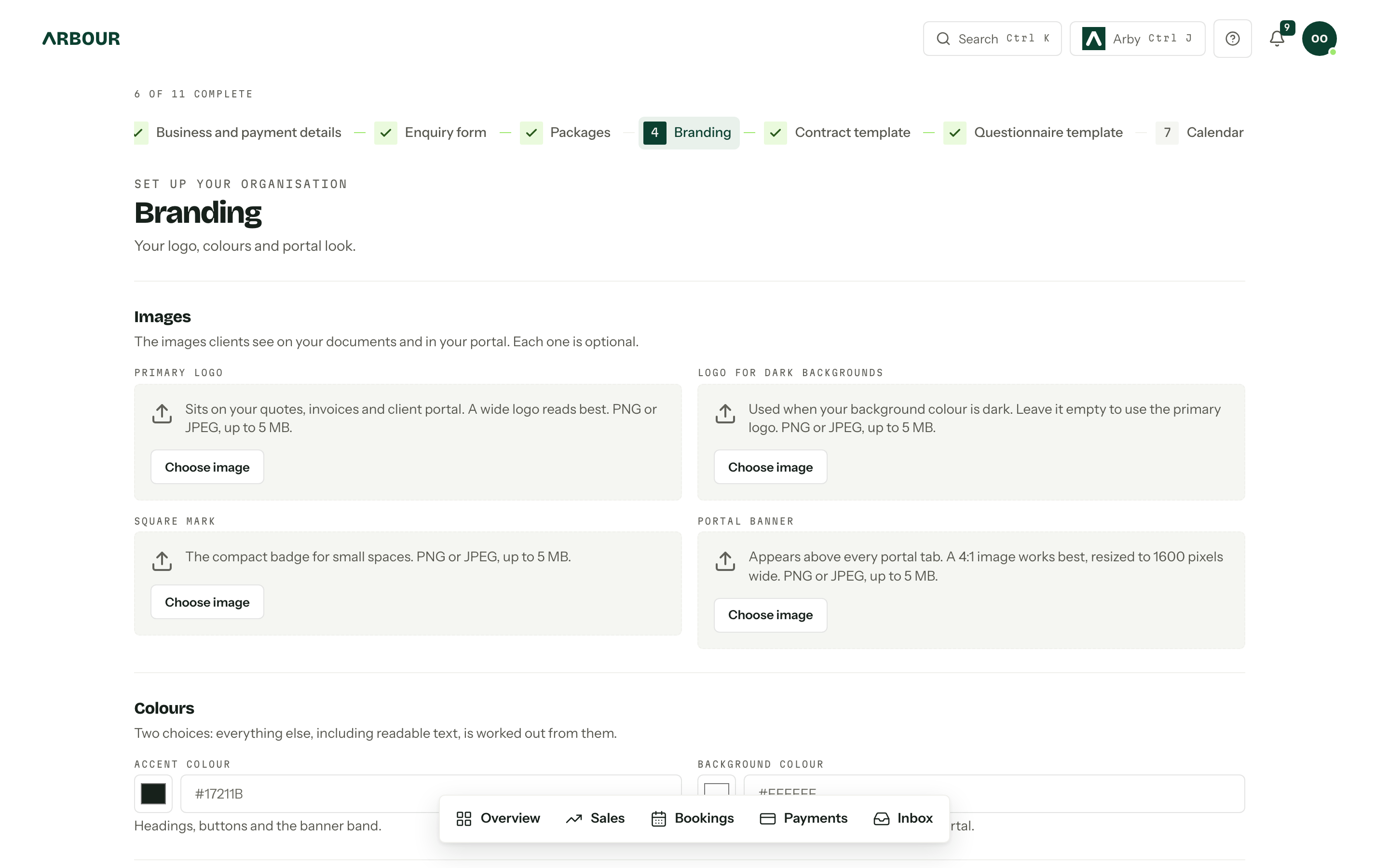
Business and payment details, Enquiry form, Packages, Branding, Contract template, Questionnaire template, Calendar, Custom fields, AI assistant, Accounting, Import from another tool. The stepper at the top of every step shows a tick per completed step and a completion counter. Work them in any order.
Each step is the same body as its settings page, with previous and next at the foot. The Enquiry form step shows every enquiry form in one list, each naming its workflow, the same list as Settings, Forms, Enquiry. The last one says Finish setup and drops you back on the overview.
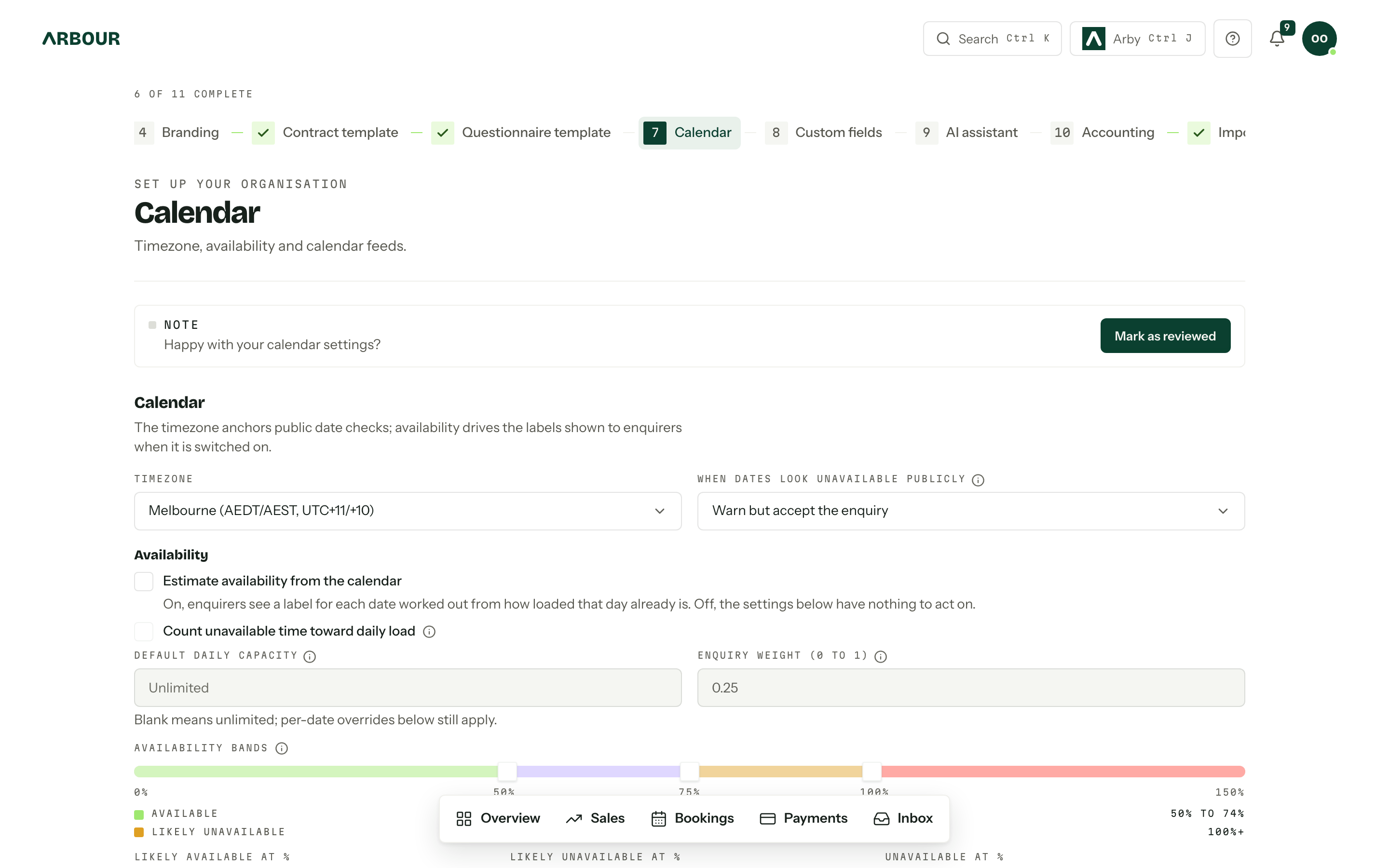
Mark as reviewed
Six of the steps answer themselves. A package exists, so Packages is done. Any live form is switched on, in any workflow, so Enquiry form is done. They are derived from live data on every read, which also means a step re-opens honestly if the data goes away.
The remaining five can be marked complete by an owner. Calendar, Custom fields and AI assistant each carry Mark as reviewed. Accounting completes when a connection is live, or through Not now if you keep your books elsewhere. Import from another tool completes after an import, or through Skip this step if there is nothing to bring across. See Importing data.
Dismiss is permanent
Dismiss on the setup card hides the checklist for every owner in this organisation, including future ones, and it cannot be brought back. Leaving it alone costs nothing: it disappears on its own once the last step is done.
Who sees it
The checklist is owners only, in the console and in the API. Anyone else who follows a link to a setup step lands back on the overview. A second organisation gets its own checklist, because the settings behind it are its own.