Inventory settings control how your organisation records stock. Open Settings, then Inventory. Changes need Manage organisation settings. Without that permission, or while the account is read-only, the controls are read-only.
Open inventory settingsTracking, hire and crew gear
Track inventory is the main setting. Tick it and Hire and Crew gear appear under it. Press Save tracking to switch tracking on. The Conditions, Categories and Fields sections then appear, and Inventory shows under Sales.
Hire lets packages, accepted quotes and bookings reserve stock. Crew gear lets you assign equipment to members. Keep both on if the same equipment is used for client bookings and by your team.
Nothing changes until you press Save tracking, and Discard puts the boxes back as they were. Turning off Hire or Crew gear stops new allocations of that kind. Existing allocations remain recorded and still count against stock while they are reserved or out and their dates apply. Turning off Track inventory asks you to confirm first, then hides the inventory controls, including the booking card, package requirements and quote stock hints. It keeps the stored records.
Conditions decide what is on hand
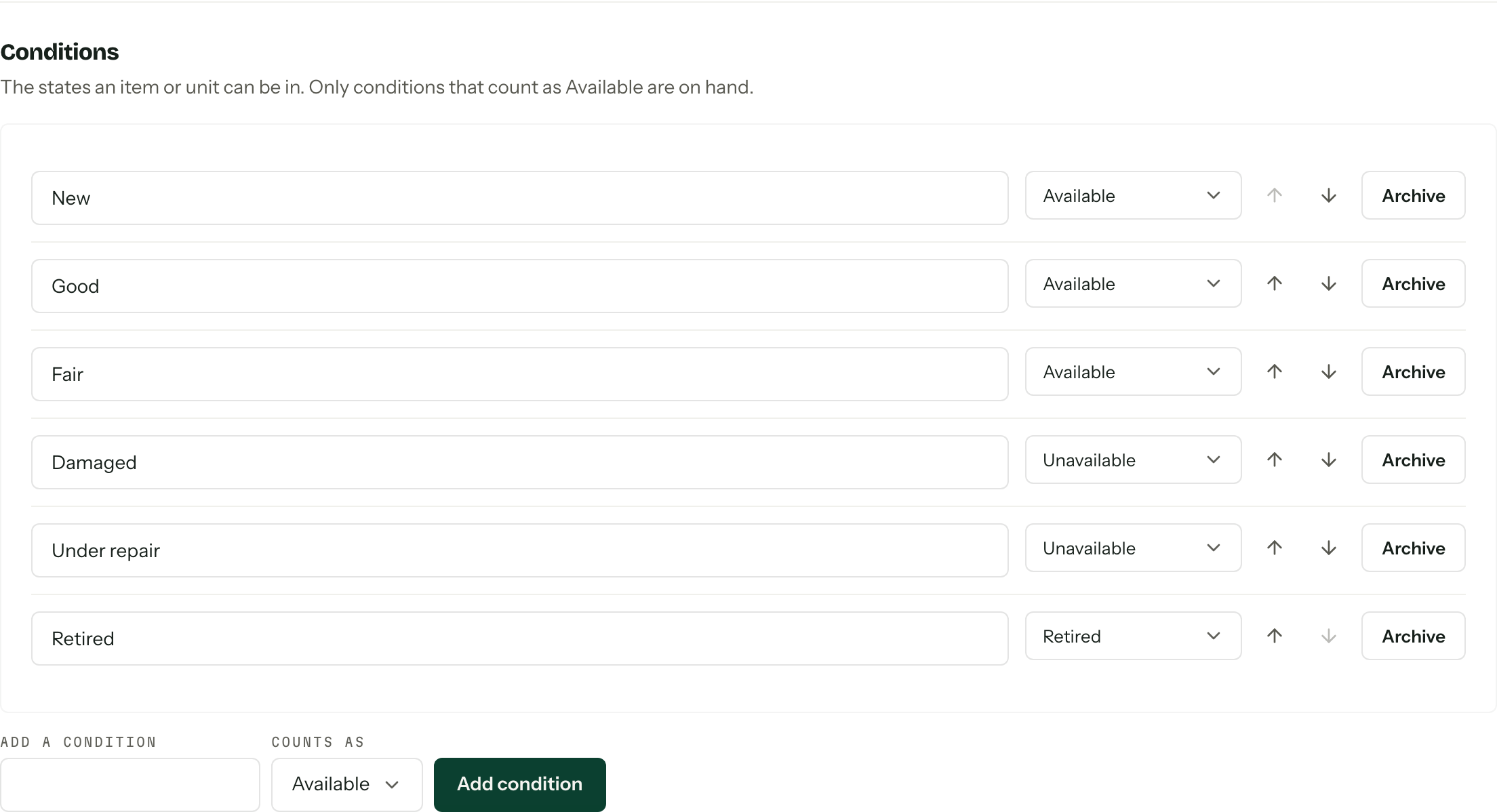
A counted item's condition applies to its whole quantity. Every serialised unit has its own condition. The condition name describes it; Counts as decides whether it can contribute to stock.
| Counts as | Effect |
|---|---|
| Available | Counts towards on-hand stock |
| Unavailable | Stays in the records but does not count towards on-hand stock |
| Retired | Does not count towards on-hand stock. Retired units cannot be picked for a new allocation |
New organisations start with New, Good and Fair as Available; Damaged and Under repair as Unavailable; and Retired as Retired.
- 01Under Conditions, enter a name in Add a condition.
- 02Choose whether it Counts as Available, Unavailable or Retired.
- 03Press Add condition.
Edit a condition's name in its row, then press Enter or leave the field to save. Choose Available, Unavailable or Retired beside an existing condition to change how every item or unit using it counts towards stock. Use the up and down buttons to change the order in pickers.
A condition change can create a shortage
Moving a condition from Available to Unavailable or Retired reduces on-hand stock. Existing allocations stay in place, so check Availability and stock warnings after the change.
Archive or restore a condition
- 01Press Archive beside the condition.
- 02
Under Move its items to, choose an active replacement for the items and units using it.
- 03Press Archive condition, then confirm Archive.
You cannot archive the last active condition. Archived conditions appear under Archived conditions with Restore. Restoring makes the condition available to choose again; it does not move items back from the replacement.
Categories group items
Categories organise the item list. They do not change availability. An item belongs to one category or none.
Under Categories, enter a name in Add a category and press Add category. Edit a name in its row and press Enter or leave the field to save. Use the up and down buttons to set the order in pickers.
To retire a category, press Archive, choose where its items should move under Move its items to, then press Archive category and confirm. You can move them to another category or leave them uncategorised, including when archiving the last category. Restore makes an archived category selectable again without moving its old items back.
Hide optional fields
The Fields section controls Category, Description, Purchase date, Purchase cost, Replacement value, Location, Notes and Photo.
- 01Untick the fields your organisation does not use.
- 02Press Save.
Hidden fields disappear from the relevant item forms, tables and detail pages. Their values stay stored. Tick a field and save again to show those values. Hiding Category also removes the Category filter and the category headings on Inventory. Field visibility is shared across the organisation; it is not a separate permission for individual members.
Who can change stock
Settings access is separate from inventory access. View inventory allows someone to read all stock and allocations. Manage inventory and allocations allows them to add and edit items, allocate stock and record returns. Members without inventory permissions can read their own crew assignments when Crew gear is on.
Set these permissions in Team and roles. Changing a role does not return gear or release its assignments.