Inventory records what your organisation owns, what each booking needs and what your team has taken out. Open Inventory under Sales.
Open inventory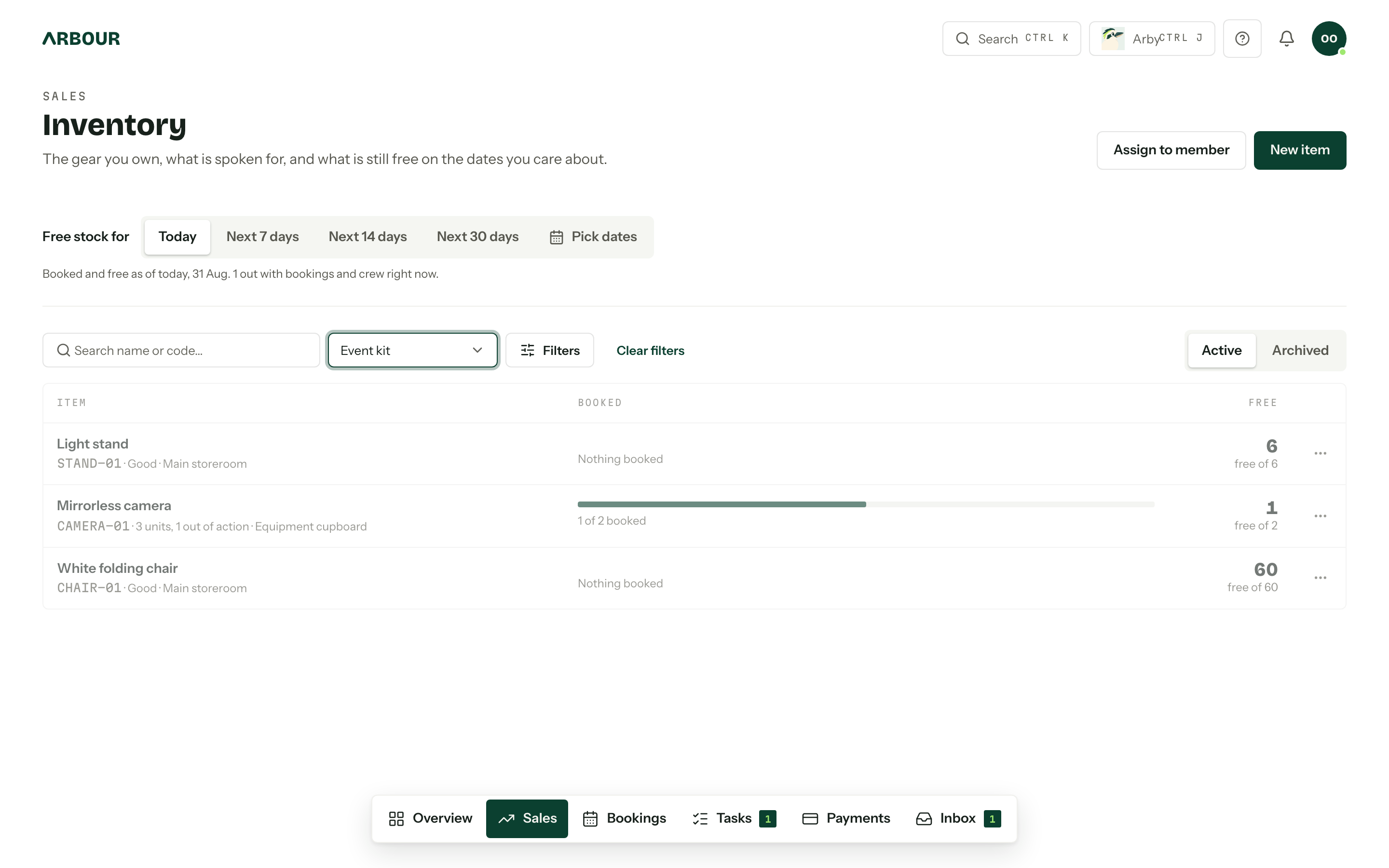
Turn tracking on
- 01Open Settings, then Inventory.
- 02Tick Track inventory. Hire and Crew gear appear under it, both ticked.
- 03
Leave Hire ticked if packages, quotes and bookings need stock. Leave Crew gear ticked if you assign equipment to members. You can use either or both.
- 04Press Save tracking. Nothing changes until you do.
- 05Open Inventory under Sales and press New item.
Changing these settings needs Manage organisation settings. Adding items and assigning stock need Manage inventory and allocations. Owners can do both.
During organisation setup, choosing Styling & hire ticks Track inventory for you. You can change that choice before finishing setup, or switch tracking on later for any type of business.
Choose how to count each item
| Tracking | Use it for | How stock is recorded |
|---|---|---|
| Counted | Interchangeable items, such as 40 chairs or 120 napkins | One quantity and one condition for the whole pool |
| Serialised | Equipment you need to identify individually, such as cameras or microphones | Separate units, each with its own serial number and condition |
An item is the type of thing you own. A unit is one physical piece of a serialised item. For example, Mirrorless camera can have units CAM-01 and CAM-02.
You cannot change an item's tracking type after creating it. See Items and units for the fields, photos and retirement options.
Read the inventory page
Free stock for sets the dates the Booked and Free counts cover. Choose Today, Next 7 days, Next 14 days or Next 30 days. For other dates, press Pick dates, choose From and To, then press Show these dates. A range can cover up to 120 days. Today uses your organisation's time zone.
The line under the dates says what the counts cover, and how many are out with bookings and crew right now.
Items are grouped by category, with a count and a short badge on each heading. Press a category heading to fold it away. Each row shows the item's code, its condition (or, for a Serialised item, how many units it has and how many are out of action), how much is booked and how much is free. Booked is the most stock reserved or out on any one day in the range, and the row names that busiest day. Free is what remains after it. Press anywhere on a row to open the item.
Search by name or code, or choose a Category. Filters narrows the list by condition or tracking type, or switch on Only items running low or short. Clear filters resets them. Press Archived to see archived items and Active to go back. The page keeps these choices in its address, so returning from an item or sharing the link shows the same view.
Needs attention appears above the list when an item is short, a unit is promised twice or a booking has gear but no dates. A warning does not stop you saving. Check the dates and allocations before deciding what to change. See Availability and stock warnings.
Reserve stock for a booking
Add requirements to a package, then include the package in a quote. When the client accepts, Arbour reserves the required stock for the booking. A requirement of two chairs per package becomes 20 chairs when the client accepts a quantity of ten.
You can also add stock directly from the Inventory card on a booking. Creating a booking or manually converting an enquiry does not reserve package stock by itself. See Stock for bookings.
Sign gear out to your team
Press Assign to member from Inventory or an item page. Choose the member, quantity or physical units, and the dates. Leave the end date blank for gear they keep until it is returned.
Members without permission to view the full inventory see Your gear, a read-only list of their own assignments. A manager records returns. See Crew gear.
Keep inventory internal
Clients do not see inventory, stock warnings or equipment assignments in their portal, quotes or invoices. A shortage does not block quote acceptance. Inventory is an internal record of what you need to supply.
Switching tracking off keeps the records
Switching off Track inventory hides the inventory pages and controls and stops new allocations. It does not delete items, requirements or assignments. Switch it on again to work with the same records.