Check availability on Inventory under Sales before promising stock for a booking or assigning gear to a member. Hire reservations and crew assignments draw from the same stock.
Open inventoryCheck a date range
- 01
Search by item name or code. Choose a Category, or use Filters for condition, tracking type or Only items running low or short.
- 02
Under Free stock for, choose Next 7 days, Next 14 days or Next 30 days. The list updates straight away.
- 03
For other dates, press Pick dates, choose From and To, then press Show these dates. Both dates count, so an item promised through Friday is still booked on Friday. You can check up to 120 days at a time.
- 04
Read Booked and Free for each item. Open the item to see each day of the next eight weeks, and the bookings and members listed under Bookings and crew.
For a date range, Booked is the highest quantity promised on any one day in that range. The row reads like 40 of 60 booked and names that busiest day. Free is the on-hand quantity minus that peak. Reservations on separate days do not add together as though they happen at once.
For example, with ten chairs on hand, six reserved on Monday and eight on Tuesday, the Monday-to-Tuesday result is eight booked and two free.
Choose Today to go back to today's commitments in your organisation's time zone. Today does not total every future reservation. Arby answers the same question in words, such as "What is free next Saturday?"
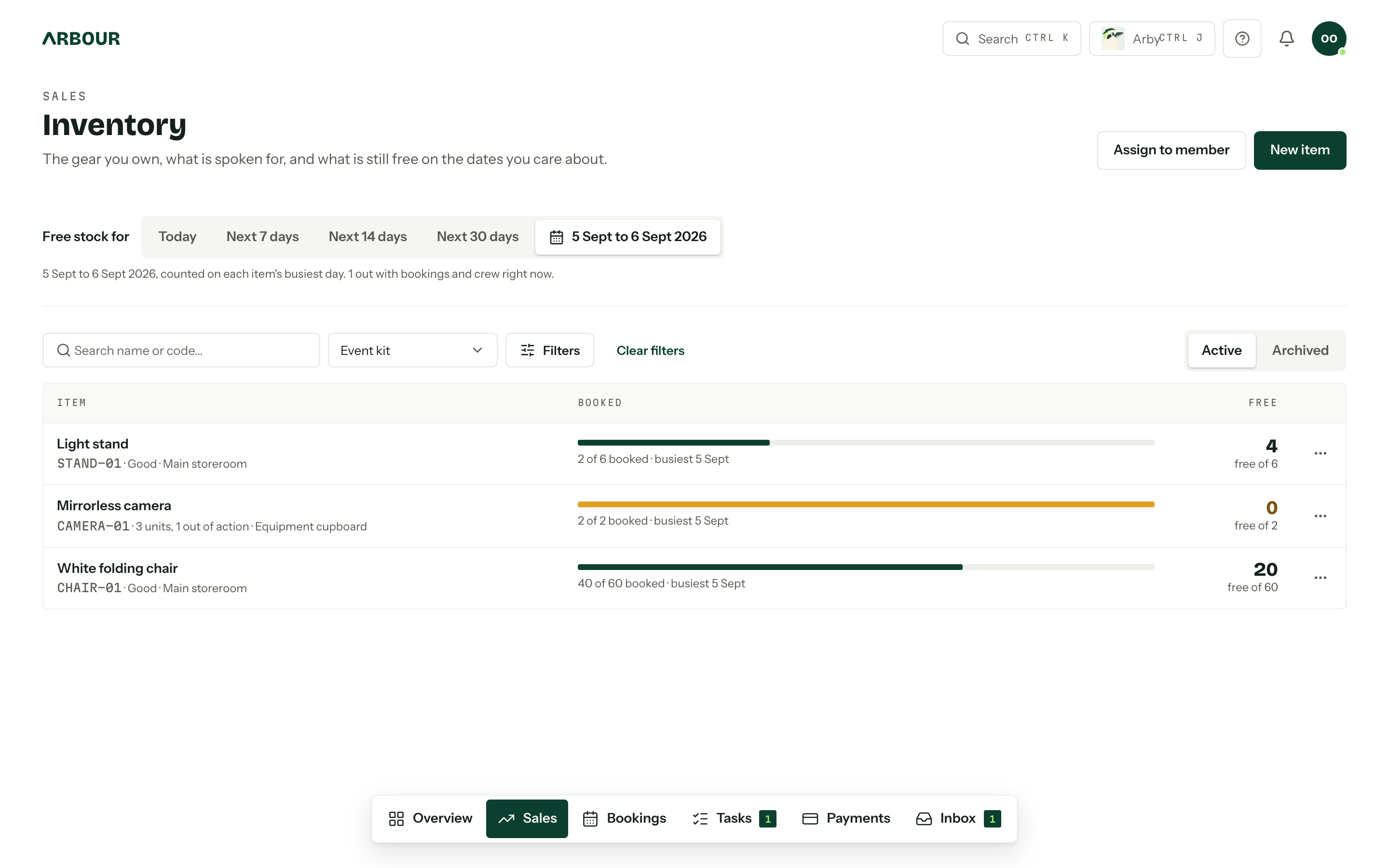
Read the stock counts
| Value | What it means |
|---|---|
| On hand | Stock with a condition in the Available category. Counted items use their entered quantity. Serialised items count their available units. |
| Booked | Stock in Reserved or Out allocations whose dates cover the day being checked. |
| Free | On hand minus booked. When more is promised than you hold, the count shows how many you are short and reads short. |
A condition can make stock unavailable without changing how much you own. For example, moving a unit from Good to Under repair reduces on hand but keeps the unit and its history. Inventory settings controls which category each condition belongs to.
Check missing or changed dates
Booking allocations use the booking's dates. Changing those dates moves the reservation's availability window. Crew assignments use their own From and Until dates. A blank Until keeps a crew assignment open-ended.
Undated bookings do not reserve a date
A booking without its dates can have inventory rows, but those rows do not count in dated availability. Check Needs attention on Inventory, which lists bookings with gear but no dates, and the Undated badge on booking rows. Add the booking dates before relying on the availability result.
Closed bookings also stop contributing to dated availability. Completing or cancelling a booking does not confirm that the physical gear has come back. Check the gear and its return status separately.
Resolve a warning
Arbour warns when the quantity promised exceeds available stock, or when the same serialised unit appears in overlapping reservations. You can receive a unit warning even when there are enough other units of that item.
These warnings are advisory. When a warning says The change has been saved, the booking, assignment or stock change has already saved. Do not repeat it to try to clear the warning.
Needs attention on Inventory lists each short item once, with the dates, how many are booked against how many you hold, and the bookings or members involved. A unit promised twice gets its own row. Past three rows, press Show all to see the rest.
- 01Read the item, dates and quantity in the warning.
- 02
Open the item and review Bookings and crew. Check the booking dates, crew assignments and conditions of its units.
- 03
Correct an incorrect booking date, remove an unwanted allocation, pick a different unit, or record returned gear. If stock is under repair, only change its condition once it is usable.
- 04Check the same date range again to confirm the stock now covers the work.
Dismiss a warning when you have a plan
If you have arranged extra stock or another solution, someone with Manage inventory and allocations can record that plan from Needs attention on Inventory.
- 01Press Dismiss beside the item. One note covers every booking behind that warning.
- 02Fill in Why it is fine, such as where the extra chairs will come from.
- 03Press Dismiss warning.
Dismissing records your explanation. It does not add stock, remove a reservation or change Free. The warning returns if the allocation's dates move, so the team can check the plan against the new dates.