Every enquiry and booking can hand its client one private link. No password, no account to make, no email thread to scroll. Open a booking and find the Client portal card on the Overview tab. It shows the link's status, the link itself when it is active, and the controls. Open client portal in the header at the top of the job opens the same link in a new tab.
Open bookings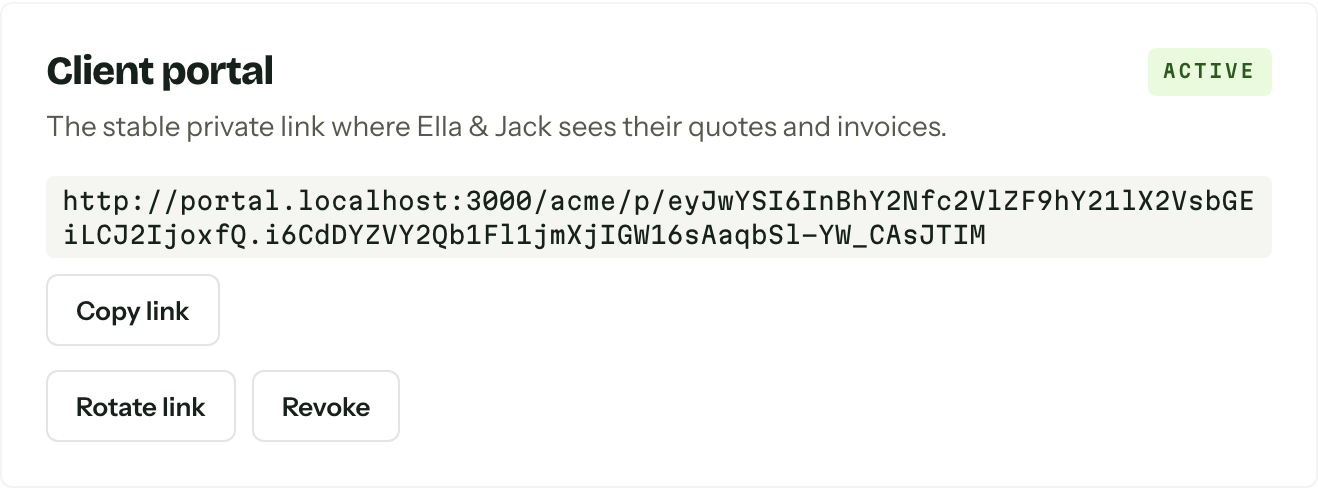
What the client sees
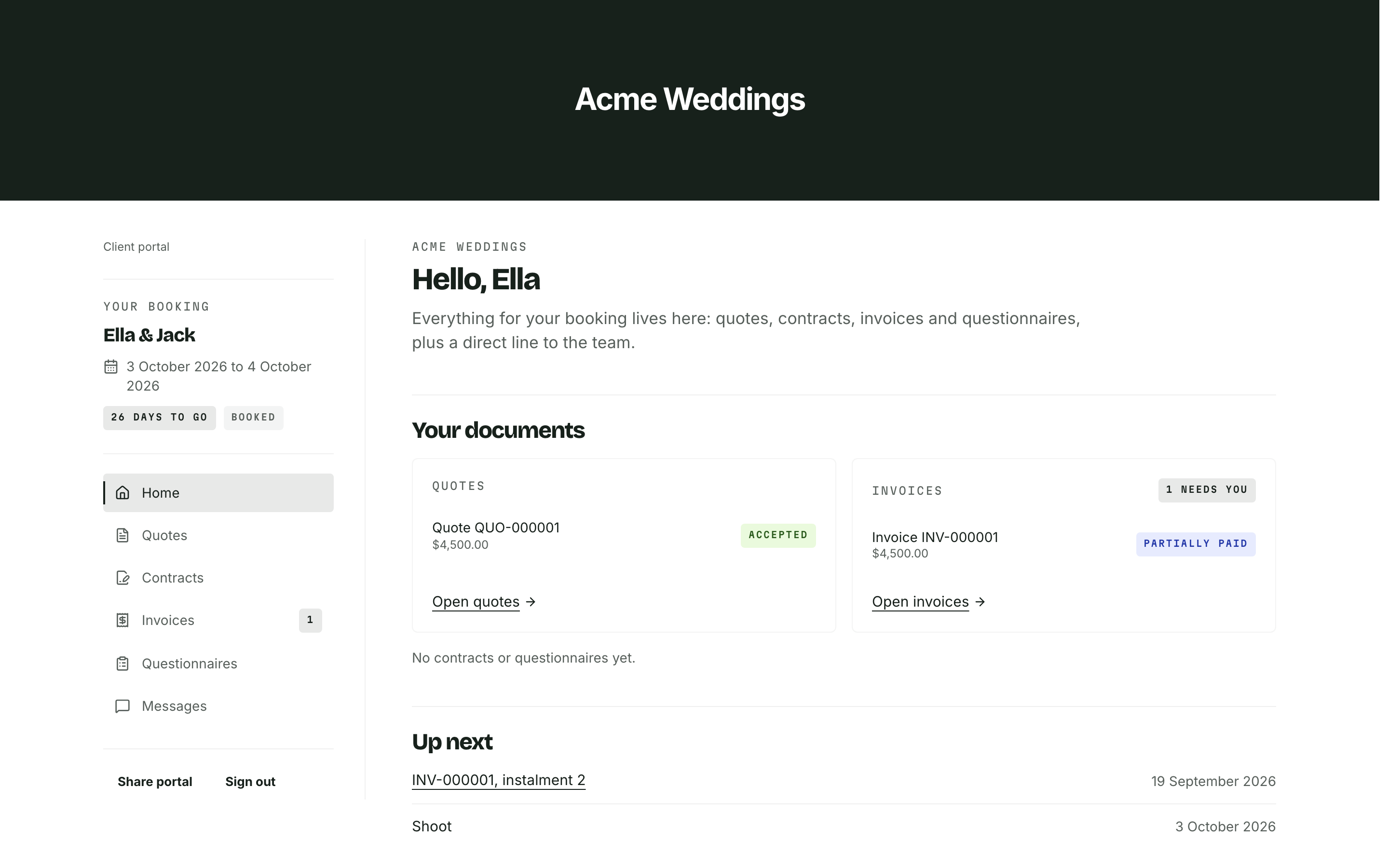
The portal opens on Home, under your banner. A sidebar carries your logo, the booking at a glance and the section menu, and it stays put on every page. A number beside a section counts the items that need the client's attention, such as an unpaid instalment, an unsigned contract or an unread message. Nothing shows when the count is zero.
| Tab | What is on it |
|---|---|
| Home | Dates, shared details, assigned staff, upcoming dates, tasks, activity, contacts and enquiry answers |
| Quotes | Sent quotes, their totals and statuses, with the controls to accept or decline |
| Contracts | Contracts for accepted quotes and their signing status |
| Invoices | Issued invoices, the amount left to pay and payment links |
| Questionnaires | Questionnaires you have sent the client to fill in |
| Run sheet | The timeline, only once you have shared one |
| Meetings | Booked meetings and the booking flow, when client booking is on |
| Messages | One conversation for the job, when Messages is enabled |
A document section with several documents opens on a list of them, newest first, with a status on each. Opening one gives it the whole page, with a stepper above it to move to the next or previous document or back to the list. A section with a single document opens straight onto it. Save as PDF downloads the open document; Print opens its PDF in a new tab.
The portal wears your logo, banner, colours and font. With no banner image, it uses an accent-colour band. See Branding. Choose what appears on Home in Client portal settings. These settings apply to every job in the organisation.
Home details and upcoming dates
Home shows the job name and dates. You can also show the current stage, a countdown, selected custom fields and assigned staff. Staff email addresses and phone numbers have separate switches. A job with no assigned staff has no team section.
Up next lists dates from today onwards in order: unpaid instalments, unanswered questionnaire cutoffs, the event date, shared run sheet days, client task due dates and date custom fields you have made visible. Past dates drop off the list.
Client tasks
Add tasks from Client tasks on the enquiry or booking's Overview tab. Give each a title, an optional description and due date, and a kind.
- A free text task can move between To do, In progress and Complete, by you or the client.
- A questionnaire task moves to In progress when the client opens its questionnaire, then Complete when they submit it.
- An upload task completes when the client attaches a file. Files can be PDF, JPEG, PNG or HEIC, up to 10 MB each.
Turning client tasks off hides them and keeps the saved tasks for when you turn the setting back on.
Activity and contacts
Recent activity shows client-facing changes, newest first: document updates, payments, shared run sheet changes, messages, completed tasks and uploaded files. Stage changes appear only when you show the stage. Internal notes, calls, meetings, synced emails, reasons for losing or cancelling a job, and portal link changes stay private.
Clients can add a contact with a name, email, phone and role. If the email already belongs to a contact on this job, nothing is added twice. Otherwise the portal creates a new contact, even when the same email is on a contact from another job, so a client can never see or pull in people from your other jobs. Assigned staff receive a notification. Clients can edit and remove contacts they added through the portal, but cannot remove the primary contact or anyone your team added. Turn on Let clients edit contacts in Client portal settings to let them edit the other contacts' details too. Only your team can change someone who is also a contact on another job, or the primary contact's email address.
Meetings
The Meetings tab appears when Let clients book meetings is on in Appointments. It lists the client's upcoming meetings, with Show past for the rest, and Book a meeting walks them through picking a meeting type, a day with free times and a slot, with an optional note for the team.
A meeting type that needs accepting is sent as Request meeting and shows Awaiting confirmation until someone on your team accepts it. Each meeting has Add to calendar. Where the client is still allowed to change it, Reschedule and Cancel sit beside it; otherwise it reads Message the studio to change this. Your team is notified of bookings, requests, reschedules and cancellations. See Notifications.
Messages
Clients and team members share one conversation for the job. Everyone using the portal link appears as Client. Messages can include text and up to five attachments. See Messages for read receipts, notifications and email behaviour.
Issue the link
- 01
Open the enquiry or booking and find Client portal on the Overview tab. A booking with no link yet shows No link yet.
- 02
Press Create portal link, on the card or in the job's header. The badge turns Active and the URL appears. An active link loads on the card by itself whenever you open the job.
- 03Press Copy link and send it however you normally talk to this client.
Clients can also open Share portal to copy this same link for someone else involved in the job. Everyone holding it shares the same client identity.
The link is stable. It survives an enquiry becoming a booking, so a client who bookmarked it during the quoting keeps it for the whole job.
Use your own domain
On Studio and House, connect a domain such as clients.yourstudio.com.au in Client portal settings. Once activated, portal links you copy and links in newly sent portal emails use that address. Existing Arbour links keep working, and enquiry forms keep their current address.
Share the full private link for the job, not just the domain. The domain on its own asks the client to open their personal link. If you replace or disconnect a custom domain, links using the old domain stop working. Copy and share the current link with those clients.
Rotate and revoke
Rotate link issues a fresh URL and kills the old one on the spot. Revoke turns the current link off without replacing it, and the card then offers Restore to bring the same link back, or a rotate for a new one. Both are for the wrong address in an email and the forwarded link that went to a group chat.
Rotating is not reversible
There is no undo and no history. Anyone holding the old URL, the client included, gets a not-found page until you send them the new one.
Seeing the link, and creating, rotating, revoking and restoring it, need the Rotate and revoke client portal links permission. Without it the card shows only the status badge. See Team and roles.
Confirming an email
When email confirmation is on in General settings, a client must enter the email of any contact linked to the job. It does not have to be the primary contact. An unlinked email does not pass. The private portal link is still required.
Sessions and sign-out
Clicking the link trades it for a signed-in session that lasts 30 days, held in a cookie for that one portal, and the address bar drops the credential straight away. A client with links from two vendors keeps both.
Sign out in the portal ends that browser's session and shows a signed-out page. The link itself is untouched, so opening it again signs them back in. That is the point: revoking is the only thing that takes access away.