Appointments are the timed meetings around a job: a video call with a new enquiry, a venue walkthrough, a planning call a month out, an engagement shoot. Each one sits on an enquiry or booking, shows on the calendar and the overview, and can be booked by the client from their portal against the free time of the members who take it.
You book them from the job itself. Three settings pages decide what clients can book: Appointments under Clients for the meeting types and the portal switch, Availability under Personal for your own weekly hours, and each member's hours from the Team page.
Open appointment settingsBook one from a job
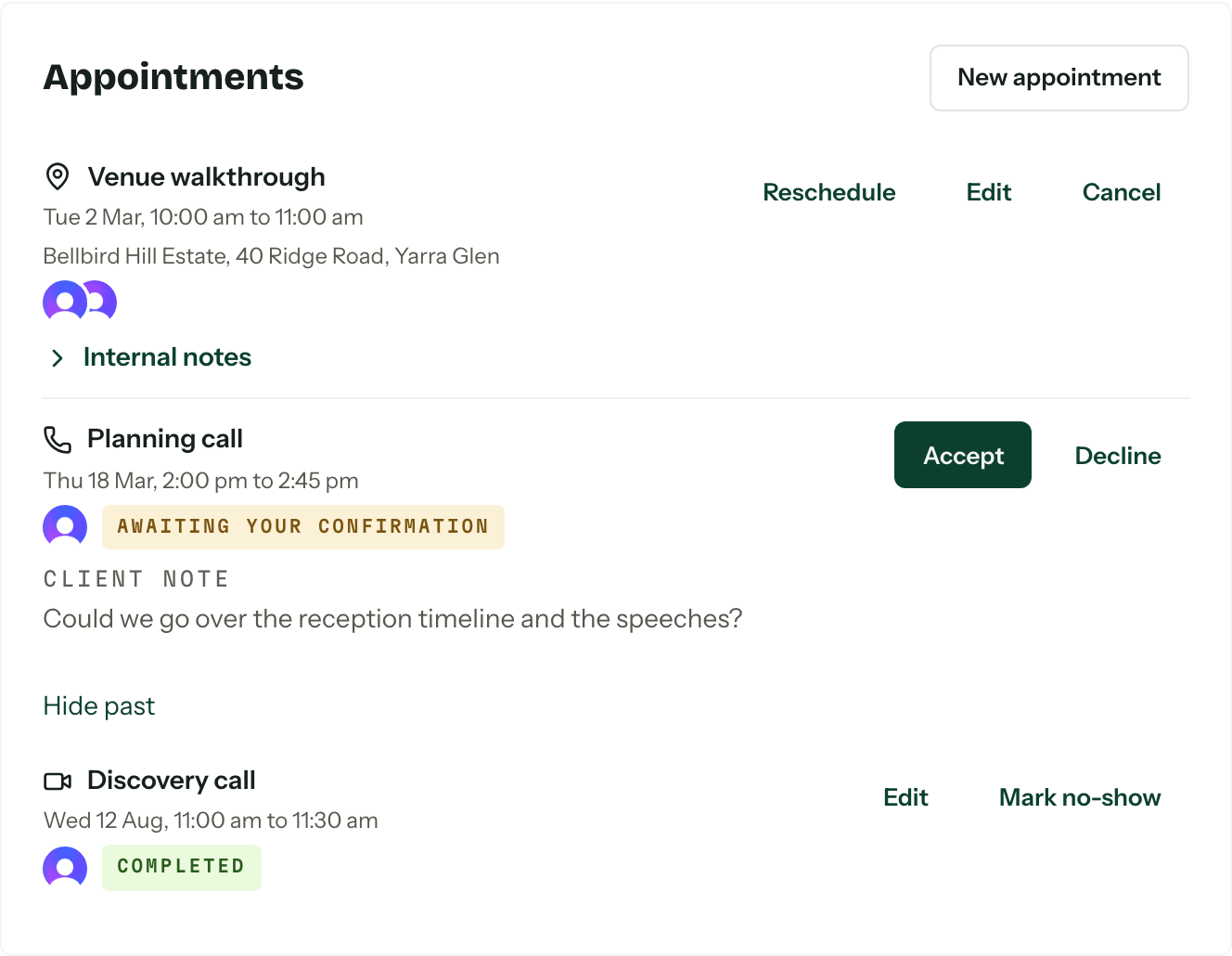
Every enquiry and booking has an Appointments card on its Overview tab, under Crew. Upcoming meetings sit at the top, soonest first. Anything already over or called off folds away under Show past.
- 01Press New appointment on the card.
- 02
Pick a Type to fill in the kind, title, length and place, or leave it on No type and set the Kind yourself.
- 03Check the Title, then set the Start and the Duration.
- 04
Tick Who is going, add a Location and any Internal notes, then press Book appointment.
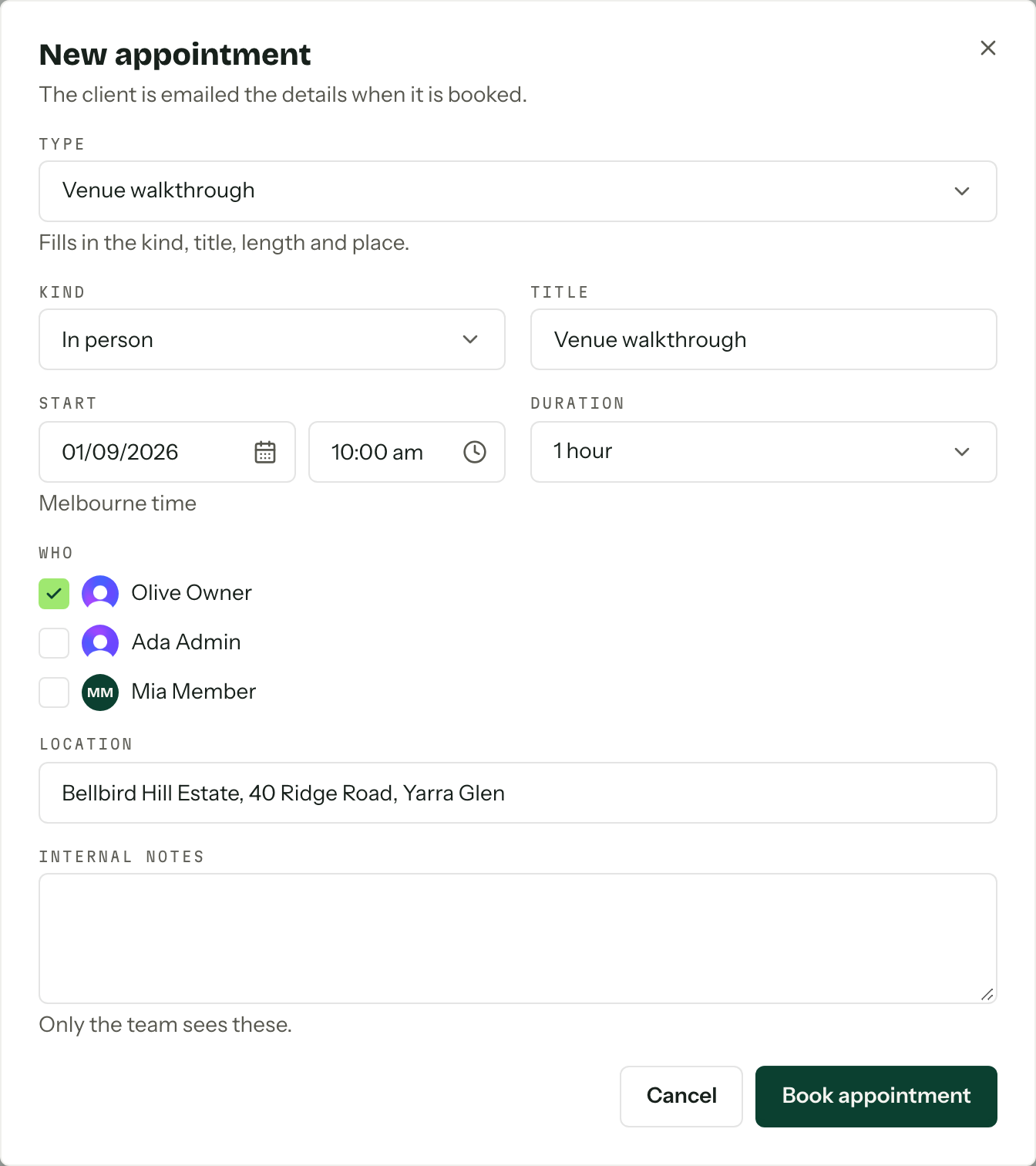
Times are entered and shown in your organisation's timezone. Booking from the job does not check anyone's hours: it books what you ask for, then warns you if a member is already in another appointment, outside their hours, marked unavailable or on another job that day. The appointment is saved either way, and Dismiss clears the warning. The client is emailed the details, unless the time is already in the past.
Each upcoming row has Reschedule, which moves the time and emails the client the old and the new time, Edit for the title, kind, people, place and notes, and Cancel. Cancelling asks for an optional Reason, kept on the timeline and never shown to the client, and Notify the client decides whether they hear about it. Keep it backs out. A client's note shows on the row under Client note; your own notes sit behind Internal notes.
Once a meeting has ended it is marked completed on its own. If the client did not turn up, Mark no-show on the past row records it. That cannot be undone.
Appointment types
A type is a meeting clients can book, such as "Walkthrough" or "Planning call". Settings, then Appointments, then New type.
- 01Give it a Name and a Kind: video call, phone call, in person, shoot or other.
- 02
Choose its Length and a Buffer, the time kept free before and after it so meetings never run back to back.
- 03
Set the Minimum notice (hours) and the Booking window (days). Clients cannot book, reschedule or cancel closer than the notice, or book further out than the window.
- 04
Choose the Assignment, then tick the Members who take it. Only their hours are offered.
- 05Choose who it is Offered to, then press Create type.
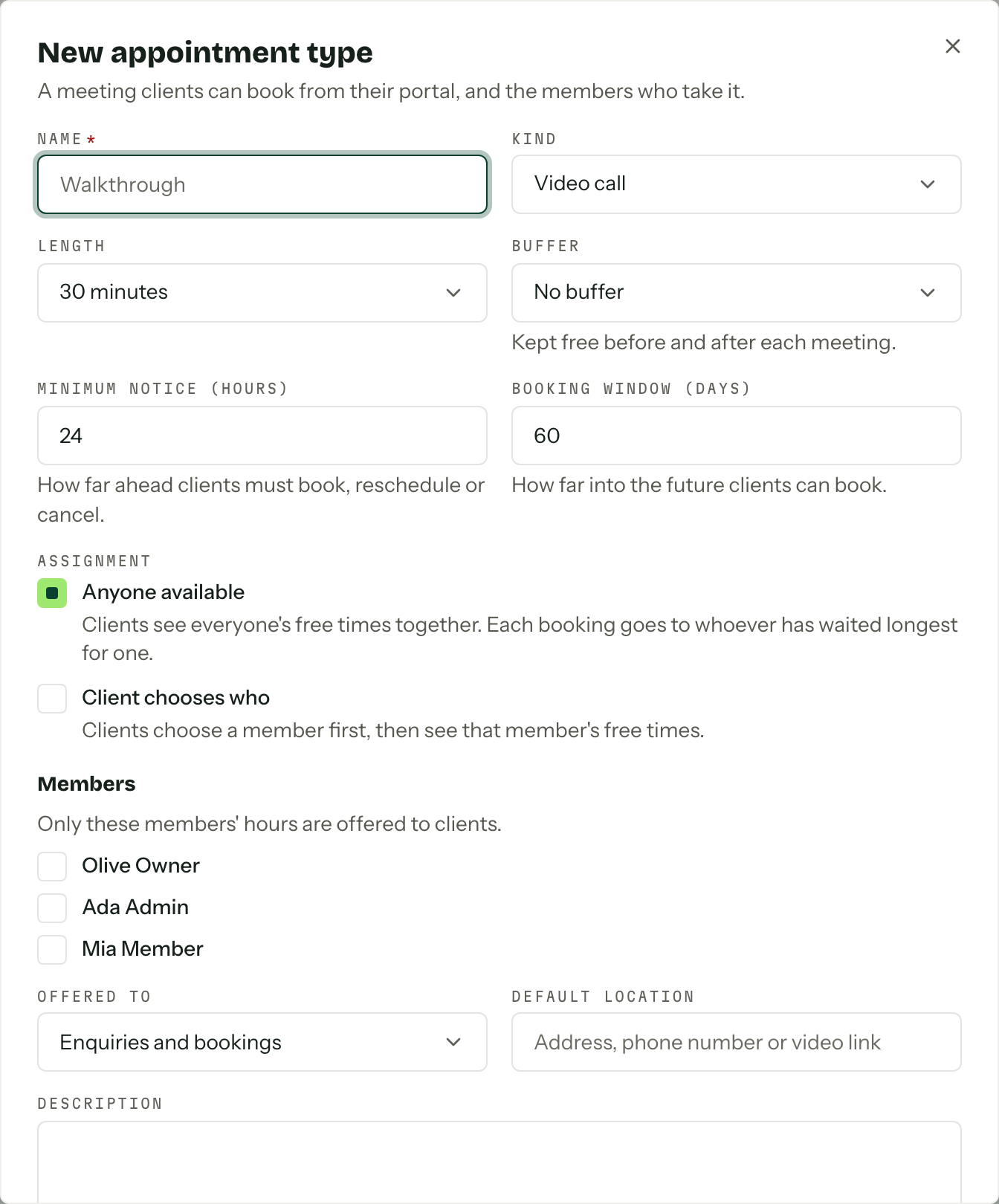
A new type starts as a 30 minute video call with no buffer, 24 hours' notice and a 60 day window.
Anyone available shows clients every eligible member's free times together, as one list. When a client picks a time, the appointment goes to whichever free member has gone longest without a client booking of that type, so the work is shared round. Client chooses who asks the client to pick a member first, then shows that member's own times.
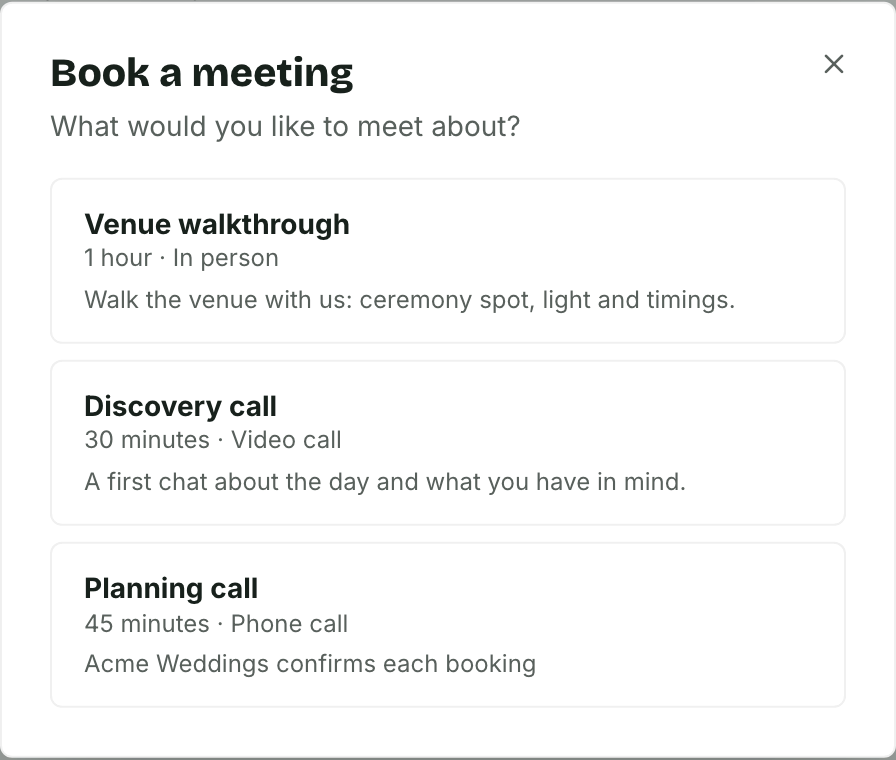
Offered to decides whether the type appears for Enquiries, Bookings or Enquiries and bookings, so a planning call can be kept for clients who have already booked. Turning off Clients can book this from the portal keeps a type for your team to book from the job only. The Default location is filled in on new appointments of the type, and the Description is shown to clients when they choose a meeting.
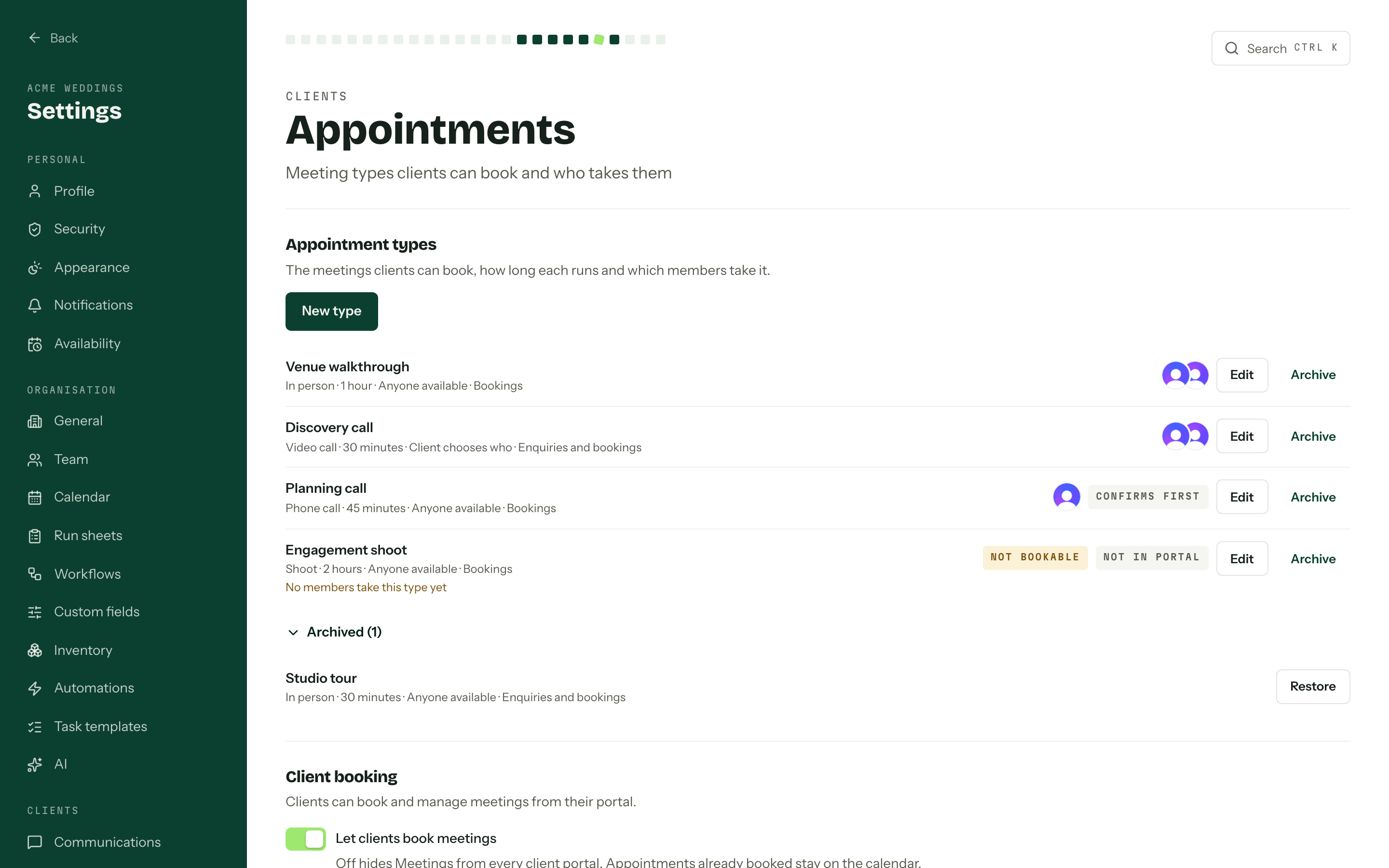
The list says what is unusual about each type: Not in portal for a team-only type, Confirms first for one that waits for a yes (see below).
Not bookable
A type whose members have no free time anywhere in its booking window is hidden from the portal and marked Not bookable in the list, with the reason underneath. Add a member, or give the members some hours, and it comes back.
Archive stops new bookings but leaves appointments already booked where they are. Archived types fold away under Archived at the bottom of the list, each with Restore.
Your hours
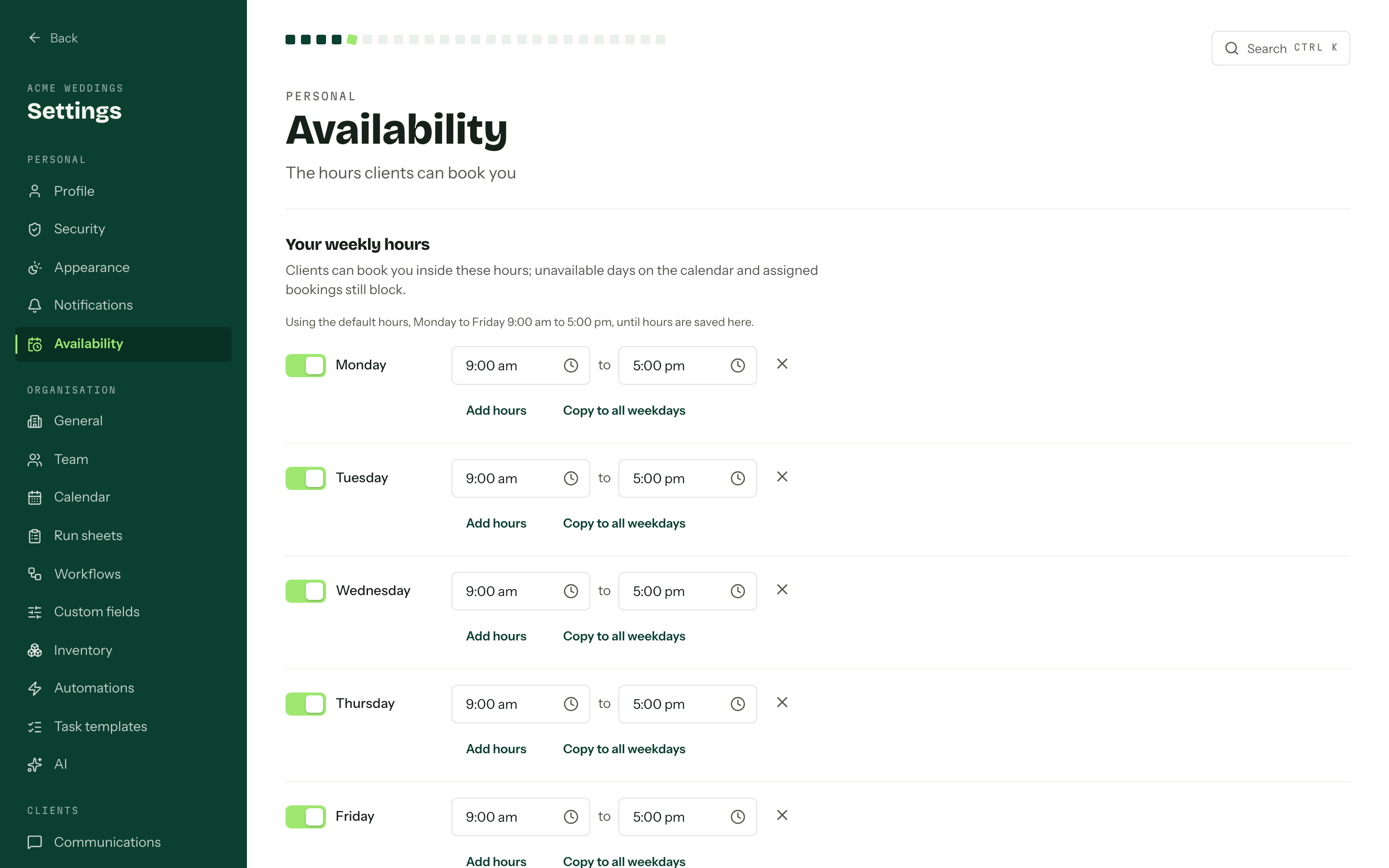
Your weekly hours are the windows clients can book you inside, read in your organisation's timezone. Settings, then Availability.
Open your availabilityUntil you save anything, you are on the default hours: Monday to Friday, 9:00 am to 5:00 pm. Each day has a switch; off marks it Not available. Add hours adds another window to a day, for a split day with a break in the middle, and Copy to all weekdays copies one day's hours to Monday through Friday. Reset to default puts the standard week back. Windows on the same day cannot overlap, and each has to close after it opens. Press Save when you are done.
Your hours are not the only thing that keeps you from being booked. A day marked unavailable on the calendar blocks the whole day, a booking you are assigned to blocks its whole event day (enquiries never do), and your other appointments block their time plus the type's buffer.
People who can manage anyone's unavailability can also set a teammate's hours: Settings, then Team, then Availability on that member's row.
Booking from the portal
The Client booking section on the appointments page holds the organisation's switch: Let clients book meetings, then Save. It starts on. With it on, every client portal has a Meetings tab. Turning it off hides that tab everywhere; appointments already booked stay on the calendar.
On the tab, the client presses Book a meeting, chooses a type, picks a member if the type asks for one, then a day and a time, and can leave a Note for the team (optional). Only times that are free right now are offered, in your organisation's timezone, and if two clients go for the same time together, the second is asked to choose another. Only types offered to their kind of job show up.
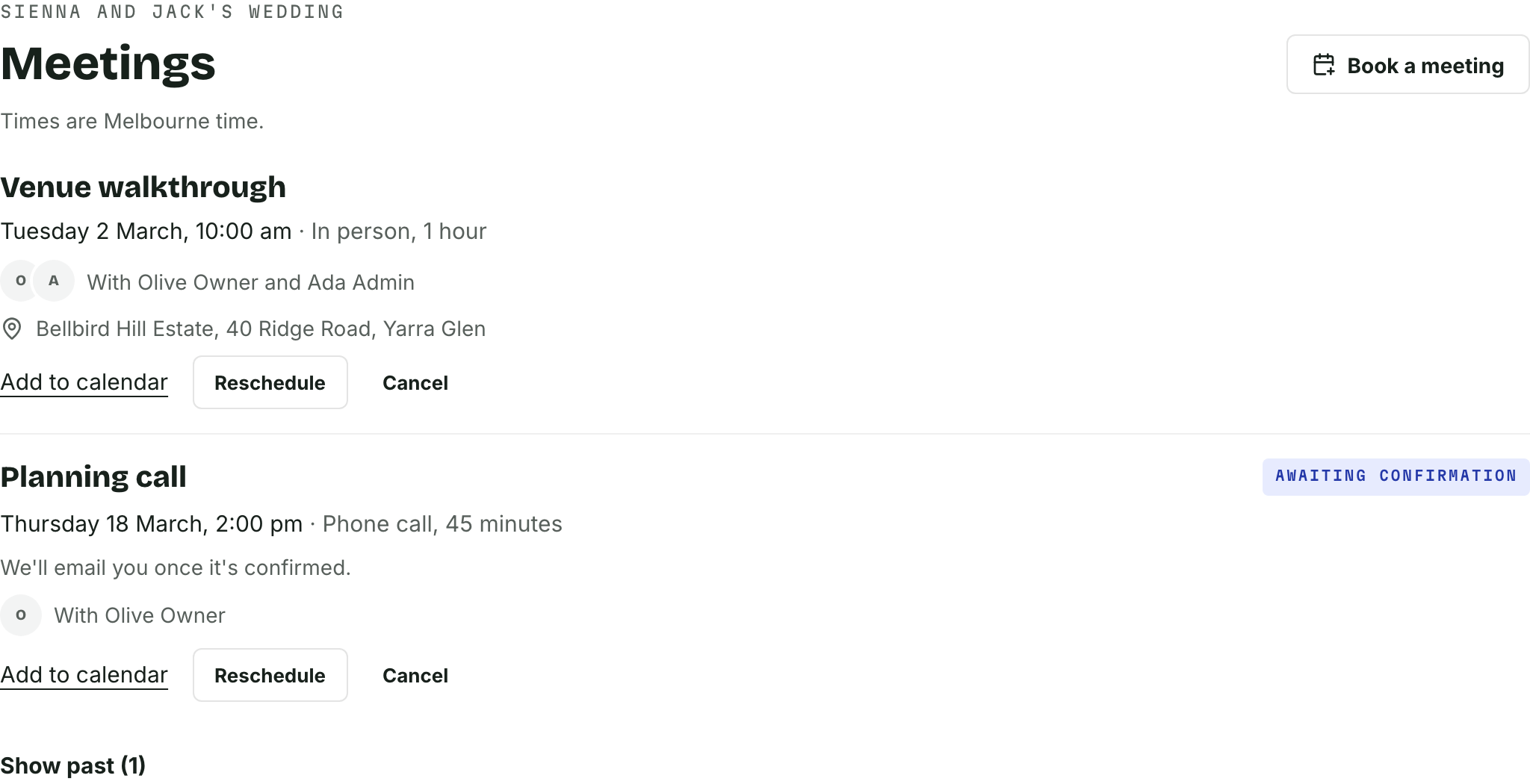
The tab also lists the client's meetings, including the ones you booked, each with Add to calendar for their own diary. Clients can Reschedule or Cancel until the type's minimum notice runs out (24 hours for a meeting with no type). After that, the portal asks them to message you instead. A reschedule keeps the same appointment and simply moves it.
Confirming bookings
Turn on Confirm each booking on a type when you would rather say yes to each meeting before it is locked in. New client bookings of that type then wait as requests until someone on the team accepts them.
The client sees that you confirm each booking when they choose the type, presses Request meeting instead of booking, and is told you will confirm by email. The meeting shows on their portal as Awaiting confirmation, and it holds its time so nobody else can take it. A client who moves a meeting of that type sends a new request the same way.
Members on the meeting and the people assigned to the job are told about each request. On the job's Appointments card the request reads Awaiting your confirmation. Accept books it and emails the client. Decline takes an optional reason and asks whether to notify the client, and frees the slot. A request still waiting when its start time passes expires on its own.
Reminders and completion
The day before a meeting, the client gets a reminder email and the members on it get a reminder notification. Clients are also emailed when a meeting is booked, when it moves to a new time (with the old and the new time), when a request is received, and when you cancel one. You can reword all five under Client emails: Appointment confirmed, Appointment rescheduled, Appointment requested, Appointment cancelled and Appointment reminder.
Closing an enquiry or booking cancels its future appointments and tells the client. Reopening it does not bring them back: the job lists what was cancelled, so you can book again whatever still stands.
Member notifications
Members on an appointment, and the people assigned to its enquiry or booking, are told when a client books, requests, reschedules or cancels. You are also told when a colleague adds you to an appointment, and when one on your job is left with nobody assigned because its member left the team. Each of these can be switched off in Notifications.
Who can do what
- Booking, moving, editing and cancelling appointments, accepting and declining requests, and marking no-shows need Edit, move and close enquiries and bookings. Anyone who can see the job can read its appointments.
- The appointments settings page, types and the Client booking switch included, needs Manage organisation settings.
- Everyone sets their own hours. Setting someone else's needs Manage anyone's unavailability.
See Team and roles.