Branding is one profile for the whole organisation, in Settings under Branding. Two colours, a font, three logo slots, a portal banner and a document layout. Everything on the page is a draft until you press Save branding.
Open branding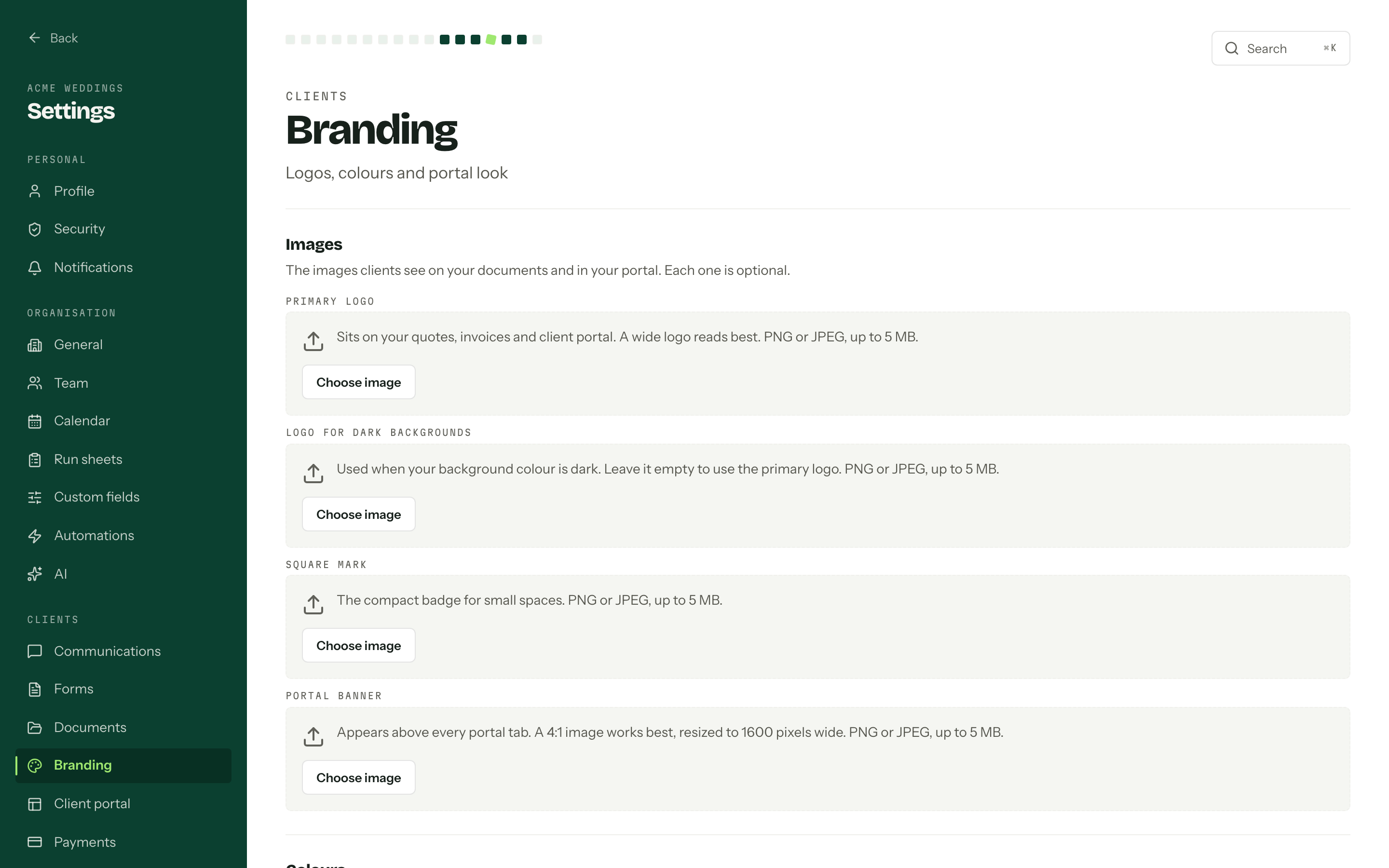
Logos and banner
Four slots, all optional, all PNG or JPEG up to 5 MB. Press Choose image on any of them.
- Primary logo goes on your quotes, invoices and portal. A wide logo reads best.
- Logo for dark backgrounds is used when your background colour is dark. Leave it empty and the primary logo is used instead.
- Square mark is the compact badge for small spaces.
- Portal banner sits behind your centred logo on every portal tab. A wide image in a 4:1 ratio works best. It is resized to 1600 pixels wide. Without an image, the portal uses your accent colour.
Colours and font
You pick two: Accent colour for headings, buttons and the banner band, and Background colour for the page behind your documents and portal. Text tones, borders and surfaces are worked out from that pair, which is why there is no third colour to get wrong.
Unreadable pairs are blocked
If body text on your background, or button text on your accent, falls below WCAG AA at 4.5:1, a message names the ratio and Save branding stays disabled until you lighten or darken one of them.
Font family offers eight faces, four sans and four serif, loaded from Arbour so they render the same in a PDF as they do in a browser. The sample line under the picker is set in whichever you choose.
Document layout
Document layout decides where the logo and title sit on a quote or invoice: Classic (compact header, logo on the right), Centred (stacked, logo above the title) or Banner (a full-width accent band behind the header).
The portal has one banner-and-tabs layout. Choose its visible sections in Client portal settings.
To use your own portal address, connect a custom domain in Client portal settings. This is included on Studio and House and uses the same portal branding.
Preview before you commit
The Preview section draws a sample quote in your unsaved settings. Preview PDF renders it as a real PDF in a new tab, through the same engine that produces the documents clients receive.
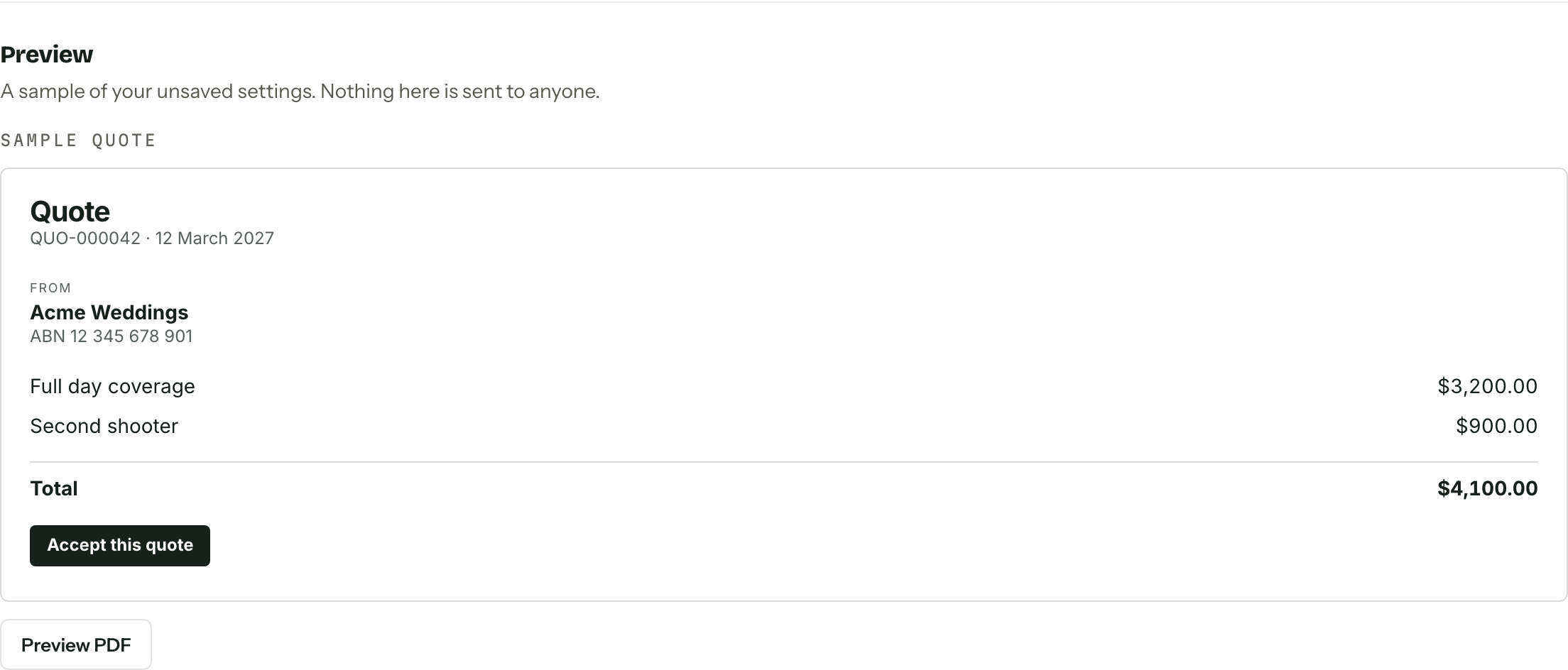
Nothing in the preview is sent to anyone. Discard throws the draft away.
Where it shows up
- 01Set the logos, banner, colours, font and document layout.
- 02Check the preview and open the PDF sample if the document layout changed.
- 03Press Save branding and confirm.
The confirmation counts your published quotes and issued invoices, because those keep the branding they were sent with. A client who opens a quote from March sees the March logo. Only drafts, future documents and the client portal pick up the change, which is exactly what you want when the letterhead moves under a signed contract.
Branding reaches the client portal, quote PDFs, invoice PDFs and adjustment notes. Contracts, run sheets and the emails Arbour sends on your behalf use a plain house style and are not affected.
Who can edit
Changing any of this needs the manage branding permission. A role with view branding sees the page with every control read-only. See Team and roles.