A contract is what a client signs between accepting a quote and paying for it. Contracts sit under Payments, on the Contracts page: your agreements down the left, the selected one open beside it with how it has performed and, on the right, what the client actually reads.
Open contracts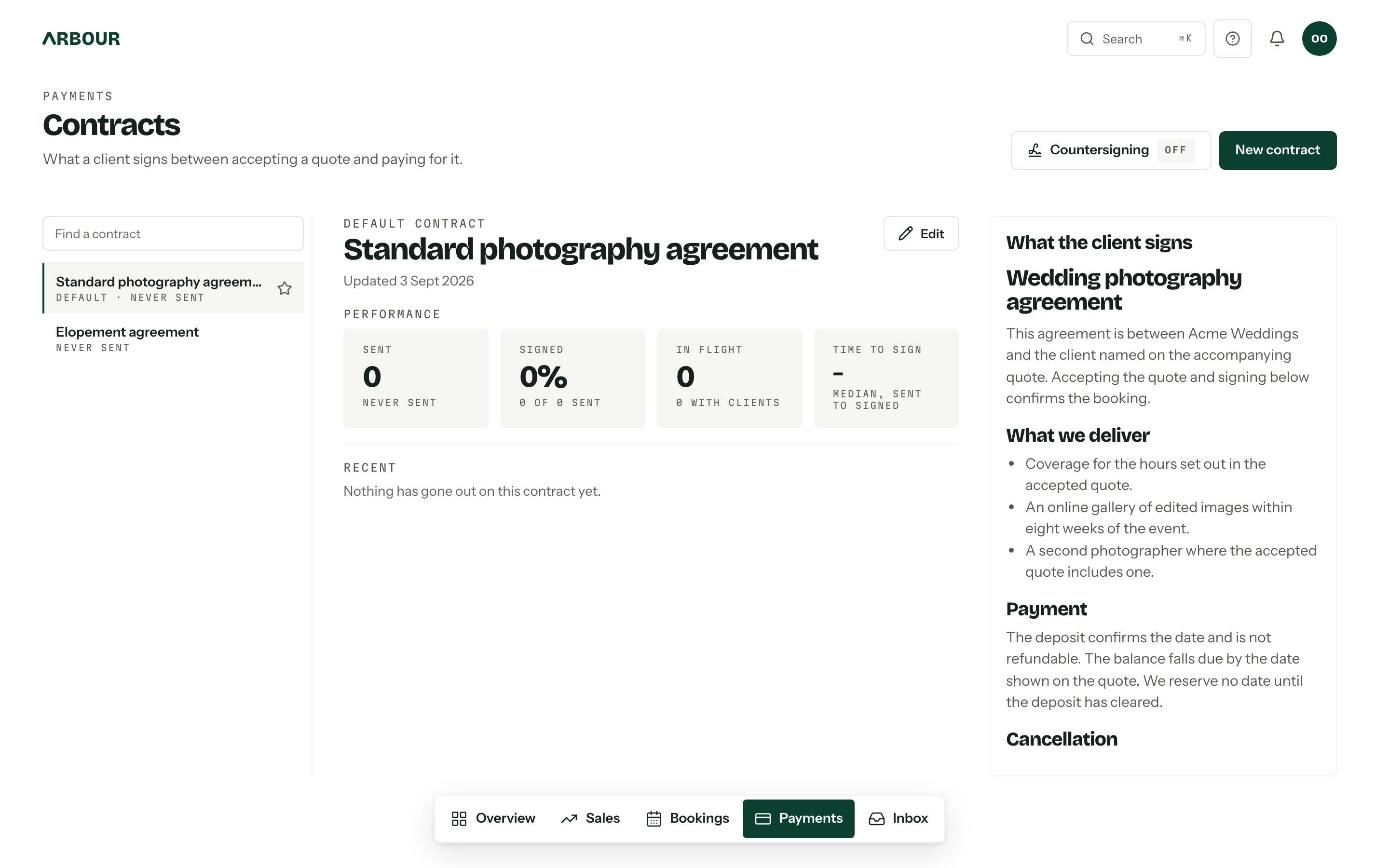
Write one
New contract opens the editor. It takes a Name only you see and then the agreement itself: headings, paragraphs, lists, bold and italic, which is everything a signed PDF can carry faithfully. Save contract puts it in the list.
The first one you save becomes the default. Make default moves that badge, Edit rewrites the wording, and Archive takes a contract out of the picker on new quotes without losing it. Archived ones fold into the Archived group in the list. The default cannot be archived, so make another one the default first.
Archiving is one way
There is no unarchive, and an archived contract can no longer be edited. Quotes already sent with it keep it.
No merge fields
A contract is not a mail merge. There is nothing to insert: a {{ token }} typed into the body
prints as those characters. Names, dates and amounts live on the quote and the invoice beside it,
and the contract refers to them ("the hours set out in the accepted quote").
Sending one for signature
There is no send button. The contract rides on the quote: choose it under Contract in the quote builder, or leave it on Your default contract. A quote will not send at all until at least one contract exists.
When the client accepts the quote, the wording is frozen exactly as it stands at that moment, the contract is prepared and they are emailed to say it is ready to sign. Editing the template afterwards never changes a contract already out. If preparing fails, the contract card on the job says so and offers Try again.
How a client signs
Signing happens in the client's own portal, on the same page as the agreement. There is no account to make and nothing to install.
- 01They read the agreement, then press Add your signature.
- 02
They type their name and email address and press Send me a code. Arbour emails a six-digit code to that address, and they enter it and press Verify code. The code lasts ten minutes, and Resend code sends another.
- 03
With the address confirmed they can take their time over the agreement, then sign, either by typing their name or by drawing it with a finger or a mouse, tick the box agreeing to sign electronically, and press Sign.
- 04
They press Finish signing when everyone who needs to sign has. That closes their side.
The code is what makes the signature stand up: it shows the person signing controls that email address, and Arbour keeps it on the record along with the name they signed, the time, and the address and browser they signed from.
Up to ten people can sign the one contract, each verifying their own email address, which covers a couple signing separately or a parent paying. The Finish signing step is deliberate, so nobody is locked out while a second person is still getting to it.
The first signature is what releases payment. Your client can pay as soon as one of them has signed, whether or not the rest have.
Signatures are final
Nobody can edit or remove a signature, on either side. If a contract has to be signed again, use Reset signing below.
Countersigning
Countersigning in the page header carries an On or Off badge and opens one switch: I countersign every contract. With it on, the job's contract card grows a Countersign button once the client has finished, and you sign with the same typed-or-drawn box they used. Your name comes from your profile and you can change it for the signature.
Either way, the client's signature is what releases their payment. Yours never holds it up.
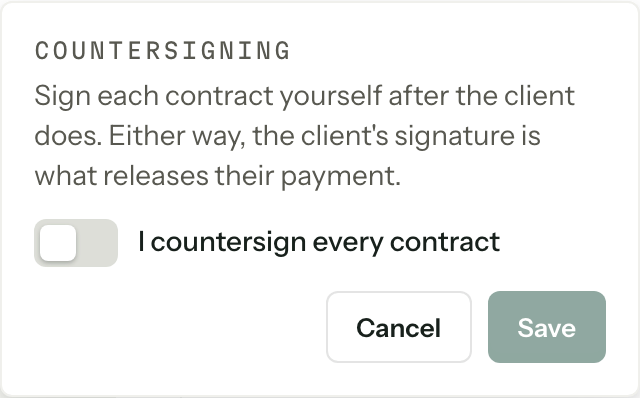
Every contract takes a copy of the setting when the quote is accepted, so a change here applies to the next one, not to anything already signed. The switch needs Manage organisation settings.
Only the primary contact can sign
Some agreements should only be signed by the person named on the job. Only the primary contact can sign sits beside the countersigning switch, in the Countersigning popover on this page and under Signing in document settings.
Open document settingsWith it on, a contract accepts exactly one signature, and the name and email address are filled in from the job's primary contact and cannot be changed. They still verify the address with a code, and that single signature finishes their side on its own. With it off, anyone holding the portal link can sign after verifying any email address.
The primary contact needs an email address
A contract set to primary contact only cannot be prepared if that contact has no email address on their record. The contract card says so and offers Try again once you have added one.
Like countersigning, this is copied onto each contract when the quote is accepted.
If a client declines
A client can decline in the portal while nobody has signed: Decline to sign sits beside the signing button, and asks them to confirm and leave a reason if they want to. The contract goes to Declined, the job's contract card shows the reason they gave, and anyone watching contracts on that job gets a notification. Once anyone has signed, the decline option is gone.
Reset signing
Reset signing on the contract card appears once someone has signed a contract that is still out for signature. It removes every signature the client added and lets them start again. Use it when the wrong person signed, or someone signed with the wrong name.
A payment already made stays paid. Resetting only reopens the signing, it does not undo money that has changed hands, and the confirmation says so before you go ahead.
The signed PDF
Arbour renders the signed contract once, the moment it is fully signed, and keeps it. The file carries the agreement, a page showing each signature with the name, email address and the time it was signed in your timezone, and a signing certificate recording how each person was identified.
Download it from the contract card on the job's Documents tab: Download contract PDF while it is still out for signature, Download signed contract once it is done. The client has the same file in their portal for good, under Download this contract as a PDF and then Download your signed contract.
Who can do what
- View contracts reads this page, the performance figures and the contract on a job.
- Send and retry contracts covers Try again, countersigning and Reset signing.
- Manage contract templates covers New contract, Edit, Make default and Archive.
- Manage organisation settings covers the countersigning and primary contact switches.
A role with none of them sees a note in place of the page. The full list is in the Permissions reference.