Custom fields are the details Arbour does not ask for out of the box: dietary requirements, a budget band, how someone found you. They live in Settings, under Custom fields, in two families. Contact fields sit on every contact in the organisation. Pipeline fields sit on the enquiries and bookings of one workflow, and converting an enquiry to a booking keeps every value. With more than one workflow, the Workflow switcher above the pipeline list says which one you are editing. Weddings can ask for a ceremony time while corporate asks for a purchase order number, and neither sees the other's fields.
Open custom fields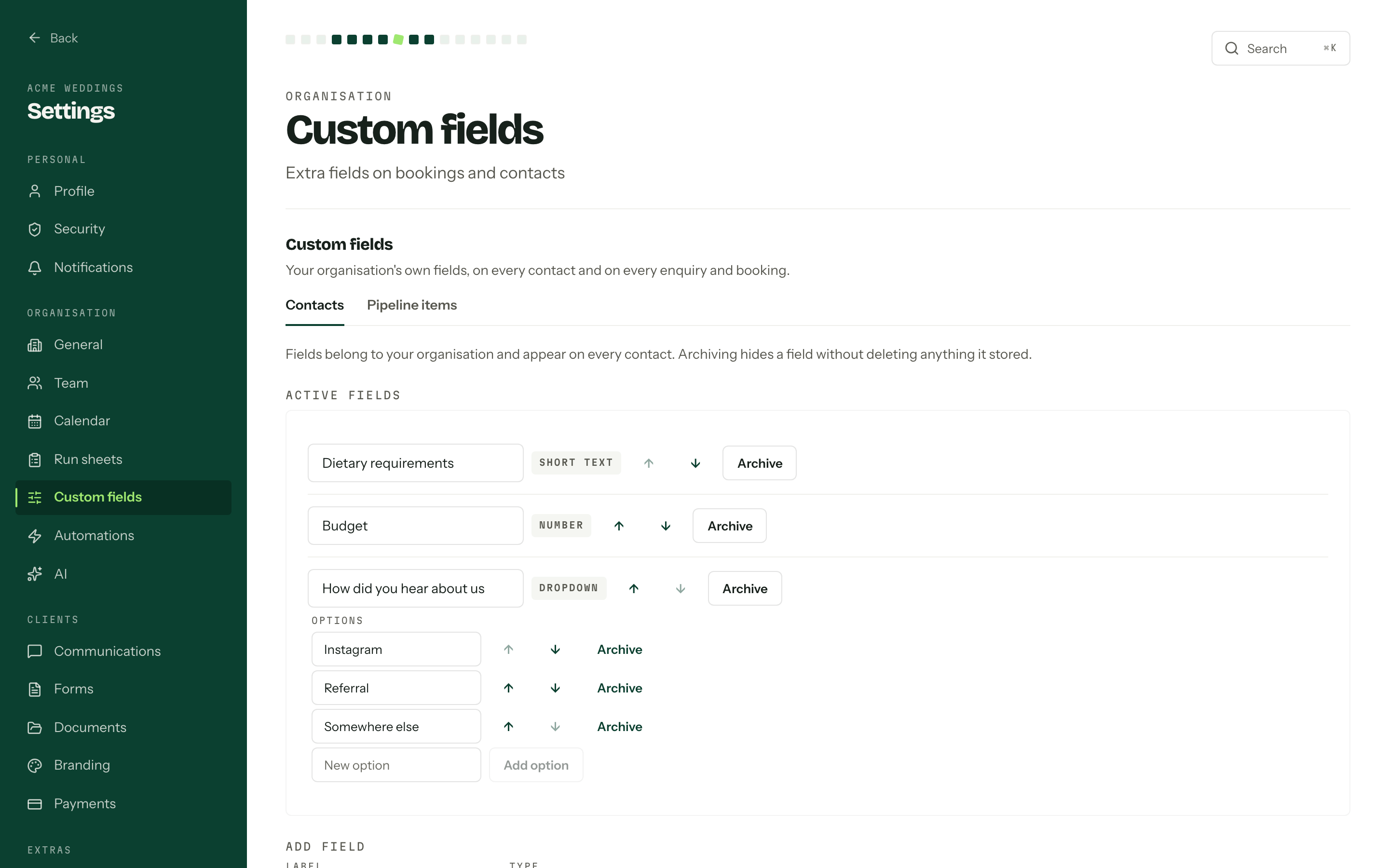
Add a field
- 01
Pick the family: Contacts or Pipeline items. For pipeline items, pick the workflow the field belongs to as well.
- 02
Under Add field, type a Label and choose a Type. For a dropdown or multi-select, list the choices under Options, comma separated.
- 03
Press Add field. The field is live on every record straight away, empty until someone fills it.
Contact fields come in six types: Short text, Long text, Number, Date, Checkbox and Dropdown. Pipeline fields add Currency (AUD), Date and time, Multi-select, Email, Link and File attachment. A field's type is fixed once it is created.
Labels run to 80 characters and must be unique among the active fields in that family (or that workflow). An organisation can hold 50 active contact fields, and each workflow 100 active pipeline fields. A choice field takes up to 50 active options.
After that, a choice field's options are edited in place under Options: type into New option and press Add option, rename one by editing its label, move it with the arrows, or Archive it. A choice field always keeps at least one active option. Renaming or moving an option never touches the values already saved against it.
Questionnaires that ask for a field
A questionnaire question can write its answer into a pipeline field. Adding, archiving or restoring an option on a field like that asks first: Sync questionnaires moves them to the new list, Keep current questions leaves them with the options they already have. Syncing needs the questionnaires permission too. See Questionnaires.
Reorder fields
Use the up and down arrows beside a field to change its order on record pages. Pipeline boards and lists have their own field order, set through the Fields menu.
Where a field shows
Use Fields on a workflow's Enquiries or Bookings board to choose which custom fields appear on its board cards and list columns. Untick a field to hide it from that view. Each view keeps its own selection and order; changing visibility does not change the values stored on your records.
Contact fields are also columns and filters in the contacts list's Edit view. See Contacts.
Which pipeline fields a client sees in their portal, and in what order, is set per workflow under Visible custom fields in Client portal settings.
Contact fields can be mapped to a question on an enquiry form, so an answer a client types on your website lands in the right field. That mapping lives on the form itself: see Enquiry form.
Choose the map address
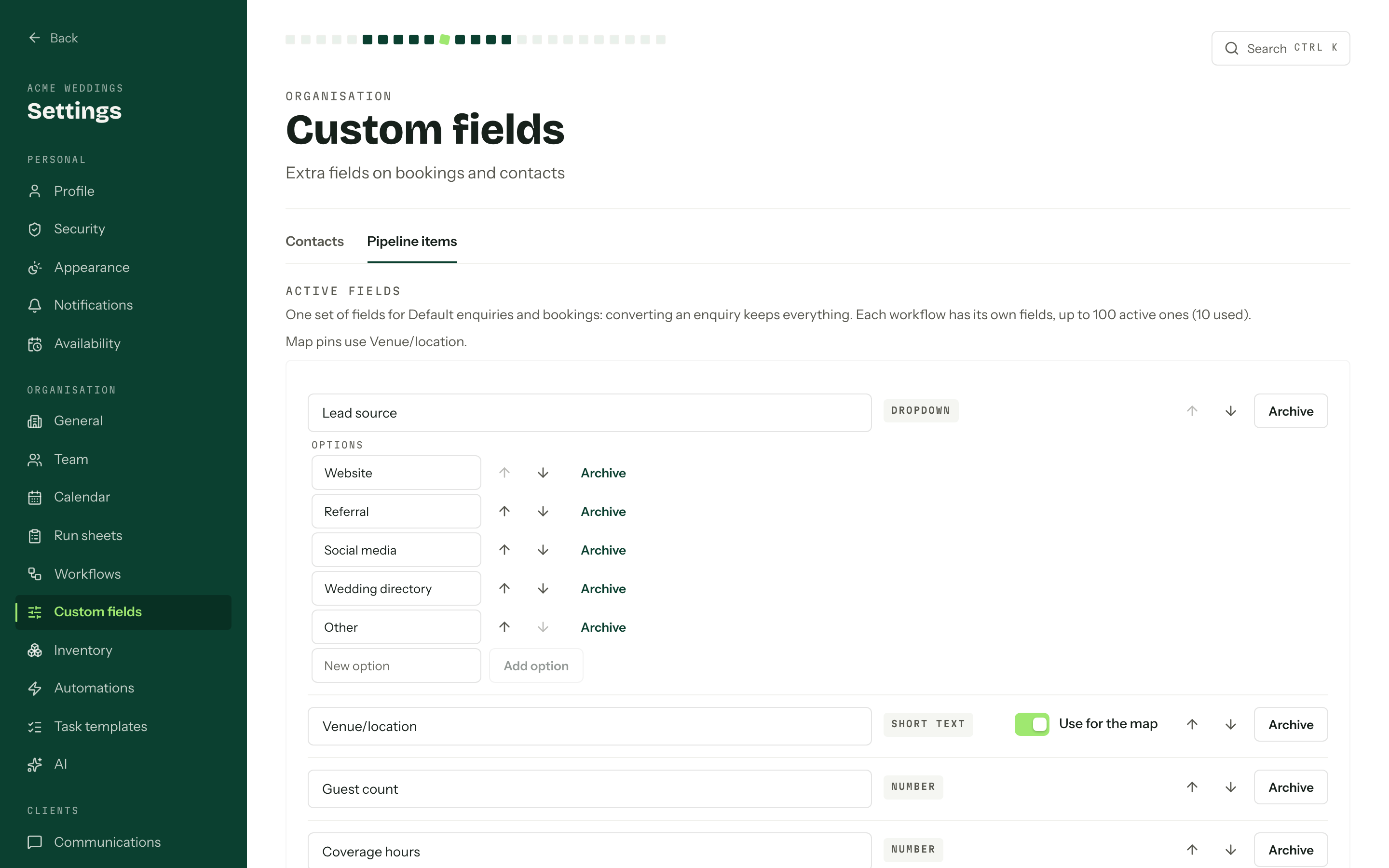
Each workflow can have one field feeding the map. On the Pipeline items tab, pick the workflow and turn on Use for the map beside a Short text or Long text field. New workflows use Venue/location.
Choosing another field replaces the previous map field. Existing addresses in the chosen field are looked up again. Turning the switch off or archiving that field removes the workflow's pins until another field feeds the map. The values saved on your records stay in place.
Archive, do not delete
A field that has outlived its use is archived, not deleted. Press Archive beside it. The values already recorded stay on their records and the field drops out of every form and sidebar. It moves to Archived fields at the foot of the page, and Restore brings everything back exactly as it was. An archived label is free to reuse.
A contact field cannot be archived while an enquiry form question maps to it: remove the question from the form first. Archiving a pipeline field that questionnaires ask for warns you, and removes those mappings; questions already sent keep their options.
Renaming keeps the data
Renaming a field or an option changes the label only. Every record that already holds a value keeps it, under the new name.
Who can edit
Managing contact fields and managing pipeline fields are separate permissions, so a role can hold one without the other. Someone without either sees a note instead of the editor. See Team and roles.