An enquiry form is a public form new clients fill in. Someone completes it on your website, a new enquiry lands in the pipeline with their answers attached, and nobody retypes anything. Forms live in Settings, under Forms, on the Enquiry tab.
Open the enquiry formsOne form, or one per workflow
The Enquiry tab lists your forms with their hosted link beside each, live ones first and archived ones below. Every form belongs to one workflow, and a submission lands in the first enquiry stage of that workflow. There is no limit on how many you run: a venue can take wedding enquiries on one form and corporate enquiries on another, each asking its own questions.
New form takes a name and, when you run more than one workflow, the workflow. A form keeps that workflow for good. Open a form for its own editor, with its own questions, its own link and its own embed code. Name it for where it sits, because the notification for a new enquiry names the form it came through. The setup checklist's form step shows this same list.
A form you have finished with is archived rather than deleted. Archiving takes down its link and any copy embedded on your website, while the enquiries it already brought in stay exactly as they are, answers and all. Restore it and the same link works again.
The link and the switch

The Enquiry form section at the top of a form's editor carries its Name, the workflow it feeds, a Live, Off or Archived badge, the public URL and a Copy link button. The URL is your portal address followed by /f/ and the form's own id. It never changes, so it is safe to hand out or link from a website button.
Tick Form is enabled to take it live. Untick it and visitors get a not-found page, which takes down every embedded copy of that form on your website at the same time.
Fixed details
The top of Fields is the set every form asks for. First name, last name and email are always shown and always required. Phone number is always shown and optional.
Two rows are yours to set: Secondary client and Event date. Each takes Shown, required, Shown, optional or Hidden. An optional event date gives the visitor an "I don't have a date yet" choice, which is worth having for the couple who are still arguing about March.
Your own questions
A new form starts with a set of questions picked from the vendor types you chose at setup: how they heard about you, where the event is, guest numbers, anything else. They are ordinary questions, so rename, reorder or remove them as you like.
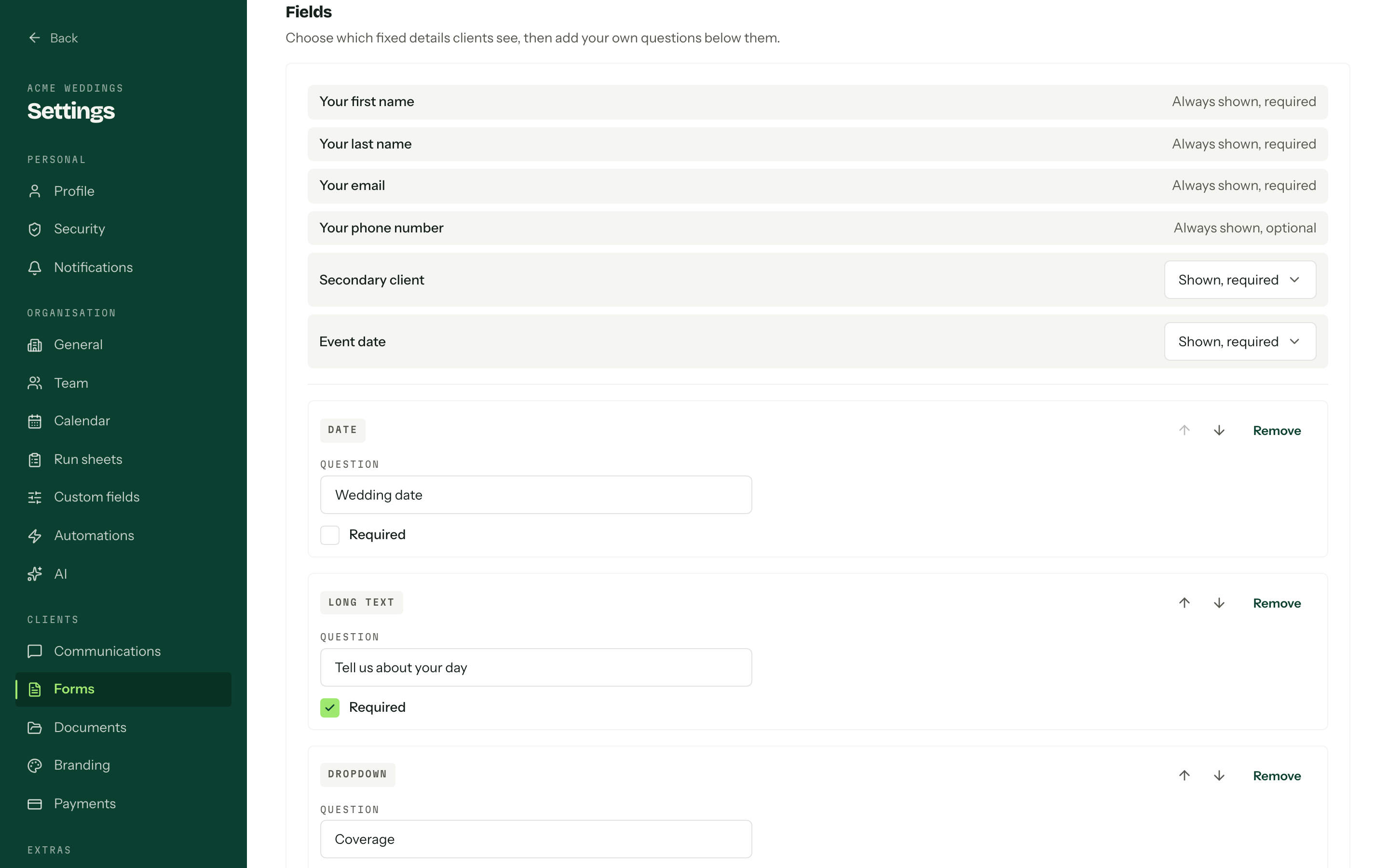
- 01
Press Add a question at the bottom of the list and pick a type: Short text, Long text, Number, Date, Dropdown or Checkbox.
- 02Type the question. A dropdown also takes its Options (one per line).
- 03
Tick Required if an answer is compulsory, then use the arrow buttons to move the question, or Remove to drop it.
- 04Press Save form. There is no draft: what you save is what the next visitor sees.
Discard throws away unsaved edits. A saved question keeps its type for good, because the live form already stores answers in that shape. To change it, remove the question and add a new one of the type you want.
Answers into contact fields
An ordinary question stores its answer on the enquiry. A mapped question writes it to a contact field on the person instead, so a budget band or a preferred contact method is on their record from the first minute.
Press Add a question and pick a field from the Contact fields group, then set Answer goes to: Primary contact, Secondary contact or Both. The control type and, for a dropdown, the choices come from the field itself and are read-only here. See Custom fields.
Secondary questions wait their turn
A question mapped only to the secondary contact stays hidden until the visitor enters secondary client details. One mapped to both is always shown and applies to a secondary contact only when there is one.
Where the answers show
Open the enquiry and the Enquiry answers card holds the lot, exactly as asked at the time. Later edits to the form never rewrite an answer already collected.
Above the answers is a source line: Source: Hosted form for the public page, Source: Website embed for a form on your own site. That is your lead attribution, and it is informational only. See Embedding the enquiry form.
Who can edit
Editing the form needs the Manage enquiry forms permission. Without it the whole editor is read-only and a note says an owner or admin makes the change. See Team and roles.