Contacts is everyone your organisation has dealt with, one person per contact. Couples are two records, not one, which is what lets each of them have their own email address and their own history.
Open contacts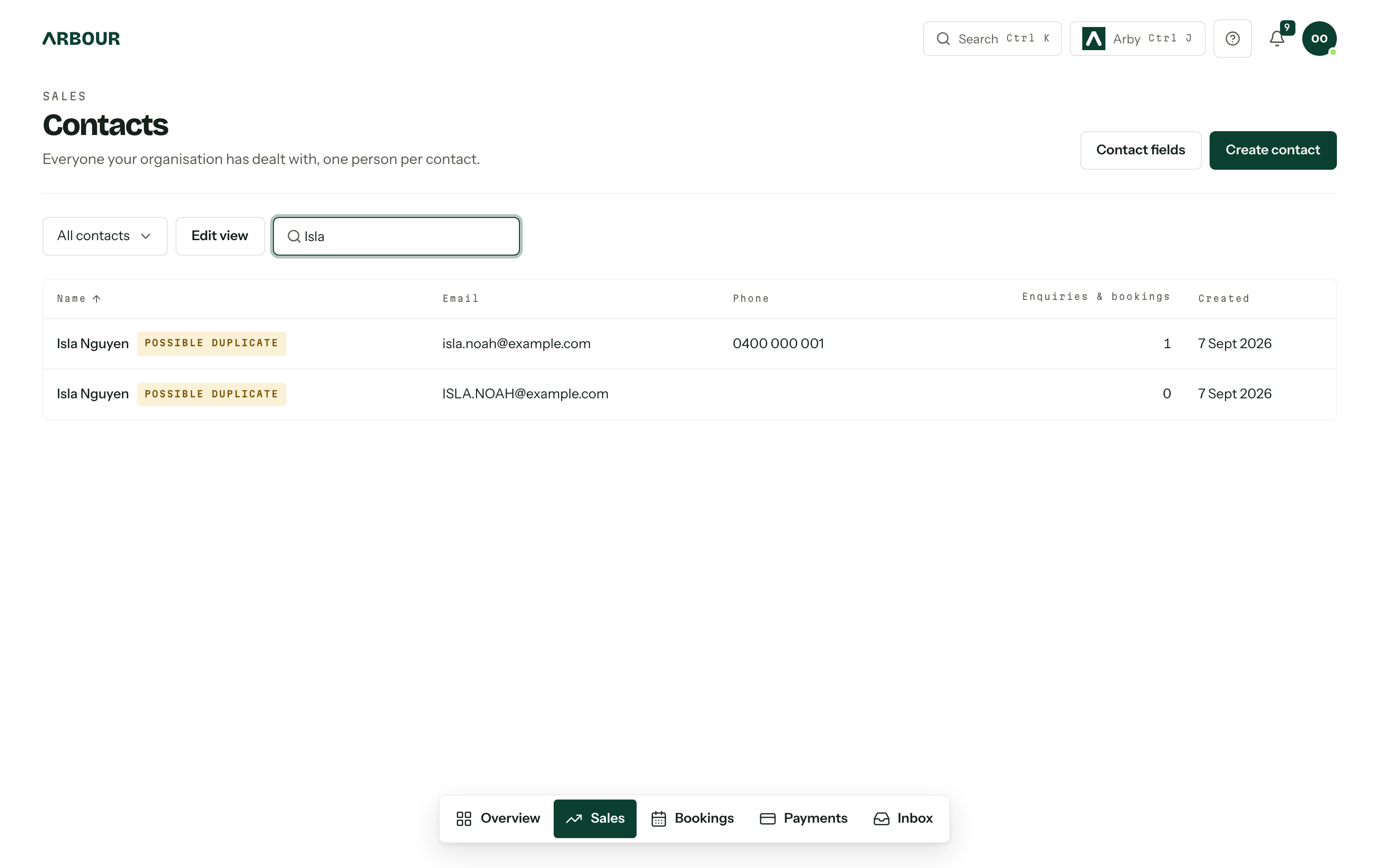
The list
Out of the box the table shows Name, Email, Phone, Enquiries & bookings (a count), and Created. A contact that shares an email address with another one carries a Possible duplicate badge beside its name. The search box narrows the list by name, email or phone. Click a column heading to sort by it, and click again to flip the direction. A long list pages with Previous and Next.
Everything else about the table is a view. The picker starts on All contacts; Edit view opens the editor, where Columns ticks what shows, Filters narrows by any column or custom field (every filter must match), and Sort orders the result. Run tries the draft without keeping it, and the list badges itself Unsaved view while you do. Save as new keeps it under a name, Update view overwrites the one you are on, and Set as default makes it what you land on (Clear default undoes that). Saved views are your own: each member keeps their own list and their own default. Delete view removes the view and leaves the contacts in it alone.
Contact fields in the page header jumps to the contact side of Custom fields, for anyone who can manage them.
Add a contact
Contacts appear on their own whenever an enquiry arrives. To add one yourself:
- 01Press Create contact.
- 02Fill in at least a First name. Everything else, including the email, can wait.
- 03Fill in any custom fields that apply, then press Create contact.
Add a contact on the overview opens the same dialog, and ⌘ Enter presses Create contact from any field in it. See Search and shortcuts.
If the email you type already belongs to someone, the dialog says Possible duplicate of and links to them. It never blocks the save: sometimes two people really do share an address.
What a contact holds
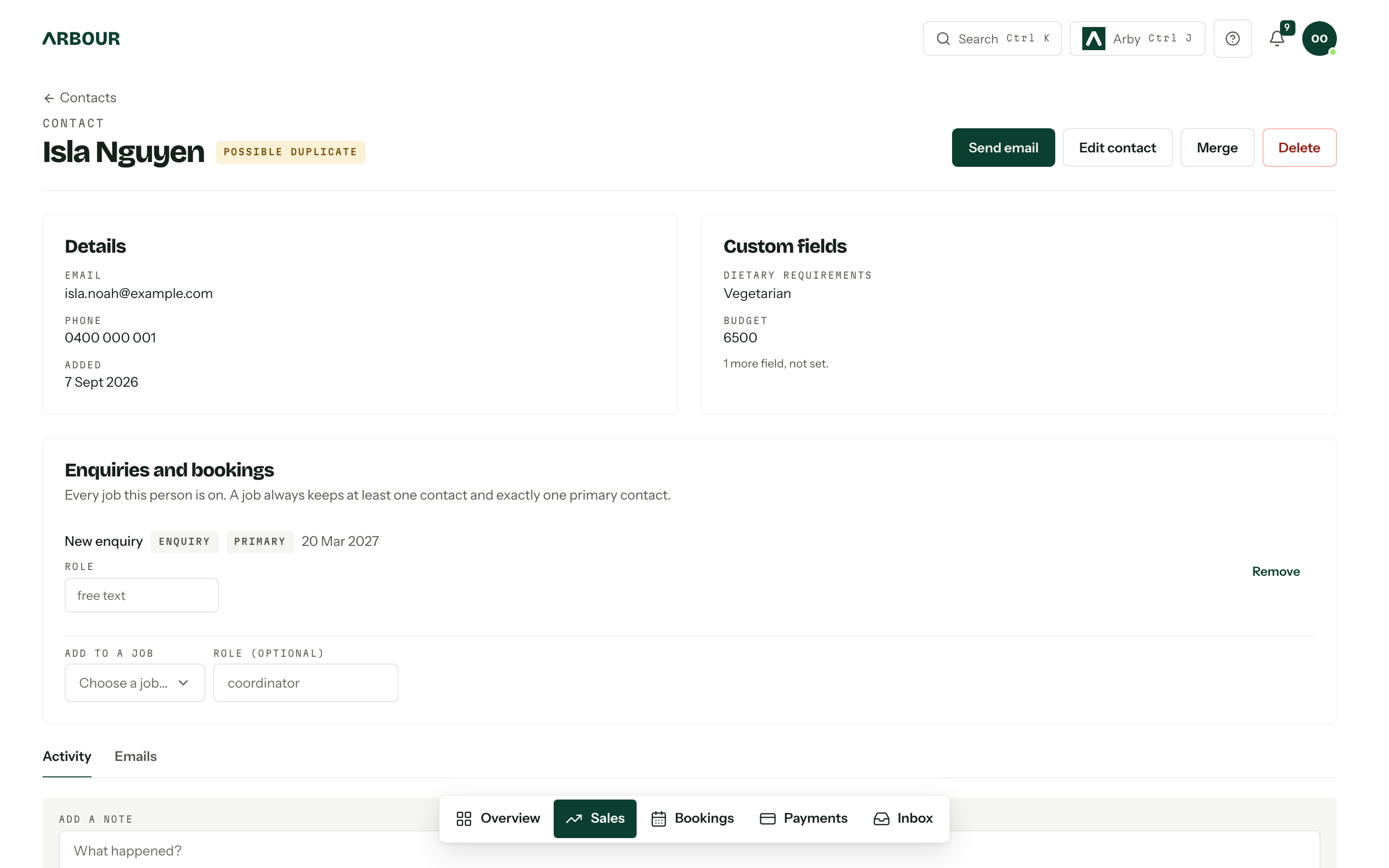
Details carries the email, phone and the date added. Custom fields carries your organisation's own, which are set up in Custom fields. Only the fields this contact has a value in are listed, with a count of the rest underneath; Edit contact is where the empty ones get filled.
Enquiries and bookings lists every job this person is on, with the workflow beside it when you run more than one. Each row takes a free-text role, and Make primary or Remove changes their standing on that job. Add to a job puts them on another one, with an optional role. Because a job always keeps exactly one primary contact, removing a primary opens Choose a replacement first.
Below that sit two tabs. Activity is the feed: notes, a running system record of what changed and when the contact joined or left a job, and the emails to and from them. Add a note logs one against whatever time you choose under When. You can edit your own notes; deleting someone else's needs the edit and delete other members' notes permission. Emails lists the conversations linked to this person, every category included, and a Drafts card for emails you started here and have not sent. Give a contact an email address, or change it, and past mail from that address is linked to them in the background. See Inbox.
The buttons across the top are Send email, Edit contact, Merge and Delete; Merge and Delete only appear for roles that hold those permissions. Editing saves the details and the custom fields together, and an empty field clears the value. If the new email belongs to another contact, the dialog says so and saves anyway, and both get the duplicate badge.
Deleting
Deleting needs its own permission, and only a signed-in person can do it. It is also blocked while the contact is on any enquiry or booking: the dialog lists them and asks you to take the person off each one first.
A delete erases the details, custom field values, notes and history. Email conversations stay, because they are your organisation's record rather than the contact's. If the goal is to tidy up two records of the same person, merge them instead of deleting one.
Not everyone sees the whole book
View contacts opens the screen. View all contacts decides how much of it fills up. Without the second, a member sees the contacts they created plus the ones on jobs assigned to them (or on any job, if their role can view all enquiries and bookings), and the rest is invisible, counts included.
Who can do what
Contacts carry six permissions: view contacts, view all contacts, create contacts, edit contacts and notes, delete contacts, and merge duplicate contacts. The default Member role holds view, create and edit. Someone without create sees Create contact greyed, with a tooltip saying why. See Team and roles.