Every page in the console is one keystroke away. The Search button is the first of the buttons on the right of the top bar, and ⌘ K opens the same menu from anywhere (Ctrl K on Windows and Linux). The same keystroke closes it.
Next to it is Arby, on ⌘ J (Ctrl J on Windows and Linux). Search finds the screen, Arby answers the question. More in Arby.
Open the overview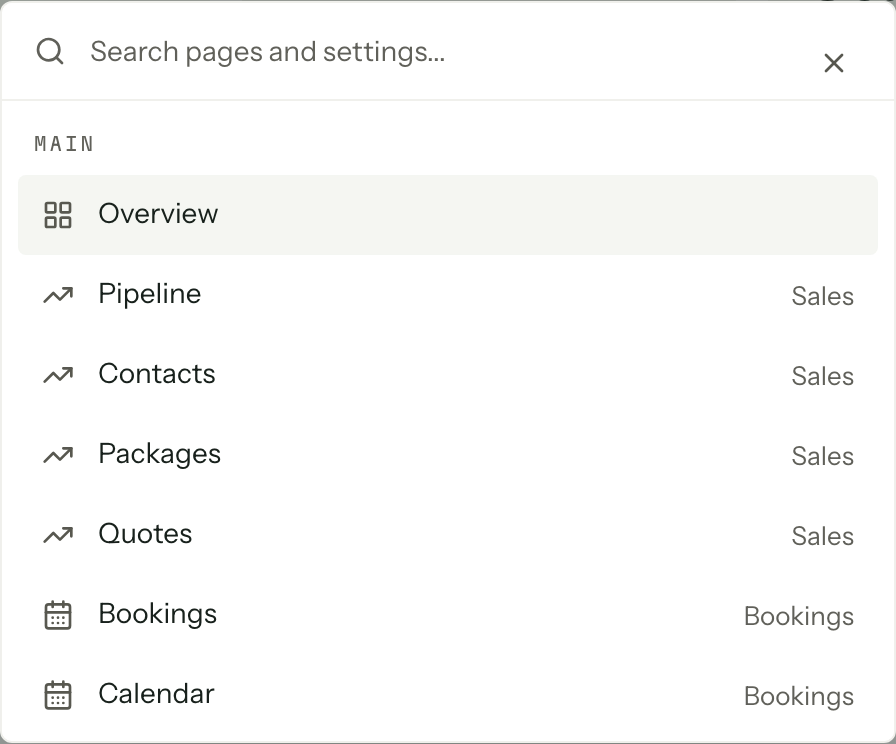
What it finds
Before you type, the menu is the whole console in groups: Main, Reports, Account settings, Organisation settings, Client settings and Developer settings. It lists only what your role can actually open, so a member without reporting never sees the report pages sitting there teasing them.
Type, and the list narrows to Results. Once there are two characters to work with, a Help group appears underneath with up to four articles from this help centre. Choosing one opens it in a new tab, so you keep the page you were on.
Nothing matches, and the menu says so rather than showing you a guess.
Recents
The last three destinations you chose sit under Recent at the top, before you have typed anything. They are kept in the browser, not on your account, so a different machine starts from a clean list.
Letter shortcuts
On the overview, the quick actions answer to a single letter while focus is inside the rail. The letter is printed on the row, and every action in the catalogue responds, not only the rows on show. Click or tab into the rail first.
| Key | Action |
|---|---|
| E | Draft an email |
| N | Log an enquiry |
| C | Add a contact |
| B | Create a booking |
| Q | Send a quote |
| I | Raise an invoice |
| K | Send a contract |
| D | Block out a date |
| R | Build a run sheet |
| P | Take a payment |
They only listen to the rail
A bare letter is a risky thing to bind, so the keys do nothing while a modifier is held, while the cursor is in a field, or while focus is anywhere outside the rail: the reports, a dialog, a search box. Dictation software typing a word on the page fires nothing. Draft an email needs a role that can use email.
Each one goes to the page that owns the action and starts it there, the same as pressing the row. More on the rows themselves in Overview.
The calendar has letters of its own for its views: Y for year, M for month, W for week and D for day. They stand down the same way while you are typing or a dialog is open.
Pressing the main button
In a dialog, sheet or popover, ⌘ Enter (Ctrl Enter on Windows and Linux) presses its main button: Create contact, Create, Send, Save, whichever the dialog is for. It works from any field in the dialog, so you can finish typing and send in one move.
A button that is greyed out or still saving is never pressed. With one dialog open over another, the key belongs to the top one. A box that sends on ⌘ Enter itself, like the client message composer, keeps the key.