Brief me asks Arby to read a job and write it up on one page: what was agreed, what was said lately, what is still undecided and what needs doing before the day. Use it before you ring a client back, or when a job is changing hands and the new person needs to catch up without reading every email.
Writing one
- 01
Open the booking or enquiry. Brief me, with Arby's mark, is the first button in the action row on the dark band at the top.
- 02
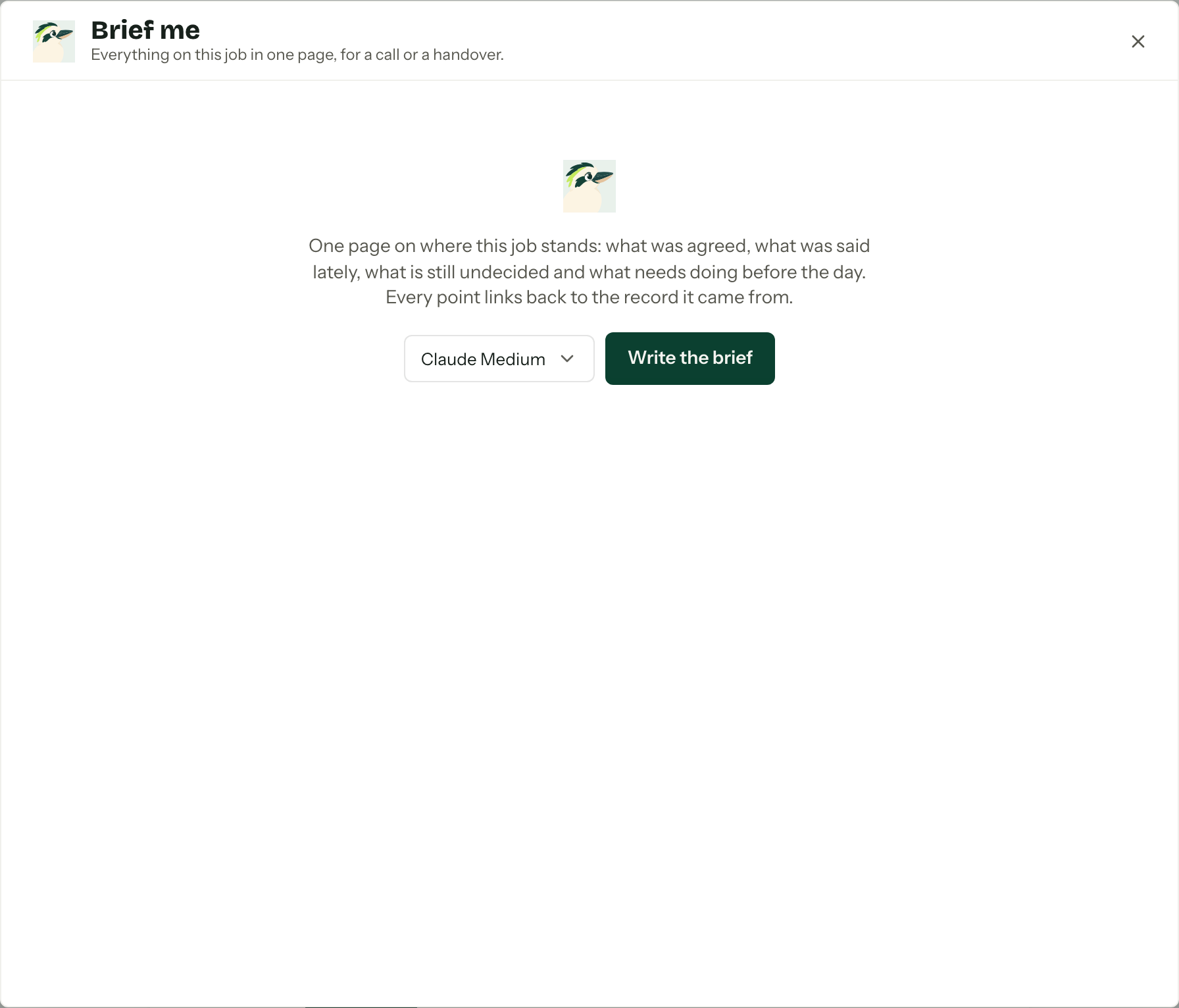
The brief opens in the middle of the screen. Pick a model beside the button if you want a different one; see Choosing a model.
- 03
Press Write the brief. Arby reads the job's notes, emails, quotes and tasks, among other records, and can take up to a minute.
Arby reads the job's details and contacts, notes, quotes, invoices and payments, contracts, questionnaires, the run sheet, enquiry form answers and custom fields, tasks and client tasks, appointments, emails and portal messages. It reads them through your role, so anything you cannot see on the job stays out of the brief.
Reading it
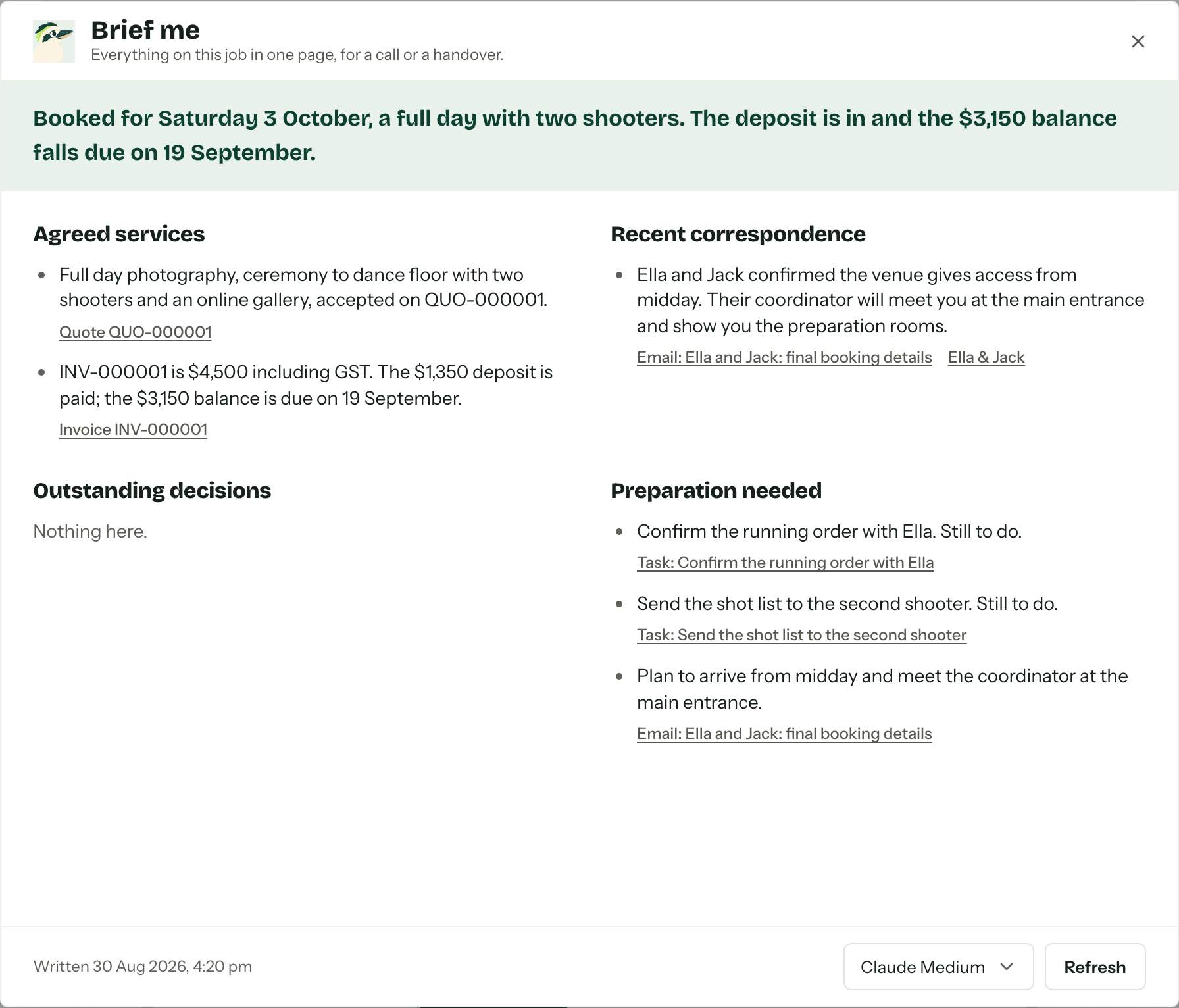
The headline sits in the band at the top: where the job stands, in a sentence or two. Under it are four sections, always in the same order: Agreed services, Recent correspondence, Outstanding decisions and Preparation needed. A section with nothing in it says "Nothing here." rather than disappearing.
Under each point are links to the records it came from: the quote, the invoice, the email, the task. Following one closes the brief and opens the record. The footer says when the brief was written, and adds "Some long emails and notes were shortened to fit." when the job was too busy to send whole.
Refreshing it
The job moves on and the brief does not. Press Refresh in the footer to write a new one, which replaces the old one. The old brief stays on screen while Arby writes.
If writing fails, "Arby could not finish the brief" shows above the brief you already had, which is kept. Press Try again.
Whose brief it is
A brief belongs to the person who wrote it. Each member keeps one per job, and nobody else in the organisation can open it, so a colleague on the same job writes their own.
It is written from what your role could see at the time. If that changes, say your role loses View invoices and payments or you lose access to a task or mailbox it drew on, the brief is deleted the next time you open it and you can write a fresh one. A brief is deleted 90 days after it was written; refreshing starts the 90 days again.
Read-only accounts
While an account is read-only, a saved brief can still be opened and read, but it cannot be written or refreshed. The footer says writing is paused. See Read-only accounts.
When it shows up
Brief me appears when your role has the Use the AI assistant permission and the organisation's AI assistant switch is on; both live in settings, see AI assistant and Team and roles. Writing a brief counts against the same hourly limit as asking Arby a question. The job goes to OpenAI or Anthropic, depending on the model; see What gets sent.