Enquiries and Bookings work the same way. The tabs above the board are views, the bar under them shapes the view you are on, and the jobs below show as a board or a list. Everything here applies to both, inside whichever workflow you have open.
Open enquiriesBuilt-in views and your own
Two tabs are built in. All active shows every open job. The closed tab holds the finished ones: Lost on enquiries (or whatever your workflow calls it) and Closed on bookings, which mixes Completed and Cancelled. The closed tab is always a list.
Every other tab is yours. Views are personal: only you see them and their names, and nobody else's board changes when you edit one. A view belongs to the board and the workflow you made it on, so switching workflows brings that workflow's own tabs.
- 01
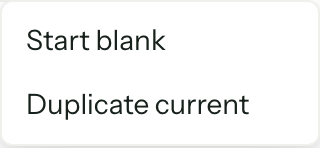
Press + at the end of the tabs. Start blank makes a view with the standard columns. Duplicate current copies the view you are on, filters and all.
- 02
The new tab opens straight away. Set it up with Filter, Sort and Fields; every change saves as you make it.
- 03
Press the chevron on the selected tab to Rename it, Set as default, move it left or right, Duplicate it, or Delete view.
A view made from the closed tab is a closed view, and only an active view can be your default. The default tab sits first and opens whenever you come back to the board; Clear default hands that back to All active. Tabs also drag into a new order, except the default, which stays first. Deleting a view never touches the jobs in it.
Once one of your views is the default, Hide view in the All active chevron menu takes that tab away. Show "All active" under + brings it back.
Changing a built-in tab
The built-in tabs never change. You can still filter, sort, add fields or switch layout on one: the changes apply while you stay, and a dot beside the tab name says it has unsaved changes.
When you move to another tab, open a job, follow a link or switch workflow, Arbour asks Keep your changes to All active? (or to the closed tab). Name the view and press Save as new view to keep the changes as a view of your own, or press Discard changes to drop them. Closing the prompt keeps you where you were, changes intact.
Filter, Sort and Fields
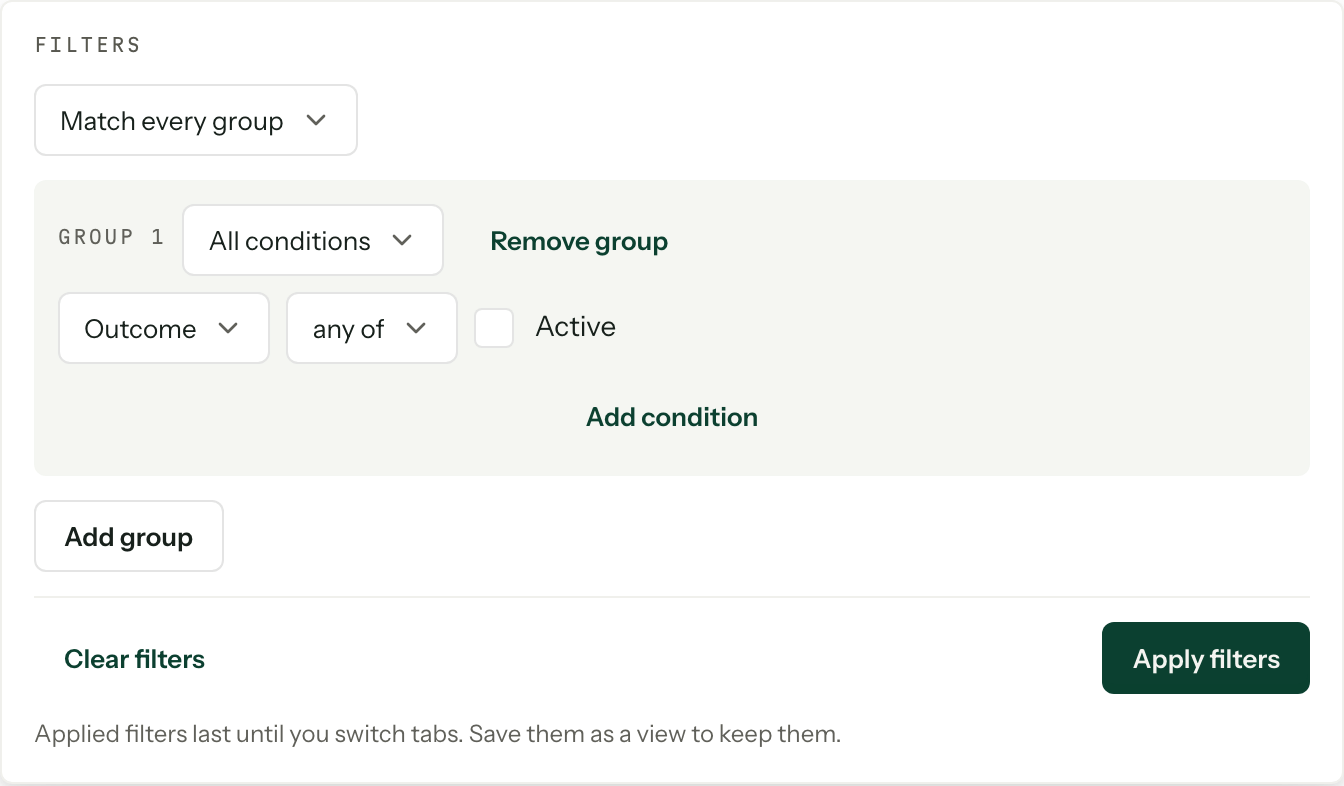
- Filter builds conditions on outcome, stage, assignee, event start, event end and any custom field in the workflow. Conditions sit in groups: a group matches All conditions or Any condition, and the groups match Match every group or Match any group. Nothing applies until you press Apply filters. Clear filters empties it at once. The button shows how many conditions are set.
- Sort picks a column and Ascending or Descending, applied within each stage in both layouts. Manual order is the order jobs have been dragged into, and it is shared by everyone in the organisation.
- Fields chooses up to twenty. They are the list's columns and the rows on each board card. Name is always first; the arrows move the others up and down.
An archived custom field keeps working in a view that already used it, but cannot be added anywhere new.
The board layout
The two icons at the start of the bar switch between Board layout and List layout, on active views only.
The board is one column per stage, and each column scrolls on its own so the stage name stays in sight. Drag a card to another column to move it to that stage. While the view sorts by Manual order, a card also drags up or down inside its column, and the card's menu has Move up and Move down for the keyboard. Under any other sort, dragging only changes the stage.
The list layout
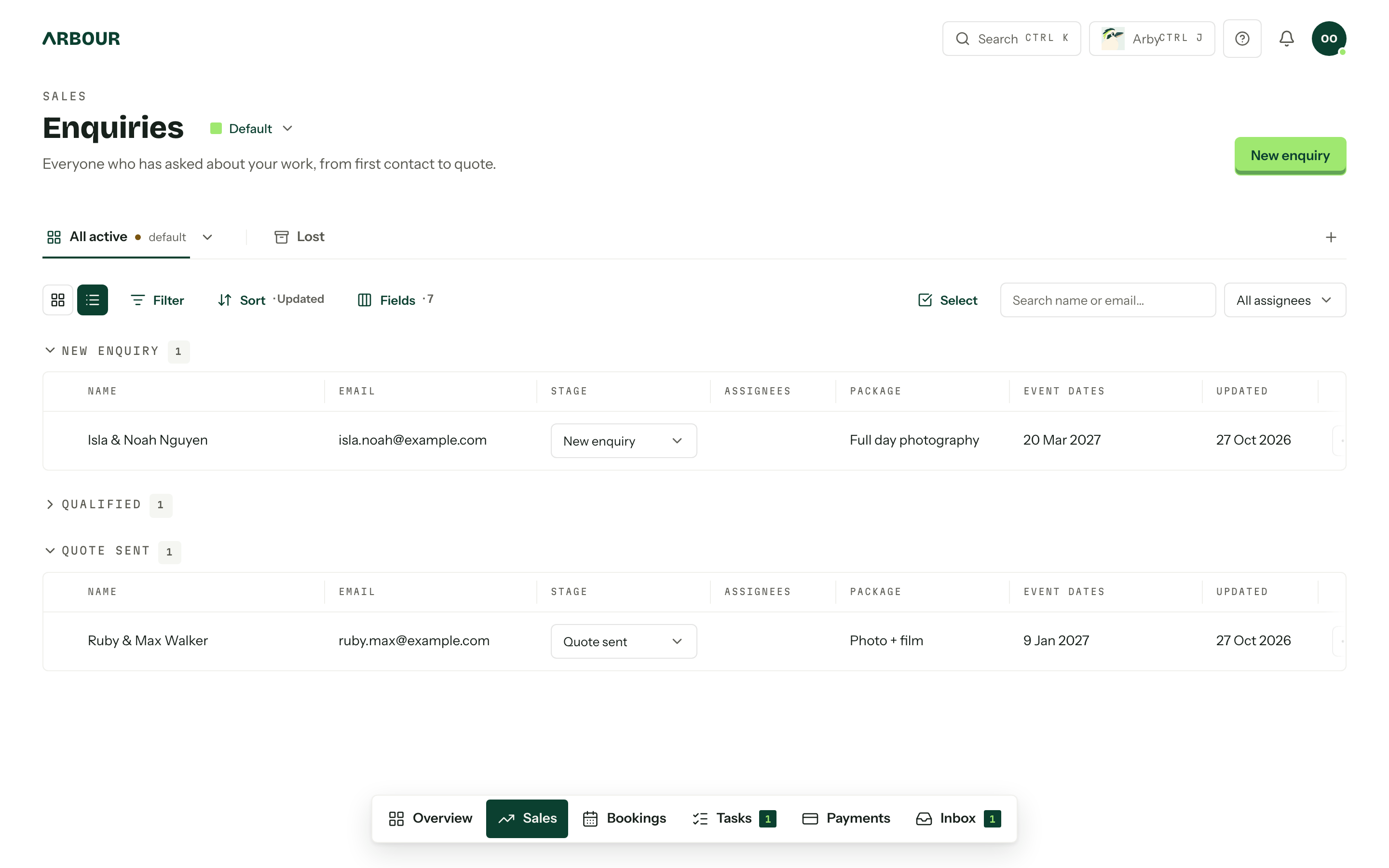
The list groups rows by stage, and the view remembers how you set it out:
- Drag a column header's right edge to resize it; a double click puts the width back. Drag the header itself to move the column. Name always stays first.
- Press a stage heading to fold that group away, and again to open it. A folded stage loads nothing until you open it, but it still shows its count, and you can drop a dragged row onto it.
- Click a row to open the job. Click the name, the event dates, the assignees or a custom field to edit that cell where it is. The Stage column is a picker. Closed rows only offer Reopen, and archived and file fields are read only.
- Rows drag into a new order, or into another stage, while the view sorts by Manual order. The row's menu has Move up and Move down too.
Resizing, moving columns and folding stages all save onto your own views, and count as changes on a built-in tab.
Long stages and counts
Each stage shows its first 50 jobs, in either layout. View more under the stage adds the next 50 below the ones already showing, so nothing you have scrolled past moves. There are no pages to flick between.
The count beside each stage name is the whole stage under the current filters, not just what has loaded, so a stage holding 137 says 137. Folded stages count too.
Quick search and assignees
Quick search, on the right of the bar, narrows what is on screen by name or email as you type. It is never saved onto a view and clears when you leave.
Beside it, the assignee filter shows All assignees, Mine, Unassigned or one person. It shows only for members who can see everyone's work. Without that permission the board holds only the jobs assigned to you, and a note above it says so.
Work on several at once
Select on the right of the bar ticks cards or rows instead of opening them. Select in a card's or row's menu starts the same mode with that job ticked. In the list, the box in a stage's header ticks the whole group. The selection bar pins to the top of the page while you scroll, and Esc leaves select mode.
- Select all in this view takes everything the view holds, not just what has loaded.
- Group email writes one email and sends each client a separate copy (Send email with one selected). It needs a connected mailbox. See Group emails.
- Move to moves every selected job to one stage.
- Close marks them all Lost on enquiries, or Completed or Cancelled on bookings, after a confirmation.
- Delete removes them for good, for roles that can delete.
Clear empties the selection and Done leaves select mode. On a closed view only email and delete are offered. If some jobs in a batch fail, a message under the bar says how many; the rest still go through.
Views never change permissions
A view only narrows what you see. Moving, closing and deleting from the selection bar need the same permissions as doing it one job at a time. See Team and roles.