An invoice belongs to a job, so it lives on that job's Money tab beside its quotes. From anywhere in the console, Raise an invoice asks which job first and drops you on the right card.
Raise an invoice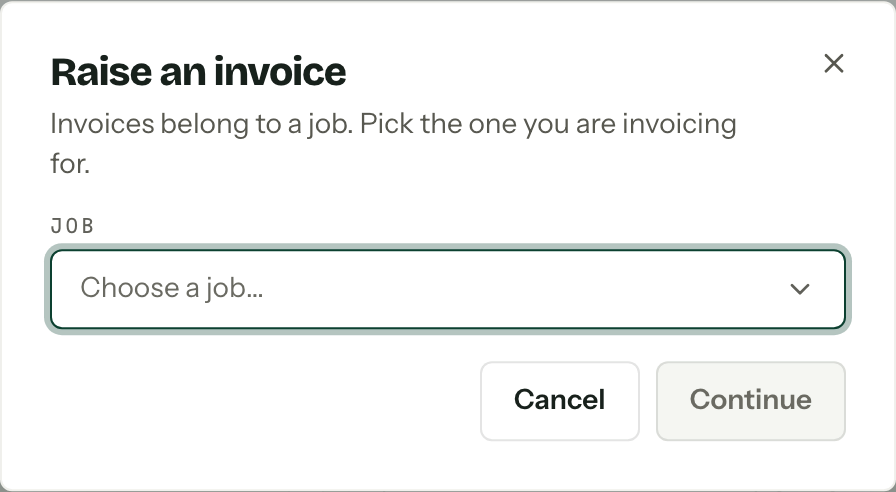
Raise one
- 01
Pick the Job and press Continue. Nothing is created yet; you land on the job's Money tab.
- 02
Press New invoice. That makes a private draft and opens it. Where you keep more than one payment plan, choose one first; Default plan is assumed otherwise.
- 03
Under The invoice, press Add line for each item: a name, a quantity and a unit price.
- 04
Check Payment, which is the instalment schedule the plan brought with it, and Bill to, which fills itself from the job's primary contact.
- 05Press Issue invoice.
An accepted quote does all of this for you: acceptance issues one invoice from the accepted revision, with the same lines, the same GST and the plan resolved against what the client chose.

Deposit, instalment, balance
There is no invoice type to pick. A deposit is the first instalment in the Payment section, and the balance is the last. Each row has a Name, a Charged as of Fixed amount, Percentage or Remainder, a Due rule, and its own tick list of what it can be paid with. Full detail in Payment plans.
The invoice's own due date is worked out at issue from the last instalment to fall due, so there is nothing to type. Exactly one instalment is payable at a time: the earliest one still owing.
Issuing
Issuing is the moment the document becomes real. It takes the next invoice number, freezes your GST position and seller details onto it as they stand, and publishes it to the client portal. If you are registered for GST it is headed Tax invoice; otherwise, Invoice.
A number is spent, not borrowed
Numbers are never reused. A draft can be deleted and leaves no trace; an issued invoice can only be voided, and the void stays on the record. See Document numbering.
Issue options beside the button holds the Email client tick, which decides whether the client gets the invoice by email as well as in their portal. If your organisation reviews emails before they go, ticking it opens the email for a read first. See Client messages.
Card has limits of its own: Stripe charges between $0.50 and $999,999.99. An instalment that could only be paid by card and falls outside that range stops the invoice from issuing until you add another method or change the amount.
What the client does
The portal's Invoices tab lists each issued invoice and opens it as a document they can pay from or save as a PDF. On the instalment that is due they get whichever methods you offered it with: Pay by card hands them to Stripe's hosted checkout, Pay by bank transfer shows your account details with a reference like INV-000001-02 to quote, and Pay by cash shows your instructions. If the job's quote carried an unsigned contract, paying waits until it is signed.
Revisions, adjustments and payments
Pressing Open on a row opens the invoice. Saving an issued invoice sends a revision, and Save options holds the same Email client tick. If the change moves money or GST, Arbour asks for a Reason, writes an immutable adjustment note against the invoice, and expires any card payment the client had open. Money already collected cannot be taken back off, and a paid instalment cannot shrink: a paid 30% deposit keeps its dollar amount when lines are added, and only the unpaid instalments move. A fully paid invoice is locked. Refunds are done from the Stripe Dashboard, not here.
An issued invoice can be voided from the More invoice actions menu only while nothing has been paid against it.
There is no mark as paid. Money arriving any other way is entered in the Payments section against the instalment currently payable, with Record payment: a Method of Bank transfer, Cash or Other, an Amount (AUD) and a Reference (private). Part payments are fine, as long as an instalment that can only be paid by card is not left owing less than $0.50. Unpaid, partially paid and paid are worked out from the ledger, so the two never disagree. The Take a payment quick action asks which job, then lands on its Money tab for the same thing; it records money, it does not charge a card.
A payment recorded by hand that turns out to be wrong is voided with Void on its row. The amount becomes owing again and the row stays on the record. Card payments cannot be voided here.
Creating and issuing needs the create, edit, issue and void invoices permission. Recording money needs record manual payments, and voiding a recorded payment needs void payments; both are separate. See Team and roles.