Everything about how money reaches you sits in Settings, under Payments: your GST position, the seller details that print on documents, and the methods a client is offered. Nothing is switched on until you choose it, and each method needs its own details before it can be offered.
Open payment settings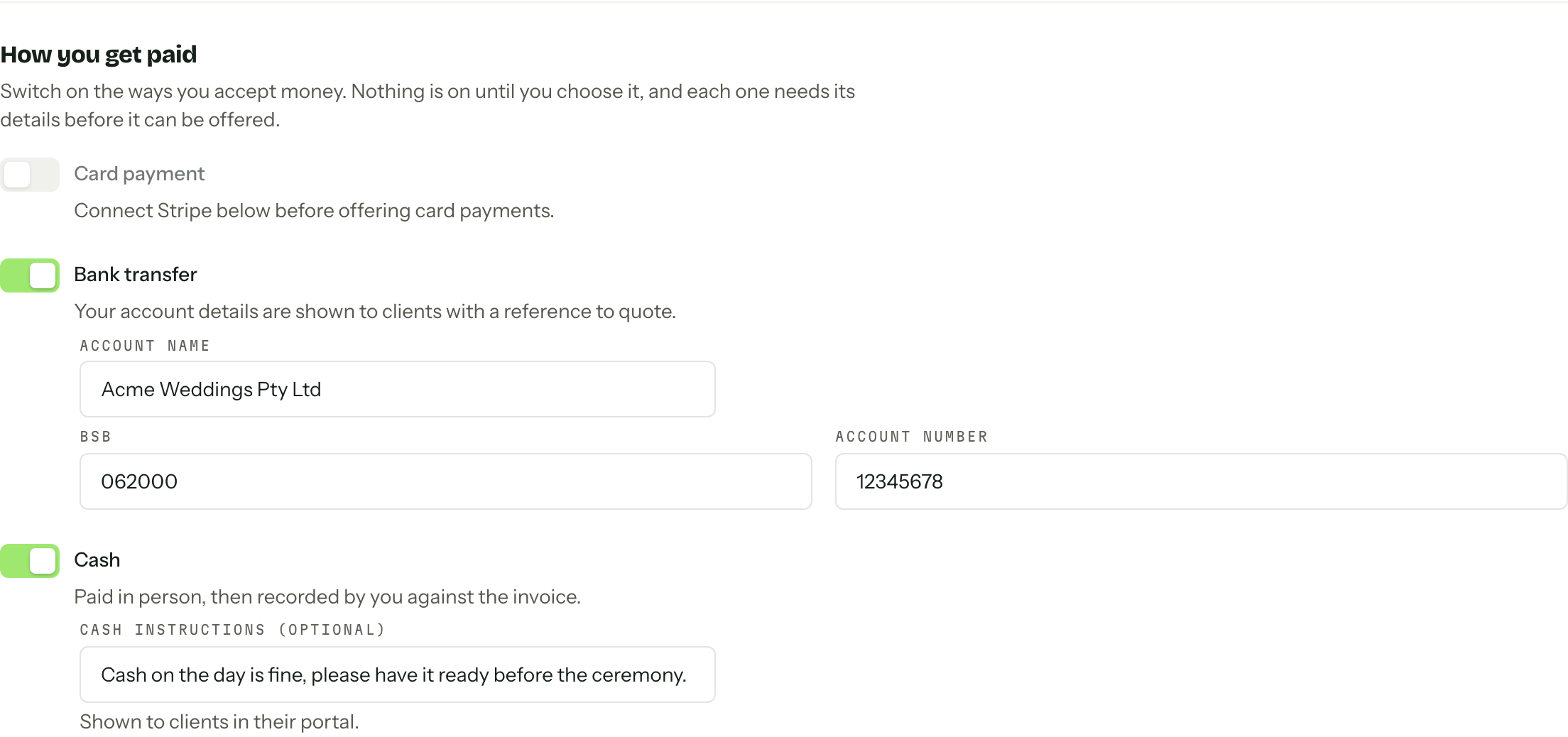
Before the first document
GST is your declaration: switch Registered for GST on and the ABN becomes compulsory, eleven digits, because it prints on every tax invoice. Your prices then decides whether the numbers you type into a quote Include GST or Exclude GST (added on top). GST is 10%; registering and remitting stay yours.
Business details is the legal seller profile (Business name, Business address, Email and Phone), snapshotted onto every quote and invoice at the moment it goes out. Leave Business name blank and your organisation name is used. Which of these print is set in document settings.
One Save payment settings button under How you get paid saves GST, business details and the methods together. Payment plans and Stripe below it have their own buttons.
Saving once switches quoting on
Until Save payment settings has been pressed at least once, the page carries a Set up payments to start quoting notice and no quote or invoice can go out. The button is live on that first visit even if you change nothing, because keeping the defaults is a valid answer. It is still a decision Arbour will not make on your behalf.
The three methods
- 01
Bank transfer needs an Account name, a six digit BSB and an Account number of five to ten digits before the switch will move. Clients see those details with a reference to quote.
- 02
Cash is paid in person and recorded by you afterwards. Cash instructions (optional) is one line shown to clients in their portal, for example where and when to hand it over.
- 03
Card payment can only be switched on once Stripe is connected and ready. Readiness alone does not offer it: the switch still has to be turned on. If Stripe stops being ready later, card is not offered until it is again, and the switch can still be turned off.
Switching a method off asks first, and says how many sent quotes and issued invoices still offer it. Those keep it and stay payable that way. Only new documents lose it.
Card only works between $0.50 and $999,999.99 per payment, which is Stripe's range. An instalment outside it is not offered card, and if card is its only method the document will not go out until you add another. See Payment plans.
Connecting Stripe

Connect Stripe hands you to Stripe's own hosted onboarding and brings you back to this page when it is done. Arbour never collects your identity or banking documents: Stripe does, and the account it creates is yours, with the full Stripe Dashboard and merchant of record status. Arbour takes no cut of a card payment, only Stripe's own fees apply, and payouts go straight from Stripe to your bank.
The badge beside the section heading tracks where you are: Not connected, then Setup needed while Stripe is still waiting on onboarding items, then Ready. Refresh status asks Stripe again if the badge looks behind. While setup is incomplete the section lists what Stripe reports for card payments and payouts, and how many onboarding items are still due, and Complete Stripe setup takes you back to Stripe to finish them.
Once it reads Ready, go back up to How you get paid, switch Card payment on, and press Save payment settings. A ready account also shows Update Stripe details, which reopens Stripe's onboarding, and Open Stripe Dashboard.
Disconnecting
Disconnect pauses new card payments, and the badge reads Disconnected. Refunds and payments already underway still complete, and past payments are untouched. Reconnect Stripe brings the same account back; Connect another account retires it and starts a fresh one. If Stripe closes an account the badge reads Account closed, the section says so, and card payments stop until another is connected.
Saving the page needs the manage payment settings permission. Connecting, refreshing and disconnecting Stripe need that and the separate manage the Stripe connection permission as well, so a role can be trusted with GST and bank details without being handed the connected account. Everyone else sees the page read only. See Team and roles.