Custom CSV turns your own spreadsheet into enquiries or bookings. One row becomes one record, with its contacts, dates, fields and notes. Use it when your previous tool is not on the imports list, or when you keep your history in a sheet.
Open Custom CSVThe importer runs in four steps: Upload, Match columns, Review and Import. You need the Import data from other tools permission. A read-only account can review a file but cannot start the import.
Prepare the file
Save the sheet as a UTF-8 CSV. Excel workbooks and ZIP files are not accepted here.
| Limit | Most allowed |
|---|---|
| File size | 20 MiB |
| Records | 10,000 |
| Columns | 250 |
Split a bigger file into several CSVs and import them one after another. Quoted cells, line breaks inside cells and repeated headings are fine: each column is known by its position. Formulas are never run, so export the values you want to keep.
Every record needs a primary contact with at least a first name. Surname and email are optional. Without a title column, the record takes the primary contact's name.
Choose where records land
- 01
Under Destination, choose Sales for enquiries or Bookings for booked jobs.
- 02
With more than one workflow, choose the Workflow. Its stages and custom fields are what your columns map onto.
- 03Drop the CSV on CSV file, or press Choose file.
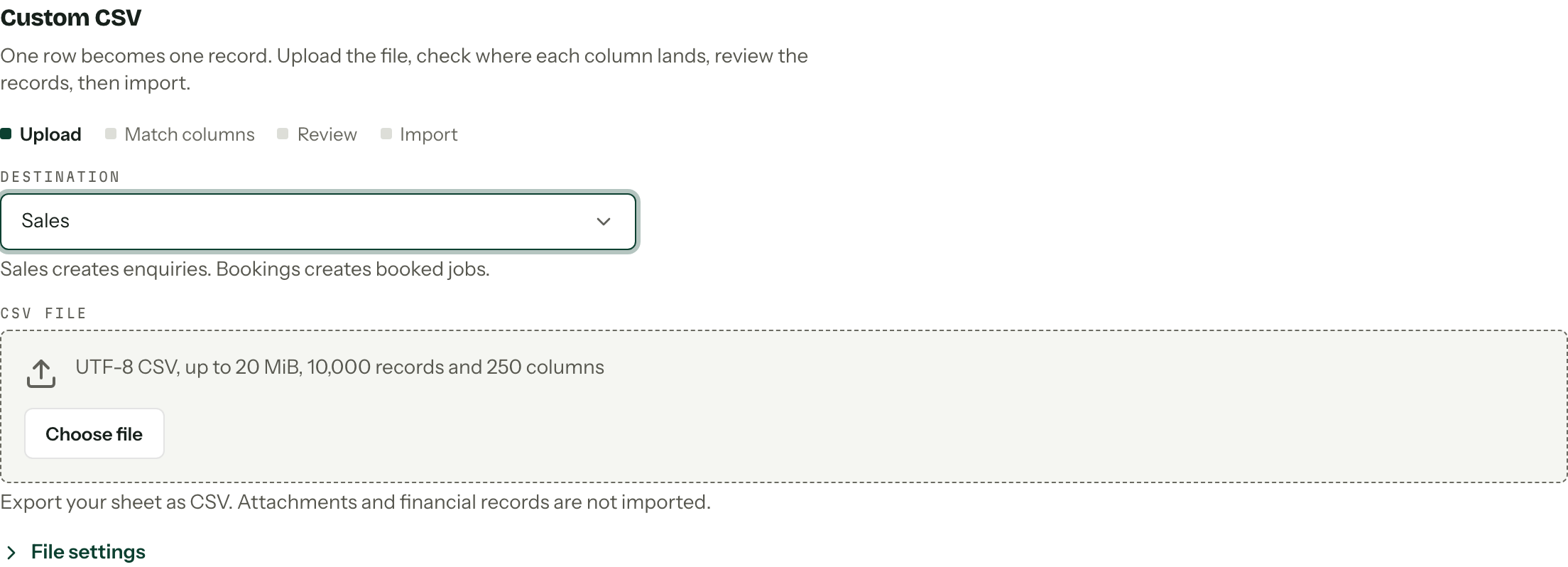
The file is read in your browser. Nothing is created until you start the import.
File settings
Arbour detects the separator and the heading row. If the columns look wrong after upload, open File settings:
- Separator: comma, semicolon, tab or pipe.
- Header record: the record holding your column names, counting from the top. Leave it at 0 to detect it, which helps when an export has a title row above the headings.
On the upload step the settings apply to the next upload. On Match columns, press Apply file settings to read the same file again. That clears your mapping, so fix the file settings first.
Match columns
Each column shows its heading, a few example values and the Arbour field it maps to. The badge at the top counts columns resolved: every column needs a field or Ignore column.
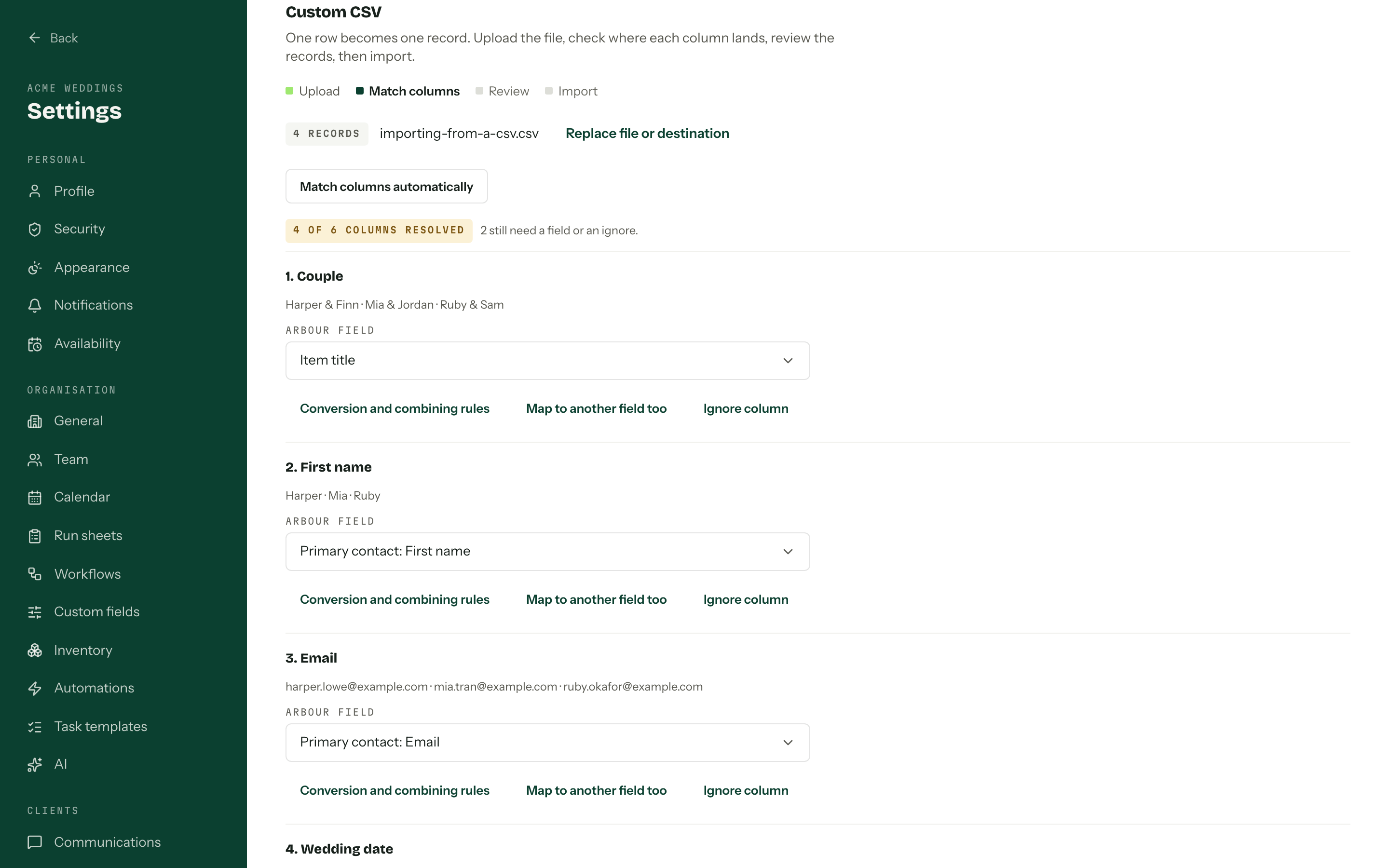
Automatic matching
Uploading starts automatic matching straight away. Arbour sends your column headings and a sample of up to 100 records to its AI provider and fills in the matches it finds. It usually takes under a minute.
You can keep mapping while it runs. Your choices win: a match that arrives after you edit anything is set aside. Press Map columns myself to stop waiting. If matching is unavailable, map the columns yourself or press Retry column matching. Retries count towards an hourly limit for your organisation.
Suggestions only fill in the mapping. They never create fields or records, so check each one.
Map a column
- 01Pick a field under Map this column to, or press Ignore column.
- 02
For a column that feeds two fields, press Map to another field too. Separate note turns a column into a note on the record.
- 03
Open Conversion and combining rules to set the date format, choice translations, yes and no values, how names split, or which columns join into one text field.
Set Source date format whenever a date such as 03/04/2026 could mean either day. Choice fields need each value to match an existing option; add a translation for any that do not.
Below the columns:
- Fixed defaults sets one value for every record, such as a stage or an assigned member.
- Contact groups adds a second contact per record, such as a partner or planner. Its fields then appear in the column pickers.
- Repeat imports holds the Dataset. If your file has a stable record ID, map it to External record ID and choose the same dataset for later exports of those records. Without one, only the exact same file is recognised again.
New fields and choices
Under New fields and choices, propose a custom field for a column that has nowhere to go, or a new choice for an existing field. Proposals are created only when the import starts, and they stay if you stop it. Creating them needs Manage custom fields for enquiries and bookings or Manage custom contact fields. See Custom fields.
Validate and preview
Press Validate and preview. Arbour checks every record in the file, not only the ones on screen.
The badges count records ready, with errors, recognised repeats and warnings. Each record in the preview shows how it will look in Arbour, with Ready, Needs correction or Already imported, skip, and the reason against the column.
- 01
Fix errors in the file and upload it again, or tick Exclude all N records with errors.
- 02
Press Download error report for a CSV listing each problem by record, alongside the original values.
- 03
When an email matches more than one existing contact, choose the right one under Choose contact for record N. Arbour takes you back to Match columns; validate again.
- 04Check Configuration to create lists only the fields and choices you meant.
- 05Confirm the count on Import N records, then press it.
Edit mapping goes back a step. Changing the mapping or destination clears the review, so validate again.
Contacts match by email only when it belongs to exactly one contact. A matched contact keeps its existing details; the import only fills empty fields. A name alone never reuses a contact.
Run, stop and recover
Keep the tab open while records import, three at a time. A progress bar counts them off. If you hit the request limit, a countdown shows when importing resumes.
Press Stop import and confirm to stop. Requests already sent finish, and records imported so far stay in Arbour. There is no bulk undo.
The results list each record as imported, skipped, failed or not imported, with View record links. From there:
- Retry failed and remaining records picks up where the run stopped.
- Retry completion appears when the records saved but the run could not close. Use it before starting another import.
- Download error report lists failed, stopped and excluded records.
If the tab closed or the page reloaded mid-run, open Past imports below the importer and stop the stranded run. Then:
- 01Choose the same Destination.
- 02Pick the run under Recover a previous import.
- 03
Upload the same CSV. Arbour restores the reviewed mapping and workflow, and skips records already imported.
A different or edited file cannot recover a run. Start a new import instead.
What a CSV import leaves out
Custom CSV brings across records, contacts, dates, custom fields, assignments and notes. It does not import attachments, invoices, payments, contracts, questionnaire answers, run-sheet entries or inventory. It sends no client emails, runs no automations and does not sync to accounting.
Recognised repeats are skipped, never updated. To change records already imported, edit them in Arbour.