The Pixieset importer is in Settings → Imports → Pixieset. It accepts exports from Studio Manager. Start there in Pixieset's product menu; Client Gallery and Store exports contain different information.
These steps and screenshots were checked on 9 September 2026 using fictional clients and jobs. Your counts and totals will differ.
Open the Pixieset importerExport contacts
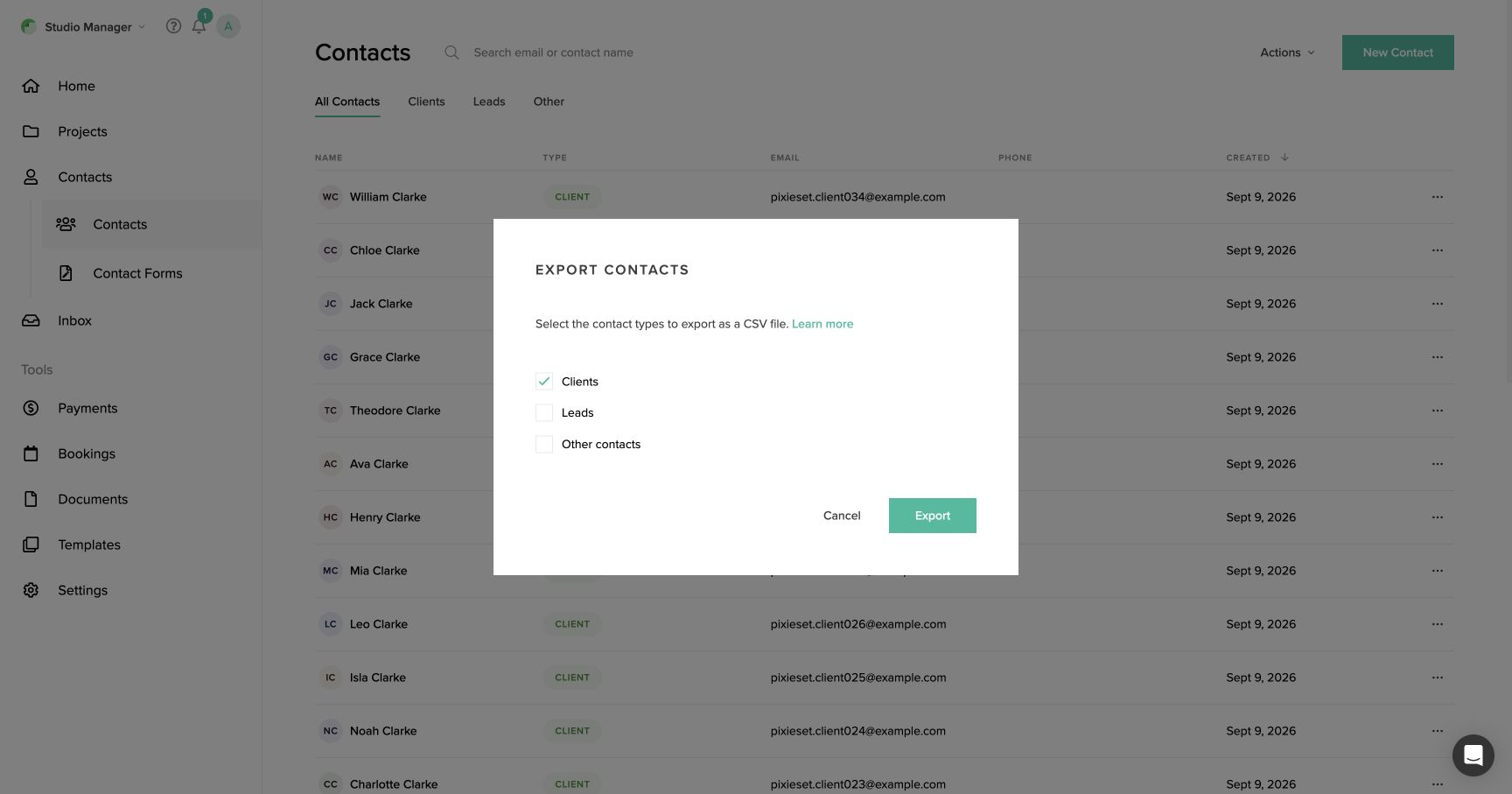
- 01In Studio Manager, open Contacts → Contacts.
- 02Click Actions at the top right, then Export Contacts.
- 03
Select Clients, Leads and Other contacts for a complete contact collection. The default may select Clients only.
- 04
Click Export and save the CSV. Check a copy for the expected contact count, names and email addresses.
Export payments
- 01Open Payments → Transactions.
- 02
Select All Payments and set the date filter to All time, or a range covering all the history you need.
- 03Click Export at the top right. This downloads the CSV directly.
- 04
Keep the CSV with the contacts export. Compare its dates and payment total with the Transactions page.
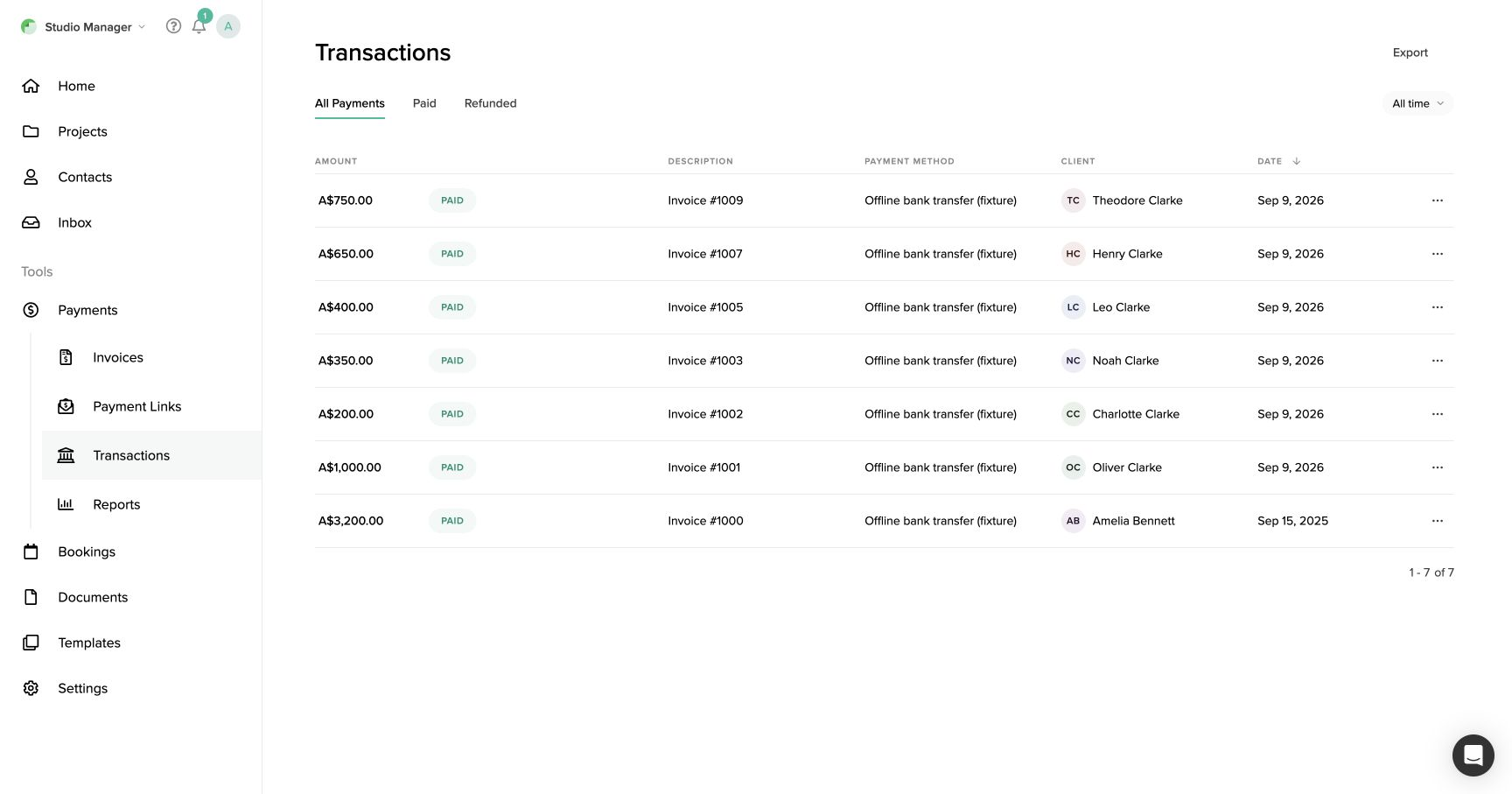
The payments CSV contains recorded payments. It does not include unpaid invoices or the invoice line items, so download the invoice PDFs next.
Download every invoice
- 01
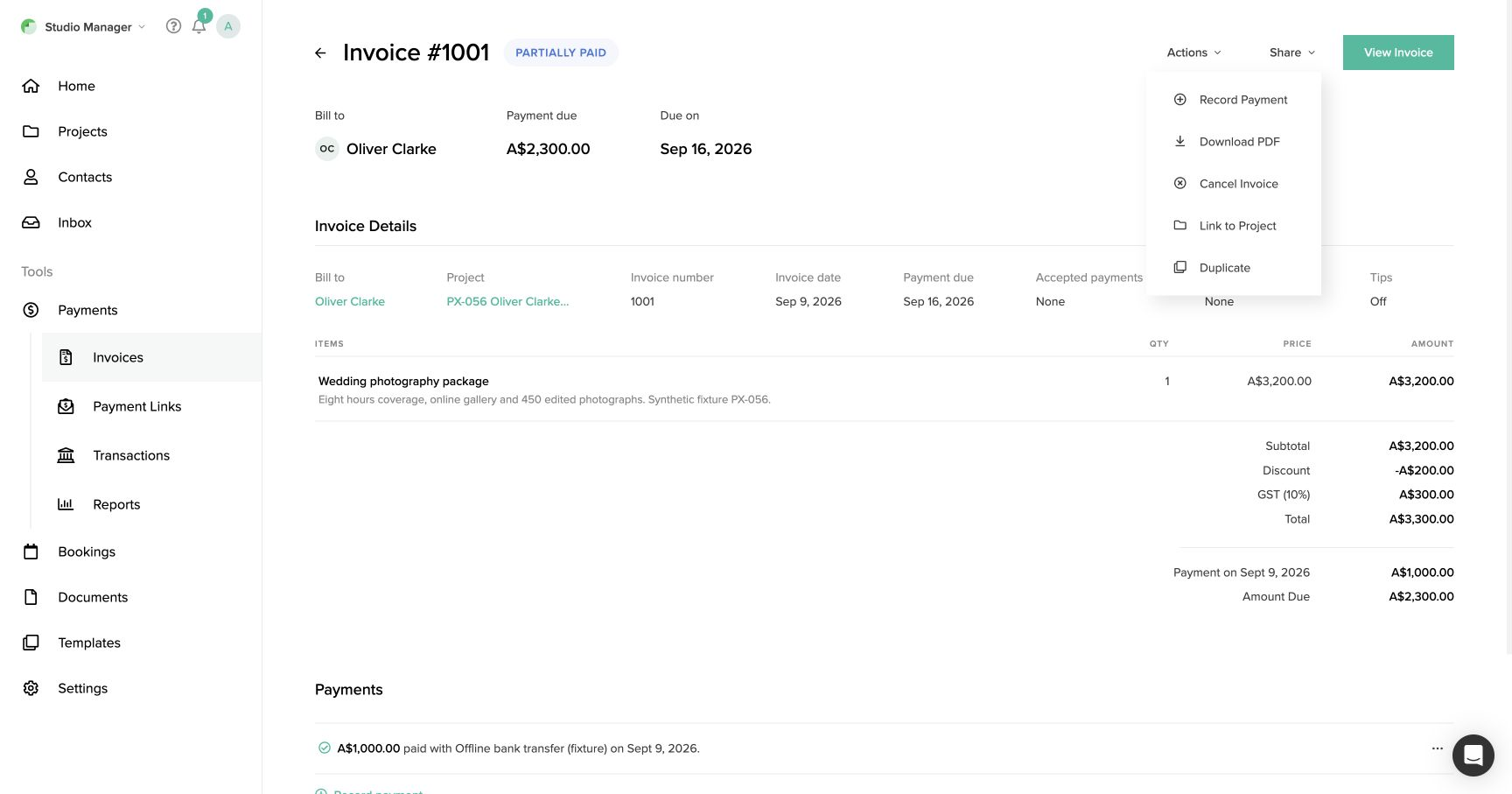
Open Payments → Invoices, select All Invoices, clear search and choose All time.
- 02Open an invoice by its number, then choose Actions → Download PDF.
- 03
Keep the downloaded PDF, with the invoice number in its filename if you rename it for your records.
- 04
Repeat for every invoice, including unpaid, partially paid and paid invoices. Check further pages in the list.
Download contracts, questionnaires and quotes
- 01
Open Documents → Contracts, open a contract's detail page and choose Actions → Download PDF. Use the detail-page Actions menu rather than the list row's ellipsis.
- 02
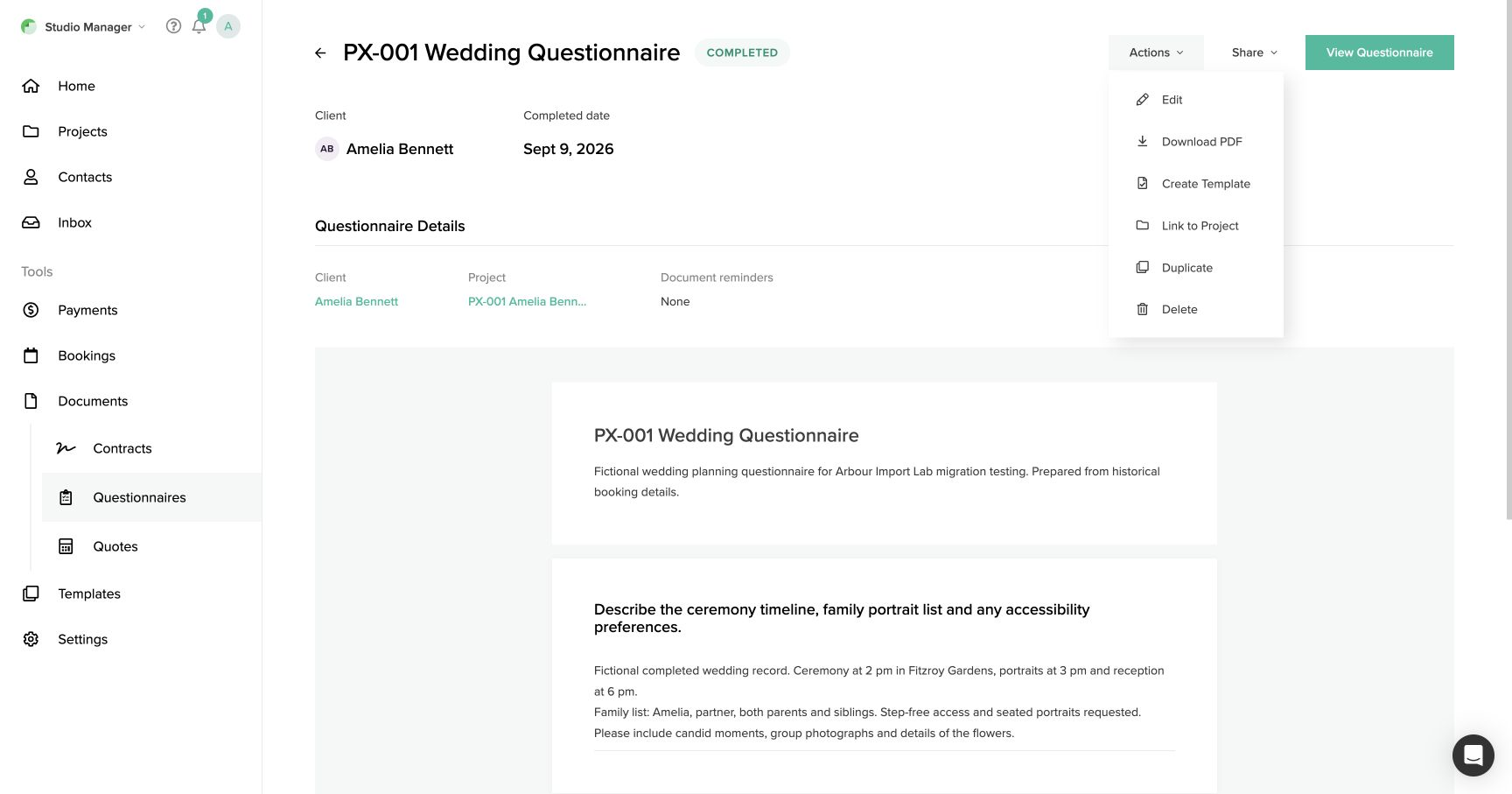
Open Documents → Questionnaires, choose a Completed questionnaire and select Actions → Download PDF. Open the file to check the client's answers are present.
- 03Open Documents → Quotes, open each quote and choose Actions → Download PDF.
- 04
Repeat for the documents you need and keep the PDFs with the CSVs and invoice PDFs. Keep a separate note of each document's project for your own checks.
A contract awaiting signature remains unsigned in the downloaded file. Importing a PDF does not sign it or send a signing request.
Prepare the ZIP and import
Put both CSVs and the PDFs in one folder and compress it to a ZIP. Subfolders such as contacts, payments, invoices and documents are fine. Preserve the native CSV headings and the contents of every file.
Upload the ZIP and read the preview warnings. With more than one workflow, first choose the Workflow the records land in. Choose its booking stage for imported financial history and whether to reconstruct invoices. Invoice PDFs provide the financial details and the payment CSV supplies recorded payments and their dates. Each client with PDFs receives one booking named Pixieset records: Client Name, grouping their exported documents. Company, address, contact type and contact notes are kept in a note on the contact.
Contact columns can appear in a different order, and optional details such as phone and email can be absent. Additional contact columns are preserved under their original labels in contact notes. The preview lists those labels. Values remain text, rather than becoming typed custom fields. For contacts without an email, keep their identifying details consistent in later exports and review any ambiguous matches.
Unknown populated columns in a payments CSV stop reconstruction because their financial meaning cannot be verified. Keep the complete original export. To import contacts and PDFs only, omit the payments CSV from a working ZIP and turn reconstruction off.
Invoice reconstruction currently supports confirmed AUD invoices. Payment exports with other currencies, refunds, tips or gift cards are not supported. Keep the original payment CSV for your records, remove it from a working copy of the ZIP, and switch invoice reconstruction off to retain the PDFs. Review that financial history separately.
Understand the project limitation
The verified Studio Manager screens provide no bulk export of the Projects board or list. Contacts and payment CSVs do not contain full project records. Arbour creates one booking per client with PDFs to hold their exported history; this is not a copy of every project on your board.
Contacts without invoice history can still be imported. Project dates, stages and jobs absent from the native files cannot be restored by this importer. Review imported bookings and add the missing details from Pixieset. Keep access to projects with no exported invoice or document history until you have transferred their details separately.
Contracts, quotes and questionnaires stay as original documents, rather than becoming live signing requests, packages or editable questionnaire answers. A PDF that does not identify exactly one exported contact prevents the ZIP from being imported. Add the missing contact to your export, or remove that PDF from the ZIP and retain it for manual attachment after importing.
Check the result
Compare contact counts, invoice numbers, invoice totals and payment dates with Pixieset. Include a paid, partially paid and unpaid invoice in your checks. Confirm documents open on the intended record and review every warning before considering the migration complete.
A newer ZIP can add newly downloaded documents to the same client history. Previously imported invoices are not updated, so reconcile later payment changes separately.
See Importing data for retrying failed records, recovering an interrupted run and what happens when you upload again.