The Dubsado importer is in Settings → Imports → Dubsado. Collect the four CSV exports below, then download the PDFs you want to keep. Dubsado does not provide a single download containing this collection.
These steps and screenshots were checked in Dubsado 3.0 beta on 9 September 2026 using an account with fictional clients. Menu labels can change as the beta develops. Counts in screenshots are examples, so check against your own account.
Open the Dubsado importerExport projects
- 01
Open Projects, select All, and clear the search and filters. Click Export current view at the top right. The download follows the current view.
- 02
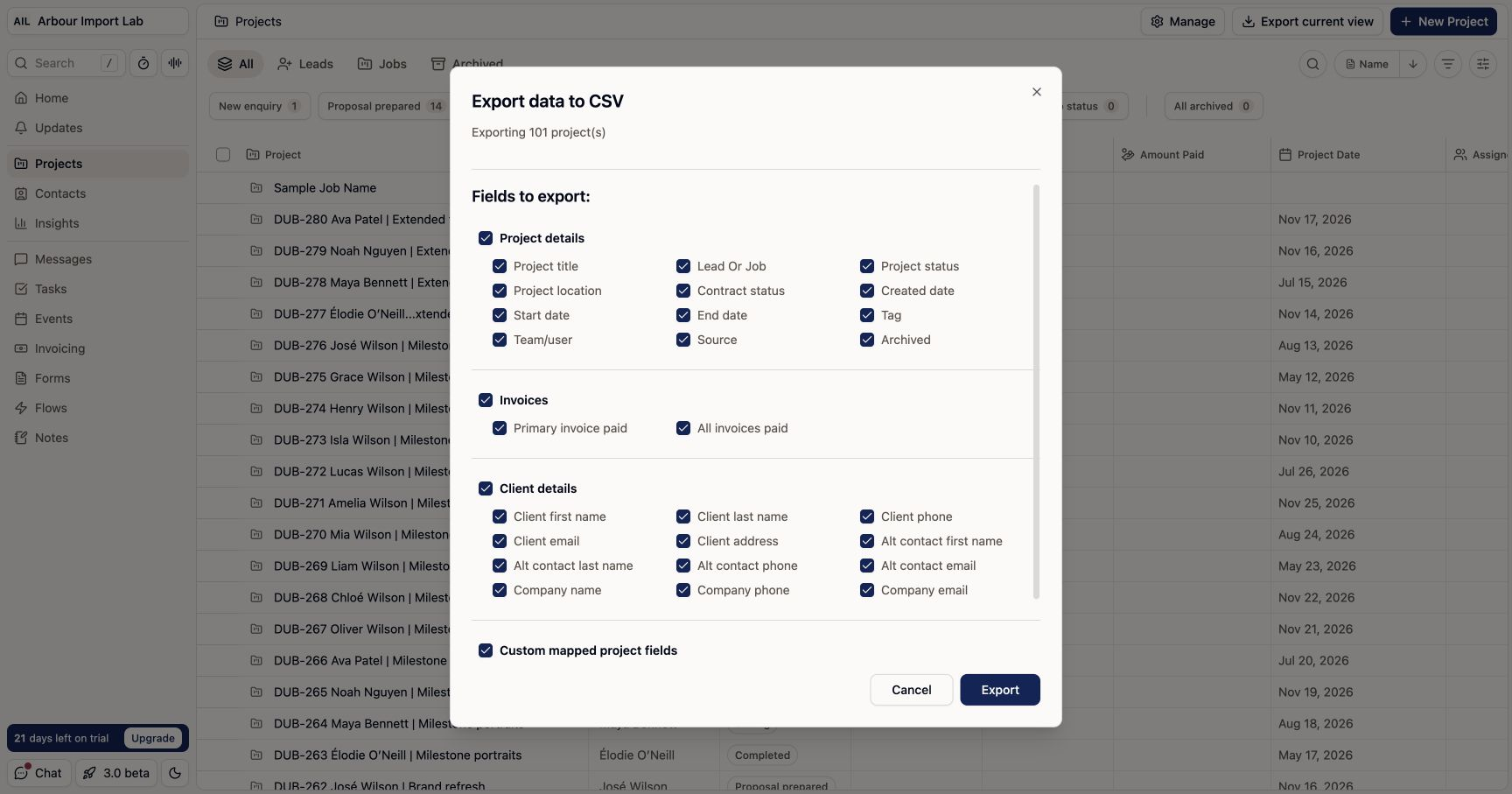
Check the dialog's project count. Select all four groups: Project details, Invoices, Client details and Custom mapped project fields. Scroll inside the dialog to include every field.
- 03
Check Primary invoice paid and All invoices paid are selected, then click Export. Save the original
projects-export.csv. - 04
If you have archived projects, repeat from Archived and keep that CSV as a separate download. Do not overwrite the first file.
Export contacts
- 01Open Contacts and clear the search. Click Export at the top right.
- 02
Check the contact count and select Client details to include all available fields, including Created date.
- 03Click Export and save
export-contacts.csvalongside the project CSV.
Export invoice totals and transactions
- 01
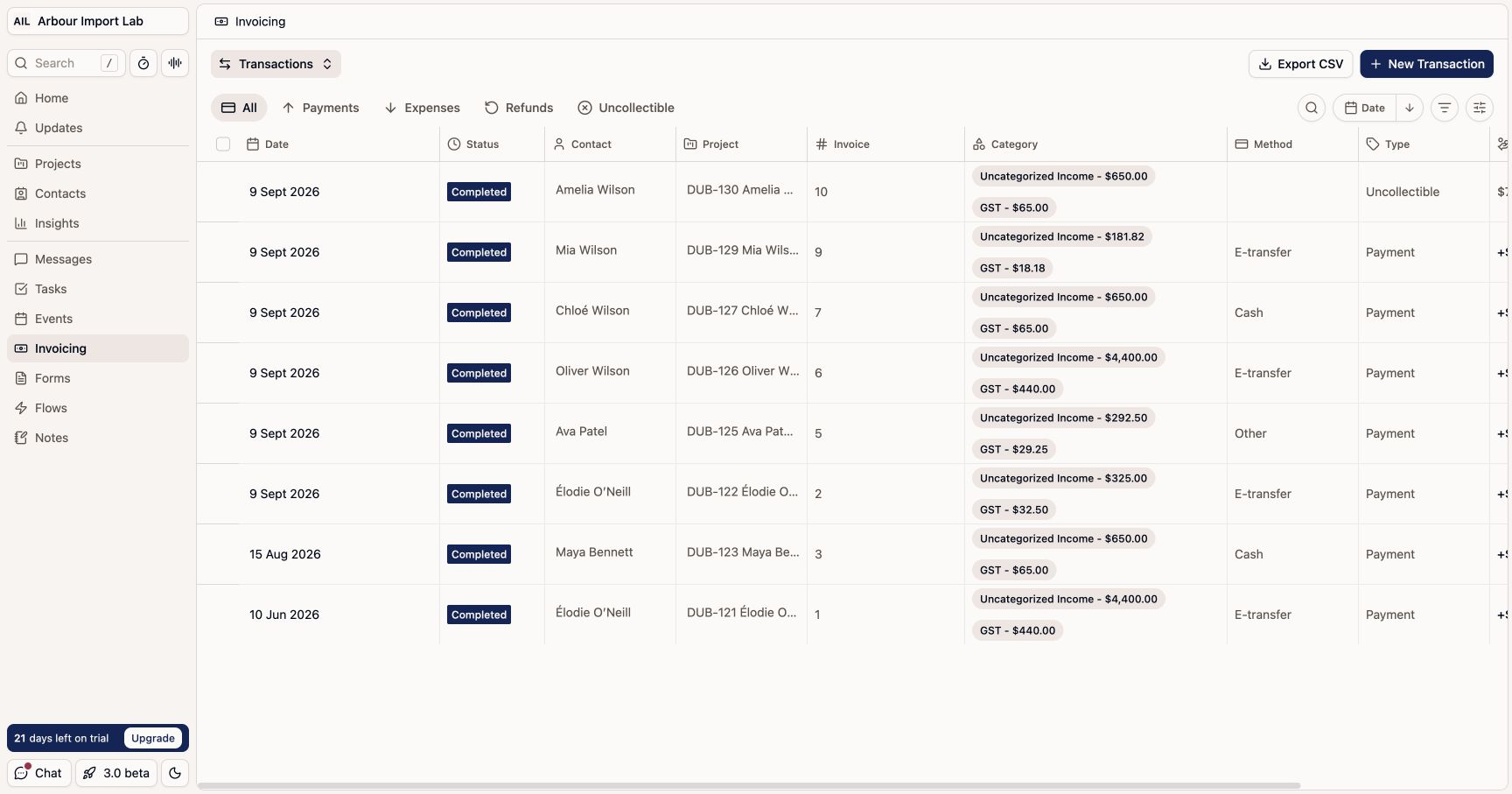
Open the account-wide Invoicing page from the main sidebar. Use this page to cover every project.
- 02
With Invoices selected at the top left, select All, clear filters and search, then click Export CSV. Keep the downloaded invoice-details CSV. Its filename contains the export date.
- 03Open the top-left Invoices selector and choose Transactions.
- 04
Select All, clear filters and search, then click Export CSV. Keep the
transactions-…csvdownload, including payments and adjustments.
Download invoice PDFs
The invoice CSV contains totals. The PDFs preserve line items, descriptions, discounts and payment history.
- 01Open a project and select its Invoicing tab. Open the invoice.
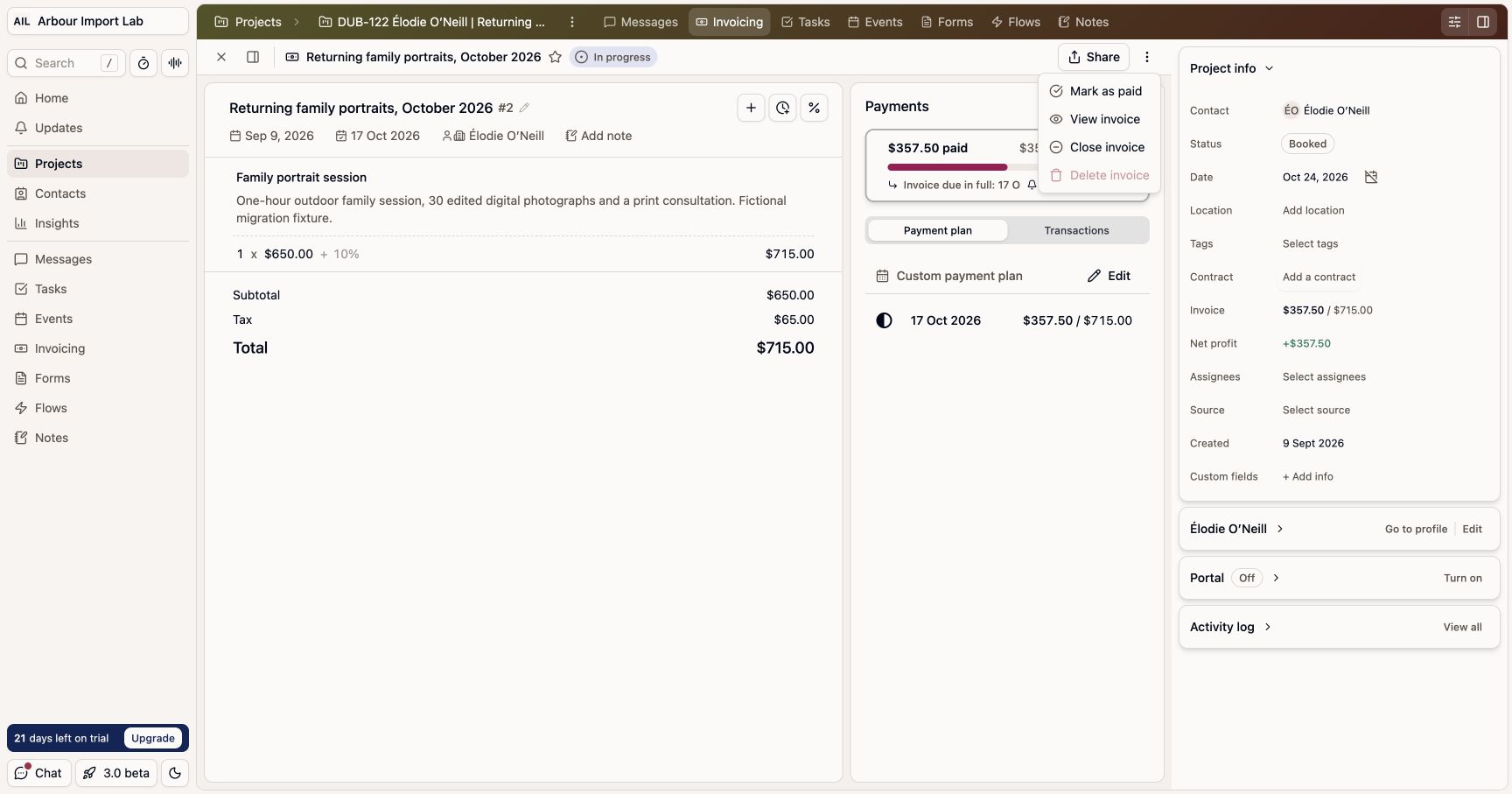
- 02Open the three-dot menu beside Share and choose View invoice.
- 03In the new invoice-view tab, click Download PDF near the top.
- 04
Save the PDF and repeat for every invoice, including unpaid, partially paid and paid invoices. Preserve the original download names. Keep a separate record of each invoice number and project for your own checks.
Download completed questionnaires
- 01Open the relevant project and select its Forms tab.
- 02
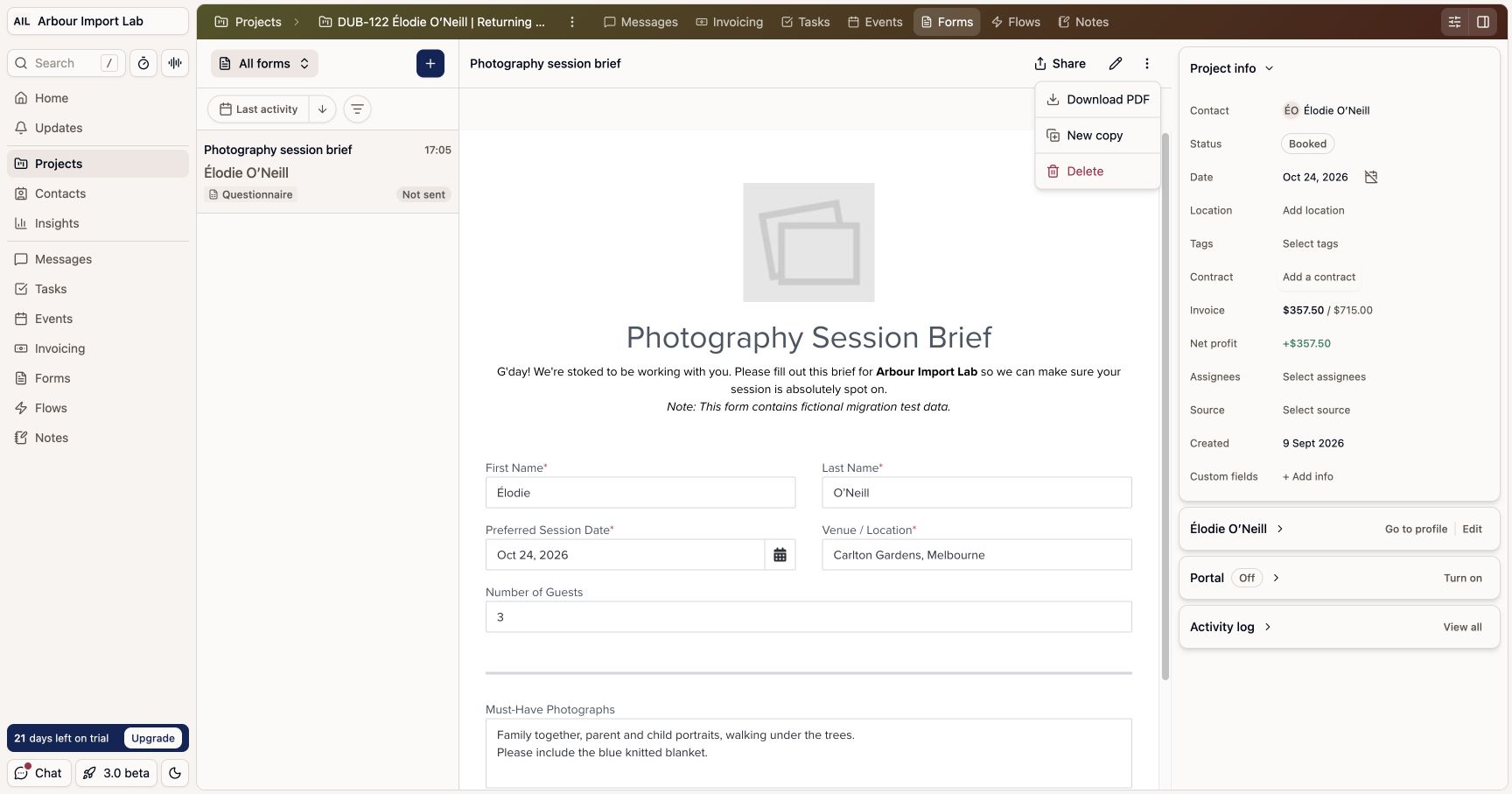
Select the saved questionnaire attached to that project. Use the completed form containing the client's answers.
- 03Open the form's three-dot menu beside Edit form and choose Download PDF.
- 04
Open the downloaded PDF to confirm the answers are present. Repeat for the other questionnaires you want to retain.
Prepare the ZIP and review
Put the project, contact, invoice and transaction CSVs and PDFs in one folder, then compress it to a ZIP. Keep the original file contents and headers. The importer recognises CSV types from their columns, so dated filenames are fine.
Upload the ZIP and check the preview. With more than one workflow, first choose the Workflow the records land in, then select its stages for imported bookings and enquiries. Review the invoice reconstruction option before starting. When it is on, tick These Dubsado invoices are in Australian dollars (AUD) only after checking the source account currency. If the invoices use another currency, switch reconstruction off to retain their PDFs without creating financial records. Contacts without projects are included as contacts.
Columns can appear in a different order and optional details can be absent. The preview lists additional fields and where they will be retained. Custom project values become text fields prefixed Dubsado; extra values from the contacts CSV become contact text fields. Names such as Client preferences and Company colour are preserved as custom fields, not discarded as standard contact details. The CSV does not reliably identify the original type or scope of every custom field, so check these after importing.
When a field's label or value exceeds Arbour's limits, the account has reached its field limit, or an existing field has an incompatible type, the complete exported value is kept in a labelled note instead. Result notes explain this fallback. Custom date values remain text. Standard CSV slash dates are interpreted as month/day/year and must have a four-digit year; ISO dates such as 2026-10-14 are also accepted. An invalid date stops the import rather than becoming a blank date.
Dubsado's native export has no stable project ID. Project titles identify repeat imports, with client and date details checked before a project is skipped. Reusing an imported title for a different client or session requires review. Re-importing an existing project does not add later documents or update its fields. If a project exceeds the 20-document import limit, import up to 20 and attach the remaining PDFs manually afterwards.
Invoice PDFs are matched using their invoice number and project information. Questionnaires need enough information to identify one project. If the preview cannot match a questionnaire, place it in a folder named exactly after its Dubsado project and read the ZIP again before starting. Unmatched supplements are left out with a warning. If the project has already been imported, attach the PDF to it manually.
Check the result and limitations
- Invoice reconstruction is for AUD history. The native export does not state its currency, so confirm the source account currency before importing financial records.
- An invoice without its PDF can become a summary invoice from CSV totals. Original line items require the PDF. Unsupported tax treatment, partial write-offs and other unreconciled transactions require invoice reconstruction to be switched off.
- Compare project and contact counts with the views you exported. Check both jobs and leads, plus any archived projects you included.
- Check imported invoice totals, discounts, outstanding balances and historical payments. Transaction dates take precedence over the invoice CSV's Payment Date(s) when those disagree.
- An Uncollectible amount is a write-off, not money received. Dubsado's invoice Amount Paid may include it; Arbour does not create a payment for that adjustment.
- Transaction Amount is the payment value. Sub Total and Tax can describe the full invoice, so they are not extra payments.
- Project dates in the verified export use month/day/year even with an Australian account locale. Keep them unchanged in the CSV.
- Internal project and contact notes are absent from these native CSVs. Questionnaire answers remain in attached PDFs, rather than becoming editable Arbour answers.
See Importing data for starting a run, retrying failures and checking the imported records.