Arbour pushes issued invoices, the payments against them and any refunds into Xero or QuickBooks Online. One way only: your numbering, your GST and everything a client sees stay decided here, and nothing your bookkeeper changes over there comes back. Accounting is the first section on the integrations screen.
Open integrations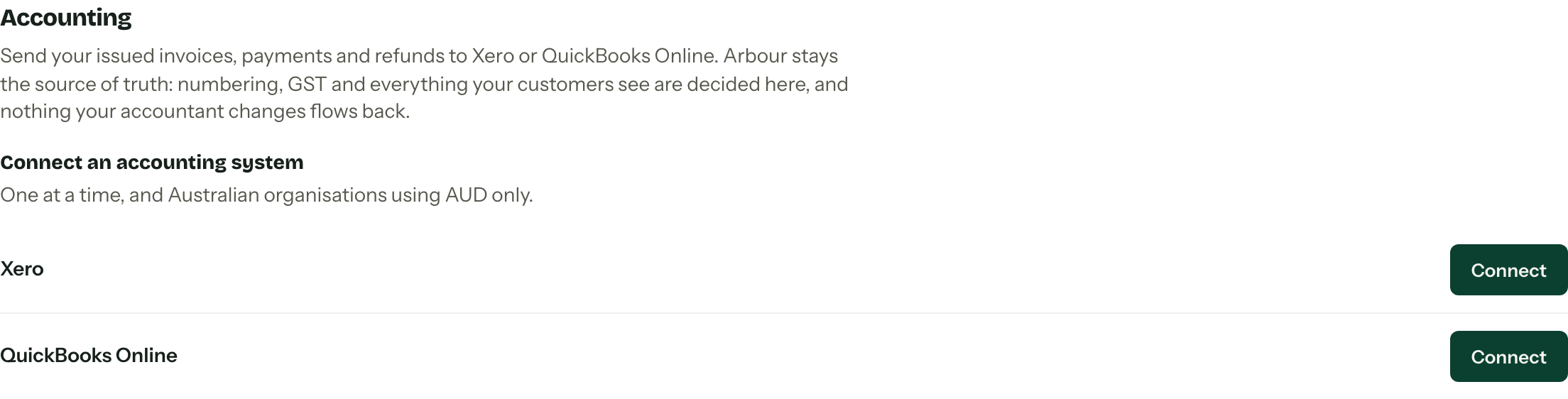
Connect and map
One connection per organisation, and Australian companies on AUD only. Both checks run before anything syncs.
- 01
Press Connect beside Xero or QuickBooks Online and grant access. You come back to this screen.
- 02Choose the Organisation or company and press Save organisation.
- 03
Pick the Sales account (Xero) or Sales item (QuickBooks), then the GST tax code and the GST-free tax code. Press Save mapping.
Every dropdown lists only what already exists over there. Arbour never creates an account, an item or a tax code, so an empty list means go and make one in the accounting software, then use Refresh lists.
An invoice takes its customer with it, so the contact is created in the accounting software if that address is not already on file. Two contacts sharing an address there is the one case Arbour will not guess at: merge them and retry.
Payments
Under Payments, tick the sources you want exported and give each one a bank or clearing account: Card (Stripe), Bank transfer, Cash and Other. Press Save payment sources.
Leaving a source off is a decision, not a failure. Its payments stay in Arbour, the invoice over there stays outstanding, and the Arbour invoice reads Partially synced rather than erroring at you.
Manual or automatic
New connections start on Manual: you press Sync to accounting on an invoice when you want it across. Turn on automatic sync keeps new invoices in step by itself, and it applies to invoices issued from then on. Switch to manual turns it back off. History does not sweep itself up.
For history there is Import past invoices, once setup is complete. Set From and To, press Preview to see how many are eligible, already synced, or carrying a known problem, then Import these invoices. The run appears below with its counts and a Stop button while it is going.
When something goes wrong
The connection carries a badge: Connected, Setup required while the company or mapping is unfinished, or Needs reconnecting when the provider has dropped Arbour's access. Reconnect (with the provider's name) is the fix for the last one, and members who manage accounting get an Accounting connection needs attention notification when it happens.
Activity lists recent attempts with their outcome and a short code. A transient failure, a timeout or a provider hiccup, gets up to six attempts by itself, with a growing gap between them. A validation problem or a conflict does not retry: something has to be decided, so it waits, tells you which invoice, and offers the choice on that invoice.
Disconnecting
Disconnect at the foot of the section stops the flow. Invoices already sent across stay in the accounting software untouched, and reconnecting the same company later picks up where it left off.
Connecting, mapping and disconnecting all need the Manage accounting integrations permission. Without it the section is readable but every control is inert, and the activity list needs permission to view invoices and payments.